
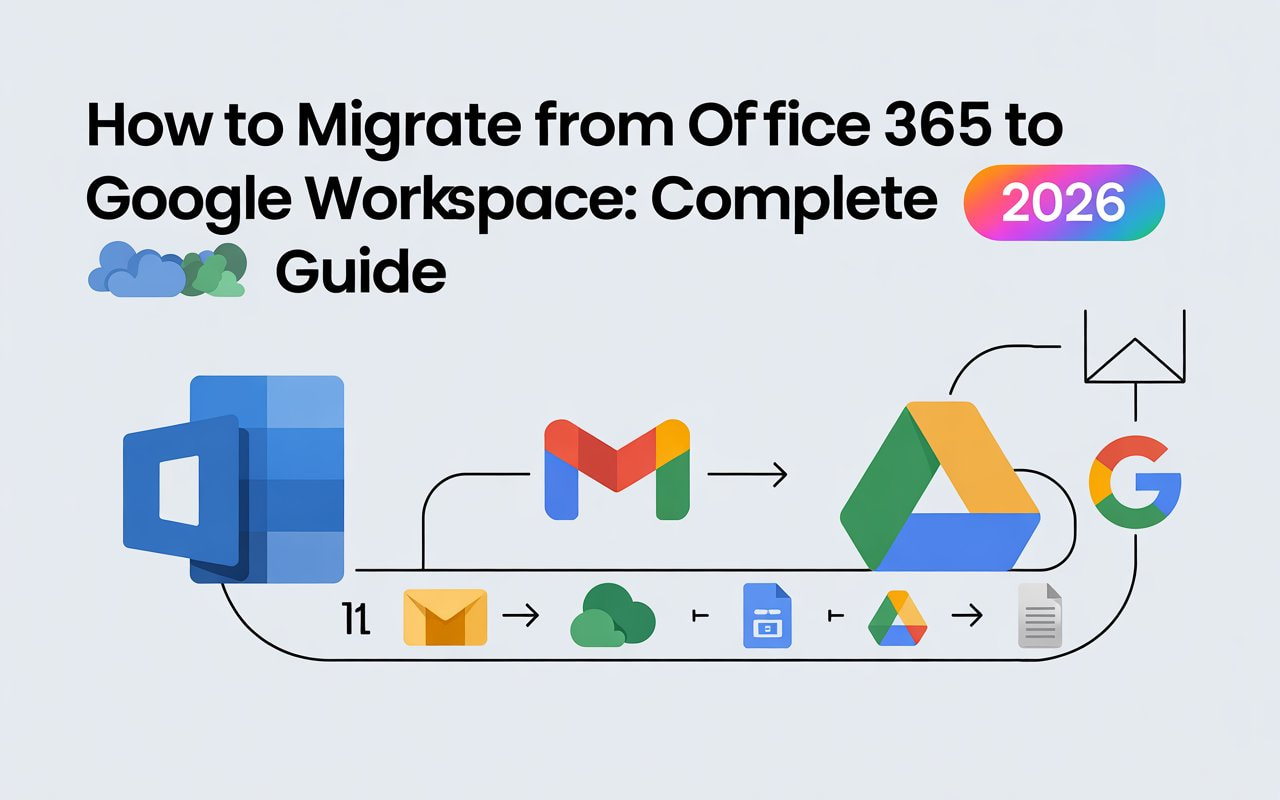
Thinking about switching from Microsoft’s ecosystem to Google’s? You’re not alone.
Thousands of businesses migrate from Office 365 to Google Workspace every month. Maybe you’re chasing better collaboration tools. Or perhaps you want tighter integration with other Google services. Whatever your reason, the Office 365 to Google Workspace migration doesn’t have to be complicated.
Here’s the truth: most businesses overthink this process. They worry about data loss, downtime, and angry users. But with the right Office 365 to Google Workspace migration guide, you can make the switch smoothly.
I’ll walk you through everything. You’ll learn which tools work best, how to move emails from Office 365 to Google Workspace without losing a single message, and what actually costs money.
Let’s dive in.

Why Companies Make the Office 365 to Google Workspace Transfer
Before we get into the “how,” let’s talk about the “why.”
Most businesses don’t switch platforms on a whim. Here are the real reasons companies choose Google Workspace migration: Better real-time collaboration. Google Docs, Sheets, and Slides let multiple people edit simultaneously. No more “document version 47 final FINAL v2” nightmares.
Simpler pricing. Google Workspace often costs less, Especially for small businesses. You pay for what you use. No surprise fees. Stronger mobile experience. Google’s apps work beautifully on phones and tablets. Your team can work from anywhere.
Integration with Google Cloud. If you’re already using Google Cloud Platform, Google Analytics, or other Google services, everything connects seamlessly. Easier administration. Many IT teams find Google’s admin console more intuitive than Microsoft 365’s sprawling settings.
Here’s what matters: pick the reason that fits YOUR business. Don’t migrate just because it’s trendy.
What You Need Before Starting Your Migration
Smart Office 365 to Google Workspace transfer starts with preparation. Rush this, and you’ll regret it.
Run a Complete Data Audit
First, figure out what you actually have. Log into your Office 365 admin portal and check:
- Total number of active users
- Email storage per user (some folks hoard emails like dragons)
- OneDrive file counts and sizes
- SharePoint sites and document libraries
- Shared calendars and public folders
- Distribution lists and security groups
Write this down. You’ll need these numbers when picking a migration tool and timeline.
Choose Your Google Workspace Plan
Google offers several plans. Here’s the quick breakdown:
Business Starter ($6/user/month): 30GB storage, basic apps
Business Standard ($12/user/month): 2TB storage, enhanced security
Business Plus ($18/user/month): 5TB storage, advanced controls Enterprise: Custom pricing, unlimited storage, premium features
For most small business migrations, Business Standard hits the sweet spot. You get enough storage and all the collaboration features.
💡 Need help setting up Google Workspace?
We’re certified Google partners offering 64% off + free professional setup ($2,000 value). Used by 151+ companies.
Get your quote →Pick Your Migration Window
When will you actually flip the switch? Consider:
- Slow periods: Migrate during holidays or low-activity times
- Weekend migrations: Less user disruption
- Phased rollouts: Move departments one at a time
Pro tip: Don’t migrate during your busiest season. That’s asking for stress.
Office 365 to Google Workspace Migration Tool Comparison
You’ve got options. Let’s compare the main migration tools you can use.
Google’s Free Data Migration Service (DMS)
Best for: Small businesses (under 100 users) with straightforward needs
Google provides a free Office 365 to Google Workspace migration tool built into the admin console. It handles:
- Email migration to Gmail
- Calendar events
- Contacts
- Basic file transfers
Pros:
- Completely free
- No third-party access needed
- Built right into Google Admin
Cons:
- Limited to basic data types
- Slower than paid alternatives
- Less control over complex migrations
Google Workspace Migrate
Best for: Enterprises with 1,000+ users
This is Google’s premium cloud migration tool. It offers:
- Advanced filtering options
- Real-time progress tracking
- Error reporting and retry capabilities
- Migration from multiple sources simultaneously
Pros:
- Handles massive datasets
- Detailed analytics
- Professional support
Cons:
- Requires technical expertise
- Steeper learning curve
- Only makes sense for large migrations
Third-Party Tools (CloudM, BitTitan, SysTools)
Best for: Complex environments or businesses without IT staff
Commercial migration tools provide white-glove service. They handle everything from planning to execution.
Pros:
- Expert support included
- Handle complex scenarios (hybrid environments, legacy systems)
- Often faster than free tools
Cons:
- Cost ranges from $10-30 per user
- Another vendor to manage
- May require sharing admin credentials
My recommendation: If you have under 50 users and basic needs, use Google’s free DMS. If you’re over 100 users or have complex SharePoint structures, invest in a commercial tool.
How to Migrate from Office 365 to Google Workspace: Step-by-Step Process
Now for the main event. Here’s exactly how to migrate from Office 365 to Google Workspace without losing your mind.
Step 1: Create Google Workspace Accounts
Before you can transfer Office 365 to Google Workspace, you need somewhere to put the data.
Log into Google Admin Console and add your users. You can:
- Add them manually (tedious but works for small teams)
- Upload a CSV file (faster for medium teams)
- Use automated provisioning (best for large organizations)
Make sure usernames match. If someone was john.smith@company.com in Office 365, keep it the same in Google Workspace. This prevents confusion.
Step 2: Set Up the Data Migration Service
Navigate to Account > Data migration in Google Admin Console.
Click Set Data Migration Up and select Microsoft Office 365 as your source.
Google will ask you to authenticate. You’ll need your Office 365 admin credentials here. The system uses OAuth 2.0, which is secure and doesn’t require sharing passwords.
Choose what you want to migrate:
- Calendar
- Contacts
Select your date range. Do you want all historical emails or just the last year? More data means longer migration time.
Step 3: Move Emails from Office 365 to Google Workspace
This is the big one. Email is typically your largest dataset and most critical.
The email migration process runs in the background. Google’s servers connect to Microsoft’s servers and transfer messages directly. You don’t download anything.
Here’s what gets migrated:
- All inbox messages
- Sent items
- Drafts
- Folders (they become labels in Gmail)
- Attachments
Timeline expectations:
- 10 users with average email: 2-4 hours
- 100 users: 1-2 days
- 500+ users: 3-7 days
Monitor progress in the admin console. Google shows real-time status and any errors.
Step 4: Migrate Calendars and Contacts
Calendar and contact migration happens simultaneously with email.
Calendar migration includes:
- All events (past and future)
- Recurring meetings
- Event descriptions and attendees
- Reminders
Contact migration transfers:
- Names and email addresses
- Phone numbers
- Physical addresses
- Custom fields
One gotcha: shared calendars require special attention. Map them to Google Calendar subscriptions before migrating.
Step 5: Move Files from OneDrive to Google Drive
File migration is separate from the DMS. You have two options:
Option A: Google Drive for Desktop Install Google Drive on user computers. They can drag and drop files from OneDrive folders to Google Drive folders. Simple but manual.
Option B: Migration Tool Use a data migration tool like CloudM or Movebot. These automate the OneDrive to Google Drive transfer.
File migration considerations:
- Office files (.docx, .xlsx) can convert to Google format or stay as Microsoft files
- Sharing permissions need manual review
- File size limits: Google Drive allows up to 5TB per file
Step 6: Handle SharePoint and Teams
This is trickier. SharePoint sites don’t directly map to Google Workspace.
For SharePoint document libraries: Migrate them to Google Shared Drives (formerly Team Drives). These work like SharePoint libraries multiple people access the same files with permission controls.
For Teams conversations: There’s no direct equivalent to Microsoft Teams in Workspace. Google Chat offers similar functionality, but you’ll need to recreate channels and conversation threads manually.
Consider keeping Teams read-only for a few months after migration. This gives people time to reference old conversations.
Preventing Downtime During Your Office 365 to Google Workspace Migration
Nobody wants an email blackout. Here’s how to achieve zero-downtime migration.
Use Dual Delivery
Set up your email to deliver to BOTH platforms simultaneously during migration. Here’s how:
- Keep your MX records pointing to Office 365
- Set up email forwarding rules to also send copies to Google Workspace
- Let both systems run in parallel for 48-72 hours
- Verify everything works in Google Workspace
- Switch MX records to Google
This way, even if something breaks, users still receive email in Office 365.
MX Record Cutover Strategy
Your MX records tell the internet where to deliver your email. Changing them is the “point of no return” moment.
Best practice timeline:
Day 1: Start data migration, set up dual delivery Day 3: Verify all historical data migrated successfully Day 4: Change MX records during a low-traffic period (Saturday morning works well) Day 5-7: Monitor closely for any issues
Lower your MX record TTL (time to live) to 300 seconds a day before switching. This makes the transition faster.
Troubleshooting Common Migration Errors
Even smooth Office 365 to Google Workspace migrations hit snags. Here are the most common problems and fixes.
OAuth Authentication Failures
Error: “Unable to connect to Microsoft 365”
Fix: Ensure your admin account has global administrator privileges in Office 365. Also check that multi-factor authentication isn’t blocking automated access.
API Throttling Errors
Error: “Migration speed slower than expected”
Fix: Microsoft and Google both rate-limit API calls. If you’re migrating thousands of users, the process naturally slows down. There’s no workaround—just patience.
Large Mailbox Failures
Error: “Migration failed for user John Doe”
Fix: Users with 50GB+ mailboxes sometimes timeout. Split their migration into date ranges (2020-2022, then 2023-2024). Migrate in chunks.
Missing Calendar Events
Error: “Some calendar events didn’t transfer”
Fix: Recurring events with complex patterns sometimes break. Export problematic calendars as .ICS files and import them manually into Google Calendar.
Cost Breakdown: What Your Office 365 to Google Workspace Transfer Actually Costs
Let’s talk money. What does this migration really cost?
Google Workspace Licensing
You’ll pay per user, per month:
- Business Starter: $6/user
- Business Standard: $12/user
- Business Plus: $18/user
Multiply by your user count. A 50-person company on Business Standard pays $600/month.
Migration Tool Costs
If using a third-party migration tool:
- Basic tools: $10-15 per user (one-time)
- Premium tools: $20-30 per user
- Enterprise solutions: Custom pricing
That same 50-person company might pay $500-1,500 for migration software.
Consultant or IT Labor
If you hire help:
- Migration consultants: $100-200/hour
- Average small business migration: 20-40 hours of work
- Total: $2,000-8,000 depending on complexity
Hidden Costs to Consider
Don’t forget:
- User training: 2-4 hours per person learning new tools
- Productivity loss: Expect a 10-20% dip the first week
- Custom app migrations: If you built Office 365 add-ins, they need rebuilding
Total realistic budget for 50-user company:
- DIY with free tools: $600 (first month licensing only)
- Professional migration: $3,000-10,000 all-in
Post-Migration Checklist: Verify Your Office 365 to Google Workspace Migration
You flipped the switch. Now verify everything works.
Immediate Verification (Within 24 Hours)
Test email delivery:
- Send test emails to 10 random users
- Have them reply
- Confirm external emails arrive
Check calendars:
- Verify upcoming meetings appear correctly
- Test creating new calendar events
- Confirm shared calendars work
Test file access:
- Open 5-10 random files from Google Drive
- Verify sharing permissions match old settings
- Confirm nothing corrupted during transfer
Week One Monitoring
Watch for these red flags:
- Users not receiving external emails
- Meeting invites not syncing
- Complaints about missing files
- Abnormal support ticket volume
Set up a dedicated Slack channel or email address for migration issues. Respond fast to keep morale high.
Decommission Office 365
Don’t cancel Office 365 immediately. Keep it running in read-only mode for 30-60 days. This gives you a safety net if something went wrong.
After that grace period:
- Export any remaining data you might need
- Download compliance records if required
- Cancel your Office 365 subscriptions
- Archive login credentials securely (you might need them for audits)
Back up critical data before starting. Use a third-party backup tool if you’re paranoid (which is smart).
Where to Buy Google Workspace: Top Authorized Resellers
You can purchase Google Workspace through authorized resellers, which often provide local support, setup assistance, and flexible billing options for businesses. Buying from a trusted reseller ensures you get professional guidance and additional services alongside your subscription.
Top 5 Google Workspace Resellers:
- Leads Monky ( Enjoy up to 64% off with promo code PARTNER2026 (Redeem Here) – Plus free setup and support)
- Agosto (Save up to 10% off on Google Workspace plans with expert migration support)
- Onix (Get up to 5% off on Google Workspace with enterprise-level deployment and support)
- Cumulus Global (Enjoy up to 20% off Google Workspace plans with certified reseller support)
- GsuiteReseller (USA) (Get up to 10% off on Google Workspace plans with dedicated support)
Final Thoughts: Your Office 365 to Google Workspace Migration Starts Now
You’ve got the roadmap. You know the tools, costs, and potential pitfalls.
The Office 365 to Google Workspace migration isn’t scary when you break it down. It’s just a series of manageable steps: audit your data, pick your tools, migrate in phases, verify everything works.
Most companies finish their migration successfully and wonder why they worried so much. You’ll probably be one of them.
Start small. Maybe migrate a test group of 5-10 users first. Learn what works. Then roll it out to everyone.
One last piece of advice: communicate constantly with your team. Tell them what’s happening, when it’s happening, and what they need to do. Surprised users become angry users.
Ready to make the switch? Your Google Workspace migration guide is complete. Now execute.
FAQs
Q1: What is the disadvantage of Google Workspace?
A1: Limited offline features and fewer advanced tools than Microsoft 365.
Q2: Do big companies use Google Workspace?
A2: Yes, companies like Spotify and Whirlpool use it.
Q3: How do I move from Microsoft 365 to Google Workspace?
A3: Use Google’s migration tools or third-party services to transfer emails, files, and calendars.
Q4: Which is cheaper, Google Workspace or Office 365?
A4: Google Workspace is usually cheaper for small teams; costs depend on the plan.
Q5: How do I migrate to Google Workspace?
A5: Set up an account, verify your domain, and migrate data using Google’s tools.
Q6: Can Google Workspace work with Microsoft 365?
A6: Yes, some services integrate, but full feature compatibility may be limited
Get Google Workspace at 64% Off
Same service. Better price. Professional setup included.
⭐⭐⭐⭐⭐ 151+ companies trust us
Partner Pricing:
• Business Starter: $3/month (Google: $8)
• Business Standard: $13/month (Google: $17)
• Business Plus: $20/month (Google: $26)
FREE:
Complete DNS setup + 24/7 support + USA IPs
15-user minimum | Setup in 24 hours


