Managing emails efficiently is essential for any growing business, especially in the USA. A shared mailbox in Google Workspace allows teams to handle incoming messages from a single email address without sharing passwords. With features like Gmail delegation setup and Google Groups collaborative inbox, teams can improve team email collaboration and streamline their support email handling.
This setup enables multiple users to access one account, track emails, and assign responsibilities, making shared email address management simpler and more organized. In this guide, we will explore step-by-step methods, benefits, limitations, and alternatives to help your team choose the best solution for efficient email management.
What is a Shared Mailbox in Google Workspace?
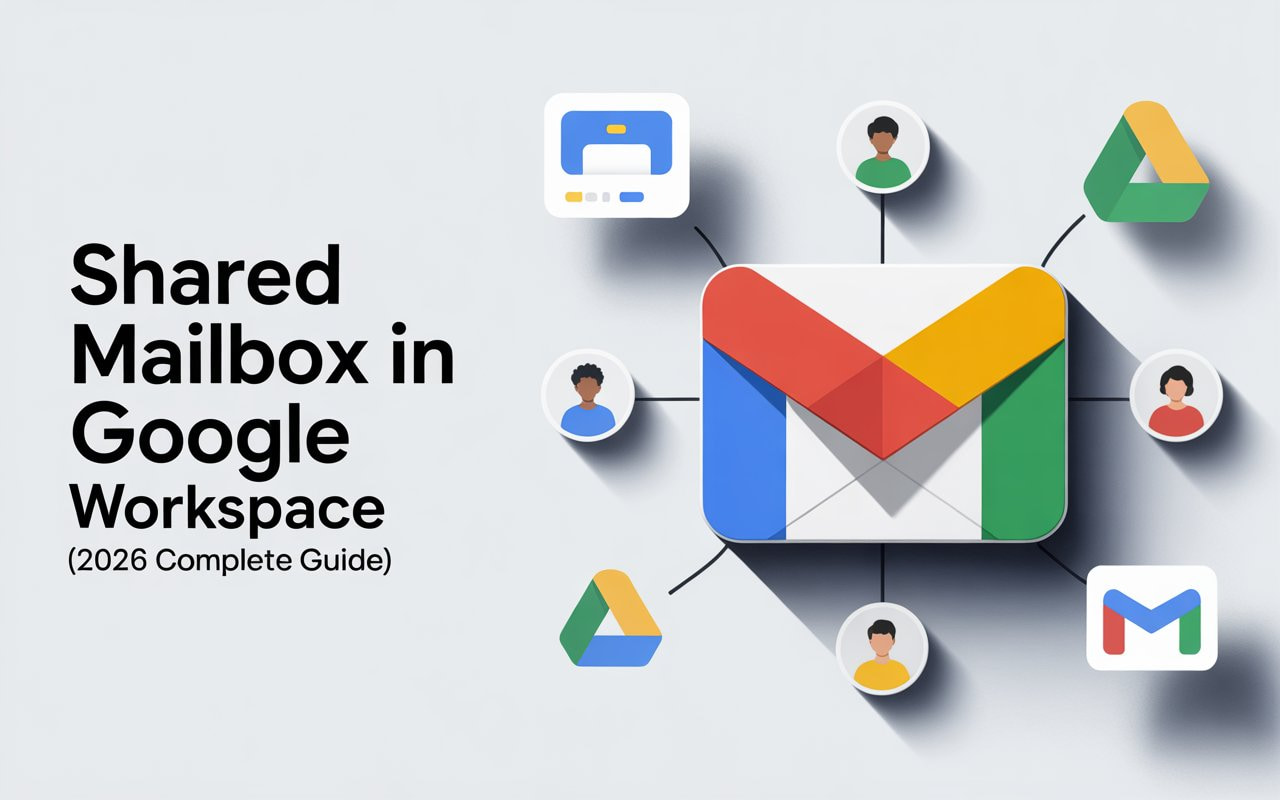
A shared mailbox for teams in Google Workspace is a setup where multiple users can access and respond to emails from a single account. Unlike personal Gmail accounts, this setup allows multi-user access and improves internal team communication. Teams often use shared mailboxes for support emails, sales inquiries, or general info addresses. A shared mailbox is not a separate email account but a collaborative space within your Google Workspace account where several users can manage emails efficiently. This solution is crucial for companies looking to centralize customer support workflow and reduce email mismanagement.
The main advantage of a shared mailbox is that it enables team collaboration without sharing personal passwords. Businesses can use either Gmail delegation setup, which grants access to an existing Gmail account, or a Google Groups collaborative inbox, which creates a dedicated shared email address. Choosing the right method depends on your team size, workflow requirements, and the need for email assignment tracking and email status tracking.
Key Features of Google Workspace Shared Mailboxes

Google Workspace shared inboxes provide several features that improve support email handling and team productivity. With Gmail delegation setup, you can grant delegates access to read, send, or archive emails without sharing passwords. Teams can assign conversations in Gmail, monitor email progress, and collaborate effectively. The inbox delegation limits vary depending on whether you have a personal Gmail or Google Workspace account, allowing multiple users to access the same inbox simultaneously. These features enhance team email collaboration while maintaining security.
Using a Google Groups collaborative inbox introduces advanced collaborative inbox features. Teams can assign emails, mark status (Complete, Duplicate, No Action Needed), filter conversations by group members, and track email activity. This method also supports email routing and auto-assignment of emails to optimize customer support workflow. Other useful features include internal notes, analytics / reporting, and configurable privacy settings. For US businesses, these tools streamline shared email address management and ensure accountability among team members.
Method 1: Setting Up a Shared Mailbox with Gmail Delegation

Gmail delegation setup allows users to grant delegates access to their mailbox. To begin, open your Gmail and navigate to the accounts and import tab. Select grant access to your account and enter the email of the person you want to add. After confirmation, the delegates can read, reply, and archive emails on your behalf. This method supports multi-user Gmail access and is ideal for small teams where only a few people need access to one inbox. It also ensures internal team communication without sharing sensitive credentials.
The key benefits of this method include simplicity, fast setup, and immediate access for delegates. However, there are inbox delegation limits. For Google Workspace accounts, you can add up to 1,000 delegates, though it is recommended to limit simultaneous users to avoid slowdowns. Delegates can assign emails, manage labels, and search the inbox. On the downside, this method does not support advanced email automation or tracking email status tracking comprehensively. For small teams, it remains a simple and secure shared mailbox for teams solution.
Method 2: Using Google Groups Collaborative Inbox
A Google Groups collaborative inbox creates a dedicated shared mailbox that multiple team members can access. Start by creating a Google Group with a custom email, such as support@company.com.Step-by-step setup guide for Google Groups shared mailbox:
http://leadsmonky.com/google-workspace-groups-management-2026/ Configure privacy settings to control who can post, join, and view conversations. Add group members to grant access and assign roles. Finally, enable collaborative inbox features to unlock email assignment tracking, mark status (Complete, Duplicate, No Action Needed), and assign emails to team members. This setup improves team collaboration and is ideal for larger teams handling high-volume emails.
The Google Groups collaborative inbox supports internal notes, email routing, auto-assignment of emails, and basic analytics / reporting. Teams can view open, completed, or duplicate conversations and filter messages by group members. For US businesses, this method ensures accountability and smooth customer support workflow. It also provides better shared email address management than Gmail delegation setup and integrates seamlessly with Google Workspace email management tools.
Benefits of Using a Shared Mailbox in Google Workspace
A shared mailbox for teams enhances team email collaboration by centralizing communication. Teams can assign conversations in Gmail, track progress, and manage multi-user Gmail access efficiently. It reduces duplicate responses and miscommunication while improving response times. With collaborative inbox features, team members can mark status (Complete, Duplicate, No Action Needed), leave internal notes, and monitor performance using analytics / reporting. This makes it easier to manage support email handling and optimize customer support workflow.
For businesses, shared mailboxes ensure consistent communication and accountability. Team members can collaborate on critical emails, route messages effectively, and use canned responses for repetitive queries. By providing a clear workflow for email assignment tracking, businesses can enhance efficiency and customer satisfaction. Overall, a Google Workspace shared inbox simplifies shared email address management and ensures a more organized team email system.
💡 Need help setting up Google Workspace?
We’re certified Google partners offering 64% off + free professional setup ($2,000 value). Used by 151+ companies.
Get your quote →Limitations of Google Workspace Shared Mailboxes
Despite the advantages, Google Workspace shared inbox solutions have limitations. Gmail delegation setup lacks collision detection, which can lead to duplicate replies. It also does not support advanced email automation or comprehensive analytics / reporting. Teams cannot leave private internal notes within the Gmail interface, which may affect internal team communication. Additionally, this setup is less suitable for high-volume email environments.
The Google Groups collaborative inbox offers better customer support workflow management but still has drawbacks. Its interface is primarily designed for mailing lists rather than full-fledged support teams. Teams may find group email permissions and privacy settings complex to manage. For businesses handling numerous customer queries, shared mailbox alternatives like SupportBee provide better features, including collision detection, internal notes, email routing, canned responses, and advanced analytics / reporting.
Conclusion: Choosing the Right Shared Mailbox Setup
Choosing the right shared mailbox depends on team size, workflow complexity, and the need for team collaboration. For small teams, Gmail delegation setup is easy to implement, provides delegated access in Gmail, and allows multi-user access to a single inbox. Larger teams or customer support departments benefit more from a Google Groups collaborative inbox with collaborative inbox features, email assignment tracking, and auto-assignment of emails.
For US businesses looking for advanced features and efficiency, dedicated shared mailbox alternatives like SupportBee may be the best solution. These tools offer robust customer support workflow management, internal notes, and detailed analytics / reporting. By understanding the benefits and limitations of each method, businesses can improve Google Workspace email management, streamline support email handling, and ensure effective shared email address management for their teams.
Comparison Table: Gmail Delegation vs Google Groups Collaborative Inbox
| Feature | Gmail Delegation | Google Groups Collaborative Inbox |
| Number of Users | Up to 1,000 delegates | Unlimited |
| Email Assignment Tracking | Limited | Yes |
| Mark Status (Complete, Duplicate, No Action Needed) | No | Yes |
| Internal Notes | No | Yes |
| Analytics / Reporting | Limited | Basic |
| Email Automation | No | Yes |
| Ideal For | Small teams | Medium to large teams |
This article is designed for US businesses to understand how to create a shared mailbox in Google Workspace, covering Gmail delegation setup, Google Groups collaborative inbox, features, limitations, and alternatives. By following these steps, teams can improve team collaboration, customer support workflow, and overall Google Workspace email management. Before deciding, consider how domain verification and security settings affect your setup.
Where to Buy Google Workspace: Top Authorized Resellers
You can purchase Google Workspace through authorized resellers, which often provide local support, setup assistance, and flexible billing options for businesses. Buying from a trusted reseller ensures you get professional guidance and additional services alongside your subscription.
Top 5 Google Workspace Resellers:
- Leads Monky ( Enjoy up to 64% off with promo code PARTNER2026 (Redeem Here) – Plus free setup and support)
- Agosto (Save up to 10% off on Google Workspace plans with expert migration support)
- Onix (Get up to 5% off on Google Workspace with enterprise-level deployment and support)
- Cumulus Global (Enjoy up to 20% off Google Workspace plans with certified reseller support)
- GsuiteReseller (USA) (Get up to 10% off on Google Workspace plans with dedicated support)
FAQs
What is the disadvantage of Google Workspace?
Google Workspace can be expensive for larger teams and lacks some advanced automation features for shared mailboxes. Its collaborative tools may also require training for new users.
Is the G Suite being discontinued?
Yes, G Suite has been rebranded as Google Workspace, with the same apps and features under a new name.
What is the difference between collaborative Inbox and shared mailbox?
A collaborative inbox is a group email with features like assignment and status tracking, while a shared mailbox is simply an inbox accessed by multiple users.
What is the difference between a mailbox and a shared mailbox?
A mailbox is an individual email account for one user, whereas a shared mailbox allows multiple team members to send, receive, and manage emails collectively.
How do I access my Google shared mailbox?
You can access it via Gmail delegation for existing accounts or through a Google Groups collaborative inbox for group emails.
What is the Google equivalent of a shared mailbox?
Google’s equivalents are Gmail delegation for individual accounts and Google Groups collaborative inbox for team-shared email addresses.
Get Google Workspace at 64% Off
Same service. Better price. Professional setup included.
⭐⭐⭐⭐⭐ 151+ companies trust us
Partner Pricing:
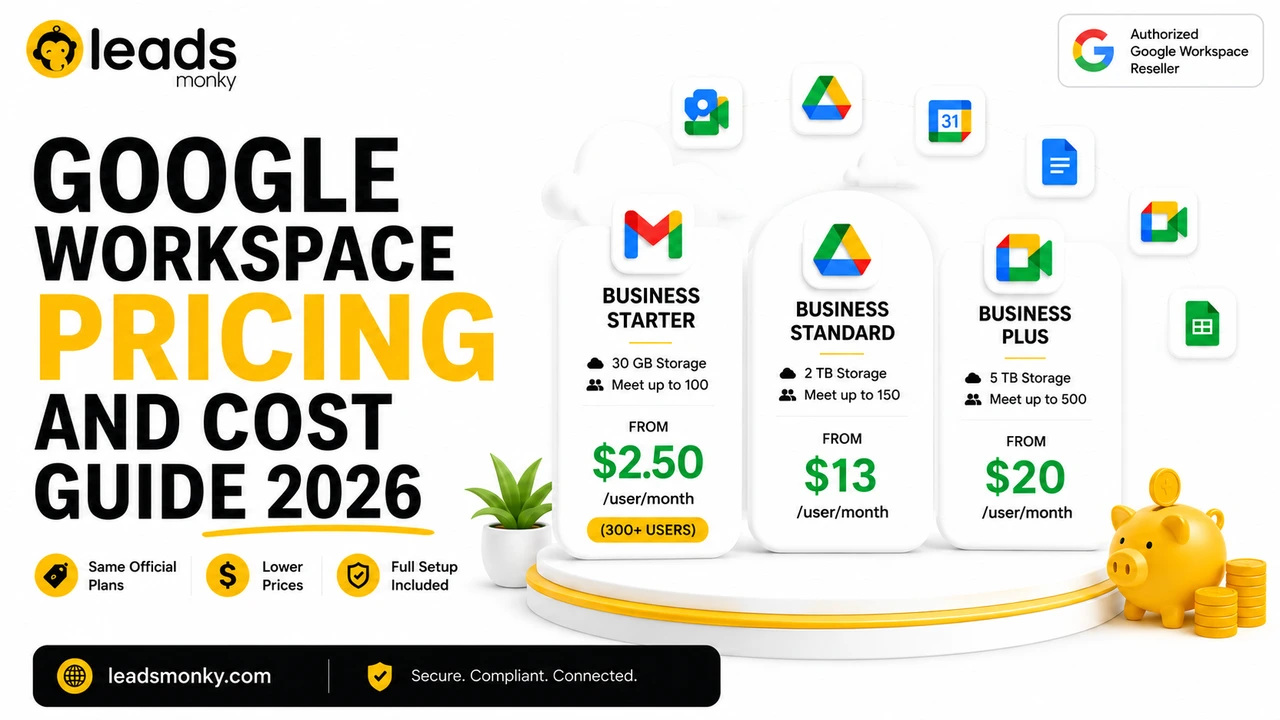
• Business Starter: $3/month (Google: $8)
• Business Standard: $13/month (Google: $17)
• Business Plus: $20/month (Google: $26)
FREE:
Complete DNS setup + 24/7 support + USA IPs
15-user minimum | Setup in 24 hours