Quick Answer
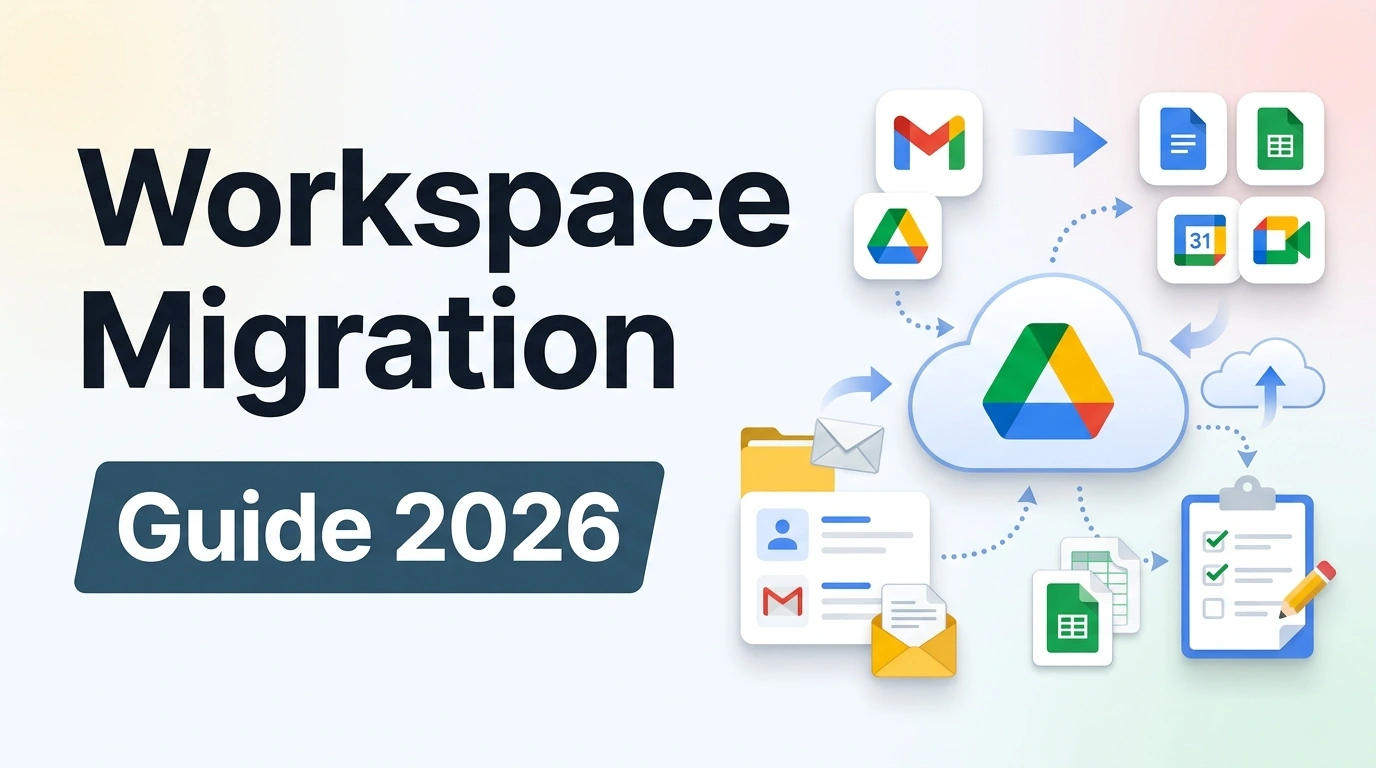
Migrating from one Google Workspace account to another involves three different scenarios depending on what you are moving: rebranding your domain name within the same account, transferring individual user data to a new account, or merging two separate Workspace environments entirely. Each requires a different process. No single-click migration covers all data types, email, Drive files, Calendar, and Contacts each migrate differently, and the order you do things in matters more than most guides acknowledge.
Migrating between Google Workspace accounts is one of the most searched but least clearly documented admin tasks. The reason most guides fall short is that “migration” covers three genuinely different situations, and each one has a different process, different tools, and different risks. Before doing anything else, it is worth identifying which scenario applies to you.
Step 0: Identify Your Migration Scenario

The right process depends entirely on what you are actually trying to do. The three common scenarios are:
Scenario 1: Domain rebranding. You have one Workspace account, and you want to change the primary domain name. For example, your company changed its name from oldname.com to newname.com. This is the simplest scenario and does not require any data migration if done correctly.
Scenario 2: User data transfer within or across accounts. A specific user is leaving, being deleted, or moving to a new account, and you need their email, Drive files, Calendar, and Contacts to follow them. This is the most common day-to-day admin task.
Scenario 3: Merging two Workspace environments. Two organizations each have their own Google Workspace account, and they need to become one. This is the most complex scenario and is the one Google’s newer Domain Transfer tool is specifically designed for.
💡 Need help setting up Google Workspace?
We’re certified Google partners offering 64% off + free professional setup ($2,000 value). Used by 1000+ companies.
Get your quote →Step 1: Back Up Everything Before Starting
Before touching any account settings, export a full backup of all data you need to preserve. This is the step that creates the most painful recoveries when skipped. Our Google Workspace backup and recovery guide covers the full process in detail, but the essentials are:
For individual users: export data using Google Takeout at takeout.google.com. Each user can download their own Gmail, Drive, Calendar, Contacts, and other data in standard formats. Admins can initiate organization-wide exports through the Admin console under Tools → Data Export.
For admins: use the Admin console Data Export tool to capture a snapshot of the entire organization before any migration step begins. This includes all user data, shared drives, and organizational settings.
One honest limitation: Google Takeout exports are copies, not live backups. They capture the state of data at the moment of export. Any changes made after the export are not captured, so timing matters.
Scenario 1: Rebranding Your Domain Name
If you are rebranding and want to change your primary domain while keeping the same Workspace account and all existing data, this is the simplest migration path and involves no data movement at all.
The process works by adding the new domain as a secondary domain first, then swapping which domain is primary. All user data, emails, Drive files, and settings remain intact throughout.
Step-by-step:
- In the Admin console, go to Account → Domains → Add a domain and add your new domain name as a secondary domain.
- Verify ownership of the new domain by adding a TXT record at your domain registrar. Our Google Workspace setup guide covers the exact verification records needed.
- Once verified, go to Account → Domains, click on the new domain, and select Make primary.
- Update user email addresses: changing the primary domain does not automatically change email addresses. Go to Users, edit each user, and update their primary email to use the new domain.
- Set the old domain as an email alias so messages sent to old addresses still deliver.
- Update your MX records at your domain registrar to point to Google’s mail servers for the new domain.
There will be a brief window of a few minutes between removing the old primary domain and re-adding it as an alias where emails sent to the old address may bounce. Schedule this step during a low-traffic window such as a weekend evening to minimize impact.
Scenario 2: Transferring a User’s Data to Another Account
When a user is leaving, being deleted, or moving to a different account, their data can be transferred using Google’s built-in admin tools before the account is closed. This is the most common migration task and has specific tools for each data type.
Email, Calendar, and Contacts: using the Admin console delete flow
When you delete a user account in the Admin console, Google prompts you to transfer their data before deletion. This is the cleanest native option for email, Calendar, and Contacts. The transfer routes everything to a specified account on the same domain.
If you need to transfer data without deleting the account, use Google’s Data Migration Service to connect the source and destination accounts and move email and Calendar entries in the background.
Drive files: using the Transfer Ownership tool
Drive file ownership does not transfer automatically when an account is deleted unless you use the specific Admin console transfer path. To transfer Drive files from one account to another:
- In the Admin console, go to Apps → Google Workspace → Drive and Docs → Transfer Ownership.
- Enter the source user’s email address in the From user field.
- Enter the destination user’s email address in the To user field.
- Click Transfer Files and wait for the confirmation email.
This moves ownership of all Drive files to the new user. Note that files shared with the source user (but owned by others) are not transferred — only files the source user owns.
Cross-domain Drive transfer: using Shared Drives
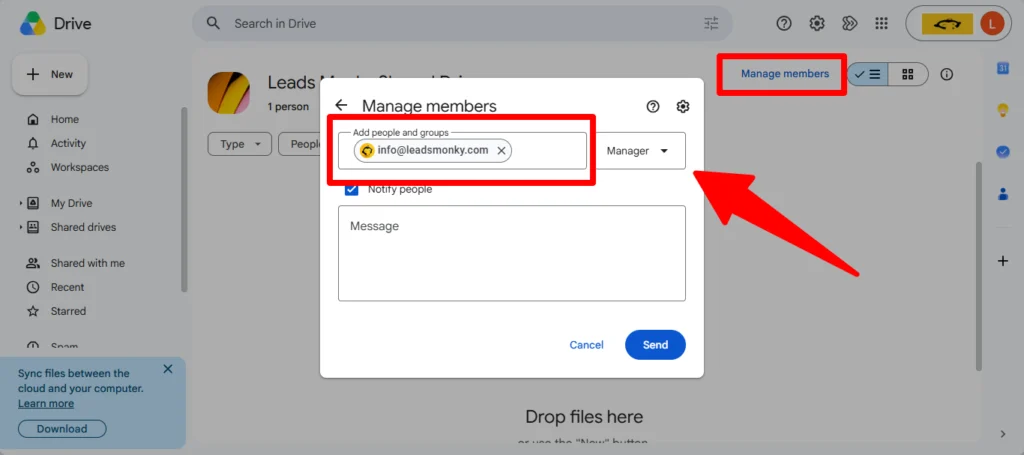
If the destination account is on a completely different domain, the Transfer Ownership tool does not work across domains. The workaround uses Shared Drives:
- Create a Shared Drive accessible to both accounts.
- Grant the destination account Manager permission on the Shared Drive.
- From the source account, move all files into the Shared Drive.
- From the destination account, move the files out of the Shared Drive into the user’s own Drive. This transfers ownership to the destination user.
Scenario 3: Merging Two Workspace Environments
Google Workspace Domain Transfer is Google’s official tool for merging two separate Workspace accounts into one. It moves all eligible domains and their associated users, files, and settings from a source environment into a destination environment, with all data remaining inside Google’s infrastructure throughout the process.
What Domain Transfer moves: users, groups, shared drives, Google Meet hardware devices, and associated data. All document IDs, URLs, permissions, and sharing settings remain intact after the transfer.
What it does not move: organizational settings, security policies, SSO configurations, Admin console configurations, or Vault settings. These need to be manually recreated in the destination account.
The broad process for a merger migration:
- Designate the destination Workspace account (the one that will survive the merger).
- Add the source account’s domains as secondary domains in the destination account.
- Verify domain ownership in the destination account for each transferred domain.
- Use Google Workspace Domain Transfer to move entities from source to destination.
- Reconfigure security policies, SSO settings, and admin roles in the destination account.
- Update MX records for all transferred domains to point to the destination account.
- Cancel the source account once migration is confirmed complete.
Honest limitation: the Domain Transfer process has a brief downtime window of a few minutes when a domain is removed from the source account before it appears fully active in the destination account. Google notes this is unavoidable with standard transfer, and zero-downtime options require additional planning and scope.
Transferring Billing to a New Account or Reseller
If your migration involves changing the billing arrangement alongside the account move, this needs to happen separately from the data migration. Billing is not part of any data migration tool. Our Google Workspace billing management guide covers the billing transfer process in full.
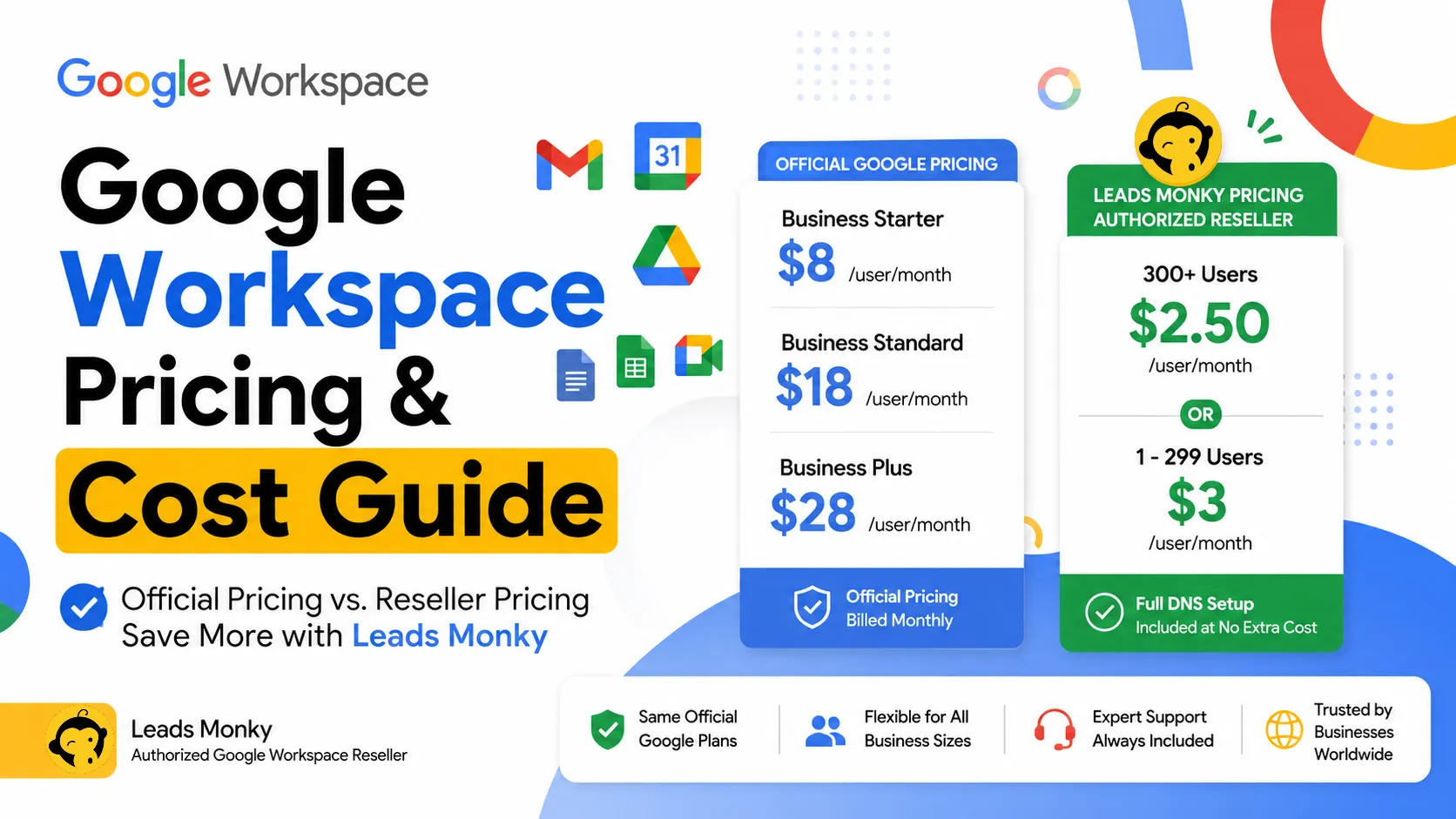
For organizations wanting to reduce per-user costs after a migration, this is also the point where switching to an authorized reseller makes the most financial sense. Leads Monky, an authorized Google Workspace reseller trusted by 1,000+ companies, offers Business Starter from $3/user/month and Standard at $13/user/month, with DNS setup and SPF/DKIM/DMARC configuration included. No hidden charges. No extra taxes. The price you see is the price you pay.
After Migration: Reconfigure and Verify
Once data has moved, several settings need to be verified or recreated in the new account. This is where migrations often feel incomplete — the data moved but something still does not work.
Common items to check and reconfigure after migration:
- MX records: confirm they point to Google’s servers for the correct domain in the destination account
- SPF, DKIM, and DMARC: verify these are active for all domains in the new account
- Third-party integrations: CRM, scheduling tools, and any apps that connected to the old account need to be reconnected
- 2-Step Verification: re-enforce 2SV policies in the new account for all users
- Admin roles: reassign admin privileges in the new account since these are not migrated
- Shared drive membership: verify all shared drives have the correct members after transfer
- Vault settings: if you use Google Vault for retention, recreate rules and holds in the new account
Use the Google Workspace onboarding checklist as a verification framework after migration — it covers every configuration item that should be confirmed before going live.
Common Mistakes in Google Workspace Migrations
- Cancelling the old account before confirming migration is complete. Keep both accounts active until every user has confirmed data is accessible and email is flowing correctly.
- Assuming Transfer Ownership covers all data types. It handles Drive files only. Email and Calendar need the Data Migration Service or the delete-user flow.
- Not setting email aliases on the old domain after a rebrand. Without aliases, messages sent to old addresses will bounce rather than forward.
- Missing the brief MX downtime window during domain swaps. Schedule domain primary swaps during off-hours to minimize the impact of the brief bounce window.
- Forgetting to recreate Vault settings. Google Vault retention policies and legal holds are not migrated by any tool. They must be manually recreated in the destination account.
Conclusion
Migrating between Google Workspace accounts is straightforward when you know which of the three scenarios applies: domain rebranding, individual user data transfer, or full environment merger. The right tool for each is different, and the order in which you do things, backing up first, migrating data second, switching DNS third, and cancelling old accounts last, matters significantly. If you are also moving from direct Google billing to reseller pricing as part of the migration, Leads Monky, an authorized Google Workspace reseller, handles the full account setup, DNS configuration, and billing transfer alongside migrations for 1,000+ companies globally. Contact Google Workspace support through the Admin console if you hit a specific blocker during the process that requires Google’s direct involvement.
FAQs
Can I migrate all my data from one Google Workspace account to another?
Yes, but different data types require different tools. Email and Calendar use Google’s Data Migration Service. Drive files use the admin Transfer Ownership tool or Shared Drives for cross-domain transfers. There is no single tool that migrates all data types at once.
How do I change my Google Workspace domain name without losing data?
Add the new domain as a secondary domain in the Admin console, verify ownership, then swap it to the primary domain. This keeps all existing data intact. Set the old domain as an email alias so messages to old addresses still deliver.
How long does a Google Workspace migration take?
For individual user transfers, typically a few hours. For full environment mergers using Google Workspace Domain Transfer, the process can take one to several days depending on the volume of data and the complexity of the domain configuration.
Can I transfer Google Drive files to a different Workspace domain?
Not directly using the admin Transfer Ownership tool, which only works within the same domain. The workaround for cross-domain transfers uses a Shared Drive accessible to both accounts, moving files through it to transfer ownership.
What is Google Workspace Domain Transfer?
It is Google’s tool for merging two separate Workspace environments. Introduced in 2025, it moves eligible domains and their entities from a source Workspace account into a destination account, with all data staying inside Google’s infrastructure and all document URLs and permissions remaining unchanged.
Do I need to cancel my old Google Workspace account after migrating?
Not immediately. Keep both accounts active until migration is fully confirmed, all users have verified access to their data, and email is confirmed flowing correctly to the new account. Cancel the old account only after these checks are complete.
Ready to Fix Your Cold Email?
What you get:
- ✓ Complete infrastructure: 30 emails + 10 domains
- ✓ 10,000 personalized emails monthly
- ✓ First consultations in 5–6 weeks