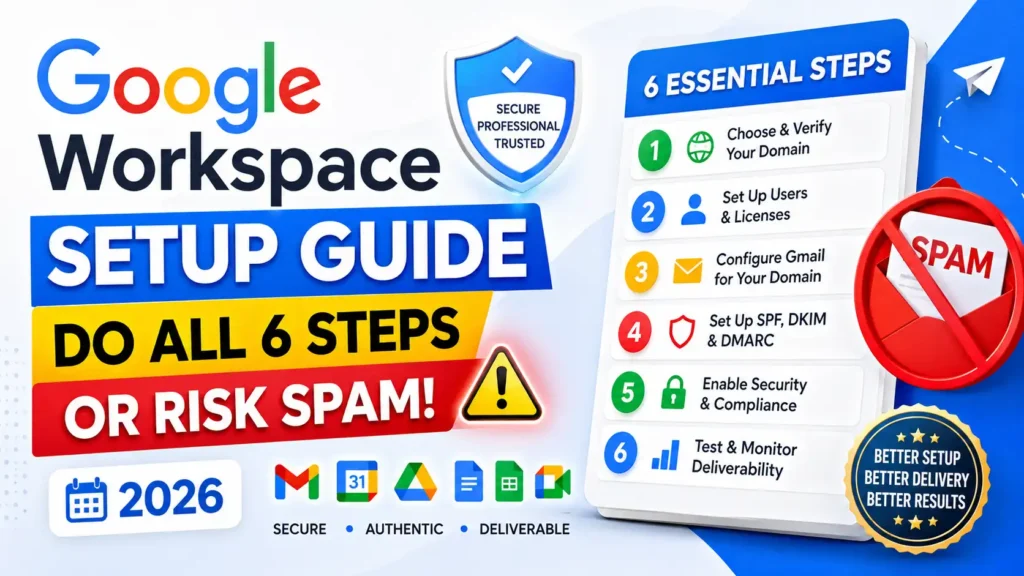
Google Workspace setup covers six steps and the one most guides skip is the reason so many business emails land in spam.
This guide walks through every stage: choosing the right plan using a clear decision framework, connecting your domain, adding MX records, activating Gmail as a separate step that roughly a third of first-time setups miss, and configuring SPF, DKIM, and DMARC so your emails are fully authenticated from day one.
By the end, you will have a working Google Admin Console, professional business email, and the DNS authentication layer that actually determines whether your messages reach inboxes or disappear into spam folders.
Quick Answer: How to Set Up Google Workspace in Six Steps
- Choose your plan Starter, Standard, or Plus
- Connect or register your domain
- Verify domain ownership in the Google Admin Console
- Add Gmail MX records to your DNS settings
- Add your users and create free email aliases
- Configure SPF, DKIM, and DMARC for email authentication
Skipping step six means your emails are far more likely to land in spam.
Before you choose a plan, use the tool below to find the right fit in under a minute.
Which Google Workspace Plan Is Best for Your Business?
The right Google Workspace plan depends on three things: how many people need professional email, whether you are running cold email or outreach campaigns, and how much storage your team actually needs. Answer those three questions and the decision makes itself.
Here is the honest version of the comparison most guides bury.
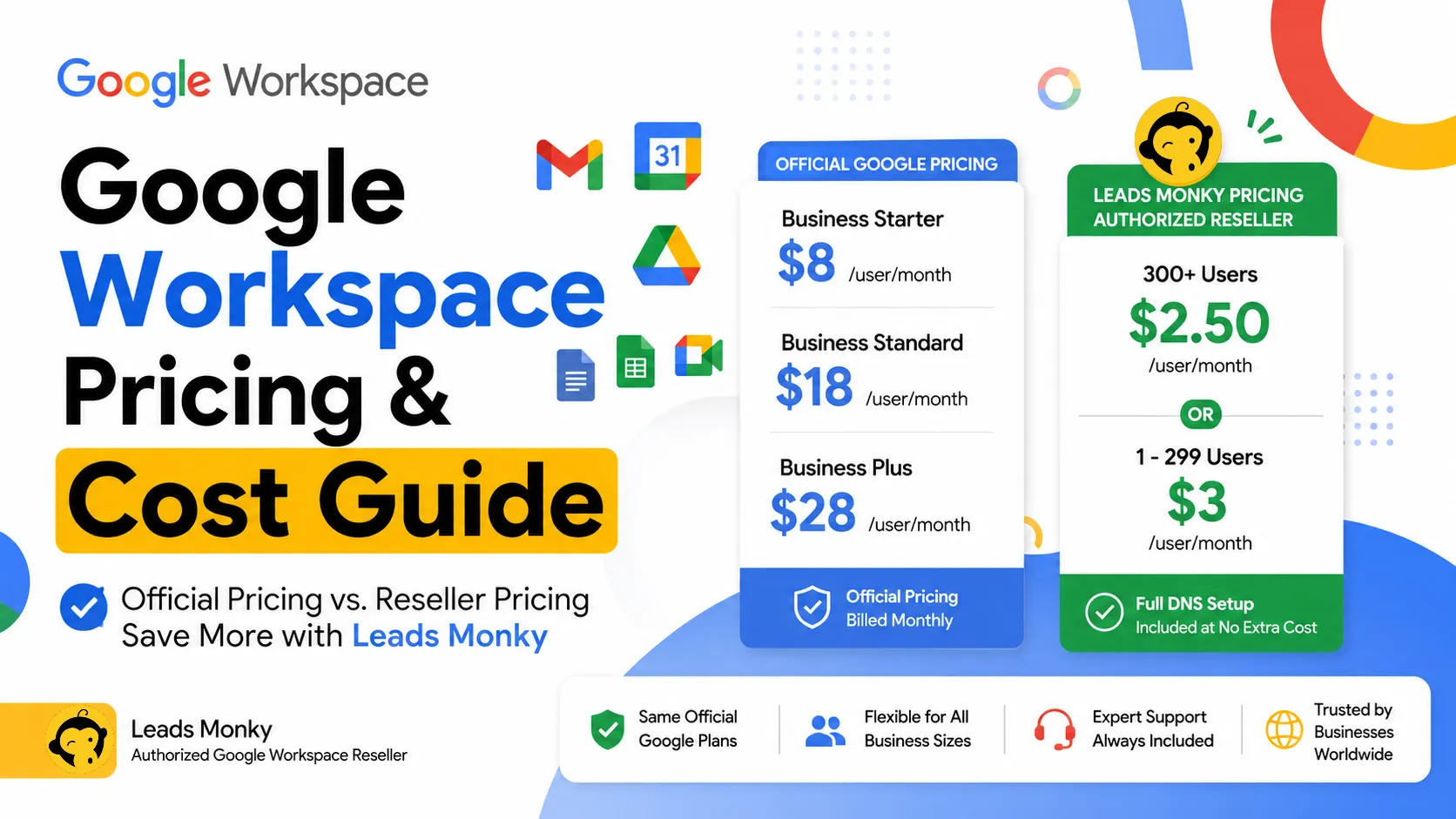
| Plan | Microsoft Direct | Leads Monky | Saving |
| Google Workspace Starter | $7.00 USD | $3.00 | $4.00 per user |
| Google Workspace Standard | $14.00 USD | $14.00 | $0 |
| Google Workspace Plus | $22.00 USD | $21.00 | $1.00 per user |
| Microsoft 365 Basic | $6.00 | $3.00 | $3.00 per user |
| Microsoft 365 Standard | $12.50 | $12.00 | $0.50 per user |
| Microsoft 365 Premium | $22.00 | $21.00 | $1.00 per user |
For most small businesses, Business Starter is the right starting point. Thirty gigabytes per user is enough for the vast majority of teams. If you are running cold email campaigns, Starter is specifically what you need professional authenticated email at the lowest per-mailbox cost. And you can upgrade to Standard later without losing a single email or file.
Business Standard earns its higher price when your team genuinely uses Google Meet recordings, collaborative Google Drive workflows, or needs the storage headroom that 2 TB per user provides. But if you are paying for Standard when Starter would cover you, that is money leaving the table every month.
Business Plus makes sense when compliance, audit logs, and advanced endpoint management are actual business requirements not theoretical ones.
How to Set Up Google Workspace Step by Step
Step 1 Sign Up and Create Your Admin Account
Go to workspace.google.com and click Start Free Trial. You will be asked for your business name, team size, and the region you operate in. Then you create your admin account this is the master account that controls all settings, users, and billing.
One practical note: use a real name here rather than admin@yourdomain.com. The admin@ username is heavily targeted by spam bots and credential attacks. Your name or a role-based address works better.
Google offers a 14-day free trial. You can add up to 10 users during the trial without paying anything.
Step 2 Connect or Register Your Domain
You need a domain something like yourbusiness.com before Google Workspace can create your professional business email addresses.
If you already own a domain through Hostinger, GoDaddy, Namecheap, or any other registrar, select “I have a domain” during setup and type it in. If you need a new one, you can search and purchase through most major registrars. For local businesses, including a location keyword in your domain (e.g. renovationsydney.com) can help with local search visibility.
One thing to know: Google previously offered its own domain registration product, but that service was sold to Squarespace in 2023. Any reference you see to “Google Domains” as an active registrar is outdated.
Step 3 Verify Your Domain in the Google Admin Console
Domain verification confirms to Google that you actually own the domain you are setting up email for.
Google gives you a TXT record a string of text to add to your domain’s DNS settings. Log in to your domain registrar, navigate to DNS management, add a new TXT record with the value Google provides, then return to the Admin Console and click Verify.
Verification typically completes within a few minutes after you add the TXT record, though DNS propagation can occasionally take longer. If verification fails on first attempt, wait fifteen minutes and try again before troubleshooting further.
Step 4 Add MX Records and Activate Gmail
This is the step where most setups go wrong.
Adding MX records tells the internet where to deliver emails sent to your domain. Without them, no email reaches your inbox. But and this is critical adding MX records does not automatically activate Gmail. These are two separate steps inside the Admin Console.
Here is the sequence:
First, go to your domain registrar’s DNS settings and delete any existing MX records. Duplicate MX records cause routing conflicts. Then add Google’s MX records using the values provided in your Admin Console setup wizard. The primary record typically has a priority of 1 and points to aspmx.l.google.com.
Then and do not skip this return to the Admin Console and click Activate Gmail. This is the step that approximately 30 to 40 percent of first-time setups miss. Without clicking Activate Gmail, your MX records exist but Gmail has not been switched on.
DNS changes can take up to 48 hours to propagate fully. For most registrars it happens within a few hours. Do not panic if email is not flowing immediately.
How to Add Users and Create Email Aliases in Google Workspace

How to Add Team Members
Navigate to Admin Console → Directory → Users → Add New User. You can add users manually one at a time or import multiple accounts in bulk using a CSV file.
Each user you add requires a license, which means a monthly per-seat cost. During the free trial you can add up to 10 users without triggering billing.
What Is the Difference Between a User and an Alias in Google Workspace?
A user is a full account with its own inbox, storage, and login. An alias is an additional email address that routes to an existing user’s inbox at no extra cost.
Consider a three-person consultancy. Rather than buying three extra licenses for info@, support@, and sales@, you create those three addresses as aliases pointing to existing users. All emails arrive in the right inboxes without the extra spend. That is roughly $21 USD per month saved on Business Starter before you have sent a single email.
To create aliases, go to Admin Console → Directory → Users → click on a user → User Information → Alternate Email Addresses. You can add as many aliases as you need.
Aliases make sense for shared addresses info@, contact@, bookings@. But when someone genuinely needs their own private inbox and their own storage, that is when a new user license is the right call.
SPF, DKIM, and DMARC for Google Workspace: What They Are and Why You Need All Three
Most Google Workspace setup guides stop at MX records. That is a significant omission.
MX records route your email to Google’s servers. They do not tell receiving email servers whether your email is legitimate. That is what SPF, DKIM, and DMARC do. Without these three authentication records configured, your emails may send but modern spam filters will increasingly treat them as suspicious. For businesses sending outbound emails at any meaningful volume, this matters enormously.
Currently, Google requires SPF and DKIM authentication for senders exceeding 5,000 emails per day to Gmail accounts. For all senders, proper email authentication dramatically improves inbox placement.
How to Set Up SPF for Google Workspace
SPF (Sender Policy Framework) is a DNS record that tells receiving mail servers which servers are authorised to send email on behalf of your domain. When a recipient’s server receives an email claiming to be from you, it checks your SPF record to verify the sending server is on your approved list.
For Google Workspace, the SPF record you need is:
v=spf1 include:_spf.google.com ~all
Add this as a DNS TXT record at your domain registrar. The name/host field should be @ (representing your root domain). You can only have one SPF TXT record per domain — if one already exists, edit it rather than adding a second one, or they will conflict.
Allow up to 48 hours for the record to propagate. Use a free SPF checker tool to confirm it is live before moving on.
How to Set Up DKIM in Google Workspace
DKIM (DomainKeys Identified Mail) adds a digital signature to every email you send. Receiving servers use this signature to confirm two things: the email actually came from your domain, and it has not been altered in transit.
To generate your DKIM key, go to Admin Console → Apps → Google Workspace → Gmail → Authenticate Email. Click Generate New Record, then copy the TXT record value Google provides.
Add that TXT record to your domain’s DNS settings. The host name will look something like google._domainkey.yourdomain.com Google specifies the exact format.
Once the DNS record has propagated (again, up to 48 hours), return to the Authenticate Email screen and click Start Authentication. Do not click Start Authentication before the record has had time to propagate it will fail.
A 2048-bit DKIM key is the current recommendation for maximum security. Google defaults to this length, so in most cases you do not need to change anything.
How to Set Up DMARC for Google Workspace
DMARC (Domain-based Message Authentication, Reporting, and Conformance) is the final layer. It tells receiving servers what to do when an email fails SPF or DKIM checks and it sends you reports showing who is sending email using your domain.
There is one mistake worth calling out specifically: do not set your DMARC policy to p=reject immediately. If your SPF or DKIM records are not perfectly configured yet, a reject policy will block legitimate email from your own domain.
The correct progression is:
Phase 1 Monitor: v=DMARC1; p=none; rua=mailto:postmaster@yourdomain.com This delivers all email and sends reports. Run this for at least two weeks and review the reports.
Phase 2 Quarantine: v=DMARC1; p=quarantine; pct=100; rua=mailto:postmaster@yourdomain.com Suspicious email goes to spam. Move here only after your reports show clean authentication.
Phase 3 Reject: v=DMARC1; p=reject; pct=100; rua=mailto:postmaster@yourdomain.com Unauthenticated email is blocked entirely. This is where you want to be but only once you are confident.
Add your DMARC record as a DNS TXT record with the host name _dmarc.yourdomain.com. Wait at least 48 hours after SPF and DKIM are confirmed working before adding DMARC.
If you are setting up Google Workspace specifically for cold email outreach, the authentication steps above are even more critical. Misconfigured DNS authentication is the fastest route to landing in spam folders at scale. See our dedicated Google Workspace cold email setup guide for additional deliverability steps specific to outreach infrastructure, including warmup protocols and sending volume management.
Once email authentication is confirmed, enable two-step verification across your organisation. Go to Admin Console → Security → 2-Step Verification and enforce it for all users. We cover the full admin security configuration including authenticator apps and device trust settings in our Google Workspace Admin Console guide for beginners.
Common Google Workspace Setup Mistakes (And How to Avoid Them)
Most setup errors are predictable. Here they are in order of how much damage they actually cause.
1. Verifying your domain but never activating Gmail. The most common critical error. Domain verification and Gmail activation are two separate steps. Completing one does not complete the other. Check Admin Console for the explicit Activate Gmail step.
2. Skipping SPF, DKIM, and DMARC after MX records are live. MX records route email. Authentication records protect it. Skipping authentication means your email infrastructure is half-built.
3. Leaving old MX records in place when adding Google’s. Duplicate MX records cause routing conflicts that are genuinely confusing to troubleshoot. Delete all existing MX records before adding Google’s values.
4. Setting DMARC to p=reject from day one. If your SPF or DKIM is slightly misconfigured, a reject policy blocks your own legitimate email. Start at p=none, monitor for two weeks, then progress.
5. Checking DNS records immediately and declaring setup broken. DNS propagation takes time. Checking thirty seconds after adding a record and seeing an error does not mean anything went wrong. Give it a few hours before troubleshooting.
6. Buying extra user licenses when aliases would work. Aliases route additional email addresses to existing inboxes at no cost. Only buy a new license when someone genuinely needs their own independent inbox and storage.
7. Using admin@ as your primary email address. Low impact compared to the others, but worth avoiding. The admin@ username is actively targeted by credential attacks and spam campaigns. Use a real name instead.
Google Workspace Setup Troubleshooting: Fixing the Four Most Common Errors
Domain verification failing. Most often caused by the TXT record being added before the domain purchase fully processed at the registrar. Wait thirty minutes after domain purchase, add the TXT record, then try verification.
MX records added but email not working. Almost always caused by skipping the Activate Gmail step in the Admin Console. Go back to your setup wizard and look for the explicit activation button. This is separate from MX record entry.
SPF record not working. You can only have one SPF TXT record per domain. If one already existed, adding a second creates a conflict. Merge both into a single record rather than running two separately.
DKIM not activating. Usually a propagation timing issue. The DNS record needs time to become accessible globally. Wait the full 48 hours before clicking Start Authentication in the Admin Console.
Conclusion
Google Workspace setup has six steps, not five. The authentication layer SPF, DKIM, and DMARC — is what separates a professional email setup that delivers reliably from one that loses messages to spam filters. Get steps one through four right, and your email will send. Get all six right, and it will actually arrive.
For most small businesses, the process takes 30 to 60 minutes for the setup itself, plus up to 48 hours for DNS changes to propagate fully. It is genuinely doable without technical help if you follow the sequence carefully.
But if you would rather not touch DNS records yourself, or if you need multiple mailboxes set up quickly with authentication configured from day one, our team handles the full process. Google Workspace mailboxes from $2.50 per mailbox per month with SPF, DKIM, DMARC, and admin access included.
Frequently Asked Questions
1. How much does Google Workspace cost?
Google Workspace Business Starter starts at approximately $7 USD per user per month when billed monthly directly through Google. Through LeadsMonky’s reseller program, pricing starts from $2.50 per mailbox per month, with expert DNS and email authentication setup included. Contact info@leadsmonky.com for a personalised quote based on your team size and requirements.
2. Does Google Workspace automatically set up SPF?
No. Google Workspace activates your email through MX records, but SPF, DKIM, and DMARC must be configured separately in your domain’s DNS settings. The SPF record for Google Workspace is v=spf1 include:_spf.google.com ~all add this as a TXT record at your domain registrar.
3. How long does Google Workspace domain verification take?
Verification typically completes within a few minutes of adding the TXT record to your DNS. In some cases it takes up to an hour. If verification is still failing after an hour, confirm the TXT record was saved correctly at your registrar and that you copied the full value without extra spaces.
4. What is the difference between Google Workspace Business Starter and Standard?
Business Starter provides 30 GB of storage per user and supports video meetings up to 100 participants. Business Standard increases storage to 2 TB per user, adds meeting recording, and unlocks more advanced Gemini AI features. For most small teams, Starter is sufficient. Upgrade to Standard when storage or meeting recording becomes a genuine operational need.
5. Can I set up Google Workspace without a domain?
No. A custom domain is required to create professional Google Workspace email addresses. You can purchase a domain through any major registrar Hostinger, GoDaddy, and Namecheap are commonly used options typically for $10 to $20 USD per year.
6. Will my emails go to spam without DKIM?
Not automatically, but the risk increases significantly. DKIM provides a digital signature that receiving servers use to verify your email’s authenticity. Without it, your emails lack a trust signal that modern spam filters increasingly rely on. For outreach or any significant email volume, configuring DKIM is not optional.
7. How many users can I add during the Google Workspace free trial?
Up to 10 users can be added during the 14-day free trial period. When the trial ends, or if you need more than 10 users before then, a paid subscription is required.
8. Can I migrate from Microsoft 365 to Google Workspace?
Yes. Google Workspace includes a built-in data migration tool in the Admin Console that handles email, calendar, and contacts migration from Microsoft 365 and other platforms. For large teams or complex environments, working with a Google Workspace partner can significantly reduce the risk of data loss or service interruption during migration.