Quick Answer
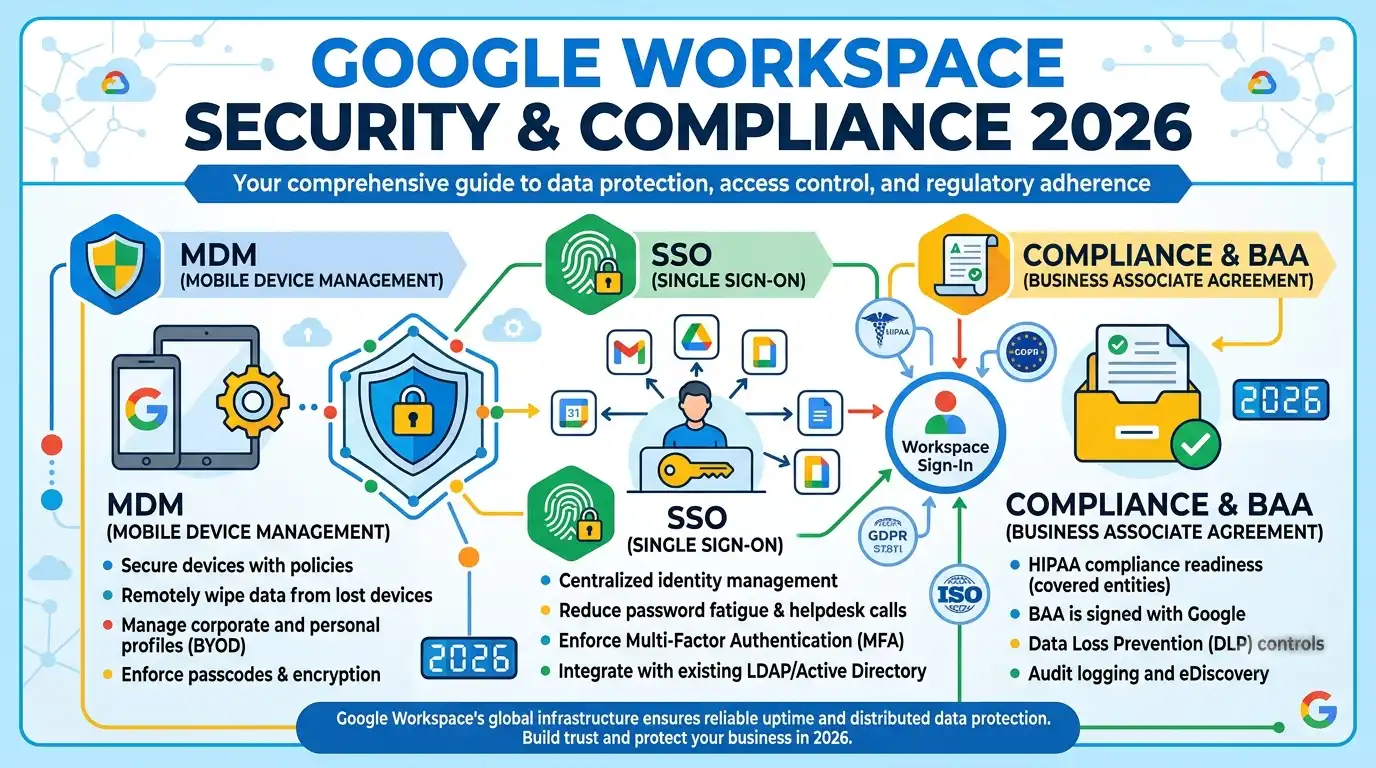
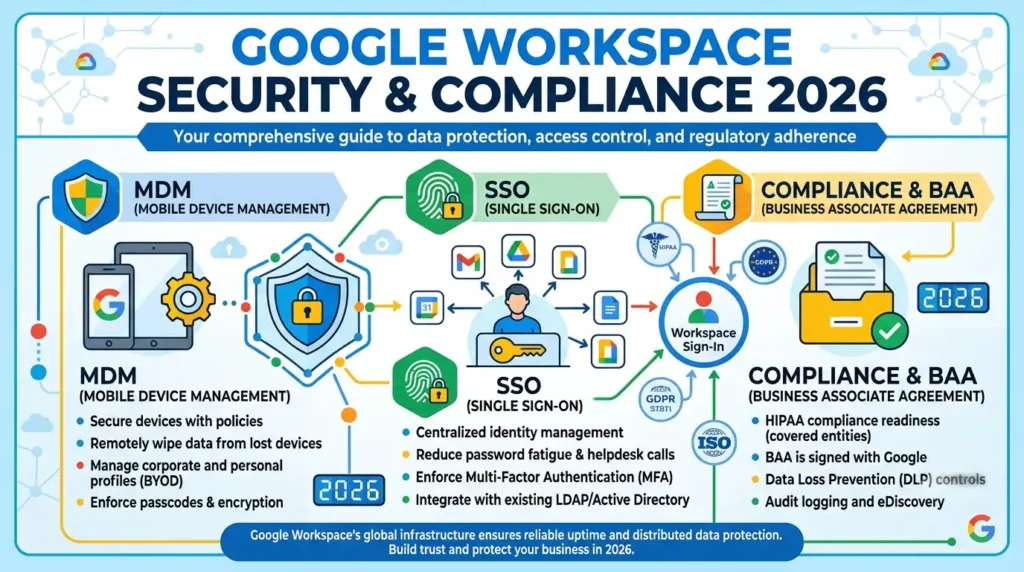
Google Workspace is secure and compliant for most business and regulated-industry use cases when configured correctly. The HIPAA Business Associate Agreement (BAA) is available on all paid plans via the Admin console. Mobile Device Management (MDM) runs through Google Endpoint Management. Single Sign-On (SSO) uses SAML 2.0 and connects to over 200 pre-integrated apps. None of these features work out of the box each requires deliberate setup by a super admin.
Google Workspace security covers a wide range of features, from identity and device management to compliance frameworks for regulated industries. The challenge for most admins is that these features are genuinely capable but none of them are pre-configured. A fresh Workspace account is not HIPAA compliant, not set up for SSO, and not managing devices until an admin deliberately configures each layer. This guide covers the three most searched security and compliance topics: the HIPAA Business Associate Agreement, Mobile Device Management, and Single Sign-On.
Google Workspace BAA: HIPAA Compliance Explained
A HIPAA Business Associate Agreement (BAA) with Google is required before any Protected Health Information (PHI) can be created, stored, or transmitted using Google Workspace services. Without a signed BAA, using Gmail, Drive, Meet, or any covered Workspace service with PHI is an automatic HIPAA violation regardless of how well the account is otherwise secured.
For a full breakdown of what compliance costs across plans, our Google Workspace HIPAA cost guide covers plan-by-plan pricing in detail. Here is the core compliance picture.
💡 Need help setting up Google Workspace?
We’re certified Google partners offering 64% off + free professional setup ($2,000 value). Used by 1000+ companies.
Get your quote →Who qualifies for the BAA
Any paid Google Workspace plan qualifies — Business Starter, Business Standard, Business Plus, and Enterprise. The free consumer Gmail product never qualifies and may not be used for PHI under any circumstances.
How to sign the BAA
The process is entirely self-service through the Admin console:
- Sign into admin.google.com with a super administrator account.
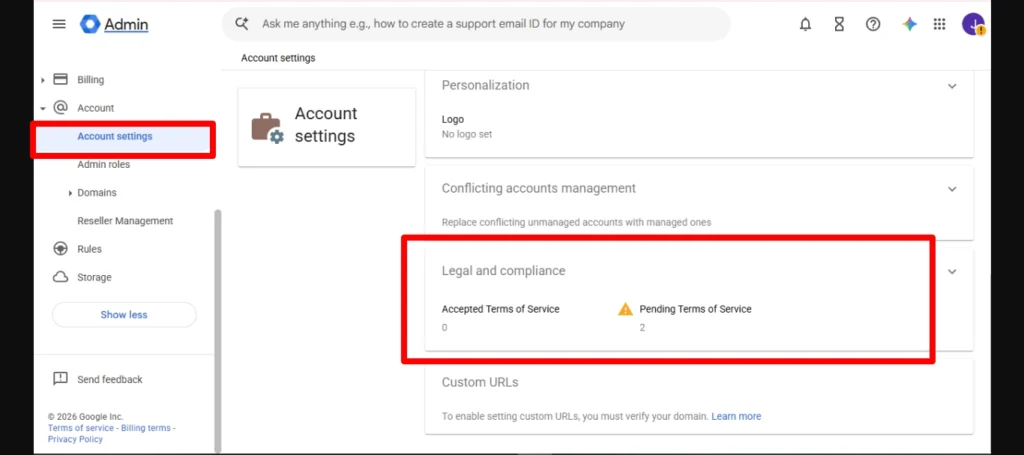
- Go to Account → Account settings → Legal and compliance.
- Click Google Workspace HIPAA Business Associate Amendment.
- Click Review and Accept.
- Confirm whether your organization is a Covered Entity or a Business Associate.
- Click I Accept. The electronic acceptance is legally binding.
- Save a screenshot and record the acceptance date for your compliance files.
What the BAA covers
The BAA covers Gmail, Drive, Docs, Sheets, Slides, Meet, Calendar, Chat, Forms, Sites, Keep, and Google Vault when configured correctly. It does not automatically cover Google Photos, YouTube, Google Maps, consumer Google products, or any third-party app installed from the Workspace Marketplace. Each Marketplace vendor that touches PHI needs its own separate BAA.
What the BAA does not do
Signing the BAA is the floor, not the ceiling. After signing, you must complete a documented risk analysis, enforce Multi-Factor Authentication for all users, configure Data Loss Prevention (DLP) rules to detect PHI patterns, restrict public link sharing so PHI only goes to specific authenticated addresses, enable audit logging for Gmail, Drive, and the Admin console, and set up retention policies if your organization handles substance use disorder records subject to the February 2026 42 CFR Part 2 update.
As of 2026, Gemini AI features including Help Me Write, contextual smart replies, and the side panel are covered as Included Functionality under the BAA for Enterprise users when used within a managed Workspace account. Using the consumer Gemini app with PHI remains a violation regardless of your BAA status.
Google Workspace MDM: Mobile Device Management
Google Workspace includes built-in MDM through Google Endpoint Management, available to every paid plan. The level of control you get depends on your plan tier and whether you are managing corporate-owned devices or employee-owned BYOD devices.
Basic vs Advanced endpoint management
Basic management is on by default for every Workspace account and covers password requirements, remote wipe capability, and basic device inventory. It requires no additional setup beyond what comes with the account.
Advanced management, available from Business Plus and Enterprise, adds app management, policy enforcement, compliance reporting, and more granular device controls. For Android devices, advanced management supports full device enrollment with app deployment. For iOS devices, Google expanded native MDM settings in June 2026 to include granular controls across categories such as Apps and Services, Device Features, Data Sharing, and Backup and iCloud Sync, all manageable directly from the Admin console.
How to access MDM settings
In the Admin console, go to Devices → Mobile and endpoints → Settings. From there, select Universal for general policies or Android/iOS for platform-specific controls. For Windows devices, Google Credential Provider for Windows (GCPW) allows users to sign into Windows machines with their Workspace credentials, enforcing MFA and centralized password policies at the OS level.
Connecting a third-party MDM
Organizations with more complex device requirements — particularly those managing a large fleet of iOS devices or needing compliance frameworks beyond what Endpoint Management provides — typically integrate a third-party MDM like Jamf, Kandji, or VMware Workspace ONE alongside Google Workspace. These tools connect to Workspace via SAML SSO and the Google Directory, syncing user identity while extending device policy control.
Google Workspace as SSO: Identity Provider and Service Provider
Google Workspace operates as an Identity Provider (IdP) for outbound SSO and as a Service Provider (SP) for inbound SSO, using SAML 2.0 as the underlying protocol for both. Most organizations use one or the other, and understanding the direction of the SSO flow is the first step before any configuration.
Outbound SSO: Workspace as IdP
This is the most common configuration. Users sign into Google Workspace once and are automatically authenticated into third-party apps without separate passwords. Google offers pre-integrated SSO with over 200 popular cloud apps including Salesforce, Slack, Dropbox, Zoom, and many others. For apps not in the pre-integrated catalog, you set up a custom SAML app.
The setup path in the Admin console:
- Go to Apps → Web and mobile apps.
- Click Add App, then select either a pre-integrated app from the catalog or Add custom SAML app.
- For a custom SAML app, enter the app name and click Continue.
- On the Google Identity Provider details page, either download the IDP metadata or copy the SSO URL, Entity ID, and Certificate.
- Enter those details into your service provider’s SSO configuration.
- Back in the Admin console, enter the service provider’s ACS URL and Entity ID.
- Assign the app to the relevant organizational units or groups.
Inbound SSO: Third-party IdP authenticating into Workspace
Organizations that use Okta, Microsoft Entra (formerly Azure AD), Ping Identity, or another enterprise IdP as their central identity store can configure Workspace to accept authentication from that IdP instead of managing passwords in Google. This is common in hybrid environments where Microsoft Active Directory or another directory remains the source of truth.
The setup path: Admin console → Security → Authentication → SSO with third-party IdP → Add SAML profile. You will need the IdP entity ID, sign-in page URL, sign-out page URL, and the X.509 certificate from your IdP.
Google Workspace as SSO and Zscaler
Zscaler integration with Google Workspace works at the identity layer. Google Workspace serves as the IdP, and Zscaler uses the SAML assertion from Workspace to authenticate users before applying network-level security policies such as zero trust access controls, web filtering, and CASB enforcement. The configuration connects Zscaler’s SP details (ACS URL and Entity ID) to a custom SAML app in Google’s Admin console, then routes users through Zscaler’s proxy after Workspace authenticates them.
Data Classification and Email Quarantine in Google Workspace
Google Workspace includes data classification and email quarantine capabilities through the Admin console, both of which sit under the compliance and security umbrella but are managed separately from the BAA and MDM setup.
Data classification (available through the DLP rules engine) lets admins define content detectors that identify sensitive information patterns — credit card numbers, social security numbers, PHI identifiers — and automatically apply actions when those patterns appear in Drive files or Gmail messages. Actions include warnings to the sender, blocking the send entirely, or quarantining the message for admin review.
Email quarantine in Gmail works through compliance rules under Apps → Google Workspace → Gmail → Compliance. You can set rules that quarantine inbound or outbound messages matching specific criteria, routing them to a quarantine queue rather than delivering them automatically. Admins review quarantined messages and approve or reject delivery.
Common Security Configuration Mistakes to Avoid
- Signing the BAA and stopping there. The BAA is a contractual requirement, not a technical control. Without MFA enforcement, DLP, audit logging, and sharing restrictions, signing the BAA alone does not produce HIPAA compliance.
- Assuming Marketplace apps are covered by the BAA. They are not. Every third-party app that handles PHI needs its own separate agreement.
- Enabling SSO without testing account recovery. When SSO is enabled, users who lose access to the IdP can also lose access to Workspace. Test the recovery path before enforcing SSO organization-wide.
- Not enforcing 2-Step Verification alongside MDM. MDM manages the device; 2SV protects the account. Both layers are needed. MDM alone does not prevent account compromise from a stolen password.
- Using consumer Gemini with PHI. The Workspace BAA covers Gemini features embedded in Workspace apps. It does not cover the standalone consumer Gemini app at gemini.google.com.
Conclusion
Google Workspace provides a capable security and compliance foundation, but it requires deliberate configuration to function as one. The HIPAA BAA is self-service and available on all paid plans, but it is the beginning of a compliance program rather than the end. MDM through Google Endpoint Management covers basic device security on every plan, with advanced controls available from Business Plus upward or via a third-party MDM. SSO via SAML 2.0 works in both directions and integrates with Zscaler and other enterprise security stacks at the identity layer.
For organizations setting up Google Workspace with security and compliance requirements from day one, Leads Monky, an authorized Google Workspace reseller trusted by 1,000+ companies, includes DNS setup, SPF/DKIM/DMARC configuration, and account provisioning as part of every setup. Getting the infrastructure right at the start makes every subsequent security layer easier to configure and maintain.
FAQs
Does Google Workspace sign a HIPAA BAA?
Yes. Google Workspace signs a HIPAA Business Associate Agreement on all paid plans including Business Starter. The BAA is accepted electronically by a super admin through Admin console → Account → Account settings → Legal and compliance.
Which Google Workspace plan is HIPAA compliant?
All paid plans qualify for the BAA. The difference between plans is feature depth: Google Vault for legal hold and eDiscovery only starts at Business Plus, but HIPAA BAA eligibility applies to Starter, Standard, Plus, and Enterprise equally.
What MDM does Google Workspace use?
Google Workspace uses Google Endpoint Management for built-in MDM. Basic management is included on all plans. Advanced management with app controls and compliance reporting requires Business Plus or Enterprise. Third-party MDMs like Jamf can also integrate with Workspace via SAML.
How do I set up SSO with Google Workspace?
In the Admin console, go to Apps → Web and mobile apps → Add App. Choose a pre-integrated app or set up a custom SAML app by entering the service provider’s ACS URL and Entity ID and downloading Google’s IDP metadata. Assign the app to relevant organizational units.
Does the Google Workspace BAA cover Gemini AI?
Gemini features embedded in Workspace apps such as Help Me Write in Gmail and the side panel are covered as Included Functionality under the BAA for eligible plans. The consumer standalone Gemini app at gemini.google.com is not covered and must not be used with PHI.
How does Zscaler integrate with Google Workspace?
Zscaler integrates at the identity layer using Google Workspace as the SAML Identity Provider. After Workspace authenticates the user, Zscaler applies network-level security policies including zero trust access controls and web filtering before allowing access to downstream resources.
Ready to Fix Your Cold Email?
What you get:
- ✓ Complete infrastructure: 30 emails + 10 domains
- ✓ 10,000 personalized emails monthly
- ✓ First consultations in 5–6 weeks