Quick Answer
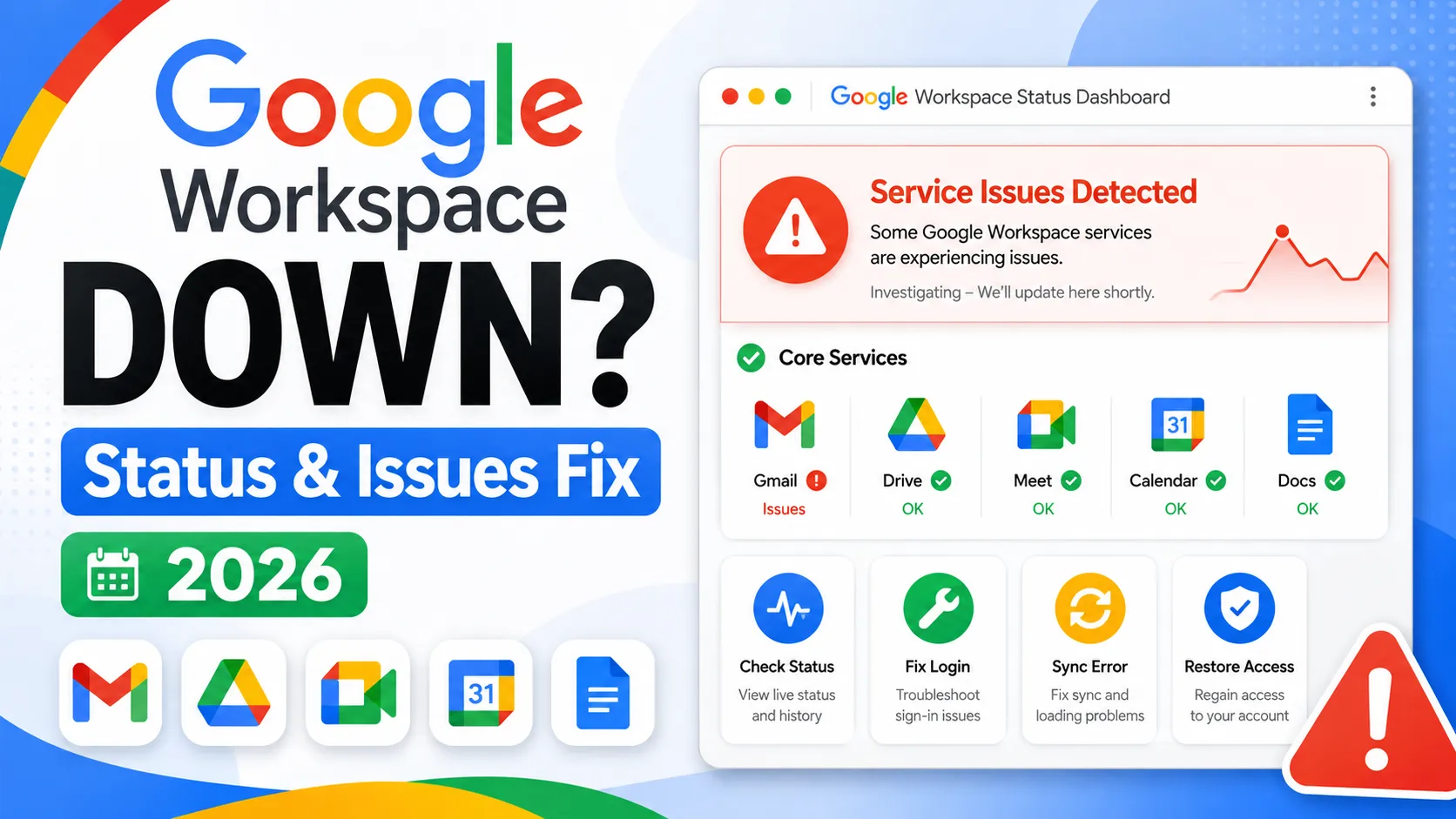
Go to google.com/appsstatus/dashboard/ to see real-time Google Workspace service status across all apps including Gmail, Drive, Meet, and Calendar. If the dashboard shows everything green but you still can’t access Workspace, the problem is almost certainly on your end — browser, network, or account — not Google’s servers.
If Google Workspace isn’t loading right now, go to google.com/appsstatus/dashboard/ first. That’s Google’s official real-time status page for every Workspace service — Gmail, Drive, Meet, Calendar, Docs, Admin console, and 30 others. If something is genuinely wrong on Google’s end, it will show a warning or disruption flag against the affected service. If everything shows green, the issue is on your side.
That distinction matters because the majority of “is Google Workspace down” searches during any given day are triggered by local problems — a browser cache issue, a network blip, an expired login session, or a VPN interfering with Google’s servers — not actual Google outages. Working through the local troubleshooting steps below takes about five minutes and resolves most cases where the status dashboard shows no active incident.
How to Check Google Workspace Status Right Now

The Google Workspace Status Dashboard at google.com/appsstatus/dashboard/ is the authoritative source for real-time service status. It covers 35 individual components across the Workspace suite and shows three status levels for each: operational (green), service disruption (yellow), and service outage (red).
A few things worth knowing about how the dashboard works:
An issue showing against Gmail does not mean Drive or Meet are also affected. Check the specific service you can’t access rather than assuming everything is broken.
Google typically posts an acknowledgment on the status page within 15 minutes of detecting a widespread incident. In StatusGator’s historical data tracking Google’s incident reporting, the average delay between an actual disruption and dashboard acknowledgment is under 15 minutes — faster than most third-party monitoring tools.
The dashboard shows up to 5 years of incident history. If you want to see past outages, click View history at the bottom of the dashboard page.
Third-party down detectors like Downdetector and StatusGator aggregate user-submitted reports and are useful for seeing whether other people in your area are reporting similar problems. But they regularly show elevated report counts for issues that are purely local, since any spike in users searching “is Google down” generates report traffic even when Google’s infrastructure is fully operational. Always confirm against the official dashboard before concluding there’s a real outage.
💡 Need help setting up Google Workspace?
We’re certified Google partners offering 64% off + free professional setup ($2,000 value). Used by 1000+ companies.
Get your quote →What the Status Dashboard Warnings Actually Mean
A service disruption (yellow) means some users are affected, not all. Google uses regional infrastructure, and partial disruptions often affect users in specific geographic regions while others on the same plan experience no issues at all. If you see a yellow warning against Gmail and your colleague on the same plan can access their email fine, that’s consistent with a partial regional disruption.
A service outage (red) means Google has confirmed significant, widespread impact. These are genuinely rare. StatusGator’s historical data tracking Google Workspace since 2015 shows over 725 incidents in that period — most of which were partial disruptions lasting under two hours, not full outages.
No status posting but you still can’t connect means the problem is almost certainly local. That’s where the troubleshooting steps below come in.
Troubleshooting Google Workspace When the Status Dashboard Shows Green
If google.com/appsstatus/dashboard/ shows all services operational and you still can’t access Workspace, work through these steps in order. Most issues resolve at step one or two.
Step 1: Try a different browser or incognito window.
Open a private or incognito window (Ctrl+Shift+N on Chrome, Ctrl+Shift+P on Firefox) and try accessing Workspace again. If it works in incognito but not your normal browser, the issue is browser cache or a conflicting extension. Clear your browser cache and disable extensions one at a time to find the culprit.
Step 2: Try a different network.
Switch from your office Wi-Fi to a mobile hotspot, or vice versa. If Workspace loads on a different network, your router, firewall, or ISP is the issue — not Google. Some corporate firewalls block specific Google service URLs, and some ISPs have periodic routing issues that affect Google traffic specifically.
Step 3: Check whether you’re signed into the right account.
Click your profile icon in the top right of any Google app. If you’re signed into a personal Gmail account but trying to access a Workspace app that requires your organizational email, you’ll see access errors that look like outages but aren’t. Switch to your Workspace account and try again.
Step 4: Sign out and sign back in.
Expired session tokens cause Workspace to stop loading without showing a clear error message. Sign out completely from accounts.google.com/logout, then sign back in with your Workspace credentials.
Step 5: Check your VPN.
VPNs route your traffic through servers that may have restricted access to Google services, or may be experiencing their own connectivity issues. Disconnect your VPN temporarily and test whether Workspace loads without it.
Step 6: Check the Admin console (for admins).
If only some users are affected and others are fine, the issue may be account-level rather than service-level. Sign into admin.google.com and check whether those users’ accounts are active, suspended, or flagged. Check the Admin console → Reporting → Audit → Login for any unusual login failures.
How to Monitor Google Workspace Status Proactively
Waiting until something breaks to check the status dashboard is the reactive approach. The proactive approach is subscribing to the dashboard RSS feed so outage alerts arrive before you notice a problem.
To subscribe: go to google.com/appsstatus/dashboard/, scroll to the bottom, and click RSS Feed. Copy the URL and add it to any RSS reader (Feedly, Inoreader, or a Slack RSS integration all work well).
This matters specifically because if Gmail is part of the outage, email-based notifications from Google won’t reach your inbox during the incident. RSS sidesteps that dependency entirely.
Admins can also set up automated alert rules in the Admin console. Go to Admin console → Rules, create a new system-defined rule, and select Apps outage alerts to receive notifications whenever Google posts a new, updated, or resolved incident. Note that these alerts may arrive slightly slower than the RSS feed but require no external tool to set up.
Common Google Workspace Issues That Aren’t Outages
Not every Workspace problem is a service issue. These four situations look like outages from the user’s perspective but have account or configuration causes:
“You don’t have access” when trying to open a shared file — the file owner may have restricted access, the sharing link may have expired, or you may be signed into the wrong Google account.
Gmail not loading or stuck on a blank screen — usually a browser cache issue or a conflicting Chrome extension. Try incognito mode first.
Can’t join a Google Meet call — often a browser permission issue with camera or microphone, or a firewall blocking meet.google.com. Try joining from the Google Meet mobile app instead.
Admin console won’t load — if you’re on a corporate network, your IT firewall may block admin.google.com specifically. Try on a personal network or hotspot.
Conclusion
When Google Workspace isn’t working, the fastest path to an answer is checking google.com/appsstatus/dashboard/ immediately. If that shows green, the problem is local and the troubleshooting steps above will resolve it in most cases. For admins managing accounts for a larger team, subscribing to the RSS feed and setting up Admin console outage alerts means you know about incidents before your users report them.
If your Workspace account is managed by an authorized reseller like Leads Monky, contact your reseller’s support channel directly during an outage — they can escalate to Google on your behalf and often have faster resolution paths than going through standard Google support alone.
FAQs
Is Google Workspace down right now?
Check google.com/appsstatus/dashboard/ for real-time status across all Workspace services. If the dashboard shows green and you still can’t connect, the issue is likely local to your browser, network, or account rather than a Google outage.
What does the Google Workspace Status Dashboard show?
It shows real-time operational status for 35 individual Workspace services including Gmail, Drive, Meet, Calendar, Admin console, and Docs. Status levels are operational (green), service disruption (yellow), and service outage (red).
Why is Google Workspace not working if the status page shows operational?
The most common local causes are browser cache issues, a VPN interfering with Google’s servers, an expired login session, or being signed into the wrong Google account. Try an incognito window and a different network first.
How do I get notified when Google Workspace has an outage?
Subscribe to the official RSS feed at the bottom of google.com/appsstatus/dashboard/ — this sends alerts regardless of whether Gmail itself is affected. Admins can also set up Apps outage alert rules in the Admin console under Rules.
How long do Google Workspace outages typically last?
Most documented partial disruptions resolve within one to two hours. Full, widespread outages are rare. Google’s Workspace SLA targets 99.9% uptime, and historical data confirms this is consistently achieved across most services.
What should I do if only some users in my organization can’t access Workspace?
When some users are affected and others are not, it’s usually an account-level issue rather than a service outage. Check those users’ account status in the Admin console under Users, and review login audit logs under Reporting → Audit → Login for any failures.
Ready to Fix Your Cold Email?
What you get:
- ✓ Complete infrastructure: 30 emails + 10 domains
- ✓ 10,000 personalized emails monthly
- ✓ First consultations in 5–6 weeks