
Managing groups in Google Workspace shouldn’t feel like solving a Rubik’s cube blindfolded. Yet here you are, staring at your admin console, wondering why your team can’t access shared files or why emails aren’t reaching the right people.
You’re not alone.
Google Workspace groups management is one of those things that seems simple until you actually need to do it. Then suddenly you’re drowning in permission settings, access types, and mysterious error messages.
Let me fix that for you.
What Is Google Workspace Groups Management?
Think of Google Groups as digital containers for people. They let you organize users, control access to resources, and send emails to entire teams with a single address.

But here’s where it gets interesting. Not all groups are created equal.
Google Workspace offers several types of groups, each serving different purposes. You’ve got admin groups for configuration, dynamic groups that update automatically, and access groups that control who sees what.
The trick? Knowing which one to use and when.
💡 Need help setting up Google Workspace?
We’re certified Google partners offering 64% off + free professional setup ($2,000 value). Used by 151+ companies.
Get your quote →Why Groups Matter More Than You Think
Let’s say you’re a group influencer marketing manager at a growing company. Your team needs access to shared Google Drive folders, specific Gmail distribution lists, and certain apps.
Without proper group management, you’d be adding permissions one person at a time. Every. Single. Time.
That’s a recipe for burnout.
Groups solve this by letting you assign permissions once to the entire group. Add someone new? Just drop them into the relevant group. They instantly inherit all the right access.
It’s beautiful when it works.
The Three Types of Groups You Need to Know
1. Organizational Units vs. Groups
People confuse these constantly. Organizational units (OUs) are for applying admin policies across departments. Groups are for collaboration and access control.
Use OUs for broad settings. Use groups for specific access needs.
2. Dynamic Groups (The Game Changer)
Here’s where Google Workspace gets powerful. Dynamic groups automatically add or remove members based on criteria you set.
Work in the New York office? You’re automatically in the NYC group. Transfer to Boston? You’re automatically moved.
No manual updates required. Available in Google Workspace Enterprise editions only.
3. Google Groups for Business
These are your standard collaboration groups. Perfect for email distribution lists, team discussions, and shared inboxes.
You create them in the Google Admin console or Google Groups interface.
Common Group Management Mistakes (And How to Avoid Them)
Mistake #1: Ignoring Group Permissions
Your group settings control who can post, who can view messages, and who can join. Get these wrong and you’ll either lock out legitimate users or accidentally expose sensitive information.
Always review member moderation and posting policies.
Mistake #2: Not Using Access Groups
Want to give YouTube access to just your marketing team? Access groups let you override organizational unit settings without restructuring your entire domain.
It’s cleaner and more flexible.
Mistake #3: Manual Member Management
If you’re still manually adding people to groups, you’re working too hard. Use GCDS (Google Cloud Directory Sync) to sync with Active Directory, or set up dynamic group membership queries.
Automation saves hours every week.
Setting Up Your First Group (The Right Way)
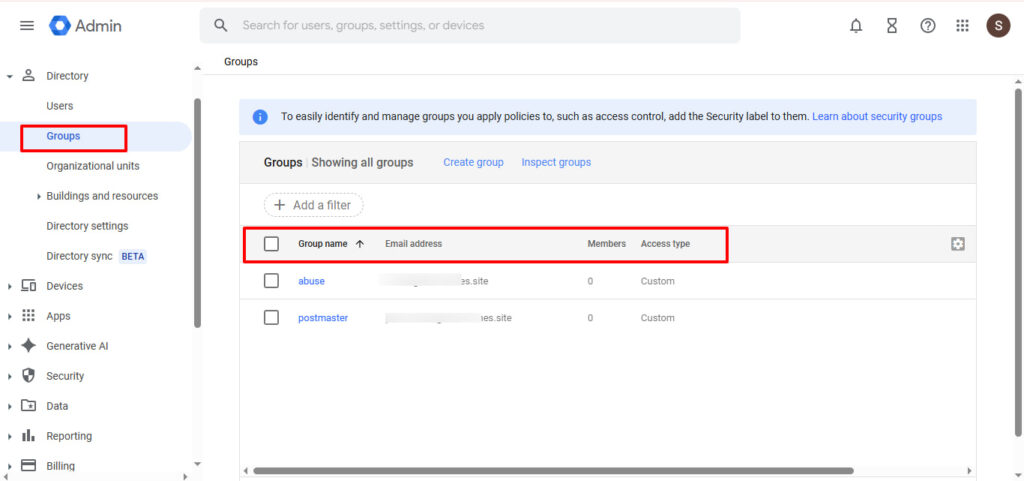
Navigate to your Google Workspace admin console. Click Directory, then Groups.
Hit “Create group” and choose your access type. For most teams, “Team” works perfectly. It allows members to email each other while keeping the group private to your organization.
Set your group email address carefully. You can’t change it easily later.
Add members manually or bulk-upload from a CSV file. Configure group access control settings based on your security requirements.
Done.
Security Best Practices You Can’t Ignore
Google Workspace security starts with proper group permissions. Never leave groups set to “Public on the Internet” unless you absolutely need external access.
Review membership quarterly. People change roles, leave companies, and shouldn’t retain access forever.
Enable two-factor authentication for group owners and managers. They have elevated privileges and need extra protection.
When to Use the Google Directory API
Need to create dozens of groups? The Google Directory API lets you automate group management with scripts.
You can bulk-create groups, update settings, and manage members programmatically. It’s overkill for small teams but essential for enterprises.
Google Apps Script makes this accessible even if you’re not a developer.
The Bottom Line
Google Workspace groups management doesn’t have to be complicated. Start with the basics, use dynamic groups when you can, and automate repetitive tasks.
Your future self will thank you.
Need help troubleshooting specific issues? The Google Admin Help Center has detailed guides for common problems.
Where to Buy Google Workspace: Top Authorized Resellers
You can purchase Google Workspace through authorized resellers, which often provide local support, setup assistance, and flexible billing options for businesses. Buying from a trusted reseller ensures you get professional guidance and additional services alongside your subscription.
Top 5 Google Workspace Resellers:
- Leads Monky ( Enjoy up to 64% off with PARTNER2026(Redeem Here) – Plus free setup and support)
- Agosto (Save up to 10% off on Google Workspace plans with expert migration support)
- Onix (Get up to 5% off on Google Workspace with enterprise-level deployment and support)
- Cumulus Global (Enjoy up to 20% off Google Workspace plans with certified reseller support)
- GsuiteReseller (USA) (Get up to 10% off on Google Workspace plans with dedicated support)
FAQs
Q: What is Google Workspace groups management in GSuite?
A: Organize users, control access, and manage permissions centrally through the Admin console.
Q: How do I use a Google Workspace group email?
A: Send emails to all group members using a single group email address for streamlined communication.
Q: What is a Google Workspace distribution list?
A: A group email setup that allows messages to reach multiple recipients at once.
Q: How do I log in to Google Groups?
A: Access your groups at groups.google.com or via the Admin console using your Workspace credentials.
Q: What is Google Groups for Business?
A: Standard collaboration groups for email distribution, team discussions, and shared inboxes.
Q: Can Google Workspace distribution lists include external members?
A: Yes, groups can allow external members or emails, but permissions should be configured carefully for security.
Q: How do I manage Google Workspace groups?
A: Navigate to Admin Console > Directory > Groups, then create, edit, or delete groups while configuring membership and permissions.
Q: What are the types of Google Groups?
A: Public, Team, Announcement-only, and Restricted—each with different access and posting permissions.
Q: What can a Google Groups manager do?
A: Add/remove members, moderate posts, manage group settings, and assign roles (owners have full control).
Q: Are dynamic groups available in Google Workspace?
A: Yes, dynamic groups automatically update membership based on defined criteria, available in Enterprise editions.
Q: What are the limitations of Google Groups?
A: Google Groups has a 500 dynamic groups limit per domain, cannot nest dynamic groups within other groups, and requires Enterprise editions for advanced automation features.
Q: What are the types of groups in management?
A: The main types are Admin Groups (for configuration), Dynamic Groups (auto-updating membership), Access Groups (service permissions), and Collaboration Groups (email and communication).
Q: How to manage groups in Google Workspace?
A: Navigate to the Google Admin console, click Directory > Groups, then create, edit, or delete groups while configuring membership, permissions, and access settings.
Q: What is replacing Google Groups?
A: Nothing is replacing Google Groups—it remains the primary collaboration tool, though Google Workspace Studio and Google Chat Spaces offer alternative communication methods for specific use cases.
Q: What can a Google Groups manager do?
A: A Google Groups manager can add or remove members, moderate content, approve posts, manage group settings, and assign roles—but cannot delete the group (only owners can).
Q: What are the four types of Google Groups?
A: The four main access types are Public (anyone can join), Team (organization members only), Announcement-only (limited posting), and Restricted (invite-only with controlled permissions).
Get Google Workspace at 64% Off
Same service. Better price. Professional setup included.
⭐⭐⭐⭐⭐ 151+ companies trust us
Partner Pricing:
• Business Starter: $3/month (Google: $8)
• Business Standard: $13/month (Google: $17)
• Business Plus: $20/month (Google: $26)
FREE:
Complete DNS setup + 24/7 support + USA IPs
15-user minimum | Setup in 24 hours


