
Yes, you can transfer your domain to Google Workspace. The process takes 5–7 days and involves three main steps: unlocking your domain at your current registrar, getting an authorization code, and pointing it to Google Workspace. Whether you’re moving from GoDaddy or any other registrar, this guide walks you through every step clearly and without the tech jargon.
Let’s get into it.
What Does “Transfer Domain to Google Workspace” Actually Mean?
A lot of people mix this up and honestly, it’s easy to do.
Transferring your domain to Google Workspace means moving your domain’s registration (who “owns” and manages your domain name) to a new registrar, while keeping it connected to your Google Workspace account for email, Drive, Calendar, and other services.
It does not mean you lose your existing emails or data. Done correctly, everything keeps working.

There are two slightly different situations you might be in:
- You already own a domain (on GoDaddy, Namecheap, etc.) and want to use it with Google Workspace
- You want to physically move the domain registration itself to a new host
Both are covered below.
Before You Start 3 Things to Check
Don’t skip this part. These three checks will save you hours of frustration.
- Your domain must be at least 60 days old. ICANN (the organization that governs domains) requires a 60-day waiting period after any recent registration or transfer before you can move it again.
- Your domain should not expire within 15 days. Renew it first if it’s close to expiry.
- You’ll need admin access to both your current registrar and your Google Admin Console at admin.google.com.
All good? Let’s move forward.
How to Transfer Your Domain to Google Workspace Full Steps
Step 1: Log In to Your Current Domain Registrar
Sign in to wherever your domain is currently registered GoDaddy, Namecheap, Squarespace, or wherever you bought it.
Step 2: Unlock Your Domain
Every domain registrar locks your domain by default to prevent unauthorized transfers. You need to turn this off.
- In most registrars, look for “Domain Lock” or “Registrar Lock” in your domain settings
- Click to disable or unlock it
Once unlocked, your domain is ready to move.
💡 Need help setting up Google Workspace?
We’re certified Google partners offering 64% off + free professional setup ($2,000 value). Used by 151+ companies.
Get your quote →Step 3: Get Your Authorization Code (EPP Code)
This is the key that proves you own the domain and authorizes the transfer. It’s sometimes called an auth code, EPP code, or transfer code.
- Your registrar will either display this code directly or email it to the address on your account
- Copy it carefully you’ll need it in the next step
Step 4: Sign In to Google Admin Console
Head to admin.google.com and log in as the Super Admin of your Google Workspace account.
Step 5: Add or Verify Your Domain
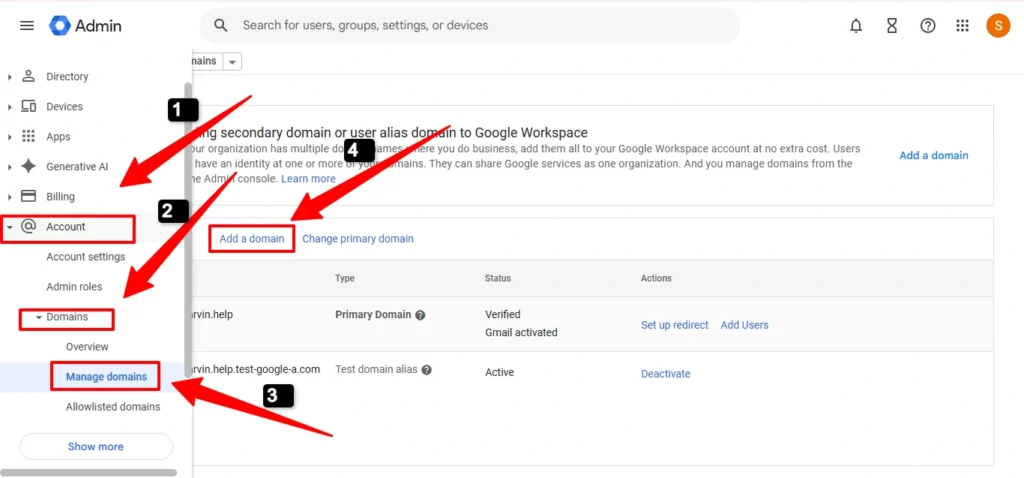
Go to Account → Domains → Manage Domains. If you’re adding an existing domain you already own:
- Click Add a domain
- Enter your domain name
- Follow the domain verification steps Google provides (usually adding a TXT record or uploading an HTML file to your site)
Step 6: Update Your DNS Records
This is the most important technical step. After verifying ownership, you need to update your MX records so that email flows through Google Workspace correctly.
Google will give you the exact MX record values to add at your registrar. Update them and wait for DNS propagation this typically takes anywhere from a few minutes to 48 hours.
Also set up:
- SPF record tells servers your domain is authorized to send email
- DKIM record adds a digital signature to your emails
- DMARC record protects your domain from spoofing and phishing
These three records are critical for email deliverability. Without them, your emails risk landing in spam.
Step 7: Confirm Everything Is Working
Send a test email to an external address. Check that:
- Email arrives correctly
- Google Drive, Calendar, and Meet are accessible under your domain
- All users can log in
That’s it. Your domain transfer to Google Workspace is complete.
How to Transfer GoDaddy Domain to Google Workspace
GoDaddy is the world’s largest domain registrar, so we’ll walk through this one specifically.
If you registered your domain through GoDaddy and want to connect or transfer it to your Google Workspace account, here’s exactly what to do:
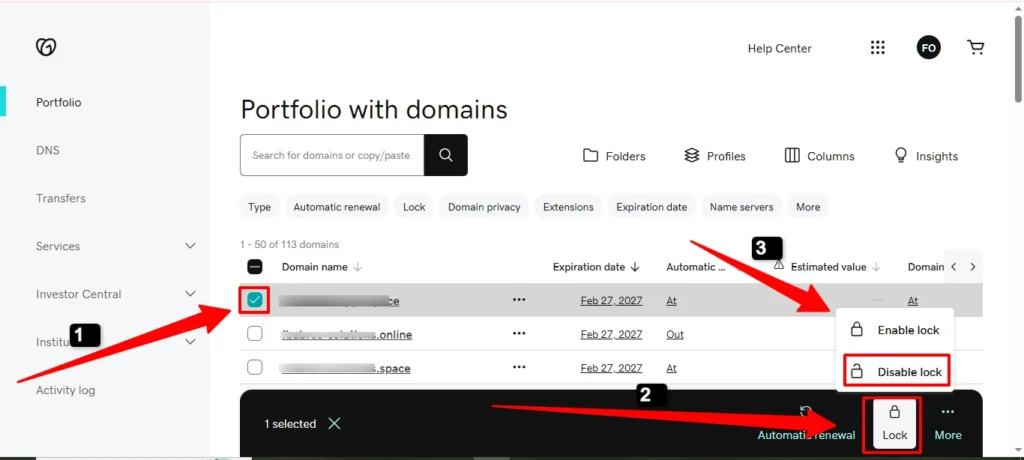
Step 1: Sign in to your GoDaddy Domain Portfolio.
Step 2: Select the checkbox next to the domain you want to transfer.
Step 3: Click the Lock button in the action menu and select “Turn Lock Off” to unlock your domain.
Step 4: Go back to your domain portfolio, select your domain, navigate to Transfer → Transfer to Another Registrar, and click Continue with Transfer.
Step 5: Click “See Authorization Code” and copy it to your clipboard. GoDaddy will also email this code to your registered email address.
Step 6: Go to your Google Admin Console, verify your domain ownership, and paste the authorization code when prompted.
Step 7: Update your MX records, SPF, DKIM, and DMARC in GoDaddy’s DNS settings to point to Google Workspace.
The full transfer typically completes within 5–7 business days. During this time, your email continues to work normally there’s no downtime if you keep your DNS records intact throughout the process.
Pro tip: GoDaddy sends the authorization code to your registrant email on file. Make sure that email address is one you can still access before starting the transfer.
Want Someone to Handle This for You?
If this feels like a lot it doesn’t have to be. Leads Monky is a certified Google Workspace partner that handles the entire setup for you, including domain configuration, MX records, SPF, DKIM, DMARC, and full admin access handover.
You get the exact same Google Workspace service Gmail, Drive, Meet, Calendar, the whole suite but at up to 64% less than Google’s direct price, starting from just $2.50/user/month.
Over 151+ companies have trusted Leads Monky to set up and manage their Google Workspace accounts. Their team responds within hours (not days), handles all the DNS headaches, and makes sure your email deliverability is solid from day one.
If you’re setting up Google Workspace for the first time or migrating from another provider, Leads Monky is the smartest way to do it faster, cheaper, and with real expert support.
Can I Transfer My Domain to Google Workspace If I Already Have One?
Yes, absolutely. This is one of the most common questions we get and the answer is always yes.
If you already own a domain registered elsewhere, you have two options:
- Connect it (keep it at your current registrar and just update DNS records to point to Google Workspace) this is quicker and works great
- Transfer it (move the actual registration to a Google-managed registrar) gives you unified billing and management
For most small businesses and startups, simply connecting your existing domain is the fastest path. You skip the 5–7 day transfer window and get your Google Workspace email running within a few hours.
Common Problems (and How to Fix Them)
“My domain is locked and I can’t unlock it.” Contact your registrar’s support directly. They can unlock it manually. ICANN rules require them to assist with this.
“I didn’t receive the authorization code.” Check your spam folder first. Then verify the email address on file with your registrar is still active. If not, update it before requesting the code again.
“My emails stopped working after the transfer.” Your MX records likely weren’t updated before the transfer completed. Log in to your new registrar’s DNS settings and add Google’s MX records immediately.
“The transfer has been pending for more than 7 days.” Log in to your old registrar and check if there’s a pending approval email you need to confirm.
FAQs
Can I bring my own domain to Google Workspace?
Yes, you can bring any existing domain to Google Workspace by verifying ownership and updating your DNS records in the Google Admin Console.
Which is better, GoDaddy or Google Workspace?
They serve different purposes GoDaddy is a domain registrar, while Google Workspace is a productivity and business email suite; most businesses use both together.
Who bought Google Domains for $12?
Squarespace acquired Google Domains in 2023 for approximately $180 million not $12; the $12 figure refers to the typical annual cost of registering a single domain.
Can I transfer my GoDaddy domain to Google Workspace?
Yes, you can transfer your GoDaddy domain to Google Workspace by unlocking your domain, getting an authorization code from GoDaddy, and updating your DNS records in the Google Admin Console.
How do I move a domain to Google Workspace?
To move a domain to Google Workspace, unlock it at your registrar, get an authorization (EPP) code, verify ownership in your Google Admin Console, and update your MX, SPF, DKIM, and DMARC records.
What are the disadvantages of Google Workspace?
The main disadvantages include monthly subscription costs per user, limited offline functionality, and dependency on Google’s ecosystem though certified resellers like Leads Monky reduce the cost significantly.
Will I lose my email if I transfer my domain?
No, you will not lose your emails during a domain transfer as long as your MX records remain correctly configured throughout the process.
How much does a domain cost through Google Workspace?
Google Workspace doesn’t sell domains directly anymore domain registration is now handled through GoDaddy (Google’s partner), typically costing around $12–$15 per year for a .com domain.
Is Google domain cheaper than GoDaddy?
Google Domains and GoDaddy are similarly priced for standard .com domains at around $12–$14 per year, though GoDaddy often runs promotional pricing for first-year registrations.
Who is the cheapest domain provider?
Namecheap and Porkbun are consistently among the cheapest domain providers, often offering .com domains from $8–$10 per year with free WHOIS privacy included.
Can I buy a domain name forever?
No, you cannot buy a domain name permanently domains are registered for 1–10 years at a time, but you can renew them indefinitely as long as you pay the renewal fee before expiry.
Final Thoughts
Transferring your domain to Google Workspace is a straightforward process when you follow the steps in order. The most important things to get right are: unlocking your domain, grabbing your authorization code, and updating your DNS records especially your MX, SPF, DKIM, and DMARC settings.
If you want expert help and want to save significantly on your Google Workspace plan, Leads Monky is the best place to start. Same Google service, better price, and the technical setup is handled for you.
Got questions? Drop them below we’ll help you get your domain transferred and your Google Workspace running smoothly.
Get Google Workspace at 64% Off
Same service. Better price. Professional setup included.
⭐⭐⭐⭐⭐ 151+ companies trust us
Partner Pricing:
• Business Starter: $3/month (Google: $8)
• Business Standard: $13/month (Google: $17)
• Business Plus: $20/month (Google: $26)
FREE:
Complete DNS setup + 24/7 support + USA IPs
15-user minimum | Setup in 24 hours


