
Staring at your Google Workspace trial countdown and worried about getting charged? You’re not alone. Thousands of users search for how to delete a Google workspace account every month, and most are confused about one critical thing: there’s a big difference between canceling and deleting.
Don’t worry. We’ll walk you through exactly what you need to do, whether you’re trying to delete your Google Workspace account before payment kicks in or you’re shutting down a paid organization.
What You Need to Know First
Here’s the truth: deleting a Google Workspace account isn’t the same as canceling your subscription. Think of it this way—canceling stops your billing, but your account structure stays alive. Deleting? That wipes everything. Many users delete their accounts due to cost concerns. Check out our Google Workspace price hike 2026 guide and available promo codes to potentially save money instead of canceling.
Most people actually want to cancel, not delete. But we’ll cover both so you can make the right choice.
💡 Need help setting up Google Workspace?
We’re certified Google partners offering 64% off + free professional setup ($2,000 value). Used by 151+ companies.
Get your quote →Cancel vs. Delete: The Critical Difference
Canceling your subscription means you’ll stop paying for Workspace features. Your user accounts, groups, and organizational structure stick around. You can even resubscribe later within 51 days.

Permanently deleting your account means everything disappears. All emails, Drive files, and user data get erased after 20 days. There’s no going back after that window closes.
Still with me? Good. Let’s get into the actual steps.
How to Delete Your Google Workspace Account (Step-by-Step)
Step 1: Back Up Your Data First
Before you do anything, save your important stuff. Google won’t do this for you automatically.
Go to the Admin Console at admin.google.com. Navigate to Account > Data Export and download everything you need. This includes Gmail messages, Calendar events, and Drive files.
Trust me—you’ll regret skipping this step.
Step 2: Cancel Your Subscription
You can’t delete your organization account until you cancel all active subscriptions first. Here’s how:
- Sign in to your Admin Console (you need admin account privileges)
- Click on Billing > Subscriptions
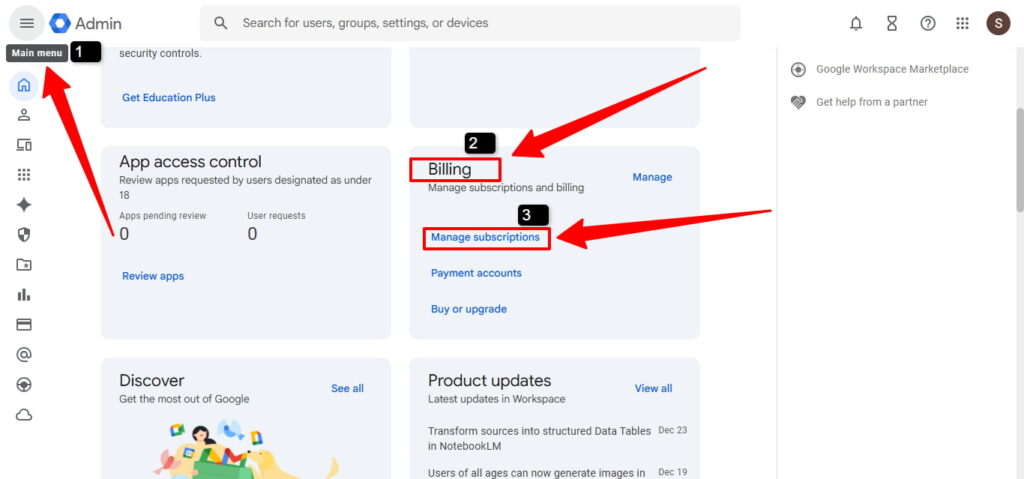
3. Find your active Workspace subscription
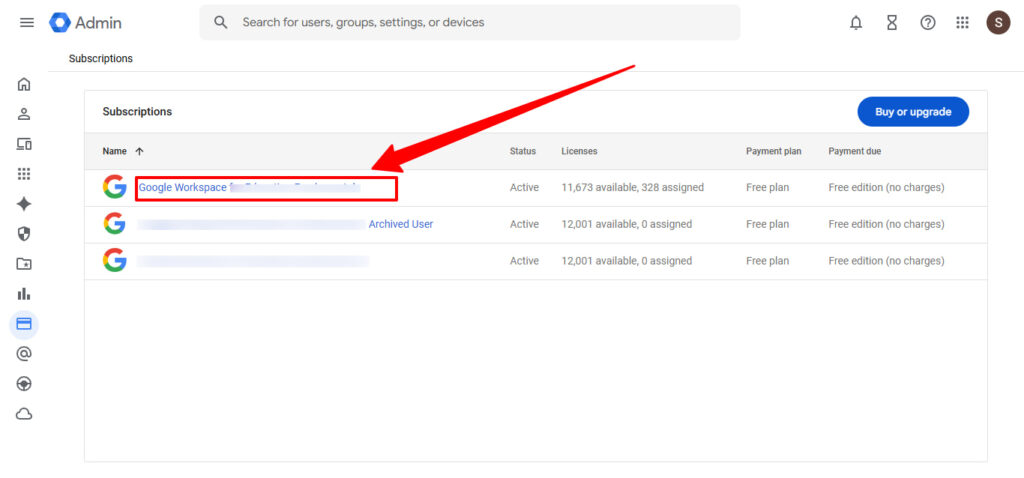
4. Click the three dots and select “Cancel Subscription“
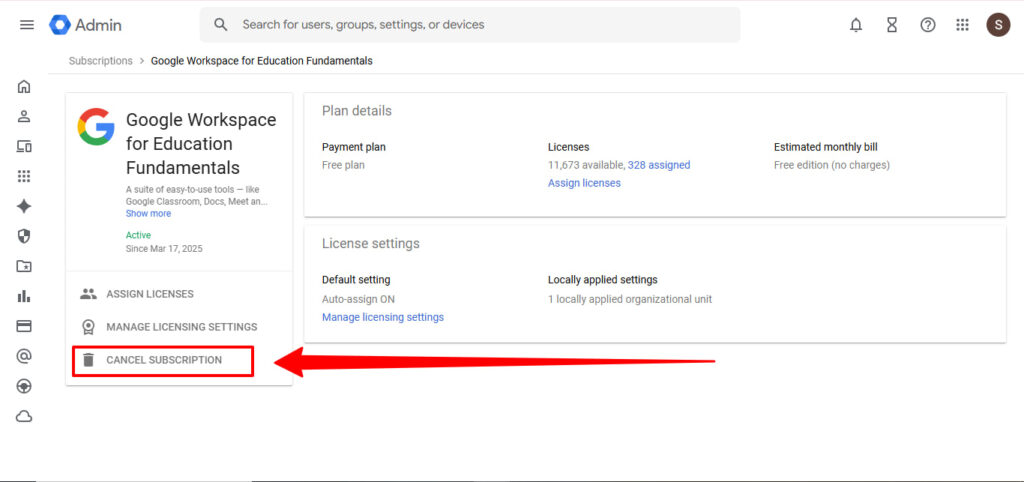
5. Choose your reason and confirm
For flexible billing plans, you’ll stop getting charged next month. Annual plans? You’re stuck paying the remaining balance.
Step 3: Delete the Organization Account
Now comes the permanent part. Only do this if you’re absolutely sure.
- Go to Account > Account Settings > Account management in your Admin Console
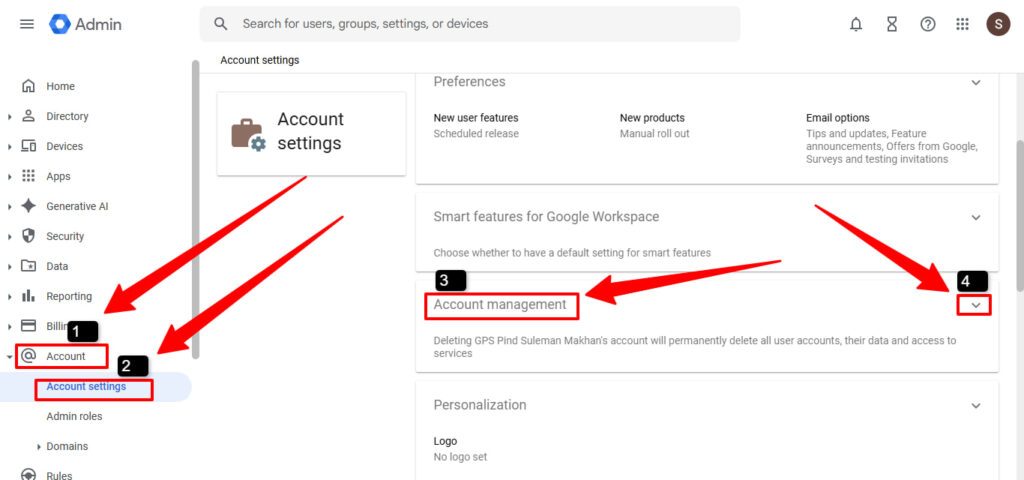
2. Scroll down to “Delete Account“
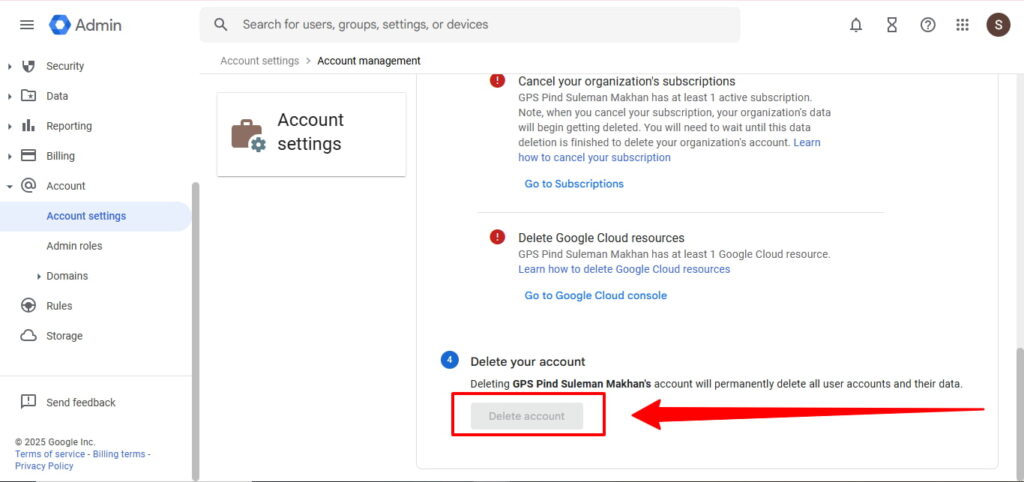
3. Check the boxes confirming you understand what happens
4. Type in your admin email to confirm
5. Click “Delete Account”
Done. Your Google Workspace account is now flagged for deletion.
How to Delete Google Workspace Account Before Payment
Racing against your trial deadline? You’re in luck .it’s actually easier during the trial period.
If you haven’t set up billing yet, your account automatically cancels when the 14-day trial ends. Just don’t verify your domain or add payment information.
Already added your card? Follow the cancellation steps above before your trial ends and you won’t be charged a cent.
Can You Recover a Deleted Google Workspace Account?
Yes, but only for 20 days. After you delete your account, Google keeps it in a recovery state for three weeks.
To recover a deleted Google Workspace account, contact Google Workspace support immediately. They can restore everything—emails, files, users—but only within that 20-day window.
After that? It’s gone forever.
Mobile Users: iPhone Considerations
You can’t delete your Google Workspace account on iPhone through the app. You’ll need to use a web browser (Safari works fine) and follow the same steps above through the Admin Console.
The mobile app is for using Workspace, not managing administrative functions like account deletion.
Final Thoughts
Deleting your Google Workspace admin account is straightforward once you understand the cancel-versus-delete distinction. Most people just need to cancel their subscription, not nuke everything.
Remember: back up your data first, cancel your subscription, then delete if you really need to. And keep that 20-day recovery window in mind—it’s your safety net.
Need help with something specific? Drop a comment below, and we’ll guide you through it.
Where to Buy Google Workspace: Top Authorized Resellers
You can purchase Google Workspace through authorized resellers, which often provide local support, setup assistance, and flexible billing options for businesses. Buying from a trusted reseller ensures you get professional guidance and additional services alongside your subscription.
Top 5 Google Workspace Resellers:
- Leads Monky ( Enjoy up to 64% off with promo code PARTNER2026 (Redeem Here) – Plus free setup and support)
- Agosto (Save up to 10% off on Google Workspace plans with expert migration support)
- Onix (Get up to 5% off on Google Workspace with enterprise-level deployment and support)
- Cumulus Global (Enjoy up to 20% off Google Workspace plans with certified reseller support)
- GsuiteReseller (USA) (Get up to 10% off on Google Workspace plans with dedicated support)
FAQs
How do I delete Google Workspace?
Cancel all subscriptions in the Admin Console, then go to Account Settings > Delete Account to permanently remove it.
How do I delete a Google Business Workspace account?
Sign in as admin, cancel active subscriptions, then delete the organization account in Admin Console > Account Settings.
How do I remove a Workspace account?
Cancel your subscription first, then delete the account via Admin Console > Account Settings > Delete Account.
How do I delete my workplace account?
Use Admin Console to cancel subscriptions, back up data, and then delete the account permanently.
Can you permanently delete a Google business account?
Yes, after canceling subscriptions, delete the account in Admin Console, with a 20-day recovery window.
How do I close a business account?
Cancel all Google Workspace subscriptions, then delete the organization account in Admin Console.
Can I delete a Workspace?
Yes, but only after canceling subscriptions and confirming deletion in Admin Console; data is recoverable for 20 days.
Can a Google Account be deleted permanently?
Yes, personal Google Accounts can be permanently deleted in account settings, separate from Workspace.
Can you cancel Google Workspace anytime?
Yes, you can cancel your subscription at any time, stopping future billing; deletion is optional.
How do I permanently delete a Google business account?
Sign in to your Admin Console, cancel all subscriptions first, then go to Account Settings > Delete Account and confirm the deletion.
What is the difference between a Google Account and a Google Workspace account?
A Google Account is free for personal use (like Gmail), while Google Workspace is a paid business suite with custom email domains and admin management tools.
How do I permanently delete a Google Workspace?
Cancel your subscription through Billing > Subscriptions, then navigate to Account Settings and select “Delete Organization Account” to permanently remove everything.
How do I cancel my Google Workspace account?
Go to your Admin Console, click Billing > Subscriptions, select your active plan, and choose “Cancel Subscription” to stop billing.
How do I delete a Workplace account?
If you mean Google Workspace, cancel your subscription first, then delete the organization account through Account Settings in the Admin Console.
Why can’t I delete a user in Google Workspace?
You likely don’t have super admin privileges, the user is the primary admin, or there are pending data transfers that need to complete first.
Get Google Workspace at 64% Off
Same service. Better price. Professional setup included.
⭐⭐⭐⭐⭐ 151+ companies trust us
Partner Pricing:
• Business Starter: $3/month (Google: $8)
• Business Standard: $13/month (Google: $17)
• Business Plus: $20/month (Google: $26)
FREE:
Complete DNS setup + 24/7 support + USA IPs
15-user minimum | Setup in 24 hours


