

You’re staring at your inbox, refreshing like crazy. Nothing. Your Google Workspace email not working isn’t just annoying—it’s costing you deals, missing client messages, and making you look unprofessional.
Here’s the good news: 90% of email issues have simple fixes. We’ll get you back up and running fast.
Quick Fix: The most common culprit? Your MX records aren’t pointing to Google. We’ll show you how to check (and fix) this in under 5 minutes. But first, let’s figure out exactly what’s wrong with your email.
Why Is Your Google Workspace Email Acting Up?
Your Workspace email troubleshooting journey starts with one question: What exactly isn’t working?
Here’s how to diagnose your issue fast. Match your situation below, then jump straight to the solution.

Can’t receive ANY emails? Your MX records or domain verification is likely broken.
Can send but not receive? Your email routing settings need adjustment.
Missing specific emails? Spam filters or sender authentication is the problem.
Email not syncing on mobile? Your IMAP settings or app configuration needs fixing.
Let’s solve each one.
💡 Need help setting up Google Workspace?
We’re certified Google partners offering 64% off + free professional setup ($2,000 value). Used by 151+ companies.
Get your quote →Fix #1: You’re Not Receiving Any Emails
This is the nuclear option—nothing’s coming through. It feels terrible, but it’s usually the easiest fix.
Check Your MX Records (The Email GPS)
Your MX records tell the internet where to deliver your email. If they’re wrong, emails bounce into the void.
Here’s how to check them:
Step 1: Go to Google’s MX Record Checker
Step 2: Enter your domain name (example: yourbusiness.com)
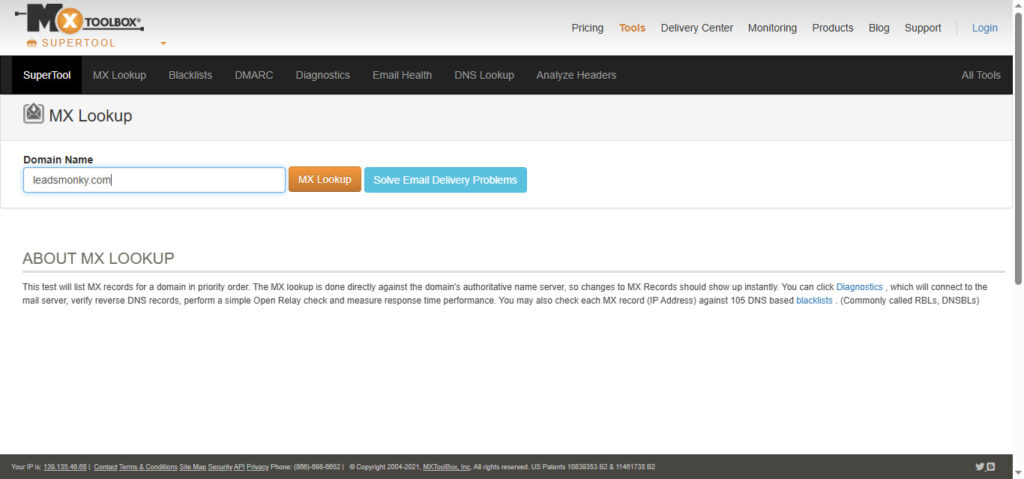
Step 3: Click “Run checks“
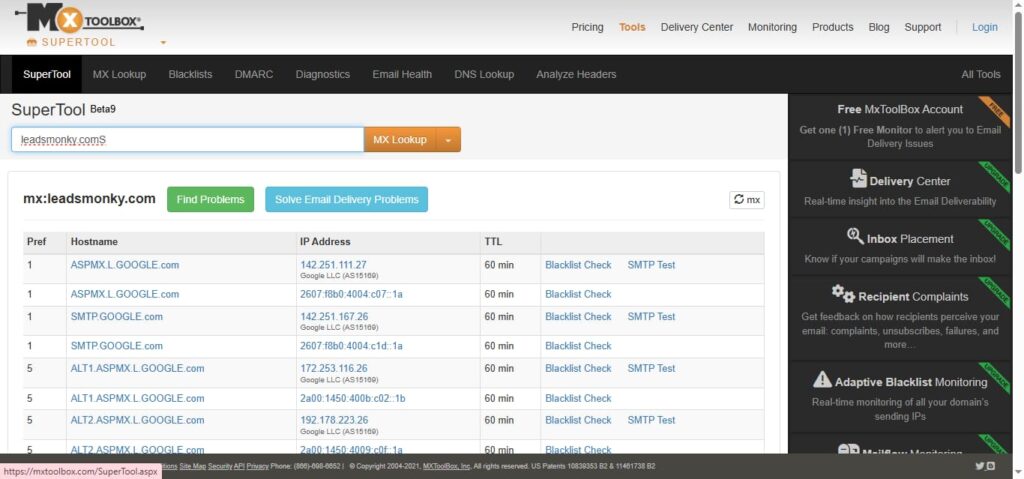
If you see errors, your DNS settings need updating. Don’t panic—we’ll fix this.
How to Fix Your MX Records
Your exact steps depend on where you bought your domain. Here’s the process for the most popular providers.
For GoDaddy users:
- Log into your GoDaddy account
- Go to DNS Management
- Find the MX Records section
- Delete any old MX records
- Add the new Google MX record: SMTP.GOOGLE.COM (priority: 1)
- Save and wait 24-48 hours
For Namecheap users:
- Sign into Namecheap
- Click “Domain List” then “Manage”
- Select “Advanced DNS”
- Update MX records to: SMTP.GOOGLE.COM
- Set TTL to automatic
For Cloudflare users:
- Log into Cloudflare dashboard
- Select your domain
- Click “DNS” tab
- Add MX record pointing to SMTP.GOOGLE.COM
- Turn off proxy (gray cloud, not orange)
Pro tip: Google simplified MX records in 2023. You only need ONE record now, not five.
Verify Your Domain
Sometimes your domain isn’t verified with Google. This stops everything cold.
Step 1: Log into your Gmail Admin Console
Step 2: Navigate to Account > Domains > Manage Domains
Step 3: Check if your domain shows “Verified“
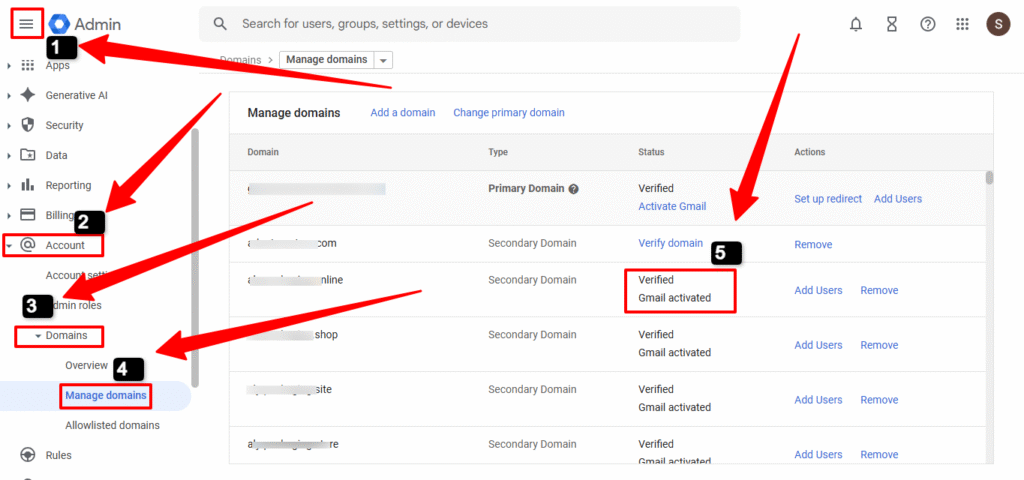
Step 4: If it says “Unverified,” click it and follow Google’s verification steps
Complete Guide to Verify You Domains :
1. Verify GoDaddy Domain with Google Workspace
2. Verify Your Namecheap Domain for Google Workspace
3. Verify Domain for Google Workspace Cloudflare
This usually involves adding a TXT record to your DNS. It sounds technical, but it’s just copy-paste.
Fix #2: You Can Send But Not Receive
This one’s sneaky. Outgoing works fine, but incoming emails vanish.
Check Your Email Routing Rules
Someone (maybe you, maybe your IT person) might’ve created a routing rule that’s misdirecting emails.
Here’s how to check:
Step 1: Open your Google Workspace admin console
Step 2: Go to Apps > Google Workspace > Gmail
Step 3: Scroll to “Default routing“
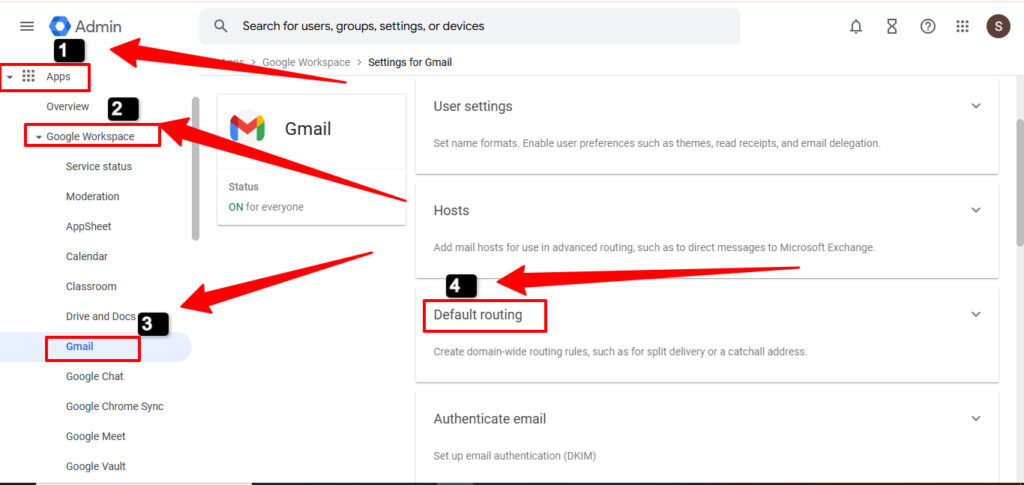
Step 4: Look for any rules redirecting incoming mail
Step 5: Delete or modify suspicious rules
Found a weird rule? Delete it. Your emails should start flowing immediately.
Storage Full? Clear Space Fast
Your Google Workspace storage is shared across Gmail, Drive, and Photos. If you’re maxed out, new emails bounce.
Quick check: Go to google.com/settings/storage
If you’re at 100%, here’s what to do:
- Empty your Gmail trash and spam folders
- Delete old Google Drive files you don’t need
- Remove large email attachments
- Consider upgrading your storage plan
Fix #3: Missing Specific Emails (They’re Going to Spam)
Some emails arrive. Others don’t. Usually, they’re landing in spam or getting blocked.
Check Your Spam Filters
Step 1: Log into Gmail on desktop (not mobile)
Step 2: Click “Spam” in the left sidebar
Step 3: Search for the missing sender
Step 4: If found, select the email and click “Not spam”
Step 5: Add the sender to your contacts
Want to prevent this? Set up a filter:
- Click the gear icon > See all settings
- Go to “Filters and Blocked Addresses”
- Create a new filter for the sender’s email
- Choose “Never send it to Spam”
Fix Authentication Issues (SPF, DKIM, DMARC)
If you’re sending emails that land in spam, your authentication is broken. These are like email security badges.
SPF (Sender Policy Framework) says “This server is allowed to send emails for my domain.”
DKIM (DomainKeys Identified Mail) adds a digital signature to your emails.
DMARC (Domain-based Message Authentication) tells receivers what to do with suspicious emails.
Setting these up requires DNS access. Google provides the exact records you need in your Admin Console under Apps > Gmail > Authenticate email. here is complete details about DKIM ,SPF,DMARC
Fix #4: Email Not Syncing on Mobile
Your Gmail Workspace works on desktop but not on your phone? This drives people crazy.
For iPhone/iPad Users
Step 1: Delete the email account from Settings
Step 2: Re-add it: Settings > Mail > Accounts > Add Account
Step 3: Choose “Google”
Step 4: Enter your Google Workspace email and password
Step 5: Enable “Mail” toggle
Step 6: Check “Fetch New Data” is set to Push or every 15 minutes
For Android Users
Step 1: Open the Gmail app
Step 2: Tap your profile picture > Add another account
Step 3: Select “Google”
Step 4: Sign in with your workspace email
Step 5: Enable sync in Settings > Accounts
Still not working? Clear the app cache: Settings > Apps > Gmail > Storage > Clear Cache
Fix #5: Error Codes and What They Mean
Got a Google Workspace email error? Here’s what the most common ones mean:
Error 550 5.7.1: The sender’s server is blocked or has a bad reputation. Contact the sender—it’s their problem.
Error 421 4.7.0: Your IP isn’t whitelisted. Check your inbound gateway settings in Admin Console.
Error 552 5.2.2: Someone’s mailbox is full. They need to delete old emails.
Error 554 5.7.1: Message rejected due to policy violation. Check your compliance rules in Admin Console.
Prevention: Stop Email Issues Before They Start
You’ve fixed the problem. Great! Now let’s make sure it doesn’t happen again.
Monthly Maintenance Checklist
- Check storage usage: Stay under 80% full
- Review MX records: Verify they haven’t changed
- Test email delivery: Send test emails to multiple providers (Gmail, Outlook, Yahoo)
- Monitor spam complaints: Check your sender reputation with MXToolbox
- Update email filters: Remove outdated rules
Set Up Email Monitoring
Google provides tools to track your email configuration:
- Use Email Log Search to find missing messages
- Enable admin alerts for delivery failures
- Set up Google Workspace Status Dashboard notifications
- Create a test account to send daily check emails
Quick Troubleshooting Checklist
Still stuck? Work through this diagnostic list:
✅ Are you entering the correct password?
✅ Is your internet connection stable?
✅ Did you check the spam folder?
✅ Is Google Workspace having an outage? (Check status.google.com)
✅ Did you recently change your password and forget to update it on mobile?
✅ Are you over your sending limit? (2,000 emails per day for most plans)
✅ Is 2-factor authentication blocking access?
When to Contact Google Support
Some issues need professional help. Contact Google Workspace support if:
- You’ve tried everything above and emails still won’t work
- You’re getting persistent error messages you can’t decode
- Your domain verification keeps failing
- You suspect your account has been compromised
- You need to recover deleted emails older than 30 days
Where to Buy Google Workspace: Top Authorized Resellers
You can purchase Google Workspace through authorized resellers, which often provide local support, setup assistance, and flexible billing options for businesses. Buying from a trusted reseller ensures you get professional guidance and additional services alongside your subscription.
Top 5 Google Workspace Resellers:
- Leads Monky ( Enjoy up to 70% off with promo code GWS12 – Plus free setup and support)
- Agosto (Save up to 10% off on Google Workspace plans with expert migration support)
- Onix (Get up to 5% off on Google Workspace with enterprise-level deployment and support)
- Cumulus Global (Enjoy up to 20% off Google Workspace plans with certified reseller support)
- GsuiteReseller (USA) (Get up to 10% off on Google Workspace plans with dedicated support)
FAQs
How do I activate my Google Workspace email?
Verify your domain in the Google Admin Console and set up MX records correctly.
Why is my Gmail mail not working?
Email issues usually happen due to incorrect MX records, full storage, or misconfigured routing rules.
Is there a problem with Gmail emails today?
Check the Google Workspace Status Dashboard to see if Gmail is experiencing outages.
How to enable SMTP in Google Workspace?
SMTP is enabled by default; configure your email client with smtp.gmail.com, port 465/587, and your Workspace credentials.
How do I fix my email not receiving emails?
Verify MX records, domain verification, routing rules, and ensure storage isn’t full.
How do I report email problems?
Use Google Workspace support via the Admin Console or contact your authorized reseller for assistance.
Why won’t my email load?
Check your internet connection, browser cache, and ensure Gmail isn’t blocked by your firewall or network.
Why is my Gmail account currently unavailable?
It could be due to server outages, account suspension, or login issues; check the Google Workspace Status Dashboard.
What is Google Workspace?
Google Workspace is a cloud productivity suite including Gmail, Drive, Calendar, Docs, and other collaboration tools for businesses.
Why is my Google server not working?
Server issues are often caused by misconfigured MX/DNS records, authentication problems, or temporary Google outages.
Is Google’s network down today?
Check the Google Workspace Status Dashboard for real-time service updates.
How can I check Gmail server status?
Visit the Google Workspace Status Dashboard to see live Gmail and server status.
The Bottom Line
Google Workspace email not working is frustrating, but it’s usually fixable in minutes. Start with your MX records, check your routing rules, and verify your domain settings.
Most problems boil down to configuration issues—not actual failures. You’re probably one setting away from a working inbox.
Still having trouble? Drop the issue in the comments. We’ll help you troubleshoot your specific situation.
Pro tip: Bookmark this guide. Email issues pop up at the worst times, and you’ll want this handy when disaster strikes at 11 PM before a big deadline.
Get Google Workspace at 64% Off
Same service. Better price. Professional setup included.
⭐⭐⭐⭐⭐ 151+ companies trust us
Partner Pricing:
• Business Starter: $3/month (Google: $8)
• Business Standard: $13/month (Google: $17)
• Business Plus: $20/month (Google: $26)
FREE:
Complete DNS setup + 24/7 support + USA IPs
15-user minimum | Setup in 24 hours


