
You’re paying for Google Workspace. You craft the perfect email. You hit send.
And it lands in spam.
Frustrating, right? You’re not alone. Even with Google’s trusted platform, your business emails can still get flagged. But here’s the good news: it’s almost always fixable.
Let me show you exactly what’s going wrong and how to fix it.
Quick Check: Is This You?
Before we dive deep, answer these questions:

❌ Did you set up SPF, DKIM, and DMARC?
If you don’t know what these are, that’s your problem right there. Learn how to set them up step-by-step
❌ Did your sending volume suddenly spike?
Going from 50 emails to 500 overnight? Spam filters hate that.
❌ Are you using words like “FREE” or “URGENT”?
These trigger spam filters instantly.
❌ Do people keep hitting “report spam” on your emails?
Just 3 complaints per 1,000 emails will hurt your email deliverability.
Found your issue? Great. Keep reading for the fix.
💡 Need help setting up Google Workspace?
We’re certified Google partners offering 64% off + free professional setup ($2,000 value). Used by 151+ companies.
Get your quote →Why Google Workspace Emails Are Going to Spam(The Real Reasons)
Let’s break this down simply. There are three main culprits.
1. You’re Not Authenticated (The #1 Problem)
Think of Email authentication like showing your ID at airport security. Without it, nobody trusts you.
Google requires three types of authentication:
- SPF (Sender Policy Framework): Proves your server can send from your domain
- DKIM (DomainKeys Identified Mail): Adds a digital signature to your emails
- DMARC: Tells other email servers what to do with unauthenticated mail
Here’s the kicker: as of November 2025, Google is actively rejecting emails without proper authentication. Not just sending them to spam—blocking them completely.
2. Your Domain Reputation Is Damaged
Your domain reputation score. It’s like a credit score for email.
What hurts your reputation:
- High bounce rates (sending to invalid addresses)
- Spam complaints above 0.3%
- Low engagement (nobody opens your emails)
- Inconsistent sending patterns
What helps your reputation:
- People opening and clicking your emails
- Getting replies
- Staying under 0.3% spam complaint rate
- Sending consistently
You can check your reputation at Google Postmaster Tools (it’s free).
3. Your Content Screams “Spam”
Even with perfect authentication, bad content gets flagged.
Spam trigger words to avoid:
- FREE, URGENT, BUY NOW, CLICK HERE
- ALL CAPS subject lines
- Too many exclamation marks!!!
- Shortened URLs (bit.ly links)
Also watch out for:
- Too many images, not enough text
- Sketchy links that don’t match the anchor text
- Missing unsubscribe button
- No physical address in your footer
How to Fix Google Workspace Email Spam Issues (Step-by-Step)
Alright, let’s fix this. I’m giving you the highest-impact solutions first.
Fix #1: Set Up Authentication (Do This First)
This is non-negotiable. You need all three: SPF, DKIM, and DMARC.
Step 1: Set Up SPF
- Log into your domain provider (GoDaddy, Namecheap, etc.)
- Go to DNS settings
- Add a new TXT record:
- Name: @ (or blank)
- Value: v=spf1 include:_spf.google.com ~all
- Save and wait 24-48 hours
That’s it. You’ve told the world that Google servers can send email for your domain.
Step 2: Enable DKIM
- Go to admin.google.com
- Click Apps → Google Workspace → Gmail → Authenticate email
- Select your domain
- Click “Generate New Record” (choose 2048-bit)
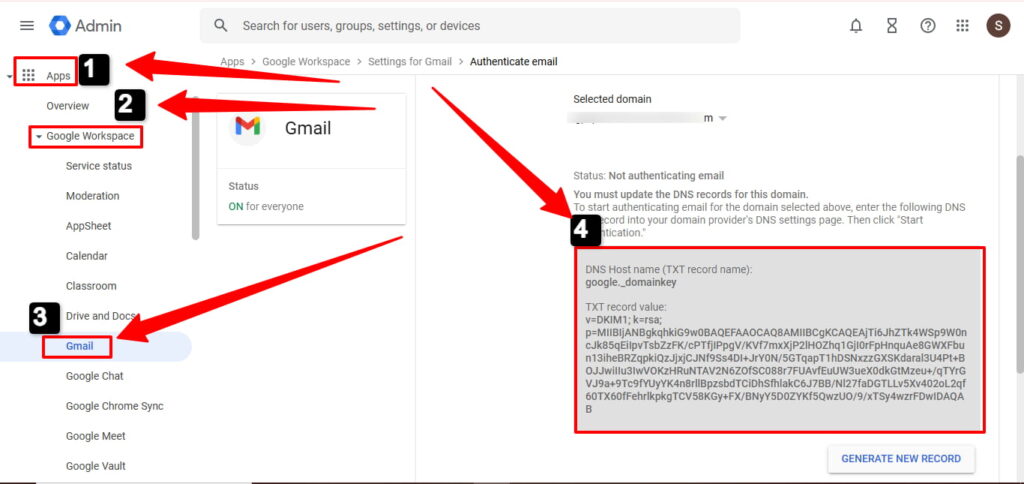
- Copy the TXT record shown
- Add it to your DNS provider
- Wait 24-48 hours, then click “Start Authentication”
Step 3: Add DMARC
- In your DNS settings, add another TXT record
- Name: _dmarc.yourdomain.com
- Value: v=DMARC1; p=none; rua=mailto:dmarc@yourdomain.com
Start with p=none to monitor. After a few weeks, upgrade to p=quarantine or p=reject.
Learn how to set them up step-by-step
Fix #2: Clean Up Your Email Content
Your words matter. Here’s what to change.
Replace spam words with normal language:
| ❌ Don’t Say | ✅ Say Instead |
| FREE | Complimentary, No charge |
| URGENT | Important, Time-sensitive |
| BUY NOW | Shop now, View products |
| CLICK HERE | Learn more, See details |
Keep your text-to-image ratio healthy:
Aim for 60% text, 40% images maximum. Spam filters flag image-heavy emails.
Use real, trustworthy links:
No URL shorteners. No misleading anchor text. Always use HTTPS.
Fix #3: Manage Your Sending Volume
You can’t go from 0 to 1,000 emails overnight. Gmail spam filters will catch you.
For new domains (under 6 months old):
- Week 1: 10-20 emails/day
- Week 2: 30-50 emails/day
- Week 3: 75-100 emails/day
- Week 4+: Gradually increase by 20-30% weekly
For established domains:
Keep your volume consistent. Don’t suddenly 5x your normal sending.
Fix #4: Add a Clear Unsubscribe Option
This is legally required (CAN-SPAM Act) and mandatory since June 2024.
You need two things:
- A visible “Unsubscribe” link in your email footer
- One-click unsubscribe headers (most email tools do this automatically)
Don’t hide it. Don’t make it complicated. Just make it easy to leave.
People who can’t unsubscribe will mark you as spam instead. That destroys your sender reputation.
Fix #5: Monitor Your Metrics
Set up Google Postmaster Tools today. It shows:
- Your domain reputation (High, Medium, Low, Bad)
- Your spam complaint rate
- Authentication pass/fail rates
Your target numbers:
- Spam rate: Under 0.3% (ideally under 0.1%)
- Bounce rate: Under 5%
- Authentication: 100% pass rate
Check it weekly. If your spam rate climbs above 0.3%, stop sending and figure out what’s wrong.
Quick Wins You Can Do Right Now
Don’t have time for a full setup? Start here.
In the next 10 minutes:
- Send a test email to mail-tester.com for a spam score
- Check if DKIM is enabled (admin.google.com)
- Review your last 5 emails for spam trigger words
This week:
- Set up SPF, DKIM, and DMARC (yes, all three)
- Sign up for Google Postmaster Tools
- Remove anyone from your list who hasn’t engaged in 6+ months
This month:
- Monitor your spam complaint rate
- Test different subject lines
- Train your team on email best practices
FAQs
How to fix Google Workspace emails going to spam?
Set up SPF, DKIM, and DMARC, clean email content, manage sending volume, and monitor metrics via Google Postmaster Tools.
Why are my Google emails going to spam?
Emails go to spam due to missing authentication, poor domain reputation, spammy content, or sudden volume spikes.
How do I stop my business emails from going to spam on Gmail?
Authenticate your domain, avoid spam trigger words, send consistently, and remove unengaged recipients.
How do I stop my emails from being marked as spam on Gmail?
Use proper SPF/DKIM/DMARC, maintain a low spam complaint rate, and ensure your content is relevant and professional.
How to fix emails going to spam?
Correct authentication records, clean your email list, monitor Postmaster Tools, and follow email best practices consistently.
What are the signs that your Gmail is hacked?
Unfamiliar sent emails, unexpected password changes, login alerts from unknown devices, or sudden spam complaints.
Why is Gmail blocking my emails as spam?
Gmail blocks emails due to failed authentication, high spam complaints, suspicious content, or domain reputation issues.
How do I unspam my email address?
Authenticate your domain, fix content issues, remove spam trigger words, and request recipients to mark your messages as “Not Spam.”
How long does it take to fix spam issues?
If it’s just authentication, 48-72 hours for DNS to propagate. If it’s reputation damage, expect 2-6 weeks of consistent good behavior.
Will authentication alone fix my problem?
Not always. Authentication is required, but you also need good content, reasonable volume, and engaged recipients.
Can I still go to spam even with authentication?
Yes. Authentication proves you’re you. But if your content is spammy or people keep reporting you, you’ll still get flagged.
What’s the spam rate limit for 2025?
Google requires keeping spam complaints under 0.3%. The sweet spot is under 0.1%. Just 3 complaints per 1,000 emails puts you at risk.
Do I need email warmup for Google Workspace?
If your domain is new or you’re ramping up volume, yes. Start slow and gradually increase over 3-4 weeks.
🚀 What to Do Next
Here’s your action plan.
Today:
- Check if authentication is set up
- Test one email at mail-tester.com
- Sign up for Google Postmaster Tools
This week:
- Fix authentication if it’s missing
- Remove spam trigger words from your templates
- Clean your email list (remove bounces)
Ongoing:
- Monitor Postmaster Tools weekly
- Keep spam complaints under 0.3%
- Send consistently (no sudden volume spikes)
Where to Buy Google Workspace: Top Authorized Resellers
You can purchase Google Workspace through authorized resellers, which often provide local support, setup assistance, and flexible billing options for businesses. Buying from a trusted reseller ensures you get professional guidance and additional services alongside your subscription.
Top 5 Google Workspace Resellers:
- Leads Monky ( Enjoy up to 70% off with promo code PARTNER2026 (Redeem Here) – Plus free setup and support)
- Agosto (Save up to 10% off on Google Workspace plans with expert migration support)
- Onix (Get up to 5% off on Google Workspace with enterprise-level deployment and support)
- Cumulus Global (Enjoy up to 20% off Google Workspace plans with certified reseller support)
- GsuiteReseller (USA) (Get up to 10% off on Google Workspace plans with dedicated support)
The Bottom Line
Google Workspace email deliverability isn’t complicated. It just requires following the rules.
Set up authentication. Send to engaged people. Write like a human, not a marketer. Monitor your metrics.
Do these things consistently, and your emails will land in the inbox where they belong.
The 2025 enforcement is real. Non-compliant emails don’t just go to spam anymore—they get rejected completely. But that’s actually good news for you. Once you’re compliant, you’ll have less competition in the inbox.
Need help? Most issues can be fixed in a week with the right setup. And once it’s done, it’s done. Your email marketing becomes predictable and reliable.
Now go fix those authentication records. Your inbox placement rate will thank you.
Get Google Workspace at 64% Off
Same service. Better price. Professional setup included.
⭐⭐⭐⭐⭐ 151+ companies trust us
Partner Pricing:
• Business Starter: $3/month (Google: $8)
• Business Standard: $13/month (Google: $17)
• Business Plus: $20/month (Google: $26)
FREE:
Complete DNS setup + 24/7 support + USA IPs
15-user minimum | Setup in 24 hours


