
Here’s something that keeps IT admins up at night: Google Workspace doesn’t automatically protect your business data the way you think it does.
I learned this the hard way. A client lost three months of email history when an employee accidentally deleted their entire inbox. They assumed Google had it backed up. Google didn’t.
Let me show you how to backup Google Workspace properly so this never happens to you.
Why You Actually Need to Backup Google Workspace
Google keeps their servers running. That’s infrastructure backup. But your business data? That’s on you.
Here’s what most people don’t realize: Google Workspace data protection only covers hardware failures on their end. It doesn’t protect against:

- Accidental deletions by employees
- Ransomware attacks that encrypt your files
- Malicious insiders deleting critical data
- Compliance violations requiring data recovery
Think about it this way. Your house has fire sprinklers (Google’s infrastructure). But you still need home insurance (your backup solution). The sprinklers won’t help if someone steals your laptop.
The numbers don’t lie either. According to recent industry reports, 60% of businesses experienced data loss in the past two years. And 33% faced multiple incidents.
💡 Need help setting up Google Workspace?
We’re certified Google partners offering 64% off + free professional setup ($2,000 value). Used by 151+ companies.
Get your quote →What Google Protects vs. What You Must Protect
This is where it gets tricky. Google uses something called the “shared responsibility model.” Sounds fancy, but it’s simple.
Google’s Job:
- Keep servers running 24/7
- Protect against hardware failures
- Replicate data across data centers
- Secure their infrastructure
Your Job:
- Protect against user errors
- Defend against ransomware protection
- Maintain compliance records
- Ensure long-term data retention
See the gap? Google won’t save you from human mistakes or cyberattacks. You need your own Google Workspace backup strategy.
Understanding Your Backup Options
Before we dive into the steps, let’s clarify what tools exist. You’ve got three main paths for how to backup Google Workspace data.
Option 1: Google’s Native Tools
Google Takeout lets you manually export data. It’s free but painfully slow. You’ll wait up to 9 days for large exports. Plus, you can’t restore directly back to Google Workspace—it’s just a download.
Google Vault isn’t really a backup. It’s an archiving tool for legal holds and compliance. You can’t use it for disaster recovery.
Data Export Tool works for admins but has the same limitations. Manual process. No automation. Limited restore options.
Option 2: Third-Party Backup Solutions
This is where serious protection happens. Tools like Acronis, Spanning, Backupify, and CloudAlly offer automated cloud-to-cloud backup. They continuously protect your data without you lifting a finger.
These solutions typically cost $3-8 per user monthly. But they give you:
- Automated daily backups
- Point-in-time recovery
- Granular restore options
- Ransomware detection
- Compliance support
Option 3: Self-Hosted Solutions
Companies like CubeBackup let you store backups on your own servers. Perfect if you need complete data control or have strict privacy requirements.
Step-by-Step: How to Backup Google Workspace Emails and Data
Let me walk you through the most practical approach. I’ll show you both the free method and the professional solution.
Method 1: Quick Backup with Google Takeout (Free)
Step 1: Go to Google Takeout (takeout.google.com)
Step 2: Sign in with your Google Workspace account admin credentials
Don’t have admin access? Learn about different Google Workspace account types and how to change your primary domain if needed
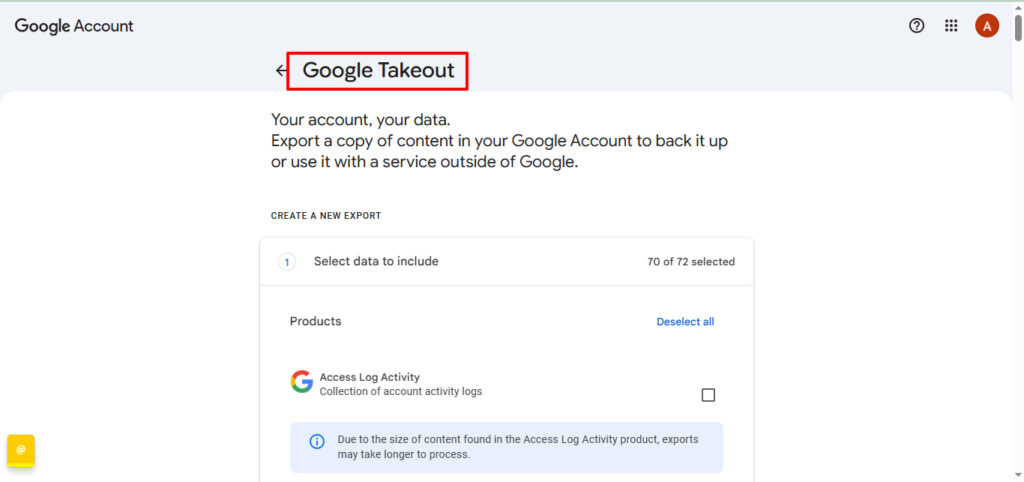
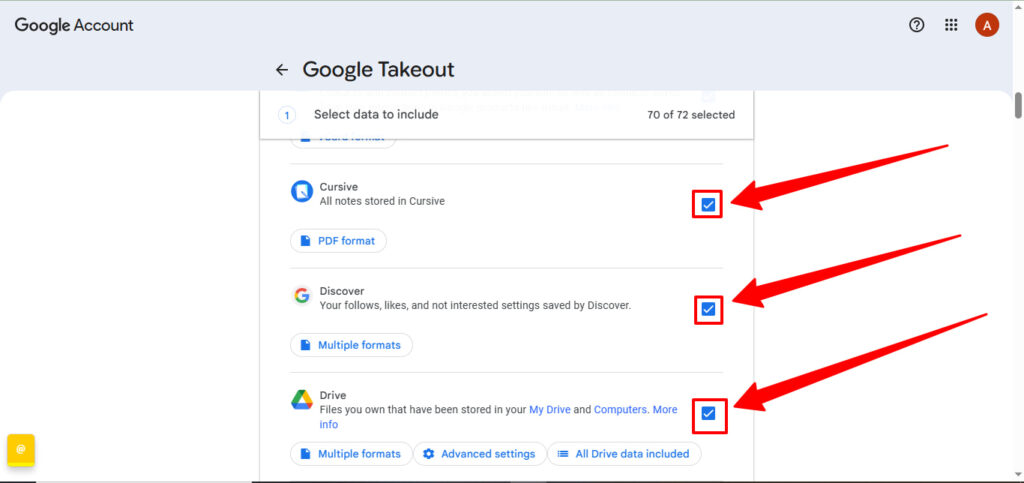
Step 3: Select which services to backup:
- Gmail (how to backup Google Workspace emails)
- Google Drive (all files and folders)
- Calendar and Contacts
- Google Photos
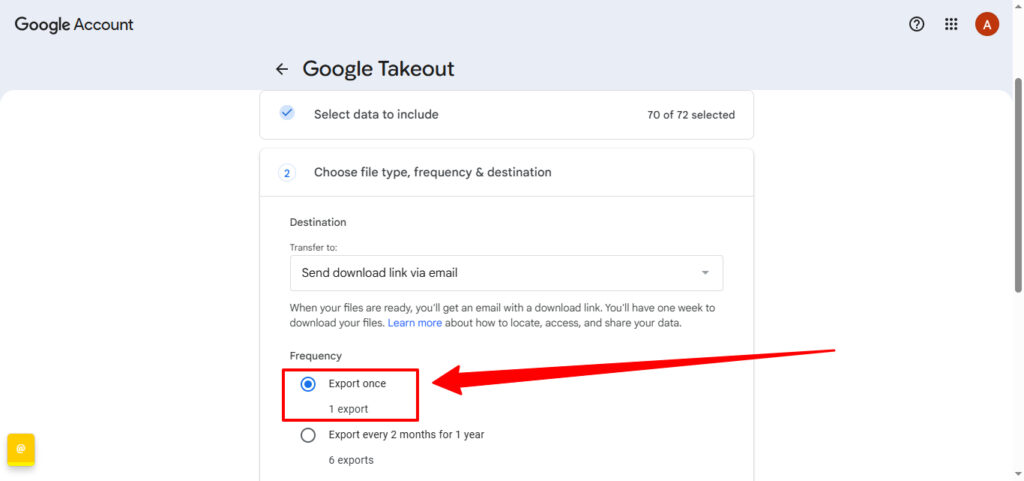
Step 4: Choose “Export once” and select file type (.zip works for most)
Step 5: Click “Create export” and wait for the email notification
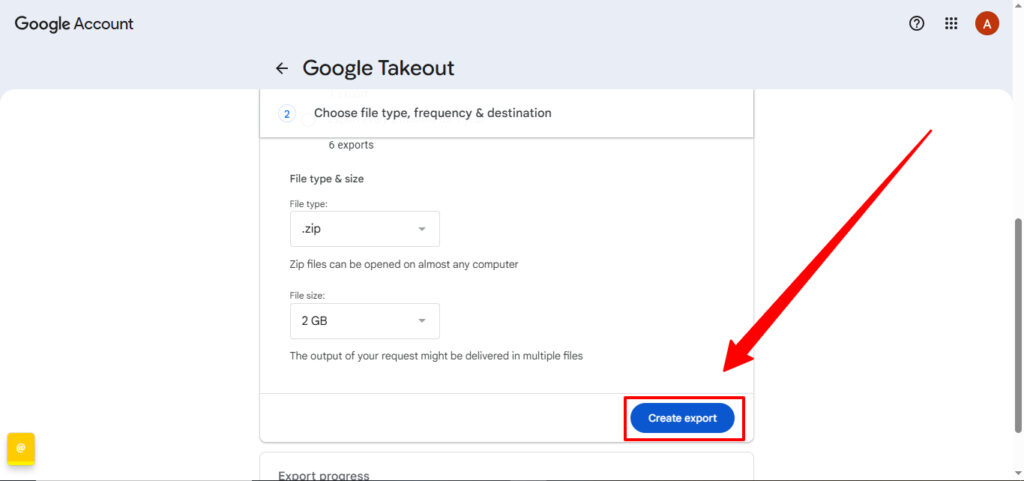
Timeline: Expect 2-9 days depending on data size. Yes, really.
Limitations: This isn’t true backup. It’s just an offline copy you can’t easily restore.
Method 2: Professional Backup Solution (Recommended)
Here’s how to take backup of Google Workspace account the right way.
Step 1: Choose Your Backup Provider
Research solutions based on your needs:
- Small business (under 50 users): Spanning or CloudAlly
- Enterprise (500+ users): Acronis or Commvault
- Budget-conscious: CubeBackup (self-hosted)
Step 2: Sign Up and Connect
Most providers offer free trials. You’ll typically:
- Create an account
- Authorize access to your Google Workspace
- Select which users to protect
- Configure backup frequency
Step 3: Configure Backup Policies
Set up automated backup schedules:
- Daily backups for critical data
- Hourly backups for high-risk departments
- Retention policies (30 days, 90 days, or forever)
Step 4: Test Your Backup
This step is crucial but often skipped. Restore a test file within 24 hours of setup. Verify it works before you actually need it.
Step 5: Monitor and Maintain
Check backup logs weekly. Most solutions send email reports. Review them. Failed backups happen—you need to know immediately.
Protecting Against Ransomware Specifically
Ransomware is the biggest threat to Google Workspace users in 2025. Here’s how your backup should handle it:
Automated Snapshots: Take backups 3x daily minimum. Ransomware spreads fast—you need recent clean copies.
Immutable Storage: Your backup provider should store data in “write once, read many” format. Ransomware can’t encrypt what it can’t modify.
Quick Recovery: Look for solutions offering mass restore. You need to recover hundreds of users in hours, not days.
The average ransomware attack is discovered 72 hours after encryption begins. By then, your last backup might be infected. Multiple daily snapshots solve this.
What About Shared Drives and Team Data?
Don’t forget Shared Drives (formerly Team Drives). These need protection too. Many companies overlook them because no single user “owns” the data.
Your backup solution should automatically include:
- All Shared Drives
- Shared documents and folders
- Permissions and sharing settings
- Version history
Same goes for Gmail data in distribution lists and group emails. Make sure your backup covers organizational accounts, not just individual users.
Compliance and Legal Requirements
If you’re in healthcare (HIPAA), finance (SOC 2), or education (FERPA), you need compliant data protection. Google Workspace alone doesn’t meet these standards for backup.
Look for backup providers with:
- Industry certifications (ISO 27001, SOC 2)
- Legal hold capabilities
- Audit trail logging
- Encryption at rest and in transit
Your backup retention policies should align with regulatory requirements. Some industries require 7-year data retention. Google’s native tools don’t support this. Nonprofits and small businesses often have unique requirements. Check if you qualify for Google Workspace for nonprofits pricing or see our Google Workspace for small business guide.
How Often Should You Backup?
Here’s my rule of thumb for backup frequency:
High-risk data (finance, legal, executive): Every 4 hours Standard business data: Daily Archived projects: Weekly
Most third-party backup solutions handle this automatically. Set it once, forget it exists, sleep better at night.
Where to Buy Google Workspace: Top Authorized Resellers
You can purchase Google Workspace through authorized resellers, which often provide local support, setup assistance, and flexible billing options for businesses. Buying from a trusted reseller ensures you get professional guidance and additional services alongside your subscription.
Top 5 Google Workspace Resellers:
- Leads Monky ( Enjoy up to 64% off with promo code PARTNER2026 (Redeem Here) – Plus free setup and support)
- Agosto (Save up to 10% off on Google Workspace plans with expert migration support)
- Onix (Get up to 5% off on Google Workspace with enterprise-level deployment and support)
- Cumulus Global (Enjoy up to 20% off Google Workspace plans with certified reseller support)
- GsuiteReseller (USA) (Get up to 10% off on Google Workspace plans with dedicated support)
The Bottom Line
How to backup Google Workspace isn’t optional anymore. It’s business insurance for your digital assets.
Google protects their infrastructure. You protect your data. That’s the deal.
Start with a free trial of a cloud-to-cloud backup solution. Test it thoroughly. Then automate it and move on with your life.
Your future self (and your employees) will thank you when disaster strikes and you can restore everything in minutes instead of losing it forever.
Don’t wait for a data loss incident to take Google Workspace backup seriously. By then, it’s too late.
Take action today: Choose a backup solution, run your first backup, and test the restore process. That’s how you protect your business.
FAQs
How do I export my entire Google Account?
Use Google Takeout at takeout.google.com to download Gmail, Drive, Photos, Calendar, and other account data.
Where is my Google backup stored?
Google stores backups in its cloud across multiple data centers; third-party solutions may store backups on separate cloud providers or your own servers.
How do I backup my Google Workspace?
Use Google Takeout, the Data Export tool, or automated third-party services like Acronis, Spanning, or CloudAlly.
Do I need to backup Google Workspace?
Yes—Google protects infrastructure but not user errors, deletions, ransomware, or compliance-related recovery.
How do I export all data from Google Workspace?
Admins can use the Data Export tool in the Admin Console, taking 2–14 days and requiring super admin access with 2FA.
How do I backup everything on my Google Account?
Go to Google Takeout, select desired services, set delivery method and file type, then create the export (2–9 days).
How do I export my entire Google Account?
Use Google Takeout at takeout.google.com to export all your Google Account data, including Gmail, Drive, Photos, and Calendar in a downloadable archive.
Where is my Google backup stored ?
Google backups are stored in Google’s cloud infrastructure across multiple data centers, but third-party backup solutions store copies in separate cloud storage (AWS, Azure) or your own servers.
How do I backup my Google Workspace?
You can backup Google Workspace using Google Takeout (free but limited), Google’s Data Export tool (admin only), or automated third-party solutions like Acronis, Spanning, or CloudAlly.
Do I need to backup Google Workspace?
Yes—Google Workspace protects against infrastructure failures but not user errors, accidental deletions, ransomware attacks, or compliance violations, so you need your own backup strategy.
How do I export all data from Google Workspace?
Admins can export all data using the Data Export tool in Google Admin Console (Menu > Data > Data Export), though it takes 2-14 days and requires super admin access with 2-factor authentication enabled.
How do I backup everything on my Google Account?
Go to Google Takeout, select all services (or choose specific ones), set your delivery method and file format, then create the export—your complete account backup will be ready in 2-9 days.
Get Google Workspace at 64% Off
Same service. Better price. Professional setup included.
⭐⭐⭐⭐⭐ 151+ companies trust us
Partner Pricing:
• Business Starter: $3/month (Google: $8)
• Business Standard: $13/month (Google: $17)
• Business Plus: $20/month (Google: $26)
FREE:
Complete DNS setup + 24/7 support + USA IPs
15-user minimum | Setup in 24 hours


