Quick Answer
To change your primary domain in Google Workspace, sign in as an administrator, add the new domain as a verified secondary domain, activate Gmail, and configure its MX records. Then open Account, Domains, Manage domains, select Change primary domain, and choose the new domain. Google says the switch can take up to 48 hours. Afterward, rename users and groups, update billing contacts, signatures, apps, mobile accounts, and integrations. Keep the old domain as an alias if you want old email addresses to continue receiving messages. Review eligibility first because some trials, legacy editions, reseller accounts, and domain purchases cannot switch.
Most eligible Google Workspace organizations can change their primary domain through the Admin console after adding and verifying a new secondary domain.
A company may need this change after a rebrand, merger, acquisition, legal name update, or move to a shorter domain. The new primary domain becomes the default domain for user addresses, group addresses, Google Drive sharing, Google Meet, and other Workspace identities.
However, Google does not allow every account type to make the switch.
You cannot normally change the primary domain when:
- You purchased the domain during Google Workspace signup.
- The organization is still in a free trial with the wrong or unverified domain.
- The new domain has not been verified.
- The organization is itself a Google Workspace or Google Cloud reseller.
- The organization uses the G Suite legacy free edition.
Some services, including Google Workspace for Nonprofits and certain Chrome or Meet hardware subscriptions, may require help from Google Support before the primary domain can be changed.
Before planning the move, sign in to the Google Workspace Admin console and confirm that the Change primary domain option is available.
Primary Domain vs Secondary Domain vs Alias Domain

The new domain must be a secondary domain before Google lets you promote it to primary.
The three domain types serve different purposes.
| Domain type | Main purpose | Separate users | Extra user licenses | Can become primary |
|---|---|---|---|---|
| Primary domain | Main organizational identity | Yes | Yes | Already primary |
| Secondary domain | Separate users or business units | Yes | Yes | Yes |
| User alias domain | Alternate addresses for existing users | No | No | Not directly |
💡 Need help setting up Google Workspace?
We’re certified Google partners offering 64% off + free professional setup ($2,000 value). Used by 1000+ companies.
Get your quote →Primary Domain
The primary domain is the main domain associated with the Workspace organization. It appears as the default choice when administrators create users and groups.
Only one domain can be primary at a time.
Secondary Domain
A secondary domain supports its own users and mailboxes within the same Admin console.
For example, an organization can manage:
alex@companyone.com
and
sam@companytwo.com
as separate paid users.
Google allows a verified secondary domain to replace the current primary domain.
User Alias Domain
A user alias domain gives existing users an additional address without creating a new mailbox.
For example:
alex@oldbrand.com
and
alex@newbrand.com
can deliver to the same inbox.
Google automatically creates corresponding aliases for users and groups when a user alias domain is added. Alias domains are useful for rebrands when the business wants to keep receiving messages sent to the old identity.
Read the complete Google Workspace multiple domains guide before deciding whether a full primary domain change is necessary.
What to Check Before Changing Your Domain
Prepare the new domain, user list, DNS access, applications, and communication plan before changing the primary identity.
The switch itself is only one part of the project. Most disruption comes from missing preparation after the Admin console change.
Confirm Domain Ownership
You must own the new domain and have access to its DNS settings.
The domain cannot already belong to another Google Workspace or Google Account configuration. If Google says the domain is already in use, it may need to be removed from the previous account before it can be added.
Use the Google Workspace domain verification guide to prepare the required TXT record.
Inventory Users and Groups
Export a list of:
- Active users
- Suspended users
- Super Admin accounts
- Shared addresses
- Google Groups
- Calendar resources
- Aliases
- Service accounts
- Automated sending accounts
This prevents important addresses such as billing@, support@, or security@ from being missed.
Review Connected Applications
Identify every service that uses Workspace email addresses as usernames or identity keys.
Examples include:
- CRM systems
- Accounting software
- Help desks
- Human resources platforms
- Single sign on applications
- Google Workspace Marketplace apps
- Google Cloud services
- Mobile device management
- Google Workspace Sync for Microsoft Outlook
- Sign in with Google connections
Google warns that applications storing data based on the user email address or domain name may lose access to that information after the address changes. Some applications may need to be reinstalled or reauthorized.
Notify Users
Tell users:
- When the change will happen
- Their new email address
- Their new sign in address
- Whether their password changes
- Whether the old address will continue working
- Which signatures and applications they must update
- Where to report problems
Google states that users continue using the same password, but they sign in with the new address after their account is renamed.
How to Change Your Primary Domain in Google Workspace
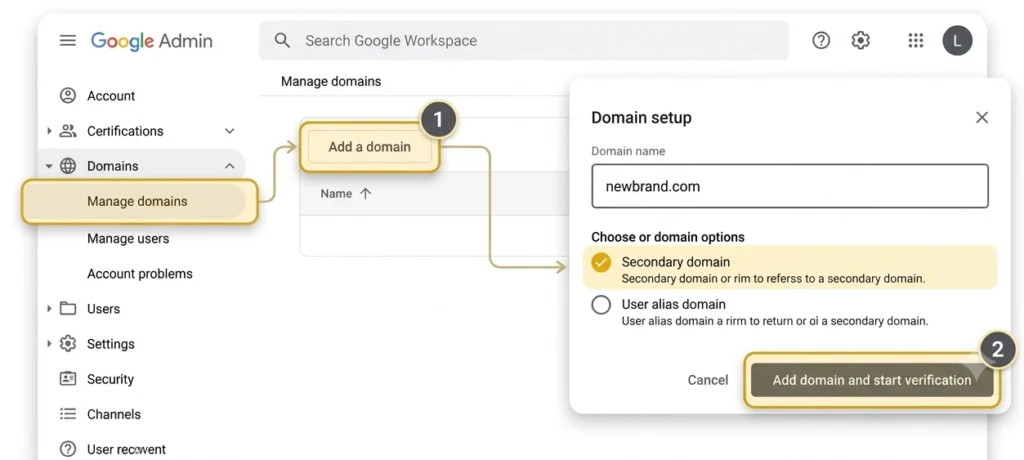
Step 1: Add the New Domain as a Secondary Domain
Add the new domain as a secondary domain, not a user alias domain.
Sign in to the Admin console with an account that has the Domain settings privilege.
Go to:
Menu → Account → Domains → Manage domains
Select Add a domain.
Enter the new domain name.
Choose Secondary domain.
Select Add domain and start verification.
If the domain is currently listed as an alias, remove it first and add it again as a secondary domain. Google notes that you may need to wait up to 24 hours before the domain can be added again.
Step 2: Verify the New Domain
Google must verify that your organization controls the new domain.
Google normally provides a TXT verification record.
Sign in to the registrar or DNS host for the new domain and add the record exactly as Google provides it. Then return to the Admin console and complete verification.
Verification does not activate Gmail by itself. It only confirms domain ownership.
Step 3: Activate Gmail and Configure DNS
Configure mail delivery before making the new domain primary.
Google’s current MX setup uses:
| DNS field | Value |
| Record type | MX |
| Host | @ or blank |
| Priority | 1 |
| Destination | smtp.google.com |
Some registrars require a final period:
smtp.google.com.
After saving the DNS record, return to the Admin console and select Activate Gmail for the new domain.
Google says new MX records can take up to 72 hours to be recognized, although they often begin working sooner. Older Workspace accounts may still use legacy aspmx records, which remain supported when mail is working correctly.
The full Google Workspace setup guide explains domain verification, MX records, Gmail activation, SPF, DKIM, and DMARC.
Configure Email Authentication
Set up or review:
- SPF
- DKIM
- DMARC
These records should reference the new sending domain and every legitimate email service your organization uses.
Do not assume that records from the old domain automatically protect the new domain. DNS authentication is configured separately for each domain.
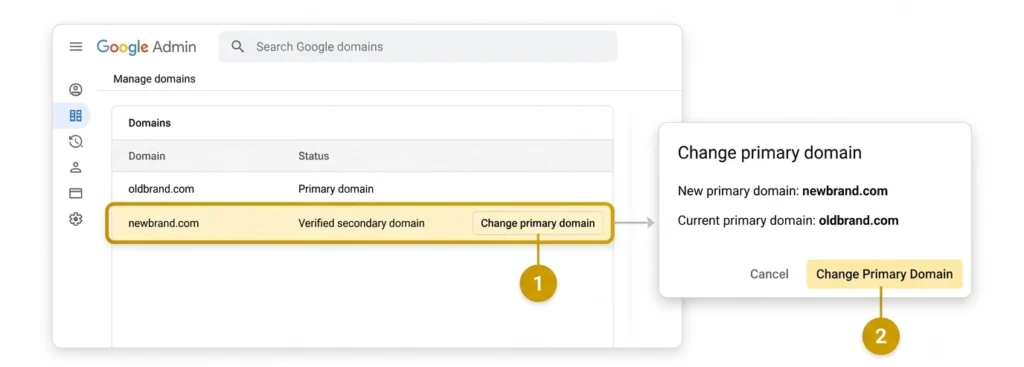
Step 4: Change the Primary Domain
Promote the verified secondary domain through Manage domains.
Go to:
Menu → Account → Domains → Manage domains
Select Change primary domain.
Choose Continue.
Select the verified secondary domain.
Select Change Primary Domain.
Google says the change can take up to 48 hours, although it often finishes sooner.
Changing the primary domain does not automatically rename every user and group. That work comes next.
Step 5: Rename Users and Groups
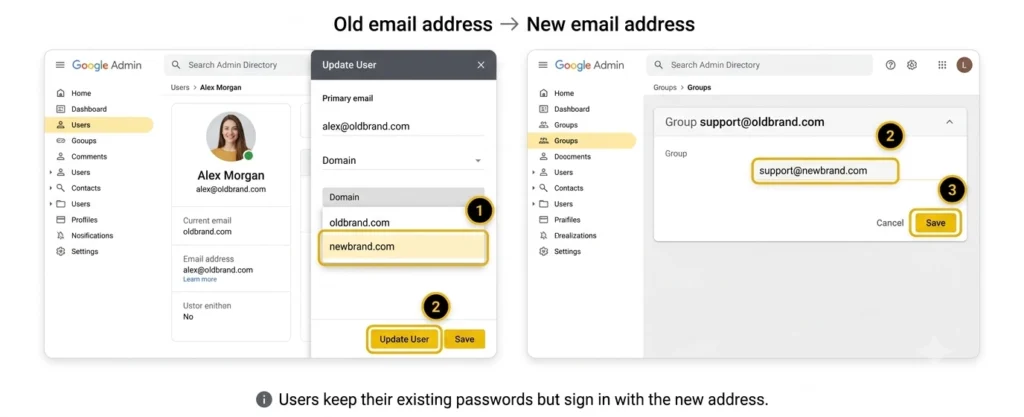
Update user and group addresses so the organization actually begins using the new domain.
For an individual user:
- Open Directory → Users.
- Select the user.
- Select Update User.
- Open the Primary email domain list.
- Choose the new domain.
- Save the change.
When you rename your own administrator account, Google signs you out. Sign in again using the new address and the existing password.
Update Users in Bulk
Organizations with many users can export the user list, modify addresses in a spreadsheet, and upload the changes.
Google estimates that bulk processing can range from about six minutes for 240 users to as long as ten hours for 24,000 users.
For mailing groups:
- Open Directory → Groups.
- Select the group.
- Edit the group information.
- Choose the new domain.
- Save the group.
Update addresses such as:
info@olddomain.com
to:
info@newdomain.com
Step 6: Decide What to Do With the Old Domain
Keep the old domain as an alias when uninterrupted email delivery matters.
Google gives you three main options.
Keep It as a Secondary Domain
The old domain remains available for separate users and mailboxes.
This is the default position after the new domain becomes primary.
Convert It to an Alias Domain
Use this option when the same employees should receive email at both the old and new addresses.
The alias does not require a separate user license. Email sent to the matching old address reaches the user’s existing mailbox.
Remove the Old Domain
Remove the old domain only when:
- It is no longer used publicly.
- Important senders have been notified.
- Old email addresses are no longer needed.
- No applications depend on it.
- The domain is not required for historical services.
- Your organization still owns or securely controls it.
Removing an active brand domain too early can cause missed messages, failed sign ins, and account recovery problems.
What Happens to Gmail, Drive, Calendar, and Other Data?
Changing user addresses normally preserves the existing Workspace accounts and their cloud data, but application behavior varies.
The change renames users within the existing organization. It is not the same as deleting users and creating replacement accounts.
Gmail
Users retain their existing email history.
Google automatically keeps the former user address as an alias to support continuous delivery after an email address change. Users may need to recreate Gmail signatures and update filters that refer to the old address.
Google Drive
Drive documents and shared drives remain with the renamed user.
Existing sharing permissions remain. Previously shared items may continue displaying the old address when it is preserved as an alias.
Google Calendar
Existing events remain, but older events may continue displaying the old address.
Repeating events may require an update before they display the new identity. Group calendar events may need to be recreated for the updated group address to appear.
Google Chat
Existing chat history remains.
Other users normally see the new address and can continue conversations. Searches for the old address may still return historical conversations associated with the renamed user.
Google Contacts
The organization directory updates, but users may need to edit personal saved contacts and remove old entries from Other contacts.
Address changes may take two or three days to appear in some contact contexts.
Mobile Devices
Some email clients let users update the sign in address.
When a client does not support the change, users must remove the old account and add it again using the new address.
Google states that Android work profiles and managed apps may be removed after the user address changes. Users may need to create a new work profile and reinstall managed applications.
GWSMO and Outlook
Google Workspace Sync for Microsoft Outlook users must create a new Outlook profile using the updated Workspace address.
Google Vault
Administrators should recreate searches or retention rules that explicitly filter messages using the old domain address.
Google Play Developer Accounts
Changing a user to a new domain can orphan a Google Play Developer account associated with the previous user identity. Google advises creating a new developer account and requesting an application transfer when continued access is required.
Is This the Same as Changing a Personal Gmail Address?
No. A Google Workspace primary domain change is an administrator controlled organizational change.
Google now allows eligible personal Google Account users in the United States to change the username portion of an @gmail.com address. That feature applies to personal Google Accounts, not to changing the domain for an entire Workspace organization. Work and school users must still contact their administrator for managed address changes.
For Workspace, the administrator changes the organization’s primary domain and then updates managed users.
How to Keep Receiving Email at the Old Domain
Convert the old primary domain into a user alias domain after the switch.
This creates matching addresses for users.
For example:
jane@oldbrand.com
can remain an alias for:
jane@newbrand.com
Messages sent to either address reach Jane’s existing Gmail inbox.
Google says user alias domains can provide alternate addresses at no additional user cost. A Workspace account can add up to 20 user alias domains.
Users who need to send messages from the old address may need to configure it as an additional From address in Gmail.
Keep the old domain registered and its MX records correctly configured for as long as you rely on it for receiving email.
Why the Change Primary Domain Button Is Missing
The option is normally missing because the new domain has the wrong type or the Workspace account is not eligible.
Check these causes.
The New Domain Is an Alias
Google does not allow a user alias domain to become primary directly.
Remove it and add it again as a secondary domain.
The Domain Is Not Verified
Complete ownership verification before trying again.
The Domain Belongs to Another Google Account
Remove or release it from the old Google configuration before adding it to the intended Workspace account.
Your Trial Is Still Active
An account created with the wrong domain during the free trial may need to be cancelled and created again with the correct domain.
You Purchased the Domain During Signup
Google lists this as an account type that cannot use the standard primary domain change process. Contact Google Workspace Support to review available alternatives.
You Use a Legacy Edition
The G Suite legacy free edition does not support the primary domain change option.
Use the Google Workspace support contact guide when the account appears eligible but the control remains unavailable.
How to Convert an Alias Domain to a Secondary Domain
Google does not provide a one click conversion from alias to secondary.
Use this process:
- Confirm that the domain is currently listed as a user alias domain.
- Record any related addresses and settings.
- Remove the alias domain.
- Wait for Google to release the domain if it cannot be added immediately.
- Return to Manage domains.
- Select Add a domain.
- Add it as a secondary domain.
- Verify ownership again if requested.
- Activate Gmail and confirm the MX records.
- Promote it to primary.
Google says recently removed domains may require a wait of up to 24 hours before they can be added again.
Can You Remove the Old Primary Domain?
You cannot remove a domain while it is still the primary domain.
First, add and promote another eligible secondary domain.
After the new domain becomes primary, the old domain becomes available as a secondary domain. You can then keep it, convert it to an alias, or remove it.
Do not remove the old domain until you have checked:
- User aliases
- Group aliases
- Recovery addresses
- Vendor accounts
- Sign in with Google services
- OAuth applications
- Calendar invitations
- Automated mail
- CRM records
- External mailing lists
For a complete domain transfer explanation, see how to transfer a domain to Google Workspace.
Common Primary Domain Change Mistakes
Adding the New Domain as an Alias
An alias cannot become primary directly.
Choose Secondary domain when adding the replacement domain.
Changing the Domain Before Email Works
Verify the new domain, configure MX records, activate Gmail, and test mail delivery before making it the main identity.
Assuming Users Rename Automatically
The organizational primary domain and user primary addresses are separate changes.
Rename users and groups after the switch.
Removing the Old Domain Immediately
Keep it as an alias during the transition so customers, suppliers, and automated systems can still reach old addresses.
Ignoring Marketplace and Custom Apps
Applications may identify users by their exact email address.
Test critical applications and contact developers before the scheduled change.
Forgetting Mobile and Outlook Profiles
Some mobile applications and GWSMO require users to remove, recreate, or reauthorize their profiles after the address changes.
Changing the Admin Account First
Rename a secondary administrator or test user first.
Confirm sign in, Gmail, Drive, Calendar, and Admin console access before renaming the primary administrator responsible for completing the project.
Confusing a Domain Change With a Registrar Transfer
Changing the Workspace primary domain does not transfer domain registration ownership to Google.
Your registrar continues managing the domain registration and DNS unless you separately move it to another registrar.
Post Change Checklist
Complete these checks before declaring the project finished.
Admin and Identity
- Confirm Super Admin access with the new address.
- Update recovery addresses and phone numbers.
- Rename all required users.
- Rename groups and resource calendars.
- Review aliases.
- Check organizational contacts.
Email and DNS
- Confirm incoming email at the new domain.
- Confirm outgoing email.
- Test old domain aliases.
- Validate MX records.
- Validate SPF.
- Validate DKIM.
- Review DMARC reports.
- Update mailing platforms and automated senders.
Google Workspace Apps
- Check Gmail history.
- Open Drive files.
- Test shared drives.
- Review Calendar invitations.
- Check Google Chat.
- Review Google Sites addresses.
- Check Vault searches and rules.
- Review Marketplace apps.
User Devices
- Reauthenticate mobile applications.
- Recreate Android work profiles when required.
- Rebuild GWSMO profiles.
- Update email signatures.
- Update filters.
- Update browser profiles.
- Update password managers.
Business Systems
- Update the company website.
- Update invoices and contracts.
- Update CRM users.
- Update accounting systems.
- Update help desk addresses.
- Update social media contact details.
- Notify customers and suppliers.
- Update printed material.
Final Recommendation
Changing your primary domain in Google Workspace is usually a controlled identity update rather than a full data migration. The safest sequence is to verify the new secondary domain, activate Gmail, test DNS, promote the domain, rename users and groups, preserve the old domain as an alias, and then update applications and devices.
Do not remove the old domain on the same day unless the organization has no external history tied to it. Keeping old addresses active gives customers, automated systems, and third party accounts time to adopt the new identity.
Organizations that want the domain, DNS, user, and email authentication work handled professionally can review the Leads Monky Google Workspace reseller service.
Frequently Asked Questions
Can I change my primary domain in Google Workspace?
Yes, most eligible Google Workspace organizations can change their primary domain after adding and verifying a new secondary domain. Some trial, legacy, reseller, and domain purchase account types cannot use the standard process.
Will changing the primary domain delete my Gmail or Drive data?
No. Renaming an existing user normally preserves Gmail history, Drive ownership, shared file permissions, Calendar data, and Chat history. Some applications, mobile profiles, signatures, filters, and integrations require updates afterward.
How long does a Google Workspace primary domain change take?
Google says the primary domain switch can take up to 48 hours. User aliases may take up to 24 hours to propagate, while new MX records can take up to 72 hours to be recognized.
Can I make a domain alias the primary domain?
Not directly. Remove the alias domain, add it again as a verified secondary domain, activate Gmail, and then select it through the Change primary domain control.
Can I keep receiving email at my old domain?
Yes. Convert the old domain into a user alias domain so matching old addresses continue delivering to users’ existing inboxes without requiring duplicate mailboxes.
Why can’t I change my Google Workspace primary domain?
The account may be in a free trial, use a legacy edition, belong to a reseller, contain an unverified domain, or have been created through a domain purchase arrangement that does not support the standard switch.
Do users need new passwords after the domain change?
No. Users normally keep their existing passwords, but they sign in using their new primary email addresses after their accounts are renamed.
Can I remove the original primary domain?
Yes, but only after another eligible secondary domain becomes primary. Confirm that no users, groups, applications, recovery settings, or external systems still depend on the old domain before removing it.
Ready to Fix Your Cold Email?
What you get:
- ✓ Complete infrastructure: 30 emails + 10 domains
- ✓ 10,000 personalized emails monthly
- ✓ First consultations in 5–6 weeks