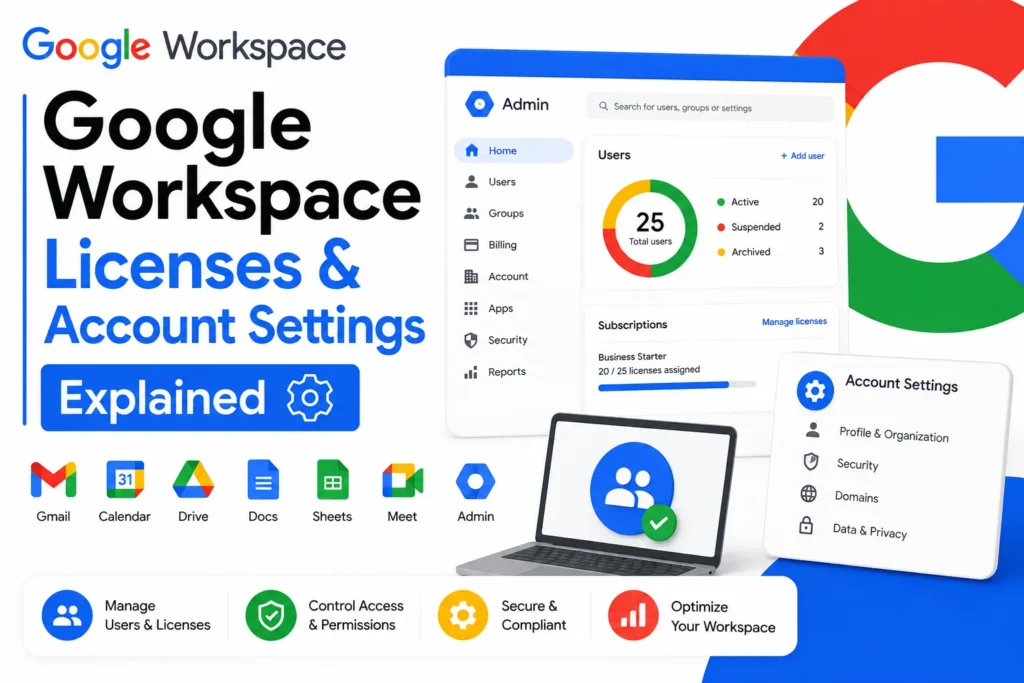
Quick Answer
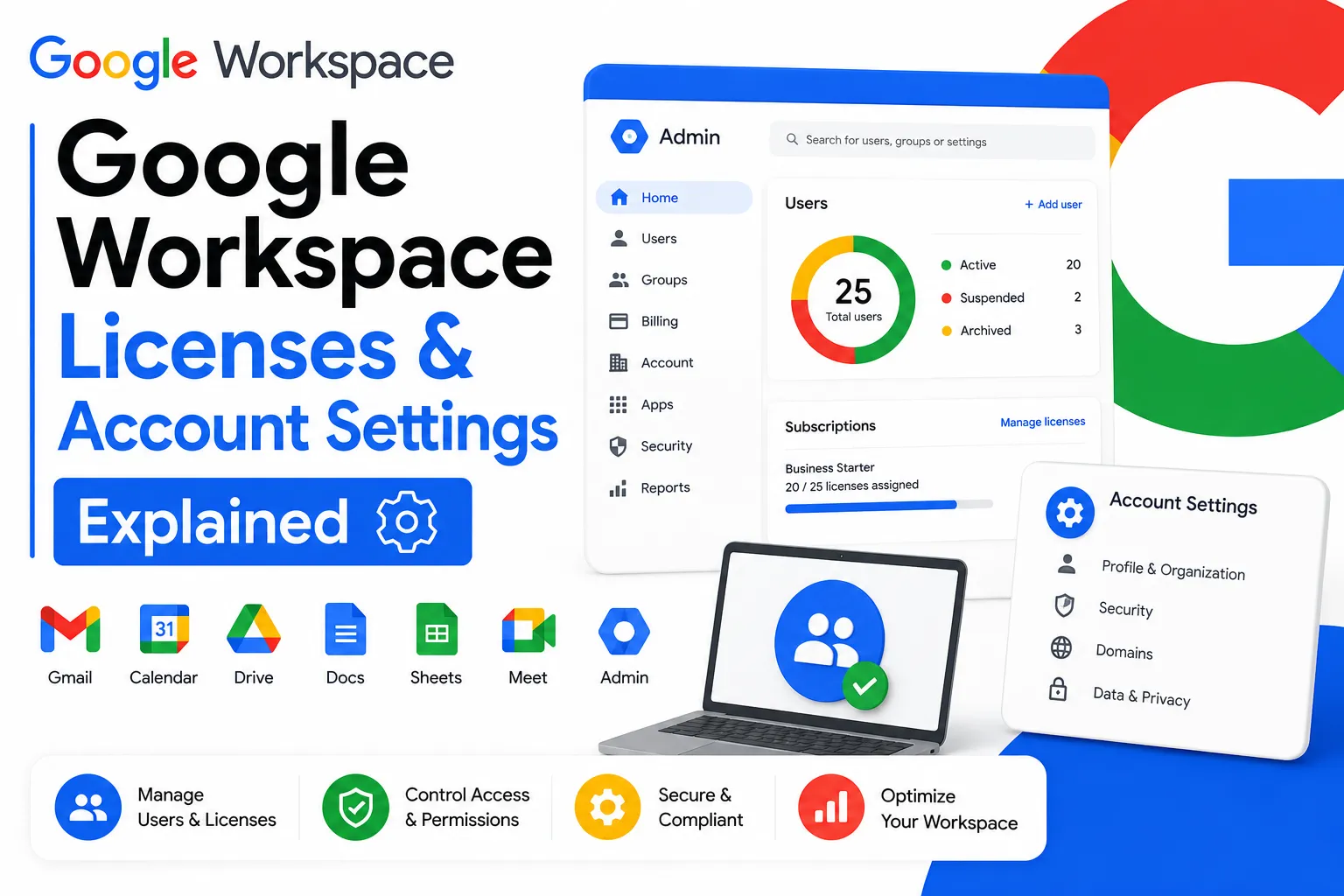
A Google Workspace license is what determines which features and apps a specific user can access, assigned per user through the Admin console under Billing, then License settings, or automatically when auto-assignment is turned on. Account settings beyond licensing include organizational units for applying different rules to different groups, guest accounts for external collaborators, username formatting rules, and where to review Google’s terms of service for your organization.
Google Workspace licenses and account settings determine what each person in your organization can actually do, separate from the apps themselves. A license controls which services a user can access, whether that’s Gmail, Drive, or advanced features tied to a specific plan tier. Account settings go further, covering how users are organized into groups with different rules, how outside collaborators get limited access without a full account, and what naming rules apply when creating new users. This guide walks through how each of these actually works in the Admin console, including a genuinely new feature, guest accounts, that changes how external collaboration works.
What a License Actually Controls

A Google Workspace license is what grants a specific user account access to a specific set of services, tied to whichever plan, Business Starter, Standard, Plus, or Enterprise, that license belongs to. Without an assigned license, a user account exists in your directory but can’t actually use Gmail, Drive, or the other core apps.
This matters most for organizations running multiple subscriptions at once, such as a mix of Business Standard for most staff and Business Plus for a smaller group needing Vault or advanced endpoint management. Licenses aren’t a single on-off switch for the whole organization; they’re assigned individually, which is what allows this kind of mixed setup.
💡 Need help setting up Google Workspace?
We’re certified Google partners offering 64% off + free professional setup ($2,000 value). Used by 1000+ companies.
Get your quote →How License Assignment Works
Google Workspace supports two approaches to assigning licenses, and most organizations use a mix of both depending on the situation.
Automatic assignment. In the Admin console, go to Billing, then License settings, select the service you want to configure, and turn automatic assignment on. New users created afterward are automatically assigned a license for that service, which saves time for organizations that don’t need granular control over who gets what.
Manual assignment. In the Admin console, go to Directory, then Users, open a specific user’s account page, and scroll to Licenses. Clicking a service shows an on/off switch in the Status column, letting you assign or remove that specific license for that specific user. This approach fits organizations running multiple subscriptions where different roles need different plan tiers.
If you have more than one active subscription for the same service, automatic assignment lets you choose which specific subscription new users draw from, which matters if you’re intentionally running a mixed-license setup rather than putting everyone on the same tier by default.
Reassigning and Removing Licenses
Licenses aren’t permanently tied to a user account. When someone changes roles, moves to a different plan tier, or leaves the organization, their license needs to be explicitly reassigned or removed rather than assuming it happens automatically.
To remove a license, follow the same path as manual assignment, Directory, then Users, then the specific user’s Licenses section, and toggle the relevant service off. This frees that license slot for another user without deleting the underlying account itself, which matters if you still need to preserve that user’s data temporarily during an offboarding process.
Reassigning a license to a different subscription tier works the same way: toggle off the current service and toggle on the new one. There’s no dedicated “upgrade” button for an individual user; changing someone’s tier is functionally the same action as removing one license and assigning a different one. For organizations doing this often, for example promoting someone from Business Starter to Business Plus as their role changes, it’s worth checking whether the target subscription has an available seat before making the change, since running out of licenses on a specific tier will block the reassignment until more are purchased.
Organizational Units: Applying Different Settings to Different Groups
An organizational unit, usually shortened to OU, is a way of grouping users so you can apply different settings, security policies, and app access to different parts of your organization without managing each user individually.
A common structure splits OUs by department, engineering, sales, finance, each with its own policies. Settings applied to a parent OU cascade down to any child OUs beneath it unless specifically overridden, which is useful for setting a baseline policy organization-wide while still allowing specific teams stricter or looser rules where needed. Guest accounts, covered next, are automatically placed in their own dedicated OU as well, separate from your regular staff structure.
Getting OU structure right early matters more than it might seem, since reorganizing users across OUs later, once policies and group memberships are already tied to the existing structure, is more work than planning a sensible structure from the start.
Guest Accounts: Collaborating With People Outside Your Organization
This is a genuinely new part of Google Workspace, not a long-standing feature, so it’s worth covering in detail. Guest accounts rolled out gradually starting in late March 2026 and reached general availability in mid-April 2026.
What they are. A guest account is a lightweight, admin-managed identity for someone outside your organization, a contractor, agency partner, or client, who doesn’t have their own Workspace account. When a user in your organization invites a non-Workspace external contact through a Google Chat direct message or space, Google automatically provisions a guest account for that person within your domain, with a unique account identifier.
What guests can and can’t do. Guest accounts can collaborate in Chat, Drive, Docs, Sheets, Slides, and Meet, within the limits Google sets for guests specifically. They do not get Gmail, Calendar, or Gemini access. Guests also can’t create or own new files in Google Drive; they can only open and modify files that have already been shared with them.
How they’re managed. Every guest account is automatically placed in a dedicated “Workspace Guests” organizational unit, separate from your regular directory, where admins can apply security policies, review activity, and manage access without mixing guest accounts into your normal user structure. Admins can view and manage guests specifically under Directory, then Guests, in the Admin console. Each paid Business or Enterprise license includes a small number of complimentary guest accounts, so organizations working with a large number of external contacts should account for this rather than assuming unlimited guest capacity.
Turning the feature on or off. Guest invitations are controlled through your existing external chat settings, under Security, then Access and Data Control, then External Sharing. If a user is already permitted to chat with people outside your organization, they can typically invite guests by default unless an admin restricts it separately. Turning the feature off later doesn’t retroactively remove existing guest access; internal users lose the ability to invite new guests, but previously created guest accounts and their access to shared files remain until an admin manually removes them.
Username Rules for Google Workspace Accounts
Usernames in Google Workspace, meaning a user’s primary email address or any alias, follow specific formatting rules rather than accepting any text an admin might want to use, per Google’s own current guidelines.
Usernames can be up to 64 characters long and must be lowercase; entering uppercase letters during creation automatically converts them to lowercase. Allowed characters include letters, numbers, dashes, underscores, apostrophes, and periods, along with certain accented characters. A username can’t contain more than one period in a row, and periods specifically can’t appear at the very start or end of a username, though other non-alphanumeric characters like a dash or underscore are allowed in those positions. Certain characters, including ampersands, equal signs, angle brackets, plus signs, commas, and exclamation points, are restricted to at most one occurrence each.
Keeping naming conventions simple and consistent, such as firstname.lastname, avoids running into these edge cases entirely and makes accounts easier to manage as your organization grows.
Where the Terms of Service Actually Apply
Google Workspace’s terms of service are accepted at the organization level when an admin first sets up the account, and they continue to apply to every user added afterward, since individual users don’t separately accept a different agreement when their account is created.
Admins can review the current terms and any organization-specific agreements, such as a signed Business Associate Agreement for regulated industries, under Account, then Account Settings, then Legal and Compliance in the Admin console. This is also where admins would go to review data processing terms relevant to compliance requirements, rather than searching for this information elsewhere in the console.
Common License and Account Setting Mistakes
Leaving auto-assignment on without reviewing it periodically. This is convenient at first but can lead to over-licensing as an organization’s structure changes, particularly if roles that no longer need a specific service still get one assigned automatically.
Not planning organizational unit structure before it’s needed. Retrofitting an OU structure onto an organization that’s already grown past a handful of users is significantly more work than setting up a sensible structure early, even if it feels like unnecessary planning at a small scale.
Assuming guest accounts work like a lightweight full account. Since guests don’t get Gmail, Calendar, or Gemini, and can’t create new files, treating a guest account as a substitute for a proper user license for someone who needs deeper access will create friction quickly.
Using inconsistent username formats across the organization. Mixing firstname.lastname with firstinitiallastname or other formats makes directory management harder than it needs to be, particularly as the organization scales past its first dozen or so users.
Forgetting that removing a license doesn’t delete the underlying user data. Some admins assume toggling off a license during offboarding immediately clears everything associated with that account. In practice, the account and its data typically persist until an admin takes a separate, explicit action to delete or transfer it, which is worth understanding clearly before an offboarding process that depends on timing.
Conclusion
Google Workspace licenses and account settings control more than just who has access to email. License assignment determines which services each user can reach, organizational units let different parts of your organization follow different rules without separate accounts, and guest accounts, still a relatively new feature, give external collaborators limited access without consuming a full license. Getting the structure right early, particularly around organizational units and naming conventions, saves meaningful reconfiguration work later as an organization grows.
FAQs
How do I assign a Google Workspace license to a new user?
In the Admin console, go to Directory, then Users, open the user’s account page, and scroll to Licenses. Click the relevant service to reveal the on/off toggle, or turn on automatic assignment under Billing, then License settings, to have new users licensed automatically.
What is a Google Workspace guest account?
A guest account is a lightweight, admin-managed identity for an external collaborator without their own Workspace account, automatically created when invited through Google Chat. Guests can use Chat, Drive, Docs, Sheets, Slides, and Meet, but not Gmail, Calendar, or Gemini.
How many guest accounts do I get with Google Workspace?
Each paid Business or Enterprise license includes a small number of complimentary guest accounts. Organizations working with a large number of external contacts should plan for this limit rather than assuming unlimited guest capacity.
What are Google Workspace’s username rules?
Usernames can be up to 64 characters, must be lowercase, and are limited to letters, numbers, dashes, underscores, apostrophes, and periods. Periods can’t appear consecutively or at the very start or end of the username.
What is an organizational unit in Google Workspace?
An organizational unit, or OU, groups users so different security policies, app access, and settings can be applied to different parts of an organization. Settings on a parent OU cascade down to child OUs unless specifically overridden.
Where do I find Google Workspace’s terms of service as an admin?
Under Account, then Account Settings, then Legal and Compliance in the Admin console. This is also where organization-specific agreements, such as a signed compliance agreement, are managed.
Ready to Fix Your Cold Email?
What you get:
- ✓ Complete infrastructure: 30 emails + 10 domains
- ✓ 10,000 personalized emails monthly
- ✓ First consultations in 5–6 weeks