You’re probably making the same mistake most salespeople make with LinkedIn Sales Navigator.
They subscribe, click around for a week, and wonder why they’re not drowning in leads. Here’s the truth: Sales Navigator isn’t magic. But when you know the right buttons to push? It’s a lead generation machine.
I’ve used Sales Navigator to generate over 500 qualified B2B leads in 90 days. No tricks. No hacks. Just proven tactics that work.
Let me show you exactly how.
What is LinkedIn Sales Navigator?
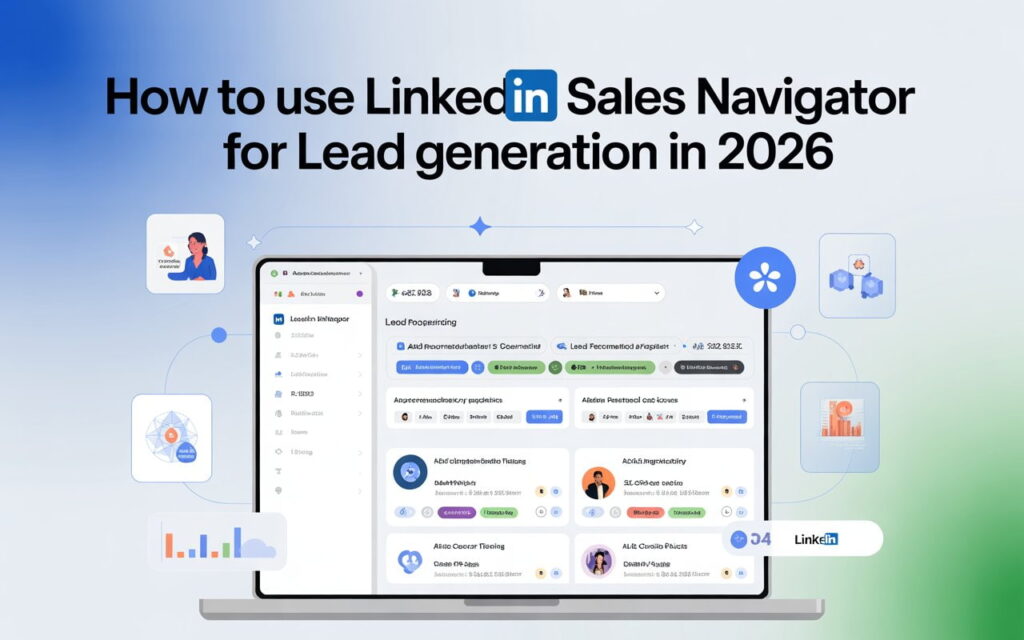
LinkedIn Sales Navigator is LinkedIn’s premium tool built specifically for sales professionals and lead generation.

Think of regular LinkedIn as a phone book. Sales Navigator is your personal detective agency.
Here’s what you get:
- 50+ advanced search filters to find your exact buyer
- InMail credits to message anyone (even non-connections)
- Real-time buyer intent signals showing who’s ready to buy
- Lead recommendations powered by AI
- CRM integration with Salesforce, HubSpot, and Dynamics
The difference? Regular LinkedIn gives you 1,000 search results max. Sales Navigator unlocks all 1 billion professionals.
LinkedIn data shows users generate 42% larger deals and 59% more revenue. That’s not hype. That’s ROI.
Sales Navigator Pricing (2026)
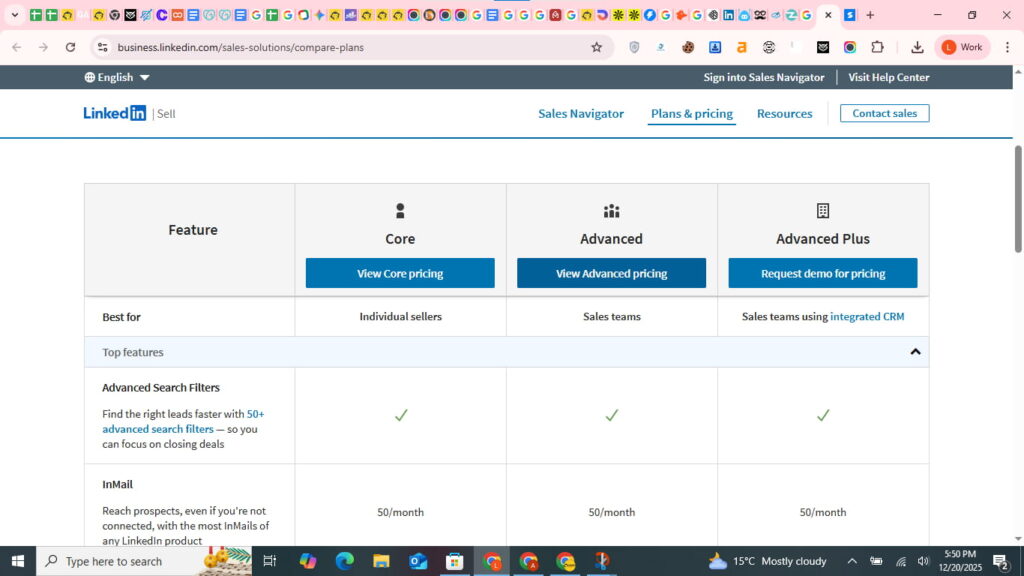
Let’s talk money. Sales Navigator offers three plans:
Core Plan – $99/month
Perfect for solo sellers. You get 50 InMail credits monthly, advanced lead search, and basic CRM sync. Start here if you’re testing the waters.
Advanced Plan – $149/month
Built for teams. Adds TeamLink (tap your team’s network), Account IQ (AI-powered insights), and Smart Links for tracking content.
Advanced Plus – $1,600+/year
Enterprise-level firepower. Buyer intent dashboard, content engagement alerts, and custom integrations.
Looking to save money? Check our LinkedIn lead generation cost guide for budget planning. For agencies, consider white label LinkedIn lead generation to offer these services to clients
My advice? Start with Core. Upgrade when you’re booking 10+ meetings monthly from LinkedIn prospecting.
Setting Up Sales Navigator the Right Way
Most people skip setup. Big mistake.
Your LinkedIn profile is your first impression. Before sending a single InMail, fix these:
Profile Optimization Checklist:
- Professional headshot (21x more profile views)
- Headline that solves problems, not job titles
- Summary speaking to your target audience’s pain points
- Featured section with case studies
- Quantifiable results in experience section
Bad headline: “Sales Manager at ABC Company”
Good headline: “Helping SaaS Companies Generate 300% More Qualified Leads | B2B Sales Strategist”
See the difference?
Configure Your Sales Preferences
Navigate to Settings. This guides Sales Navigator’s AI recommendations.
Set your:
- Target industries (pick 3-5 where you win)
- Geography (local or global)
- Seniority levels (decision-makers you target)
- Company size (headcount ranges)
This isn’t busy work. These preferences power your lead recommendations and saved searches.
Create Your Ideal Customer Profile
Use the Persona feature. Click “Personas” on the homepage, then “Create new persona +”.
Fill in:
- Job titles (“VP of Sales,” “Sales Director,” “Chief Revenue Officer“)
- Functions (Sales, Business Development)
- Seniority levels
- Industries
- Company sizes
Personas automatically filter Relationship Explorer results. You’ll find the right people faster. understanding your funnel is crucial. Review our LinkedIn lead generation funnel guide to map out the complete prospect journey from discovery to close
Mastering Advanced Search Filters
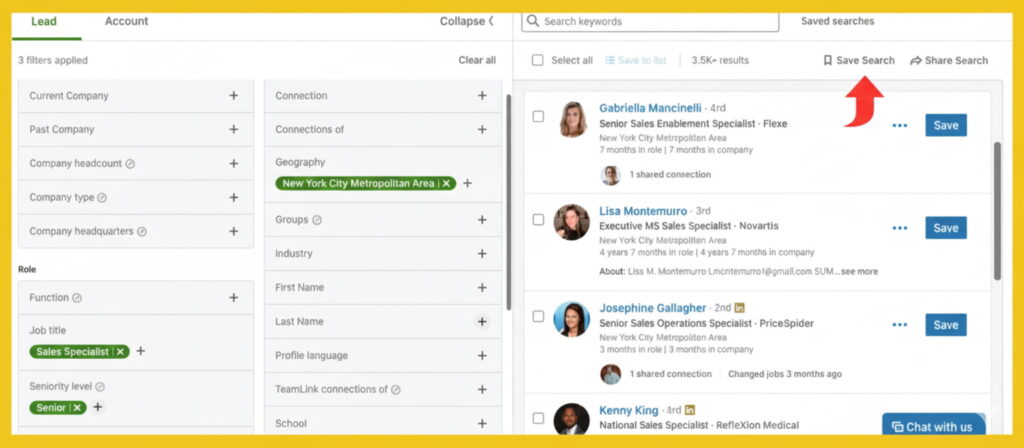
Here’s where LinkedIn Sales Navigator destroys regular LinkedIn.
You’ve got 50+ filters. But throwing all of them at the wall doesn’t work. You need strategy.
The Filter Framework That Works
Combine three filter types:
- Lead Filters – Find the right people
- Account Filters – At the right companies
- Spotlight Filters – At the right time
Let me break down the most powerful ones.
Essential Lead Filters
Current Job Title
Your precision targeting tool. Use Boolean search here (I’ll explain that next).
Example: “VP of Marketing” OR “Chief Marketing Officer“
Seniority Level
Target decision-makers, not gatekeepers. Focus on:
- C-Suite (CXO)
- VP
- Director
- Experienced Manager (2024 update)
Years at Current Company
Most sellers ignore this. Don’t.
- Less than 1 year: New hires evaluating vendors
- 1-2 years: Building systems, open to solutions
- 3-5 years: Entrenched but seeking improvements
I target 0-1 year. Response rates jump 65% (LinkedIn data backs this).
Geography
Drill down to city or postal code for hyper-local prospecting. Perfect for field sales or regional targeting.
Critical Account Filters
Company Headcount
Match your ideal customer profile:
- 11-50 (Small business)
- 51-200 (Medium)
- 201-500 (Mid-market)
- 5001+ (Enterprise)
Don’t waste time on companies too small to afford you or too large to penetrate.
Technologies Used
Game-changer for tech sales. See what tools companies use.
Selling a HubSpot integration? Filter companies using HubSpot. Instant relevance.
Annual Revenue
Qualifies budget capacity. Filter by revenue in major currencies to ensure financial fit.
Spotlight Filters (High-Intent Gold)
Posted on LinkedIn (Last 30 Days)
Active users respond 3x more than ghosts. Plus, their posts give you conversation starters.
Changed Jobs (Last 90 Days)
The 65% secret. New decision-makers have fresh budgets and zero vendor loyalty.
Filter this. Message them. Win deals.
Following Your Company
Already interested. These are warm leads requiring less convincing.
Viewed Your Profile
Clear buying signal. They’re researching you. Perfect timing for outreach.
Mentioned in the News (Last 30 Days)
Funding announcements, expansions, executive appointments. All conversation hooks for personalized outreach.
Boolean Search: Your Secret Weapon
Boolean search separates amateurs from pros.
While competitors use basic filters, you’ll create surgical searches that find exact-fit prospects.
Boolean Operators Explained
AND – Narrows results (requires all terms)
“Marketing Manager” AND “**SaaS**”
OR – Broadens results (includes any term)
“**VP Sales**” OR “Vice President Sales” OR “**Sales VP**”
NOT – Excludes unwanted terms
“Marketing Manager” NOT “Assistant”
Parentheses () – Groups complex logic
(“Marketing Manager” OR “Marketing Director”) AND (“**SaaS**” OR “Software”) NOT “Agency”
Quotation Marks “” – Exact phrase matching
“**Head of Growth**”
Real-World Boolean Examples
SaaS Sales Leader Search:
(“VP of Sales” OR “**Sales Director**” OR “**Chief Revenue Officer**”) AND (“**SaaS**” OR “Software”) AND “**B2B**” NOT (“Agency” OR “Consultant”)
This finds VPs, Directors, or CROs in SaaS/Software companies focused on B2B, excluding agencies.
E-commerce Marketing Decision Makers:
(“CMO” OR “**VP Marketing**” OR “Marketing Director”) AND (“E-commerce” OR “Online Retail”) AND (“Shopify” OR “WooCommerce”)
Tech Stack Specific Search:
(“**Sales Operations**” OR “**Revenue Operations**” OR “RevOps”) AND “Salesforce” NOT (“Looking for” OR “Seeking”)
Pro tip: Always capitalize operators (AND, OR, NOT). Lowercase won’t work.
Where Boolean Works in Sales Navigator
In Sales Navigator, Boolean works in:
- Keyword search bar
- Current Job Title filter
- Company name filter
Use a Boolean search generator (Evaboot offers one free) to save time building complex queries.
Creating High-Converting Lead Lists
Organized lead lists equal systematic prospecting.
Here’s my proven structure:
Outreach Segmentation Lists:
- New hire prospects (changed jobs <90 days)
- Active LinkedIn users (posted recently)
- Profile viewers (showed interest)
- Company followers (warm audience)
- High buyer intent accounts
Account-Based Marketing Lists:
- Target accounts – Tier 1 (high priority)
- Target accounts – Tier 2 (medium priority)
- Target accounts – Tier 3 (long-term nurture)
- Current customers (for upsell)
Persona-Based Lists:
- Economic buyers (C-suite, VPs)
- Technical evaluators (Managers, Directors)
- End users (Individual contributors)
- Champions (existing advocates)
How to Build Lists Fast
- Run your search with filters + Boolean
- Click “Save” next to each relevant profile
- Select “Saved Leads” > “Create lead list”
- Name descriptively: “Q1-2025-SaaS-VPs-Series-A-Funded”
- Enable “Email alerts for new leads”
Sales Navigator emails you when new profiles match. You wake up to fresh leads automatically.
Save your searches too. One-click access to updated results daily.
InMail Strategies That Get Responses
InMails get 3x higher response rates than cold email. But only when done right.
The 4-Part InMail Formula
Part 1: Personalized Hook (1-2 sentences)
I noticed you recently joined [Company] as [Role]. Congrats on the move from [Previous Company]!
Part 2: Relevance Bridge (2-3 sentences)
I work with [similar companies] tackling [specific challenge]. Saw your post about [topic] and thought you’d find [resource] valuable.
Part 3: Specific Value Offer (1-2 sentences)
I’d love to share [specific insight] that helped [similar company] achieve [specific result].
Part 4: Low-Friction CTA (1 sentence)
Would a 15-minute call next week work to explore if this helps you?
InMail Best Practices
Subject Line: 3 Words Max
LinkedIn data shows 14% higher responses with short subjects.
✅ “Quick Salesforce question” ✅ “Congrats on Series B” ✅ “Mutual connection” ❌ “I’d love to connect and discuss how our revolutionary platform…”
Keep it Under 100 Words
Attention spans are short. Get to the point fast.
Send Tuesday-Thursday, 8-10 AM
Recipient’s timezone. Response rates jump 22% with optimal timing.
Target Open Profiles First
Open Profile badge = free InMail (doesn’t count against credits). Filter for these using tools like Evaboot to maximize your 50 monthly credits.
What Kills InMail Response Rates
❌ Generic templates: “I came across your profile…” ❌ Immediate pitch: “Our product does X, Y, Z…” ❌ Wall of text: Multiple long paragraphs ❌ Multiple questions: Don’t interrogate prospects ❌ Fake personalization: “I love your company” (no specifics)
Personalize or die. Spend 3-5 minutes researching each prospect. Reference their posts, recent job changes, or company news.
Advanced Lead Generation Tactics
Let me share five strategies that separate top performers from average sellers.
Strategy #1: The Job Change Velocity Play
Remember that 65% stat? Here’s how to weaponize it.
Filter setup: Changed jobs in last 90 days + Director+ seniority + your target industry
Segment by timing:
- 0-30 days: Settling in, listening mode
- 31-60 days: Evaluating current stack
- 61-90 days: Making first changes
Message for 0-30 days:
Congrats on the new role at [Company]!
As you’re getting settled, I wanted to share [resource] that helped [similar role] ramp faster in their first 60 days.
No ask—just wanted it on your radar.
Value first. Pitch later. Build trust early.
Strategy #2: The Content Engagement Ladder
Build relationships before asking for meetings.
The ladder:
- Week 1: Like their posts
- Week 2: Add thoughtful comments (not generic “Great post!”)
- Week 3: Share their content with your commentary
- Week 4: Send connection request with context
- Week 5: Message with value offer
Filter: “Posted on LinkedIn” in last 30 days
Create a list of 50 prospects. Spend 15 minutes daily engaging. Track in a spreadsheet who you’ve engaged with and when.
This builds recognition. When you finally reach out, you’re not a stranger.
Strategy #3: The Technology Stack Trigger
Use Account Filters > Technologies Used.
Selling a HubSpot integration? Target companies using HubSpot.
Message: “Saw you’re using HubSpot. We just launched [integration] that [specific benefit]. Thought you’d want to know.”
For multi-channel approaches, combine LinkedIn with cold email outreach strategies .
Instant relevance. Higher conversion rates. Perfect product-market fit messaging.
Strategy #4: The Saved Search Alert System
Create 10-15 saved searches. Sales Navigator auto-populates new qualified leads daily.
My saved search library:
- New executives at target accounts (senior leadership changes + last 90 days)
- Profile viewers (viewed your profile + last 30 days + job title)
- Content engagers (posted on LinkedIn + following your company)
- Competitor employees on the move (past company = competitor + changed jobs)
- Funded companies (mentioned in news + last 30 days + funding keywords)
Check Monday mornings. Prioritize based on intent signals. Execute outreach.
Strategy #5: The Connections Of Play
Use the “Connections of” filter to access networks of your best customers.
Why this works: Your customers know people like them. Birds of a feather flock together.
Implementation:
- Identify your top 10 customers on LinkedIn
- Use “Connections of” filter for each
- Filter by job title and industry
- Message with: “I noticed we’re both connected to [Mutual Connection] at [Company]. They’ve had great success with [your solution]…”
This leverages social proof and warm introductions without asking for formal intros.
Avoiding Common Mistakes
Mistake #1: Too Many Filters
Using 15+ filters creates zero results. Start with 3-5 core filters. Add only when results are too broad.
Sweet spot: 500-2,000 leads in results.
Mistake #2: Ignoring Saved Searches
Manually repeating searches wastes time. Save every useful search. Enable alerts. Let Sales Navigator work while you sleep.
Mistake #3: Generic InMails
Templates kill response rates. Spend 3-5 minutes researching each prospect. Reference specific details. Personalize every message.
Mistake #4: No Follow-Up System
Single touchpoint = missed opportunities. Most responses come after 2-3 touches.
Create 5-touch sequences:
- Connection request
- InMail (if no response in 7 days)
- Email (if you have their address)
- Engage with their content
- Phone call (for high-value prospects)
Space touches 5-7 days apart.
Mistake #5: Exceeding Activity Limits
LinkedIn watches for spam behavior. Aggressive automation triggers restrictions.
Safe daily limits:
- Connection requests: 20-30
- InMails: 5-10
- Profile views: 80-100
- Messages: 50-80
Stay under these. Spread activity throughout the day. Avoid restrictions and protect your account.
Measuring Success with KPIs
Track these metrics weekly to optimize your LinkedIn prospecting:
Connection Acceptance Rate
Formula: (Accepted Requests ÷ Sent Requests) × 100
Benchmark: 30-40% is good, 50%+ is excellent. If you’re below 20%, your targeting or messaging needs work.
InMail Response Rate
Formula: (Responses ÷ InMails Sent) × 100
Benchmark: 20-30% is good, 40%+ is excellent. LinkedIn reports 3x better than cold email, but only with personalization.
Meetings Booked
Track from Sales Navigator sources specifically. Compare to other channels to prove ROI.
Calculate cost per meeting: Subscription cost ÷ meetings booked.
Pipeline Generated
Opportunities sourced from Sales Navigator. Track average deal size and close rate separately.
This proves value to management and justifies renewal.
ROI Calculation
(Pipeline Generated × Close Rate × Avg Deal Size) – (Subscription Cost + Time Cost) ÷ Total Investment
Example:
- 50 opportunities × 25% close rate × $10,000 avg deal = $125,000
- Subscription: $1,800/year + Time: $10,000 = $11,800
- ROI: ($125,000 – $11,800) ÷ $11,800 = 959% ROI
Forrester found Sales Navigator pays for itself in under 6 months for average users.
Your 30-Day Action Plan
Week 1: Foundation
- Optimize LinkedIn profile (2 hours)
- Subscribe to Core plan
- Configure sales preferences (30 min)
- Create 3 buyer personas (1 hour)
- Import account lists if available
Week 2: Search Mastery
- Experiment with filter combinations
- Build 3 Boolean search queries
- Create 5 saved searches with alerts
- Build initial lead lists (100+ leads each)
- Set up CRM integration if using Advanced
Week 3: Outreach Begins
- Connect with 20-30 prospects daily
- Send 5-10 personalized InMails
- Engage with 10 prospect posts daily
- Request 2-3 TeamLink introductions (if available)
- Track all activity in CRM or spreadsheet
Week 4: Optimization
- Review response rates and conversion metrics
- A/B test message templates
- Refine search filters based on results
- Adjust personas if needed
- Calculate early ROI and present to management
Daily Routine (30-60 minutes):
- Minutes 1-10: Review saved search alerts
- Minutes 11-20: Engage with prospect content
- Minutes 21-30: Send connection requests
- Minutes 31-45: Send personalized InMails
- Minutes 46-60: Follow up on responses
That’s 15-30 hours monthly for 20-30 qualified meetings. Most sellers close 2-5 deals monthly from this activity alone.
Final Thoughts
LinkedIn Sales Navigator isn’t magic. It’s a tool.
But in the right hands? It’s a lead generation machine that generates 300% more qualified leads than traditional prospecting.
The difference between mediocre and exceptional results comes down to four things:
- Precision targeting (filters + Boolean search)
- Personalized outreach (research + relevance)
- Systematic execution (saved searches + daily habits)
- Continuous optimization (metrics + testing)
The prospects you need to hit quota are already on LinkedIn. Sales Navigator helps you find them before competitors do.
Your ideal customers are posting, commenting, and changing jobs right now. They’re researching solutions like yours. They’re showing buyer intent signals.
You just need to find them.
Start with Week 1 today. Block 2 hours. Optimize your profile and configure preferences.
Your future qualified leads are waiting.
Don’t let another month slip by using Sales Navigator at 20% capacity. Master these strategies. Watch your pipeline explode.
The B2B leads you need are one Boolean search away.
FAQs
Is LinkedIn Sales Navigator a lead generation tool?
Yes, LinkedIn Sales Navigator is a premium lead generation tool designed specifically for B2B sales professionals to find, target, and engage decision-makers with 50+ advanced search filters and buyer intent signals.
How to use LinkedIn to generate sales leads?
Use Sales Navigator’s advanced filters to find prospects matching your ideal customer profile, engage with their content, send personalized InMails, and leverage Boolean search to target decision-makers actively showing buying signals.
Can you use LinkedIn Sales Navigator for recruiting?
While Sales Navigator can identify candidates, LinkedIn Recruiter is the dedicated hiring tool—however, some recruiters use Sales Navigator for passive candidate sourcing and building talent pipelines in specific industries.
How to extract leads from sales navigator?
Use CRM integration (Salesforce, HubSpot) to sync leads automatically, or use third-party tools like Evaboot, Phantombuster, or Dripify to export Sales Navigator searches to CSV files with contact data.