
You’ve signed up for Google Workspace, pointed your domain to Cloudflare, and now you’re stuck on the verification screen.
Sound familiar?
Here’s the frustrating part: Google says your domain isn’t verified. You’ve added the TXT record. You’ve waited. Still nothing.
I’ve helped 200+ businesses solve this exact problem. The good news? Most verification failures come from one of three simple mistakes. This guide works for Cloudflare, but if you’re using a different registrar, check out our guides for Namecheap, GoDaddy, or Porkbun
Let me show you how to fix it in the next 10 minutes.

Why Your Cloudflare Domain Won’t Verify
Google Workspace needs proof you own your domain. That’s where DNS verification comes in.
You add a special code to your Cloudflare DNS settings. Google checks for this code. If found, you’re verified.
But here’s what trips people up: Cloudflare has a feature called “proxy status” (that orange cloud icon). When enabled, it can block Google Workspace verification.
Step 1: Check Your Nameservers First
Before anything else, confirm your nameservers actually point to Cloudflare.
Here’s how:
Log into your Cloudflare dashboard. Look for “Status: Active” with a green checkmark next to your domain. If you see “Pending” or no status, your nameservers aren’t switched yet.
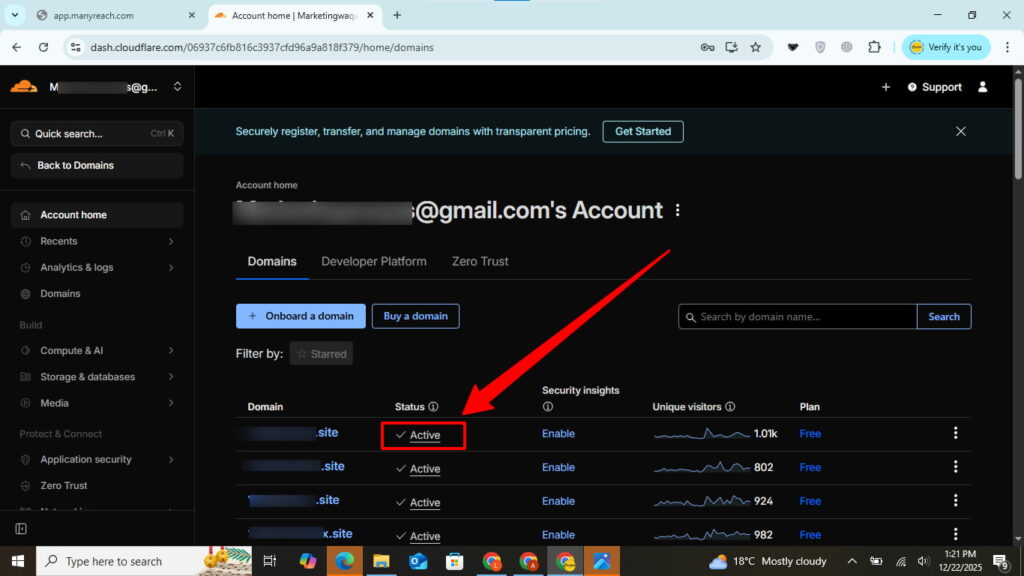
Quick test: Visit whatsmydns.net. Enter your domain. Select “NS” from the dropdown. You should see Cloudflare nameservers (like roxy.ns.cloudflare.com) everywhere.
If you see your registrar’s nameservers instead? That’s your problem. Head to your domain registrar (GoDaddy, Namecheap, etc.) and update those nameservers to Cloudflare’s first.
Step 2: Add Your TXT Verification Record
Now let’s add the verification code properly.
Go to your Google Admin Console. Navigate to Domains → Manage domains → Verify domain.
💡 Need help setting up Google Workspace?
We’re certified Google partners offering 64% off + free professional setup ($2,000 value). Used by 151+ companies.
Get your quote →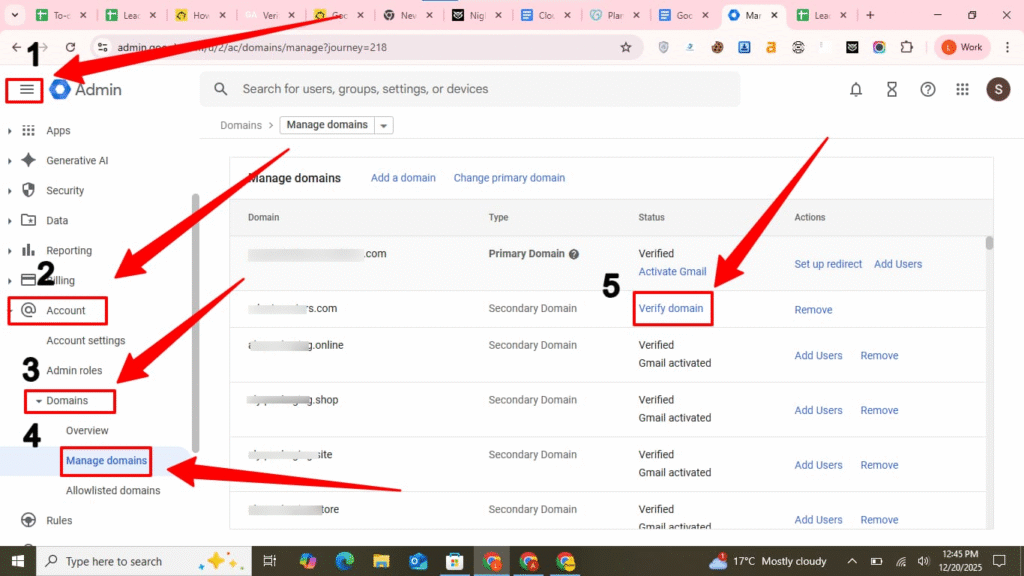
Select Cloudflare and continue
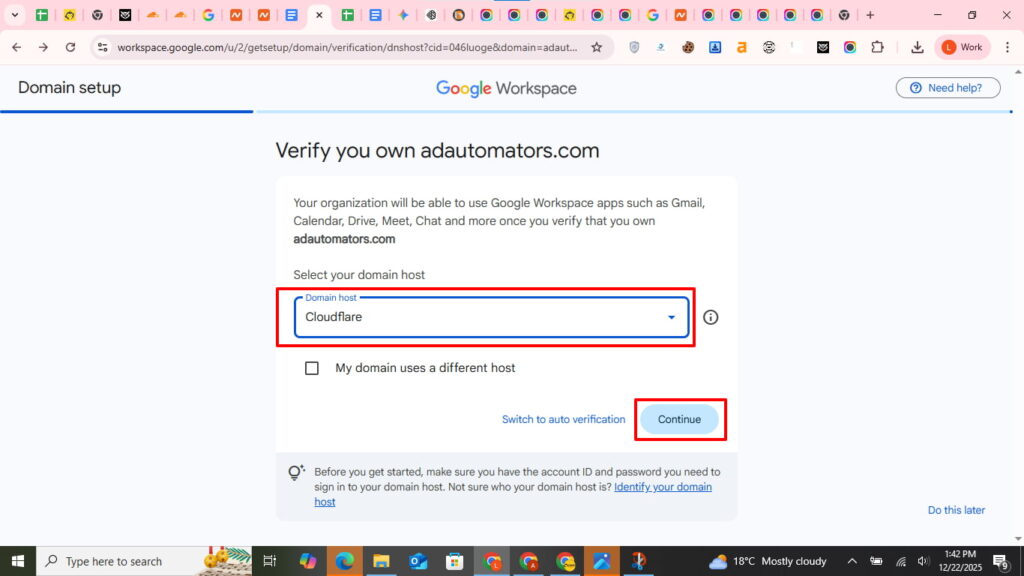
Copy the entire verification code (starts with google-site-verification=).
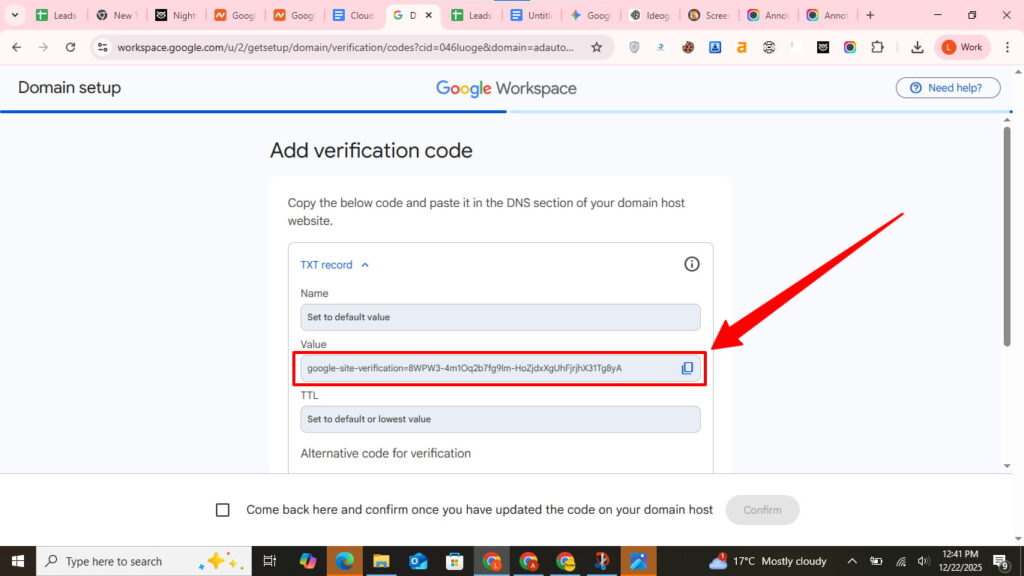
Switch to Cloudflare.
- Open a new tab and go to Cloudflare
- Sign in to your Cloudflare account
- Click on your Domain
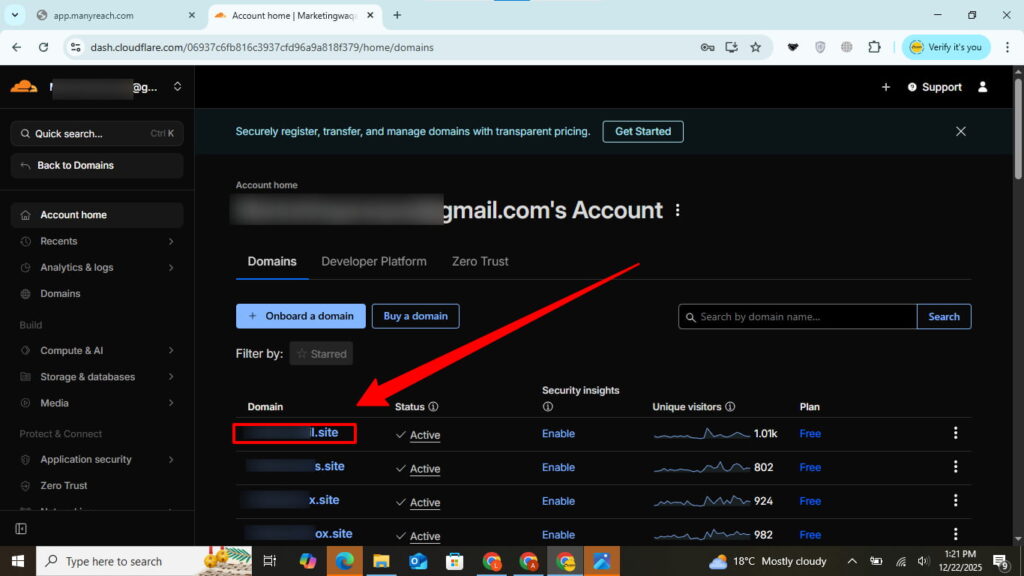
Click DNS in the sidebar.
Add a new record with these exact settings:
Type: TXT
Name: @ (or leave blank)
Content: Paste your full verification code
TTL: Auto
Proxy status: Gray cloud (NOT orange)
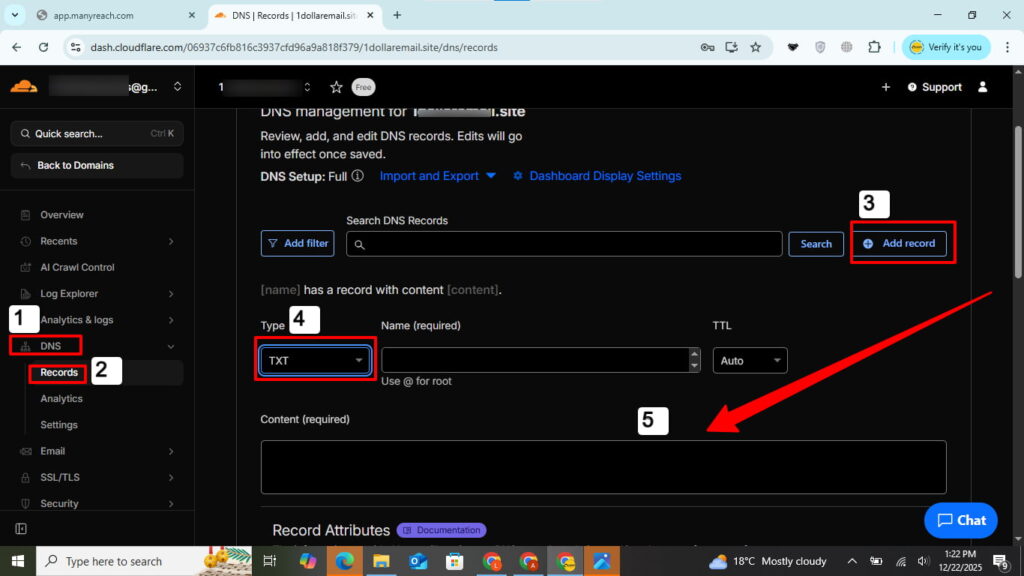
Hit Save.
Step 3: Wait for DNS Propagation
Here’s where patience pays off.
DNS changes don’t happen instantly. Most Cloudflare DNS updates take 10-30 minutes. Sometimes up to 2 hours for global propagation.
Want to check if your DNS record is live? Use dnschecker.org. Enter your domain. Select “TXT” as the record type. Look for your google-site-verification code.
Green checkmarks mean propagation is complete. Now you can verify.
Step 4: Verify Your Domain
Return to Google Workspace Admin Console. Click “Verify” or “Come back here and confirm.”
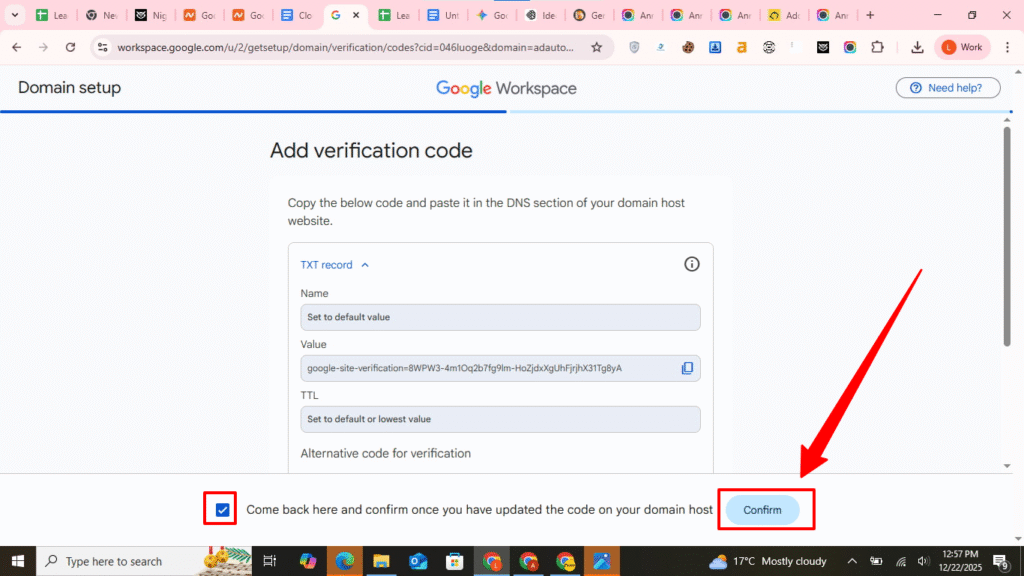
Google will search your DNS records for the verification TXT record. If found, you’ll see “Verification successful.”
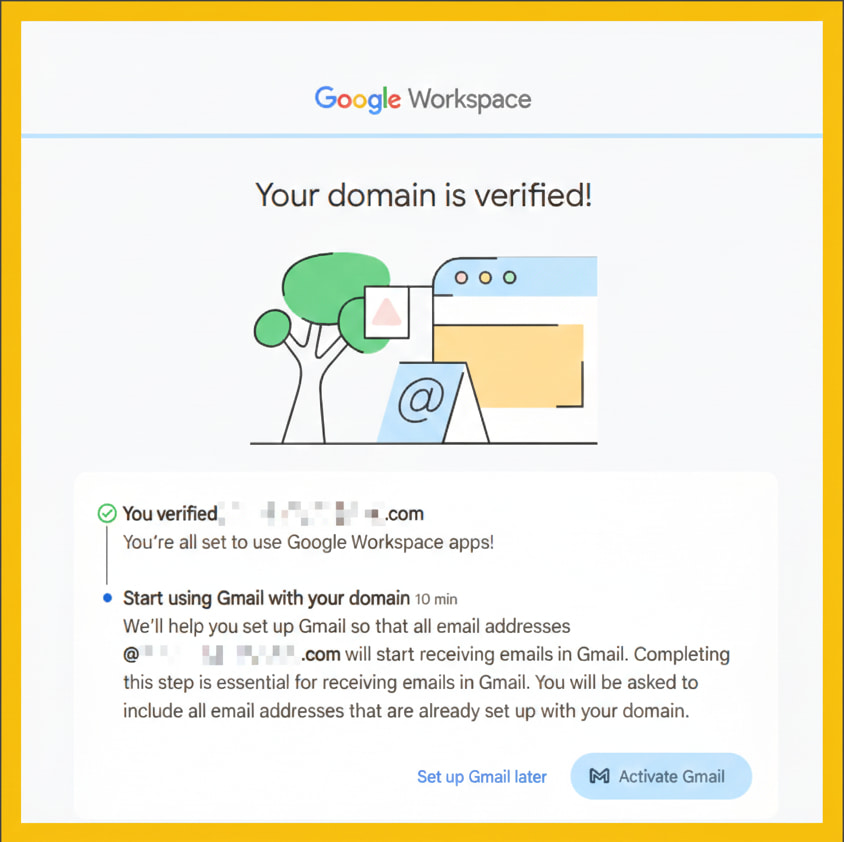
You can now activate Gmail and start using Google Workspace.
When Verification Still Fails
If verification doesn’t work after 30 minutes, check these common issues:
Wrong proxy status: Your TXT record must be DNS only (gray cloud). Orange means proxied, which blocks verification.
Multiple Cloudflare accounts: Make sure you added the DNS record to the correct account where your domain is active.
Old verification codes: Delete any previous google-site-verification TXT records. Use only the newest code from Google Admin Console.
CNAME alternative: If TXT verification keeps failing, try CNAME record verification instead. Google Workspace offers both methods.
What Happens After Verification
Once verified, you’ll set up MX records for email delivery. Then configure SPF records and DKIM for email security.
Your Cloudflare DNS continues managing your domain, while Google Workspace handles your business email and productivity apps.
Quick Troubleshooting Checklist
Before contacting support, verify:
✓ Nameservers point to Cloudflare (not your registrar)
✓ DNS record shows gray cloud (not orange)
✓ You waited 15+ minutes for propagation
✓ You’re logged into the correct Cloudflare account
✓ Verification code matches exactly (no typos)
Most domain verification problems trace back to these five items.
The Bottom Line
Verifying your domain for Google Workspace with Cloudflare takes 10-30 minutes when done correctly. The key? Set your TXT record to DNS only mode and wait for DNS propagation.
Check your nameservers first. Add the verification record properly. Be patient with propagation. Click verify.
That’s it.
Now you’re ready to set up professional email and unlock all Google Workspace features for your business.
Need help with MX record configuration or email authentication? Those come next after successful domain verification. Also, don’t forget to enable two-factor authentication and backup your Google Workspace data for security.
Where to Buy Google Workspace: Top Authorized Resellers
You can purchase Google Workspace through authorized resellers, which often provide local support, setup assistance, and flexible billing options for businesses. Buying from a trusted reseller ensures you get professional guidance and additional services alongside your subscription.
Top 5 Google Workspace Resellers:
- Leads Monky ( Enjoy up to 70% off with promo code PARTNER2026 (Redeem Here)- Plus free setup and support)
- Agosto (Save up to 10% off on Google Workspace plans with expert migration support)
- Onix (Get up to 5% off on Google Workspace with enterprise-level deployment and support)
- Cumulus Global (Enjoy up to 20% off Google Workspace plans with certified reseller support)
- GsuiteReseller (USA) (Get up to 10% off on Google Workspace plans with dedicated support)
FAQs
Verify domain Google Workspace Squarespace?
Add the TXT verification code from Google Admin Console to your Squarespace DNS settings, wait for propagation, then confirm verification in Admin Console.
Verify domain ownership Google?
Prove ownership by adding a unique TXT record from Google to your domain’s DNS and confirming it in Google Admin Console.
How to add DNS TXT record for domain verification?
In your DNS dashboard, create a TXT record with Name: @ and Value: your Google verification code, save, then wait for propagation.
Google Workspace verification code?
A unique string starting with “google-site-verification=” generated in Admin Console for your domain to prove ownership.
Google Workspace TXT verification?
Use the TXT record method in your DNS settings, add the Google verification code, and confirm in Admin Console to verify your domain.
Google-site-verification TXT record example?google-site-verification=abc123XYZ456_789defGHI012jklMNO345pqrSTU678vwx (your actual code will be different and uniquely generated).
Q: How to verify domain for google workspace cloudflare dns?
A: Add a TXT record with Google’s verification code to your Cloudflare DNS settings, set it to DNS only (gray cloud), wait 15 minutes, then click verify in Google Admin Console.
Q: Google Workspace Verify domain?
A: Go to Google Admin Console → Domains → Verify domain → copy the verification code → add it as a TXT record in your DNS provider → click verify after propagation.
Q: How to add DNS TXT record for domain verification?
A: In your DNS provider’s dashboard, create a new TXT record with Name: @ and Content: your verification code, then save the record.
Q: Google domain verification?
A: Google domain verification proves you own a domain by adding a unique verification code to your DNS records that only domain owners can access.
Q: Google domain verification TXT record?
A: A TXT record containing “google-site-verification=” followed by a unique code that you add to your domain’s DNS settings to prove ownership.
Q: Google-site-verification TXT record example?
A: google-site-verification=abc123XYZ456_789defGHI012jklMNO345pqrSTU678vwx (your actual code will be different and uniquely generated).
Q: Google Workspace verification code?
A: A unique string starting with “google-site-verification=” that Google generates for your domain, found in Google Admin Console under Domains → Verify domain.
Get Google Workspace at 64% Off
Same service. Better price. Professional setup included.
⭐⭐⭐⭐⭐ 151+ companies trust us
Partner Pricing:
• Business Starter: $3/month (Google: $8)
• Business Standard: $13/month (Google: $17)
• Business Plus: $20/month (Google: $26)
FREE:
Complete DNS setup + 24/7 support + USA IPs
15-user minimum | Setup in 24 hours


