
Google Workspace Two Factor Authentication | Full Setup Guide 2026

Last Updated: August 2026
⏱ 13 min read
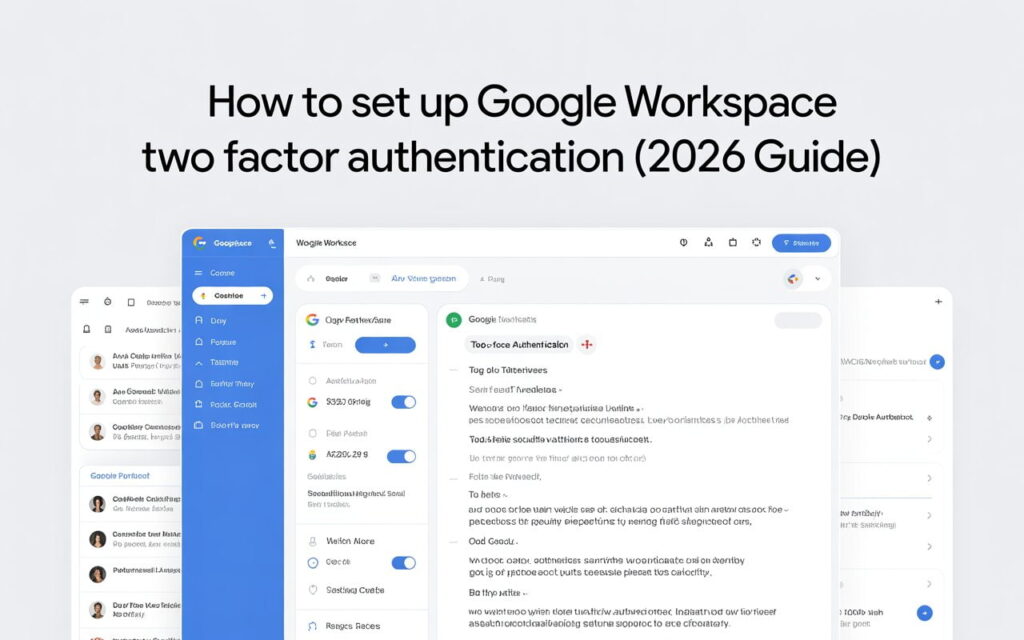
How to Set Up Google Workspace two factor authentication (2026 Guide)

Quick Answer

Google Workspace two factor authentication, called 2-Step Verification or 2SV in the Admin console, adds a second sign in requirement beyond a password, such as a security key, an on-device prompt, or an authenticator app code. Admins enable and enforce it under Security, then Authentication, then 2-Step Verification, and can require specific methods, including a security keys only policy, for some or all users.

Key Takeaways

Not all verification methods offer the same protection.

According to Google’s own research, security keys blocked 100 percent of automated, phishing, and targeted attacks tested, while SMS codes blocked fewer targeted attacks.

Google is enforcing 2-Step Verification for administrator accounts specifically.

This applies regardless of whether an organization has enforced 2SV for regular users, since admin accounts carry the highest risk if compromised.

The “only security keys” setting restricts sign in to hardware keys or passkeys alone.

Once enabled for a user or group, weaker methods like SMS or authenticator codes are no longer accepted as the second factor.

App passwords are still available, and now required for some legacy connections.

Older tools using basic SMTP, IMAP, or POP authentication now need a generated app password rather than a standard account password, but only once 2SV is turned on.

Enforcing 2SV without planning for exceptions is the most common way admins lock users out.

A short enrollment grace period and a documented recovery process typically prevent most lockout support tickets.

Google Workspace two factor authentication requires a second proof of identity beyond a password before someone can sign in, and in the Admin console this feature is called 2-Step Verification, or 2SV. The available methods include physical security keys, on-device Google prompts, authenticator app codes, printed backup codes, and SMS or voice calls, though these methods are not equally secure. Admins control whether 2SV is optional or required, which methods are allowed, and can apply different rules to different departments through organizational units. This guide covers every method, the exact steps to enable and enforce 2SV, the security keys only setting specifically, and how to avoid locking your own team out when you turn enforcement on.

What Two Factor Authentication Means in Google Workspace

Get Google Workspace Business Starter mailboxes for just $2.50 per user.

Two factor authentication in Google Workspace is officially called 2-Step Verification, and it requires a second form of proof beyond a password before a user can sign in. Google, Microsoft, and most of the industry use the terms two factor authentication, 2FA, multi factor authentication, and MFA somewhat interchangeably, but Google Workspace’s own Admin console and documentation consistently use 2-Step Verification, so that’s the term you’ll actually see when configuring it.

The setting lives in the Admin console under Menu, then Security, then Authentication, then 2-step verification. From there, a super administrator can turn 2SV on for the whole organization, make it optional, or apply different requirements to specific organizational units or configuration groups, such as requiring it immediately for finance or IT staff while giving other departments a longer enrollment window.

The Verification Methods Google Workspace Supports

Not every second factor offers the same protection, and the gap is larger than most guides make clear.

Security keys. Physical devices that plug in or connect wirelessly, using the FIDO2 standard. In Google’s own two year study conducted with researchers from New York University and UC San Diego, security keys blocked 100 percent of automated attacks, bulk phishing attempts, and targeted attacks tested. This is the strongest method Google offers.

Google prompts. An on-device notification asking “Trying to sign in?” that the user taps to approve. The same Google study found on-device prompts blocked 100 percent of automated attacks, 99 percent of bulk phishing, and 90 percent of targeted attacks.

Authenticator apps. Google Authenticator or a similar app generates a new six digit code every 30 seconds. This works offline, which matters for travel or unreliable connectivity, and offers stronger protection than SMS since codes aren’t transmitted over the phone network.

Backup codes. A set of one time use codes generated in advance and stored somewhere safe, intended as a fallback if other methods are unavailable, not a primary method.

SMS or voice call. A code sent by text message or read aloud in a call. In Google’s study, SMS blocked 100 percent of automated attacks and 96 percent of bulk phishing, but only 76 percent of targeted attacks, noticeably lower than prompts or security keys. SMS is also vulnerable to SIM swapping, where an attacker convinces a carrier to transfer a victim’s phone number to a new device.

Passkeys. A newer option that combines both factors into one step. With a passkey, a user can sign in using their phone, a security key, or their computer’s screen lock, skipping the separate password prompt entirely once configured.

Google Workspace Setup Offer

💡 Need help setting up Google Workspace?

We’re certified Google partners offering 64% off + free professional setup ($2,000 value). Used by 1000+ companies.

Get your quote

How to Enable 2-Step Verification for Your Organization

Step 1: Access Your Admin Console

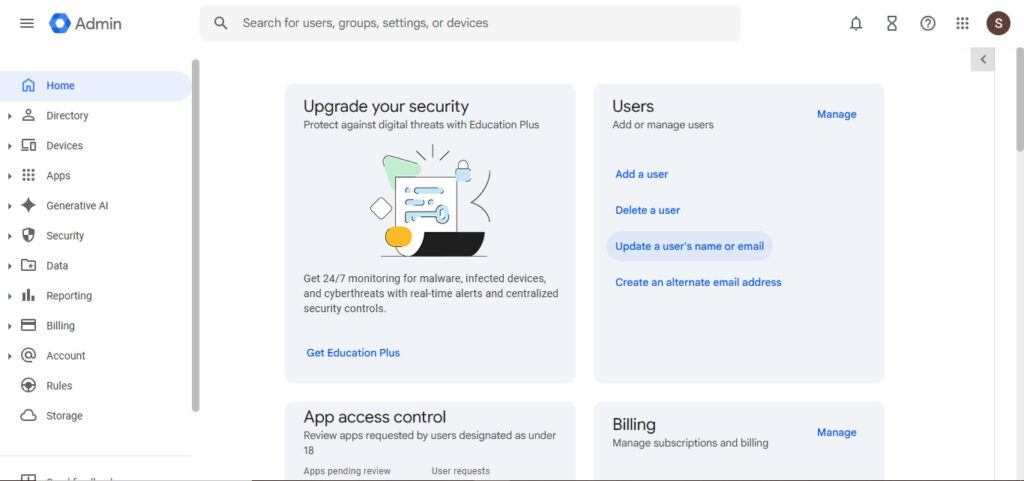
Sign in to Google Admin Console with a super administrator account. You’ll land on the Admin console home screen, with the main navigation menu (Home, Directory, Devices, Apps, Security, Data, Reporting, Billing, Account, Rules, Storage) running down the left side. This is the starting point for every setting covered in this guide.

Step 2: Navigate to Security Settings

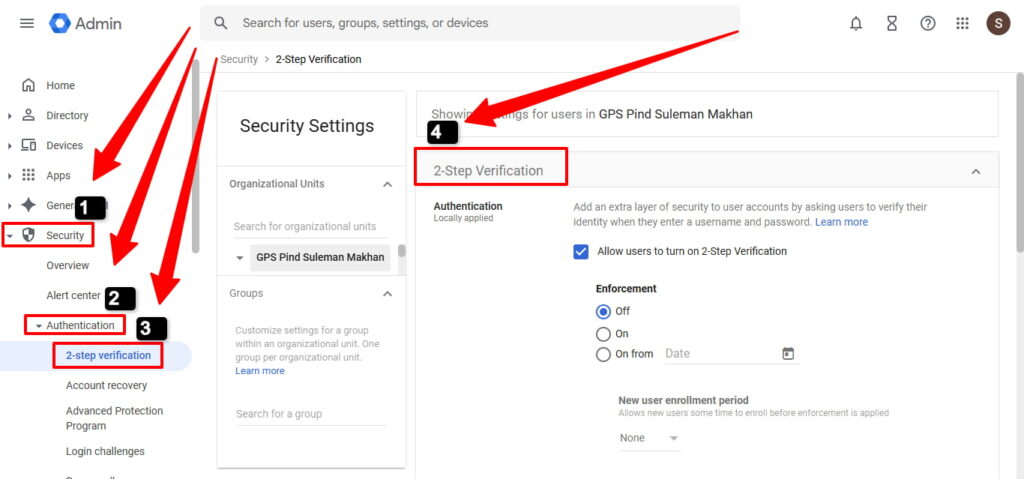
From the left hand menu, click Security, then expand Authentication, then select 2-step verification. This takes you to the Security Settings screen, split into an Organizational Units panel on the left and the 2-Step Verification settings on the right.

Before changing anything, check the label at the top of the settings panel: it shows which organizational unit you’re currently configuring, for example “Showing settings for users in [your organizational unit].” Google Workspace lets you scope 2SV differently per organizational unit or group, so confirm you’re editing the right one before saving changes, especially if your account structure has departments split into separate units.

Step 3: Decide on Enforcement

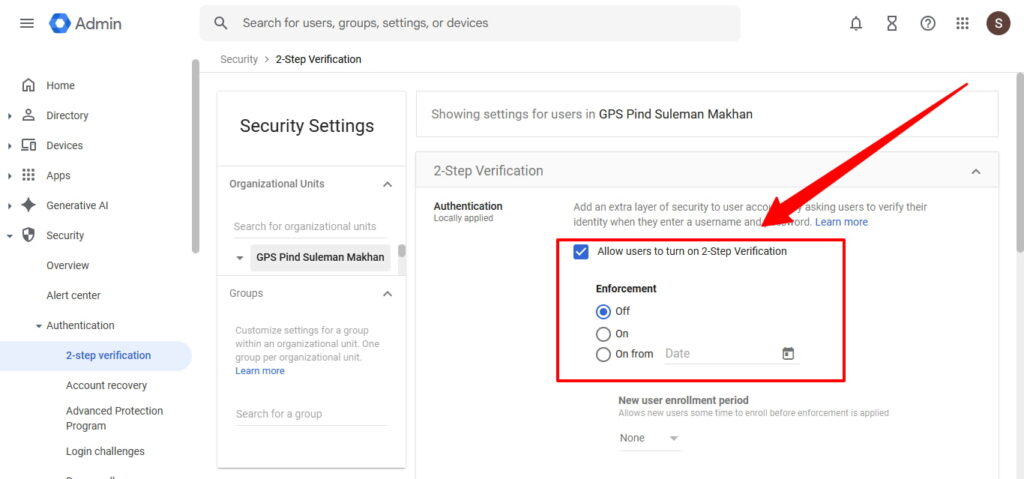
Inside the 2-Step Verification panel, you’ll see a checkbox for Allow users to turn on 2-Step Verification, and directly below it, an Enforcement setting with three options:

  • Off: 2SV is not enforced for users in this organizational unit.
  • On: 2SV enforcement is turned on immediately for users in scope.
  • On from [date]: enforcement starts on a specific future date you choose from the calendar picker, giving users an enrollment window before the requirement kicks in.

For most rollouts, “On from” a future date is the safer choice over an immediate “On,” since it gives your team time to register a method before enforcement actually blocks sign in. This is also where the New user enrollment period setting comes in, which controls how long a newly enforced user has to complete enrollment before being locked out.

Step 4: Choose Allowed Methods

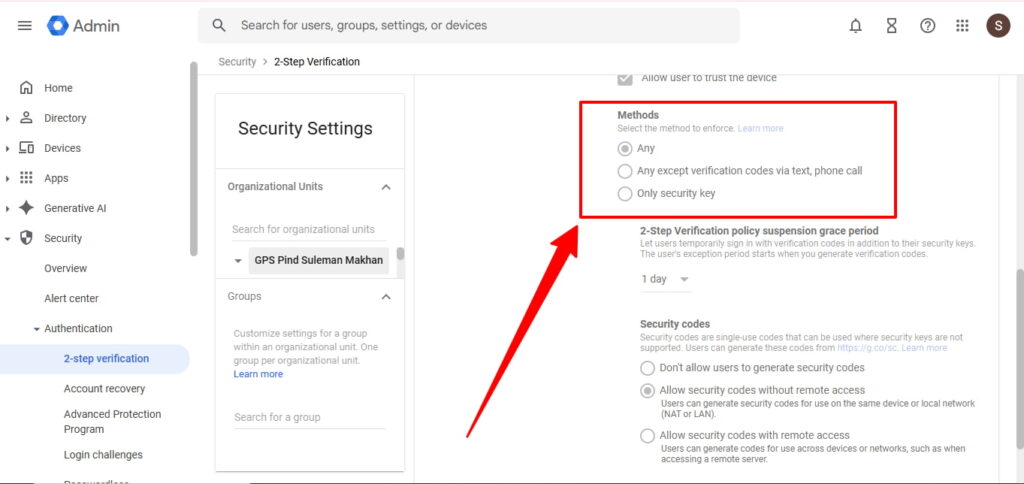
Further down the same panel, the Methods section lets you control which second factors are actually accepted, with three options:

  • Any: all supported methods are accepted, including security keys, prompts, authenticator codes, and SMS or phone call.
  • Any except verification codes via text, phone call: removes SMS and voice call specifically, while still allowing prompts, authenticator apps, and security keys. This is a reasonable middle ground if you want to move away from SMS without going all the way to security keys only.
  • Only security key: this is the setting covered in detail below. Only a registered hardware security key or passkey is accepted; no other method works as a fallback.

Two related settings sit just below the Methods options and are easy to miss:

The “Only Security Keys” Setting Explained

This specific setting comes up constantly in search because it’s easy to find but not always clearly explained: it restricts 2SV to hardware security keys or passkeys only, removing SMS, authenticator app codes, and Google prompts as acceptable second factors for the users it applies to.

Why use it. For high risk roles, admin accounts, finance staff, or anyone handling particularly sensitive data, security keys close the gap that phishing and SIM swapping leave open with other methods. Given Google’s own research showing security keys blocking every tested attack type in its study, this setting is the most concrete way to apply that finding operationally rather than just reading about it.

How to enable it. In the same 2-Step Verification screen described above, after selecting the organizational unit or group, look for the option to restrict allowed methods. Choosing security keys only means users in that scope must have a registered key or passkey before they can sign in at all, so this setting should be rolled out after confirming affected users already have a key in hand, not before.

The tradeoff. This is the strictest option Google offers, and it comes with a real operational cost: a lost or forgotten security key becomes a hard blocker rather than an inconvenience, since there’s no fallback method to sign in with. Most organizations apply this selectively to a small group of high risk accounts rather than the entire company, at least initially.

Enforcing 2SV vs Making It Optional

Google recommends enforcing 2SV specifically for administrator accounts and for any user who regularly works with sensitive business information, while leaving it optional, at least initially, for lower risk accounts where a slower rollout reduces support burden.

Google itself is now enforcing 2SV for administrator accounts across Workspace, regardless of an organization’s own policy for standard users. This means admin accounts specifically need a 2SV method configured even in organizations that haven’t yet required it company wide.

Calibrated claim: enforcing 2SV typically reduces account takeover risk substantially, though it isn’t a complete defense on its own. A sufficiently convincing social engineering attack can still bypass 2SV in some cases, which is why security keys, the method most resistant to phishing specifically, are worth prioritizing for your highest risk accounts rather than treating all 2SV methods as equally protective.

App Passwords: Still Needed for Legacy Apps

App passwords have not been deprecated, and as of a January 2026 update, they’re now required for some legacy connections rather than optional. Older tools and devices that connect using basic SMTP, IMAP, or POP authentication, things like office scanners, older CRM integrations, or monitoring tools, can no longer use a standard account password once 2SV is enabled. They need a generated app password instead.

To allow this, an admin goes to Security, then Authentication, then 2-Step Verification, and confirms “Allow users to generate app passwords” is enabled. Users then generate a unique app password for each legacy tool from their own account security settings. If a legacy integration suddenly stops authenticating after 2SV is turned on, a missing app password is the most common cause.

Google separately deprecated Less Secure Apps, meaning direct sign in with a basic username and password for third party apps, back in 2024. App passwords are a different, still supported mechanism specifically for legacy basic authentication use cases, and shouldn’t be confused with the discontinued Less Secure Apps setting.

Avoiding Account Lockouts When You Enforce 2SV

The most common mistake when rolling out 2SV enforcement is applying it organization wide on a single date without a grace period or a tested recovery path.

Give users an enrollment window rather than an immediate cutoff. Requiring 2SV by a set future date, rather than instantly, gives people time to register a method before they’re locked out of their next sign in.

Confirm recovery options before enforcing, not after the first lockout ticket. Make sure backup codes or a secondary method are set up for key accounts, particularly admins, in case a primary device is lost or unavailable.

Roll out to a small group before going organization wide. Enforcing 2SV for IT or a pilot department first surfaces integration issues, like the app password requirement above, before they affect your whole team at once.

Document what to do if someone gets locked out. A short internal runbook, who to contact and what information they’ll need to verify identity, prevents a lockout from turning into a longer outage than necessary.

For Your Highest Risk Users: Advanced Protection Program

Beyond standard 2SV enforcement, Google offers a separate, stricter tier called the Advanced Protection Program, aimed at users who face a heightened risk of targeted attacks, such as executives, IT administrators, finance staff handling wire transfers, or anyone who has previously been targeted by a phishing campaign.

Advanced Protection requires security keys as the primary sign in method, adds stricter file sharing and download restrictions for Gmail and Drive, and applies more aggressive scanning against malicious file downloads and OAuth app access requests. It’s a meaningfully stricter posture than the security keys only 2SV setting alone, since it also changes how Gmail and Drive behave day to day, not just how sign in works.

This isn’t the right fit for every user, since the added restrictions can slow down legitimate workflows, particularly around third party app access and file sharing with people outside your organization. For a small number of genuinely high risk accounts, though, it’s a meaningfully stronger posture than security keys only 2SV on its own, and worth evaluating alongside the setup steps above rather than as a separate, unrelated decision.

Conclusion

Google Workspace two factor authentication, configured as 2-Step Verification in the Admin console, is one of the highest impact security settings available, particularly for admin accounts where Google itself now enforces it. Security keys offer the strongest protection based on Google’s own research, and the security keys only setting is worth applying to your highest risk accounts even if a full organization wide rollout takes longer. Leads Monky is an authorized Google Workspace reseller serving 1,000+ companies across the USA, UK, UAE, Pakistan, and India, and can help with initial account setup and configuration if you’re still getting your organization onto Workspace. Visit Google Workspace Official Page to see current plans.

FAQs

How do I enable two factor authentication in Google Workspace?

In the Admin console, go to Security, then Authentication, then 2-Step Verification. Select the organizational unit or group, choose whether it’s optional or required, and select which verification methods are allowed.

What does the “only security keys” 2-Step Verification setting do?

It restricts sign in to hardware security keys or passkeys only, removing SMS, authenticator codes, and Google prompts as accepted second factors for the users it applies to. It’s the strongest option Google offers but has no fallback if a key is lost.

Are app passwords still available in Google Workspace?

Yes. App passwords remain supported and are now required for some legacy apps using basic SMTP, IMAP, or POP authentication once 2SV is enabled. They’re generated per app after 2SV is turned on, separate from the deprecated Less Secure Apps setting.

Is SMS a safe way to receive a 2-Step Verification code?

It’s better than no second factor, but it’s the weakest option Google offers. In Google’s own research, SMS blocked fewer targeted attacks than on-device prompts or security keys, and SMS is vulnerable to SIM swapping.

Does Google Workspace require two factor authentication?

Google now enforces 2-Step Verification specifically for administrator accounts. Whether it’s required for standard users depends on your organization’s own policy, configurable per organizational unit in the Admin console.

What happens if a user loses their security key?

If they’re on a security keys only policy with no other method registered, they’ll need an admin to help them regain access, since there’s no fallback method by design. This is why confirming backup options exist before enforcing a keys only policy matters.

Cold Email Growth System

Ready to Fix Your Cold Email?

🛡️ We guarantee 10 consultations in 60 days or work free.
★★★★★ 1k+ clients | 2.4M emails sent | 3.2% reply rate

What you get:

  • Complete infrastructure: 30 emails + 10 domains
  • 10,000 personalized emails monthly
  • First consultations in 5–6 weeks
Get Free Custom Plan
2 spots left for this month
10+ consultations target

Campaign Snapshot

Emails sent 2.4M+
Reply rate 3.2%
Clients 50+

Post Category:

Google Workspace

Share This :

Related Posts

Follow Us

Follow us for the latest updates, helpful tips, and fresh insights. Stay connected with our community on social media.
Need Help?
Scroll to Top