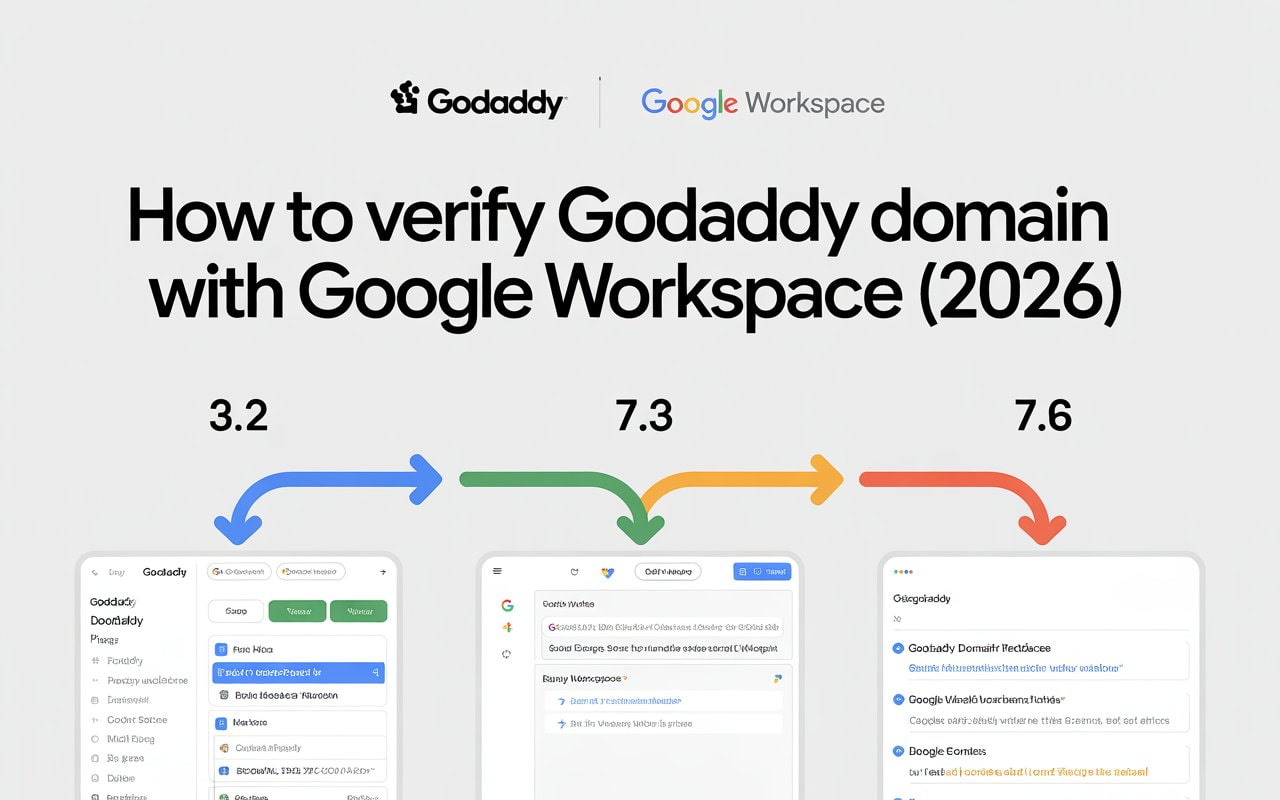
Quick Answer: Add a TXT record from Google Workspace to your GoDaddy DNS settings. It takes 10-60 minutes to verify.
What You Need
- GoDaddy account login
- Google Workspace admin account
- Your domain name
If your domain is registered with Namecheap instead of GoDaddy, follow this step-by-step guide to verify your Namecheap domain for Google Workspace to avoid DNS errors.
Step-by-Step Verification Process

Step 1: Get Your Verification Code from Google
- Go to admin.google.com
- Sign in with your Google Workspace email
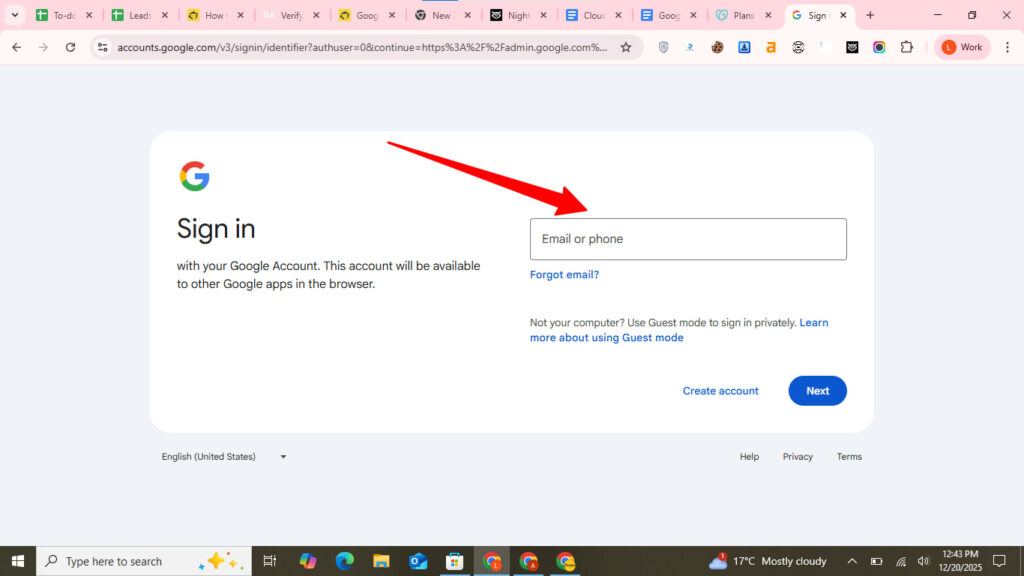
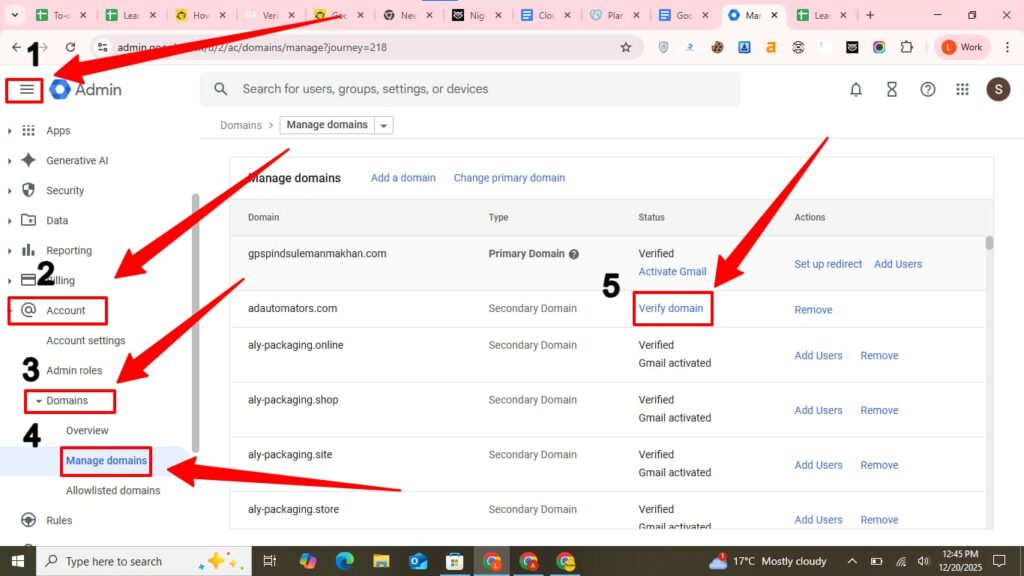
3. Click Menu (☰) → Account → Domains → Manage Domains
4. Click Verify domain next to your domain name
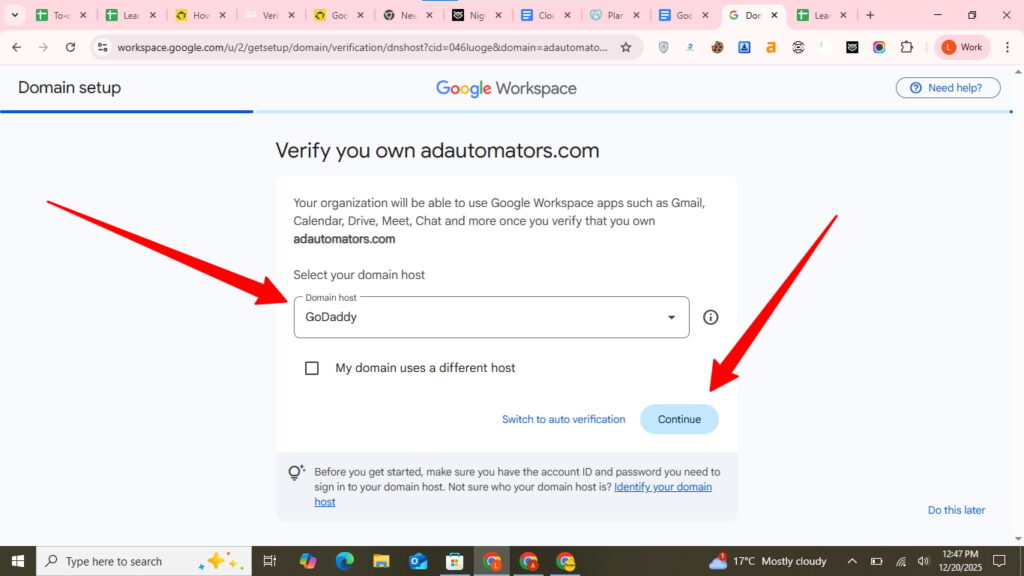
5. Select godaddy and continue
6. Select TXT record as verification method
7. Copy the verification code (looks like: google-site-verification=ABC123xyz…)
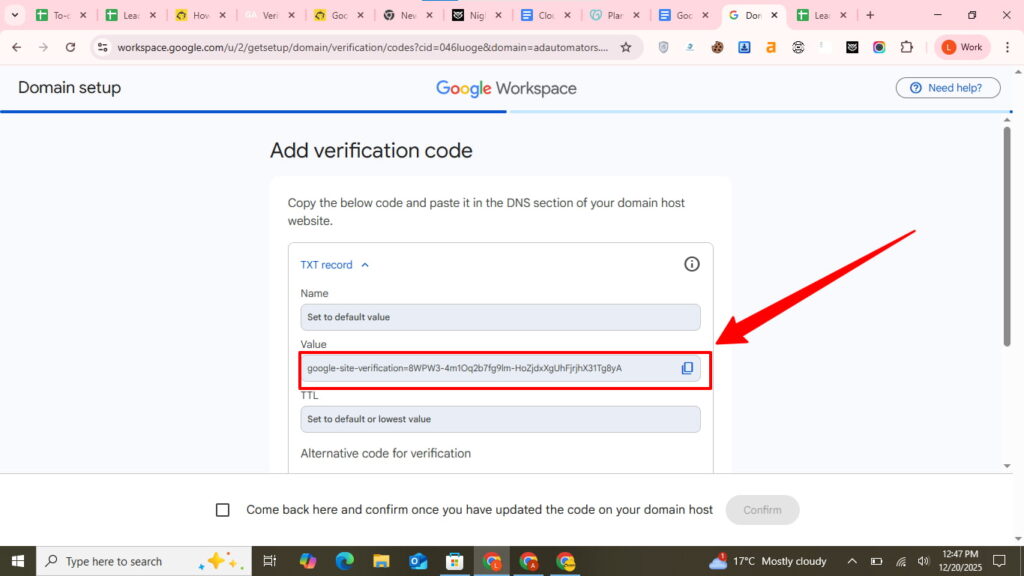
7. Keep this tab open
💡 Need help setting up Google Workspace?
We’re certified Google partners offering 64% off + free professional setup ($2,000 value). Used by 151+ companies.
Get your quote →Step 2: Add TXT Record to GoDaddy
- Open a new tab and go to godaddy.com
- Sign in to your GoDaddy account
- Click your profile icon → My Products
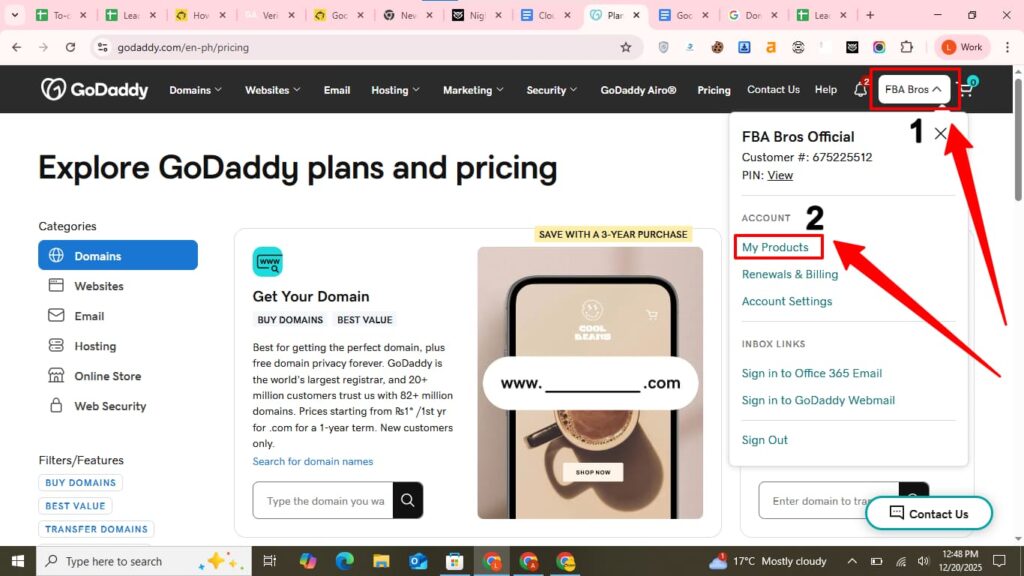
4. Find your domain and click DNS
5. Scroll to DNS Records section
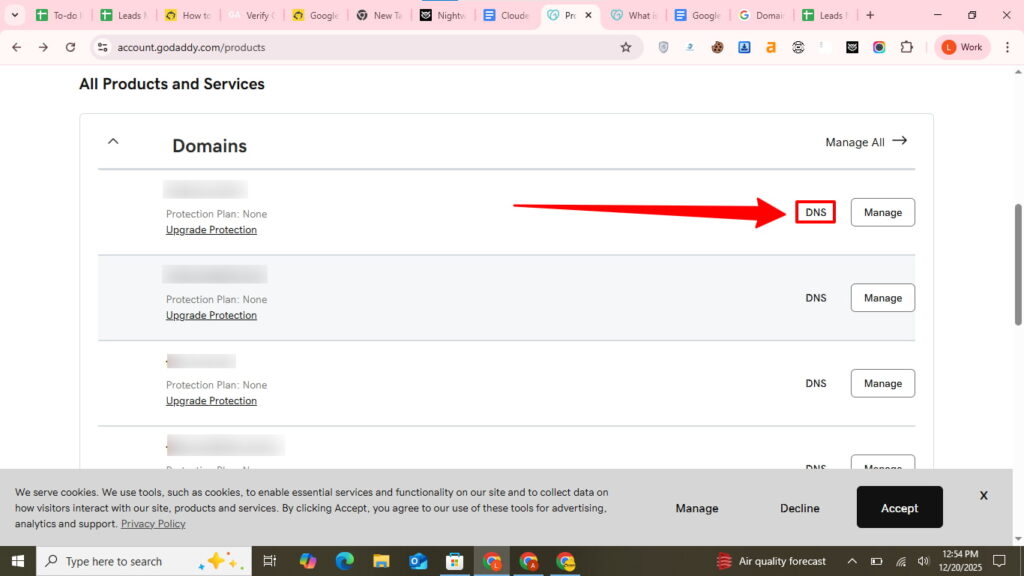
Click ADD button
Fill in these details:
| Field | Enter This |
| Type | TXT |
| Name | @ |
| Value | Paste your Google verification code |
| TTL | 1 Hour (default) |
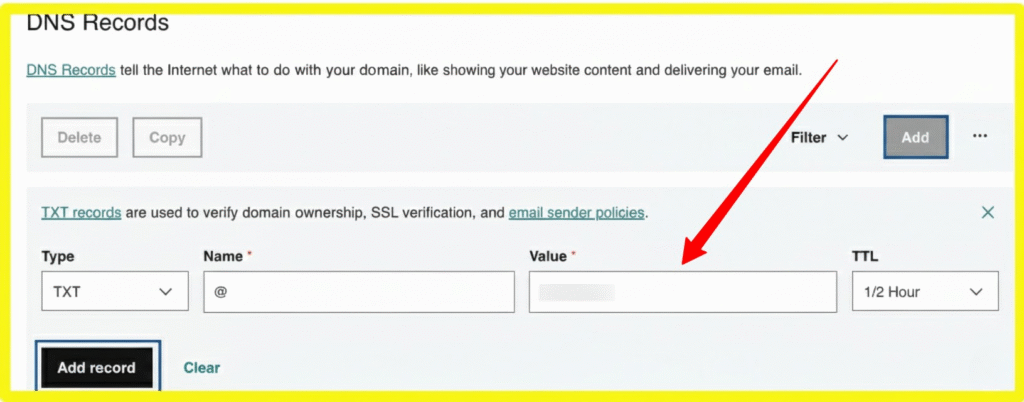
- Click Save
✅ Done! Your TXT record is now added.
Step 3: Verify in Google Workspace
- Go back to your Google Admin Console tab
- Click Verify or Confirm
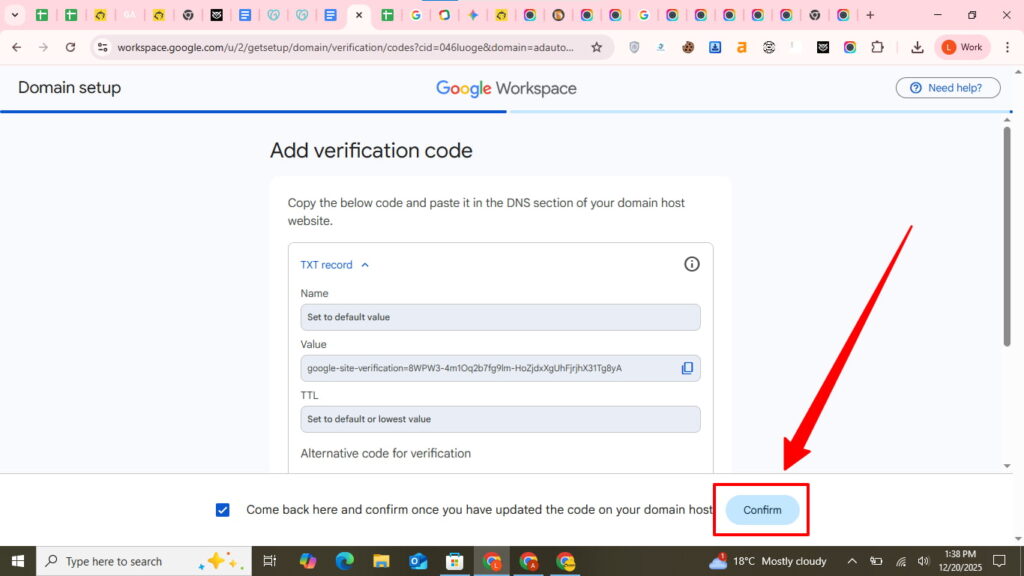
- Wait for Google to check your DNS
Result:
- ✅ Success: “Domain verified!” → Click Continue
- ⏳ Pending: “Record not found” → Wait 30-60 minutes and try again
How Long Does Verification Take?
- 10-30 minutes: Most common ✅
- 30-60 minutes: Normal range
- 1-4 hours: Still acceptable
- 4+ hours: Check troubleshooting below
💡 Tip: You can click “Verify” multiple times. Google will recheck your DNS each time.
Common Issues & Quick Fixes
❌ “We couldn’t find your verification record”
Fix:
- Wait 30 more minutes (DNS needs time to update)
- Check your TXT record in GoDaddy:
- Name field = @ (or blank)
- Value = Complete code starting with google-site-verification=
- No extra spaces
- Try verification again
❌ “Domain already verified by another account”
Fix:
- You or someone else already verified this domain with Google
- Try resetting password at admin.google.com to recover the old account
- OR contact Google Support to transfer ownership
❌ “Invalid TXT record format”
Fix:
- Delete the TXT record in GoDaddy
- Add it again
- Make sure:
- Name = @ (just the @ symbol)
- Value = Your FULL verification code (don’t remove google-site-verification=)
- No quotation marks manually added
Check If Your DNS Updated
Use these free tools to see if your TXT record is visible:
- WhatIsMyDNS: whatsmydns.net
- Enter your domain
- Select “TXT” type
- Check for green checkmarks worldwide
- MXToolbox: mxtoolbox.com/SuperTool.aspx
- Enter your domain
- Select “TXT Lookup”
- Look for your verification code
If you see your code on these tools, Google should verify it soon!
Alternative Verification Methods
Method 2: CNAME Record (If TXT doesn’t work)
- In Google Admin Console, click Switch verification methods
- Select CNAME record
- Google gives you:
- Label: (unique code)
- Destination: google.com
- Add CNAME record in GoDaddy:
- Type: CNAME
- Name: (paste Google’s unique code)
- Value: google.com
- TTL: 1 Hour
- Click Verify in Google
Method 3: Automatic Verification
If Google shows “Verify with domain host” option:
- Click that button
- Sign in to GoDaddy when prompted
- Click Authorize or Connect
- Google verifies automatically ✅
This is the fastest method when available!
After Verification: Next Steps
Once verified, do these next:
1. Activate Gmail
- Click Activate Gmail in Google Admin Console
- This prepares email for your domain
2. Set Up MX Records
You need MX records so emails reach your inbox:
Quick Setup:
- Go to GoDaddy DNS
- Add these 5 MX records:
| Priority | Value |
| 1 | ASPMX.L.GOOGLE.COM |
| 5 | ALT1.ASPMX.L.GOOGLE.COM |
| 5 | ALT2.ASPMX.L.GOOGLE.COM |
| 10 | ALT3.ASPMX.L.GOOGLE.COM |
| 10 | ALT4.ASPMX.L.GOOGLE.COM |
- Name/Host: @ for all records
- TTL: 1 Hour
3. Create User Accounts
- In Google Admin, go to Users
- Add your team members
- Assign email addresses (name@yourdomain.com)
Important Notes
✅ Keep the TXT record: Don’t delete it after verification. Leave it in your DNS.
✅ Verification is permanent: You only verify once, not repeatedly.
✅ 9-day deadline: Verify within 9 days of creating your Google Workspace account or it gets suspended.
✅ Verification doesn’t affect your website: Adding TXT records won’t change how your website works.
Where to Buy Google Workspace: Top Authorized Resellers
You can purchase Google Workspace through authorized resellers, which often provide local support, setup assistance, and flexible billing options for businesses. Buying from a trusted reseller ensures you get professional guidance and additional services alongside your subscription.
Top 5 Google Workspace Resellers:
- Leads Monky ( Enjoy up to 64% off with promo code PARTNER2026 (Redeem Here) – Plus free setup and support)
- Agosto (Save up to 10% off on Google Workspace plans with expert migration support)
- Onix (Get up to 5% off on Google Workspace with enterprise-level deployment and support)
- Cumulus Global (Enjoy up to 20% off Google Workspace plans with certified reseller support)
- GsuiteReseller (USA) (Get up to 10% off on Google Workspace plans with dedicated support)
FAQ
How do I verify my domain with Google?
Add a TXT record provided by Google to your domain registrar’s DNS settings, then click “Verify” in Google Admin Console—it takes 10-60 minutes.
How to verify your GoDaddy domain?
Sign in to GoDaddy, go to DNS settings, add the TXT record from Google Workspace (Type: TXT, Name: @, Value: your verification code), and click Verify in Google Admin Console.
Can I use a GoDaddy domain with Google Sites?
Yes, add A records and a verification TXT record from Google Sites to your GoDaddy DNS settings to connect your custom domain.
How do I verify my organization’s website on Google?
Add Google’s verification TXT record to your domain’s DNS settings or upload their HTML file to your website’s root directory, then click Verify.
Q: How do I know if my domain is verified?
Go to Google Admin Console → Account → Domains. You’ll see “Verified” with a green checkmark next to your domain.
Q: Can I use @ or leave Name field blank?
Both work! @ symbol represents your root domain. On GoDaddy, either @ or blank works the same
Q: Will this disrupt my current email?
No. Adding a TXT verification record doesn’t affect existing email service. Your current email keeps working until you change MX records.
Q: What if I have multiple domains?
Verify each domain separately. The process is identical for each one.
Q: Do I need to verify subdomains?
Yes, if you want to use them with Google Workspace. Example: If you have mail.yourdomain.com, verify it separately.
Get Google Workspace at 64% Off
Same service. Better price. Professional setup included.
⭐⭐⭐⭐⭐ 151+ companies trust us
Partner Pricing:
• Business Starter: $3/month (Google: $8)
• Business Standard: $13/month (Google: $17)
• Business Plus: $20/month (Google: $26)
FREE:
Complete DNS setup + 24/7 support + USA IPs
15-user minimum | Setup in 24 hours