
You’re staring at your Outlook inbox, and nothing’s loading. Your calendar events vanished. Contacts won’t sync. We’ve all been there and it’s frustrating.
Here’s the good news: most Google Workspace sync issues have simple fixes. You don’t need to be a tech wizard to solve them.
In this guide, we’ll walk through every common sync problem and show you exactly how to fix it. Whether you’re dealing with email delays, missing calendar appointments, or contact sync failures, we’ve got you covered.
Let’s dive in.
What Causes Google Workspace Sync Issues?
Google Workspace sync issues happen when your data doesn’t update properly across devices. This affects emails, calendars, and contacts.

The most common culprit? Google Workspace Sync for Microsoft Outlook (GWSMO). This tool connects your Google Workspace account to Outlook, but it’s not always smooth sailing.
Other causes include network problems, outdated software, or corrupted profile settings. Sometimes it’s a permission error on Google’s end.
Understanding the root cause helps you fix problems faster. Let’s look at the specific issues you’re likely facing.
💡 Need help setting up Google Workspace?
We’re certified Google partners offering 64% off + free professional setup ($2,000 value). Used by 151+ companies.
Get your quote →The 7 Most Common Google Workspace Outlook Sync Issues
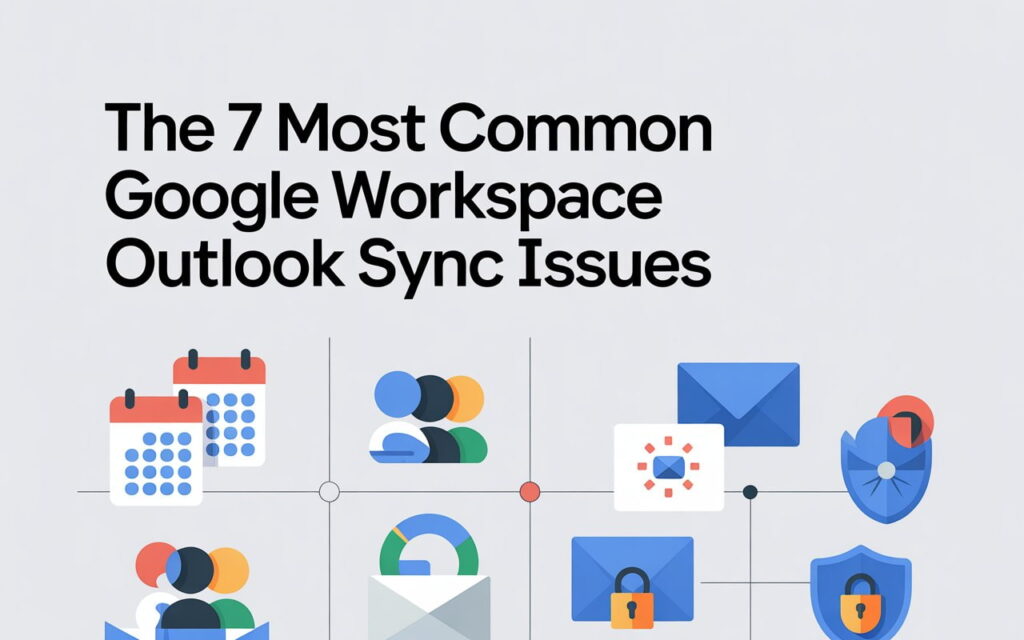
1. Emails Not Syncing or Delayed
Your emails arrive hours late or don’t show up at all. This is the #1 complaint we see.
Why it happens: Your PST file might be too large, or GWSMO hit its size limit. Network issues can also cause delays.
Quick check: Look at your mailbox size in Outlook. If it’s over 20GB, that’s your problem.
2. Calendar Events Missing or Not Updating
You created an event in Google Calendar, but it’s not showing in Outlook. Or vice versa.
Why it happens: Calendar sync settings might be wrong, or you’re using incompatible calendar formats. Resource calendars added through Outlook won’t sync properly.
The fix: Always add shared calendars through the Google Calendar web interface, not Outlook.
3. Contacts Won’t Sync Between Google and Outlook
Your Google Workspace contacts aren’t appearing in Outlook. This breaks your workflow fast.
Why it happens: Contact folders created in the wrong location won’t sync. Directory information doesn’t sync by default either.
Important note: Distribution lists don’t sync between platforms. You’ll need to recreate them as Google Groups.
4. GWSMO Icon Shows Offline
The Google Workspace Sync icon in your taskbar shows you’re offline, but your internet works fine.
Why it happens: Outlook switched to offline mode after a password change, or your network settings are blocking connections.
Simple fix: Check if Outlook is in offline mode by clicking “Send/Receive” and toggling Work Offline.
5. Sync Stopped Completely
Synchronization just stopped working. Nothing updates anymore.
Why it happens: Your authentication token expired, or you exceeded your user limit. Could also be a corrupted Outlook profile.
Critical step: Check your sync status by clicking the GWSMO icon and selecting “View Sync Status.”
6. Error Messages Like “Access Not Configured”
You’re getting cryptic error codes like “access_not_configured” or “admin_policy_enforced.”
Why it happens: Your Google Workspace admin restricted API access, or your service account settings are incorrect.
Admin fix needed: Your IT team needs to whitelist the sync integration in the Google Admin Console.
7. Duplicate Items After Sync
You’re seeing duplicate emails, calendar events, or contacts everywhere.
Why it happens: Sync conflicts occur when you edit the same item on multiple devices simultaneously.
The solution: Use the re-sync feature to clean up duplicates and start fresh.
5-Minute Fixes That Solve 80% of Sync Problems
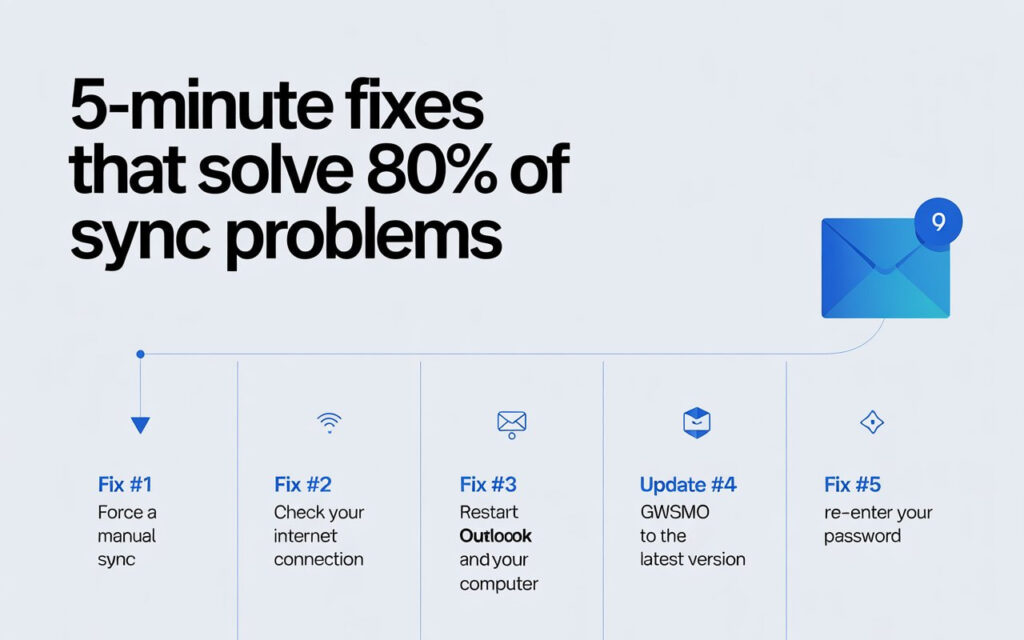
Let’s start with the quick wins. These simple steps fix most Google Workspace sync issues in minutes.
Fix #1: Force a Manual Sync
Don’t wait for automatic sync. Force it manually.
How to do it:
- Right-click the GWSMO icon in your taskbar
- Select “Sync Now”
- Wait 2-3 minutes
- Check if your data updated
This works for email sync delays, missing calendar events, and contact updates.
Fix #2: Check Your Internet Connection
Sounds obvious, but network issues cause most sync failures.
Quick test: Open Google Workspace in your browser. If it loads fine, your connection works. If not, troubleshoot your network first.
Pro tip: If you’re on VPN, try disconnecting temporarily. Some VPN configurations block sync protocols.
Fix #3: Restart Outlook and Your Computer
The classic IT solution actually works. Restarting clears temporary glitches.
Best practice: Close Outlook completely, restart your computer, then reopen Outlook. Give it 5 minutes to sync.
Fix #4: Update GWSMO to the Latest Version
Running outdated software causes compatibility issues.
Check your version: Right-click GWSMO icon > “About.” Compare it to the latest version on Google’s download page.
Update immediately if you’re behind. New versions fix known sync bugs.
Fix #5: Re-enter Your Password
If you recently changed your Google Workspace password, GWSMO might not know about it.
How to fix:
- Go to Start > Google Workspace Sync > Delete saved passwords
- Open Outlook
- Re-enter your credentials when prompted
This fixes authentication errors and offline mode issues instantly.
Advanced Troubleshooting for Stubborn Sync Issues
Still having problems? Let’s dig deeper.
Solution #1: Re-sync Your Outlook Data
Re-syncing forces Outlook to overwrite local data with Google’s server data.
Step-by-step:
- Click GWSMO icon > “View Sync Status”
- Next to the problem data type, click “Re-sync”
- Choose “Overwrite” (preserves Outlook-specific data)
- Wait for sync to complete
Warning: Use “Delete and re-sync” only as a last resort. It removes follow-up flags, categories, and distribution lists.
Solution #2: Recreate Your Outlook Profile
A corrupted profile causes mysterious sync failures.
How to recreate:
- Close Outlook
- Open Control Panel > Mail > Show Profiles
- Delete your current Google Workspace profile
- Launch GWSMO and create a new profile
- Let it sync from scratch
Important: Don’t import old data. It’s already in Google Workspace.
Solution #3: Check PST File Size Limits
Outlook limits PST file size by default. When you hit the limit, sync stops.
Fix it: In GWSMO settings, set a mailbox size limit (20GB for Outlook 2007, 50GB for newer versions).
Solution #4: Fix Admin Permission Errors
Getting “admin_policy_enforced” errors? Your Google Workspace admin needs to whitelist the sync integration in Google Admin Console under Security > API Controls.
This fixes API access issues immediately.
How to Prevent Google Workspace Sync Issues
Prevention beats troubleshooting every time. Here’s how to avoid sync problems before they start.
Keep Everything Updated
Update GWSMO, Outlook, and Windows regularly. Most sync bugs get fixed in new releases.
Monitor Your Mailbox Size
Check your mailbox size monthly. Archive old emails to keep your PST file under control.
Use Consistent Folder Structures
Create calendar folders under the Calendar app in Outlook. Create contact folders under Contacts. Putting them in the wrong place breaks synchronization.
Add Resources Through Google Calendar
Never add resource calendars through Outlook’s address book. Always use the Google Calendar web UI to prevent calendar sync failures.
Where to Buy Google Workspace: Top Authorized Resellers
You can purchase Google Workspace through authorized resellers, which often provide local support, setup assistance, and flexible billing options for businesses. Buying from a trusted reseller ensures you get professional guidance and additional services alongside your subscription.
Top 5 Google Workspace Resellers:
- Leads Monky ( Enjoy up to 64% off with promo code PARTNER2026 (Redeem Here) – Plus free setup and support)
- Agosto (Save up to 10% off on Google Workspace plans with expert migration support)
- Onix (Get up to 5% off on Google Workspace with enterprise-level deployment and support)
- Cumulus Global (Enjoy up to 20% off Google Workspace plans with certified reseller support)
- GsuiteReseller (USA) (Get up to 10% off on Google Workspace plans with dedicated support)
FAQ: Google Workspace Sync Issues
Why won’t my Google Workspace calendar sync with Outlook?
Calendar sync issues usually happen when you add calendars in the wrong place or use incompatible formats. Add shared calendars through Google Calendar’s web interface, not Outlook. Check that calendar sync is enabled in your GWSMO settings.
How long does Google Workspace sync take?
Normal sync takes 2-5 minutes for small changes. Initial sync after setup can take several hours if you have a large mailbox. Email sync is fastest, while calendar and contact sync might take longer.
Why are my Google Workspace contacts not showing in Outlook?
Contact sync might be disabled in GWSMO settings. Check by right-clicking GWSMO icon > Preferences > Contacts tab. Also verify contacts exist in Google Contacts through your browser.
What’s the difference between GWSMO and native Outlook sync?
GWSMO (Google Workspace Sync for Microsoft Outlook) is Google’s official tool that syncs emails, calendars, and contacts. Native Outlook sync connects via IMAP but has limited features—no calendar or contact sync in older versions.
Can I sync Google Workspace on mobile devices?
Yes! Google Workspace syncs natively with iPhone and Android devices. Add your Google Workspace account in phone settings. No special app needed for basic email and calendar sync.
How to fix Google Sync problems?
Force a manual sync via the GWSMO icon, restart Outlook and your computer, check your internet connection, or update GWSMO to the latest version.
Why is Gmail Sync currently experiencing problems?
Gmail sync issues usually occur due to large PST files, outdated GWSMO versions, network problems, or expired authentication tokens.
Why is sync not syncing?
Sync may stop if your Outlook profile is corrupted, mailbox exceeds size limits, or authentication tokens have expired.
Why is my email not syncing properly?
Email may fail to sync because of offline mode in Outlook, outdated GWSMO, network issues, or admin permission restrictions.
How to fix Gmail not syncing?
Restart Outlook, manually force a sync in GWSMO, re-enter your Google Workspace credentials, and ensure your PST file is under size limits.
How to solve syncing problem?
Check GWSMO settings, verify calendar/contact folders, restart devices, and update both GWSMO and Outlook for seamless synchronization.
How to fix sync is currently experiencing problems?
Use the “View Sync Status” in GWSMO, re-sync problem data, or recreate your Outlook profile if corruption is detected.
Why did Google stop syncing?
Google stops sync when authentication tokens expire, admin permissions block API access, or your mailbox exceeds configured size limits.
How do I reset Google Sync?
Recreate your Outlook profile via Control Panel → Mail → Show Profiles, then reconnect to GWSMO to reset sync from scratch.
How to force Google Keep to sync?
Open Google Keep on your device, refresh the app, and ensure you’re signed in with your active Google Workspace account; mobile apps sync automatically when online.
Fix Your Google Workspace Sync Issues Today
Google Workspace sync issues don’t have to kill your productivity. Most problems have quick fixes you can do yourself.
Start with the 5-minute solutions. They solve 80% of sync problems instantly.
If those don’t work, move to advanced troubleshooting. Re-syncing or recreating your profile usually does the trick.
Remember: prevention is easier than fixing. Keep your software updated, monitor your mailbox size, and use Google’s web interface for shared resources.
Still stuck? Check your admin permissions or reach out to Google Workspace support for help with complex synchronization issues.
Your emails, calendars, and contacts should just work. Now they will.
Get Google Workspace at 64% Off
Same service. Better price. Professional setup included.
⭐⭐⭐⭐⭐ 151+ companies trust us
Partner Pricing:
• Business Starter: $3/month (Google: $8)
• Business Standard: $13/month (Google: $17)
• Business Plus: $20/month (Google: $26)
FREE:
Complete DNS setup + 24/7 support + USA IPs
15-user minimum | Setup in 24 hours


