Quick Answer
Google Workspace sync issues usually come from an Outlook offline state, disabled GWSMO modules, expired authentication, blocked network traffic, a damaged local profile, or mobile sync settings. First, check the official Workspace Status Dashboard to rule out a service disruption. Then confirm Outlook is online, open the GWSMO tray icon, enable mail, calendar, and contacts, and restart Outlook. Update Windows, Outlook, and GWSMO, test without a VPN, and allow ports 80 and 443. If data is still missing, run Google Log Analyzer and resync only the affected data type before rebuilding the profile as a final step, only when necessary.
Google Workspace synchronization fails when the application cannot authenticate, connect, read the correct data source, or update its local copy.
The exact cause depends on where the failure appears. Outlook may have entered offline mode. A Google administrator may have disabled GWSMO or a specific sync module. A firewall may block Google APIs. A local Outlook profile may contain damaged data. A mobile device may have Calendar or Gmail synchronization turned off.
Google Workspace Sync for Microsoft Outlook, commonly called GWSMO, regularly synchronizes email, calendars, contacts, tasks, and notes between a managed Google Workspace account and Microsoft Outlook. Some Outlook data types and features are not supported, so an item that never appears elsewhere is not always evidence of a failed sync.
The most common categories are:
- Google service disruption
- Internet, firewall, VPN, or proxy problem
- Outlook offline mode
- Disabled GWSMO module
- Expired sign in authorization
- Outdated Outlook, Windows, or GWSMO installation
- Damaged local Outlook profile
- Large or overloaded local mailbox
- Unsupported Outlook feature
- Mobile account or application settings
- Broken third party application authorization
- Administrator policy restrictions
Identify How Your Account Is Syncing
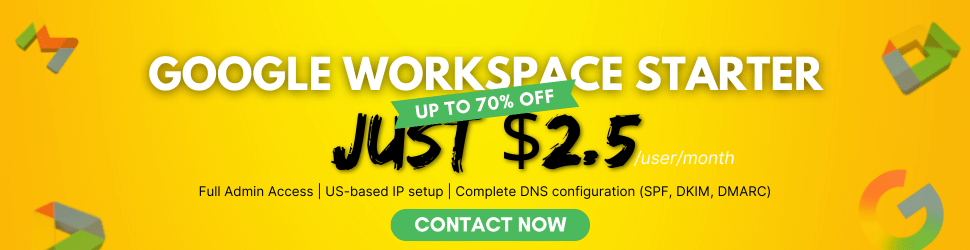
The correct fix depends on the connection method carrying your data.
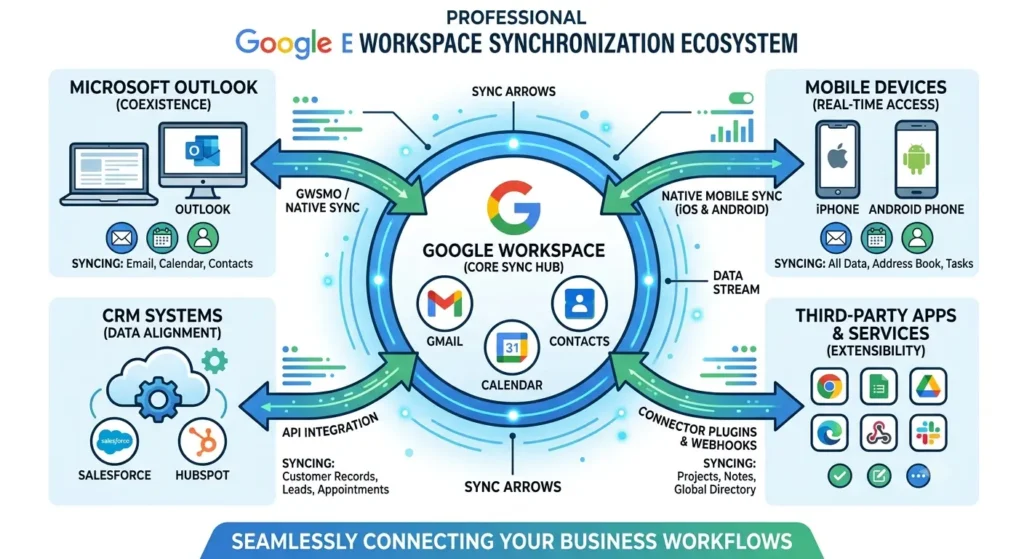
Check which of these setups you use before changing anything.
| Sync method | What it normally handles | Where to troubleshoot |
|---|---|---|
| GWSMO | Gmail, Calendar, contacts, tasks, and notes in Windows Outlook | GWSMO tray icon, Outlook profile, Google logs, network |
| Gmail through Outlook | Email through Google sign in or IMAP | Outlook account settings, Google authorization, folder size |
| Google Calendar mobile app | Calendar events on Android or iPhone | Calendar visibility, account sync, app storage |
| Gmail mobile app | Email and notifications on mobile | Gmail sync setting, device sync, storage, connection |
| CRM integration | Contacts, messages, activities, or calendar data | CRM authorization, Google application access, sync ownership |
| Imported PST data | Historical Outlook information | Import settings, duplicate handling, migration logs |
GWSMO works with managed work or school accounts and requires administrator preparation. It does not work with personal Gmail accounts. Google also states that GWSMO is not supported on macOS because Outlook for Mac does not provide the MAPI functionality the tool requires.
Check Google Workspace Service Status
Check Google’s official Status Dashboard before repairing a profile or deleting local data.
The dashboard reports the condition of Gmail, Calendar, Drive, Admin Console, and other Workspace services separately. A Gmail incident does not automatically mean Calendar or every Workspace product is unavailable.
Use this decision:
- If Google shows an incident for the affected service, wait for Google’s updates and use any published workaround.
- If every relevant service appears available, continue with device, account, network, and profile checks.
- If several employees fail at the same time but Google reports no incident, test the company network, firewall, identity provider, and administrator policies.
- If only one employee fails, focus on that user’s device, credentials, profile, and sync modules.
For more outage diagnostics, read the Google Workspace status and outage guide.
💡 Need help setting up Google Workspace?
We’re certified Google partners offering 64% off + free professional setup ($2,000 value). Used by 1000+ companies.
Get your quote →Fix Google Workspace Sync for Microsoft Outlook
1. Confirm Outlook Is Online
An offline Outlook session prevents GWSMO from exchanging data with Google.
Open Outlook and select the Send and Receive tab. If Work Offline is active, select it once to return Outlook to online mode.
Google identifies an offline network connection or Outlook offline mode as a cause when the GWSMO tray icon shows offline. A password change may also leave Outlook in an offline state until the account reconnects.
Restart Outlook after changing the setting.
2. Check the GWSMO Tray Icon
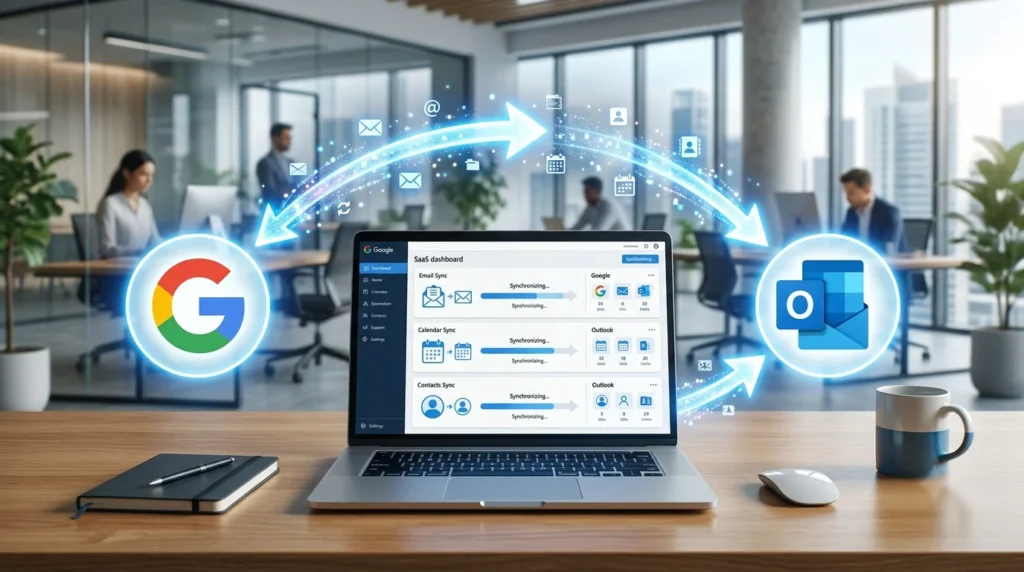
The GWSMO icon shows whether synchronization is running and which products are enabled.
Look in the Windows notification area near the clock. Select the upward arrow if the icon is hidden.
Open the GWSMO menu and choose the option to turn sync modules on or off. Confirm that the affected product is selected:
- Calendar
- Contacts
- Tasks
- Notes
A disabled item may be marked as turned off by the administrator. In that case, the user cannot restore it locally and must contact a Workspace administrator.
3. Restart Outlook and Windows
A clean restart can clear a temporary process, authorization, or local file lock.
Close Outlook completely. Open Task Manager and make sure Outlook is no longer running. Restart Windows, then open the correct Google Workspace Outlook profile.
Avoid repeatedly closing Outlook while it is performing an initial sync or a large repair. That can extend the process and make progress harder to evaluate.
4. Update GWSMO, Outlook, and Windows
Google recommends installing current Outlook and Windows updates before using or reinstalling GWSMO.
Close Outlook before installing GWSMO. Google also advises temporarily disabling applications that access Outlook PST files during installation because antivirus tools and third party Outlook software can interfere with setup.
Download GWSMO only from Google’s official download page or through your organization’s managed software system.
5. Test the Network Without a VPN
A VPN, firewall, proxy, or security gateway can block GWSMO even when ordinary websites load correctly.
Temporarily disconnect the VPN and test Outlook again. Try a different network, such as a mobile hotspot, when company policy allows it.
Google states that GWSMO mainly uses port 443 and also requires port 80 for certificate revocation information. Google provides a list of authentication, Gmail, Calendar, Contacts, Drive, and Tasks endpoints that may need to be allowed by the network. Authenticated proxies are not supported by GWSMO.
Do not permanently weaken firewall protection. Ask the network administrator to allow the required traffic.
6. Run Google Log Analyzer
Log Analyzer is the strongest next step when restarting and network checks do not reveal the cause.
GWSMO creates trace files under the user’s Windows profile. Google documents this location for current Windows systems:
C:\Users\your-user-name\AppData\Local\Google\Google Apps Sync\Tracing\
Submit the relevant files to Google Admin Toolbox Log Analyzer. The report can identify authentication failures, timeouts, proxy problems, item errors, and other GWSMO conditions.
Keep the original logs if you expect to contact Google Workspace Support.
Fix Gmail and Outlook IMAP Sync Issues
Gmail added to Outlook as a normal email account behaves differently from a full GWSMO profile.
A standard Gmail connection primarily synchronizes email. It does not reproduce every GWSMO calendar, contact, task, and note feature.
Use Google Sign In
Google no longer supports email clients that require users to provide their Google username and password directly to the application. Use the Sign in with Google flow or another supported modern authorization method.
When Outlook repeatedly asks for a password:
- Remove the Google account from Outlook.
- Restart Outlook.
- Add the account again.
- Complete the Google sign in window.
- Approve the requested account access.
Ask an administrator to check application access policies if authorization is blocked.
Reduce Large Folder Loads
Gmail can limit or slow a connection when an email client tries to download too much data at once.
Google recommends limiting the size of IMAP folders when clients crash or take too long to download messages. It also limits a Gmail account to 15 simultaneous email client connections. Close unused devices or duplicate account connections if you receive a simultaneous connection error.
Archive old messages, reduce unnecessary subscribed folders, and allow Outlook time to complete its initial download.
Fix Google Calendar Sync Problems
Missing Google Calendar events usually come from a disabled calendar module, an unselected calendar, normal sync timing, or an unsupported Outlook behavior.
GWSMO normally synchronizes Calendar every ten minutes and also responds when a user creates an event or receives an invitation. Email normally synchronizes every minute, contacts every twenty minutes, and the Global Address List every twenty four hours.
Work through these checks:
- Confirm Calendar is enabled in GWSMO.
- Open Google Calendar in a browser and verify that the event exists in Google.
- Confirm you are viewing the correct Outlook calendar.
- Check whether the shared calendar is selected for synchronization.
- Wait at least ten minutes for an ordinary calendar change.
- Restart Outlook if invitations or reminders stop updating.
- Compare the behavior with Google Calendar on the web.
Some Outlook Calendar functions do not map perfectly to Google Calendar. For example, certain status values, attachments, availability ranges, and other Outlook behaviors may appear differently or may not synchronize.
Outlook Meeting Notifications Are Not Working
A missing reminder does not always mean the meeting failed to sync.
First, confirm that the event appears in both Google Calendar and Outlook. If it appears in both, inspect Outlook reminder settings, Windows notification permissions, Focus Assist, and the reminder value saved on that event.
If the event appears in Google Calendar but not Outlook, troubleshoot GWSMO Calendar synchronization. If it appears in Outlook but not Google Calendar, check whether it was created in the correct Workspace calendar rather than a local Outlook calendar.
Fix Google Contacts Sync Problems
GWSMO synchronizes personal contacts, but not every Outlook contact feature has a Google equivalent.
Confirm that Contacts is enabled from the GWSMO tray menu. Then open Google Contacts in a browser and check whether the missing record exists in the Google account.
Google documents several limitations:
- Contact follow up flags do not sync.
- Outlook categories do not become Google Contact categories.
- Rich formatting may become plain text.
- Directory contacts may provide only an email address in Outlook.
- Some Notes field changes may not travel in both directions.
- Distribution lists are not synchronized like normal personal contacts.
Do not repeatedly import the same PST file to fix a contact issue. Google warns that importing all data more than once can create duplicate contacts, calendar events, tasks, and notes.
Fix Gmail and Calendar Sync on Mobile
Gmail Is Not Syncing on Android
Check both the Gmail application setting and the Android account sync setting.
Google recommends this order:
- Pull down in Gmail to refresh manually.
- Update the Gmail application.
- Restart the device.
- Test the internet connection.
- Open Gmail settings and confirm Sync Gmail is selected.
- Open Android account sync settings and confirm Gmail sync is active.
- Check Google account storage and device storage.
- Clear Gmail application data only after safer checks fail.
Google notes that a manual Gmail refresh can take up to fifteen minutes, especially when the application has not been used recently.
Google Calendar Is Not Syncing on Mobile
The most common mobile Calendar causes are a hidden calendar, disabled account sync, the wrong event calendar, or insufficient device storage.
Confirm that:
- The device has internet access.
- The Calendar application is updated.
- The affected calendar is visible.
- New events are being added to the Workspace account rather than a local calendar.
- Calendar sync is enabled in the device account settings.
- The calendar’s own Sync option is active.
- The device has free storage.
Google warns that clearing Calendar application data can remove unsynced information, so use that step only after confirming that the cloud version contains the events you need.
Fix “Connection to Google Is Temporarily Unavailable”
This message normally points to a service, authentication, network, certificate, proxy, or blocked endpoint problem.
Follow this order:
- Check the Workspace Status Dashboard.
- Open Gmail and Calendar in a browser.
- Confirm Outlook is online.
- Restart Outlook.
- Test without a VPN.
- Test another network.
- Check the Windows date and time.
- Allow ports 80 and 443.
- Review proxy settings.
- Run Log Analyzer.
Incorrect computer time can make valid security certificates appear expired. Proxy or certificate failures also appear in trace logs, which is why logs are more useful than repeatedly reinstalling the application.
Fix CRM and Third Party App Sync Problems
A Gmail CRM sync failure should be diagnosed inside both the CRM and the Google account.
Check:
- Whether the CRM connection still shows as authorized
- Whether the correct Workspace user owns the connection
- Whether the administrator recently restricted application access
- Whether the CRM changed its requested Google permissions
- Whether the CRM has reached an application or user limit
- Whether the CRM service reports an incident
- Whether duplicate automation rules are competing
- Whether the sync runs one way or both ways
Reconnect the Google account only after reviewing unsynced CRM records. Removing the connection can delete queued activities or require a complete historical resync.
When several users fail at once, ask the Workspace administrator to review application access, organizational unit assignments, and recent security policy changes in the Google Workspace Admin console.
When to Resync or Rebuild the Outlook Profile
Resync One Data Type First
Use a targeted resync when Google contains the correct information but Outlook’s local copy is incomplete.
Google allows users to resync mail, calendars, contacts, and other data separately. A targeted repair reduces the chance of disturbing unrelated Outlook information.
Google warns that resynchronization overwrites local data with data stored on Google’s servers. Recent Outlook changes that never reached Google may be lost. A large resync can also take considerable time and system resources.
Before starting:
- Check the same data in Gmail, Google Calendar, or Google Contacts.
- Save any local item that is missing online.
- Select only the affected data type.
- Keep the computer online.
- Do not interrupt Outlook unnecessarily.
- Check the sync status and logs after completion.
Rebuild the Profile Only as a Final Step
Create a new GWSMO profile when logs and targeted repair indicate that the existing local profile is damaged.
Confirm that important data already exists in Google before removing the old profile. Outlook only information, unsupported fields, local folders, and unsynced items may not return automatically.
Google’s setup process creates a separate Workspace profile and begins synchronization when Outlook opens that profile.
Ask an administrator or support specialist to assist when the profile contains locally stored business data that is not visible in Google.
Administrator Checks for Company Managed Accounts
Administrators must enable GWSMO and the required Workspace services before users can synchronize Outlook.
In the Admin console, the administrator should check:
- GWSMO is enabled under Gmail end user access.
- Google Calendar is active for the user’s organizational unit.
- Contact sharing is enabled when the Global Address List is required.
- Google Drive is enabled if notes are synchronized through Drive.
- The user has an active Workspace license.
- The account is not suspended.
- Security rules are not blocking sign in or application authorization.
Google’s administrator setup documentation states that GWSMO must be enabled before users can create and use their profiles.
For help reaching Google, use the Google Workspace support contact guide.
Common Sync Troubleshooting Mistakes
Deleting the Profile Too Early
Restarting Outlook, checking modules, testing the network, and reading logs are safer than immediately removing a profile.
Rebuilding too early can destroy valuable diagnostic evidence and expose unsynced local data to loss.
Resyncing Everything for One Missing Item
A complete mailbox resync consumes more time and resources than repairing Calendar, Contacts, or Mail separately.
Start with the affected module.
Assuming Every Outlook Difference Is a Sync Error
Public folders, some contact fields, specific calendar behavior, follow up flags, Outlook categories, and other features may not have a direct Google equivalent. Confirm whether Google officially supports the feature before attempting repeated repairs.
Ignoring the Browser Version
Gmail, Calendar, and Contacts on the web show what Google currently stores.
If the information appears online but not in Outlook, the local Outlook or GWSMO layer deserves attention. If the information is missing online too, investigate where the item was created and whether it ever reached Google.
Clearing Mobile App Data First
Clearing application data can remove information that has not reached Google.
Use updates, manual refresh, visibility settings, account sync, storage checks, and a restart before clearing data.
How to Prevent Future Sync Problems
- Keep Outlook, Windows, GWSMO, Gmail, and Calendar updated.
- Avoid installing unnecessary Outlook add ins.
- Monitor local mailbox growth.
- Keep at least two secure Workspace administrators.
- Document firewall and proxy rules.
- Use supported Google authorization.
- Create events and contacts in the correct account.
- Review failed CRM synchronization regularly.
- Train users to distinguish local Outlook folders from cloud data.
- Keep migration and repair logs until the issue is confirmed resolved.
Google notes that Outlook add ins can behave unexpectedly and, in serious cases, can damage local PST files. Reducing unnecessary add ins can improve profile reliability.
Final Recommendation
Most Google Workspace sync issues should be handled in a controlled order: confirm the service status, identify the sync method, check account and module settings, test the network, review logs, and repair only the affected data.
Do not begin with a complete profile deletion. That is the most disruptive option and may remove Outlook data that never reached Google.
When the issue affects several employees, involves administrator restrictions, or continues after a targeted resync, collect the GWSMO logs and escalate the case through the Workspace administrator. Businesses that need help with configuration, account management, or migration can review the Leads Monky Google Workspace reseller service.
Frequently Asked Questions
Why is Google Workspace not syncing with Outlook?
Google Workspace may stop syncing with Outlook because Outlook is offline, a GWSMO module is disabled, authorization expired, the network blocks Google services, or the local profile is damaged. Check the status dashboard, Outlook mode, GWSMO tray icon, network, and trace logs before rebuilding the profile.
How do I force Google Workspace to sync with Outlook?
Open the GWSMO icon in the Windows notification area, confirm that the required module is enabled, and review the synchronization status. Restarting Outlook can restart normal synchronization. Use Google’s resync tool only when cloud data is correct and the Outlook copy remains incomplete.
How long does GWSMO take to sync?
Normal schedules differ by data type. Google documents email synchronization about every minute, Calendar about every ten minutes, Contacts about every twenty minutes, and the Global Address List about every twenty four hours. Initial imports and profile repairs can take much longer.
Why is Outlook not syncing with Gmail?
Outlook may not sync Gmail because Google authorization expired, the account was added through an unsupported password method, too many clients are connected, or Outlook is downloading a very large folder. Remove and reconnect the account through Google sign in after checking for unsynced local mail.
Why is Google Calendar not syncing with Outlook?
Calendar may be disabled in GWSMO, the calendar may not be selected, or the event may have been created in a local Outlook calendar. Confirm the event exists at Google Calendar on the web, enable Calendar sync, and allow the normal ten minute synchronization interval.
Why are Google Contacts missing from Outlook?
Contacts may be disabled, still waiting for the normal sync interval, or stored only in the Google directory rather than personal contacts. Some directory details, categories, follow up flags, formatting, and distribution lists do not synchronize like ordinary personal contacts.
What does “Connection to Google is temporarily unavailable” mean?
The message usually indicates a Google service incident, blocked network traffic, VPN or proxy interference, certificate validation problem, expired authorization, or incorrect computer time. Check the Workspace Status Dashboard, ports 80 and 443, network rules, system time, and GWSMO trace logs.
Does GWSMO work on Mac?
No. Google states that GWSMO is not supported on macOS because Outlook for Mac does not provide the MAPI functionality required by the synchronization tool. Mac users should use supported Google account connections or migration methods instead.
Ready to Fix Your Cold Email?
What you get:
- ✓ Complete infrastructure: 30 emails + 10 domains
- ✓ 10,000 personalized emails monthly
- ✓ First consultations in 5–6 weeks