Quick Answer
The Google Workspace Admin console at admin.google.com is the central control panel where super admins manage users, security, billing, devices, and app settings across the entire organization. Only accounts with an assigned admin role can access it. Regular users who go to admin.google.com are redirected to their regular Workspace apps instead of seeing the console.
The Google Workspace Admin console is where every meaningful organizational setting lives, from creating and deleting user accounts to configuring security policies, managing billing, and controlling which apps your team can access. Most Google Workspace problems that look like technical issues turn out to be Admin console configuration gaps, which is why understanding the console’s structure matters as much as knowing which settings to change. This guide covers the major sections of the console, what each one controls, and the configuration steps that matter most for new administrators.
How to Access the Google Workspace Admin Console
The Admin console is accessed at admin.google.com and requires an account with an assigned admin role to enter. There is no alternative URL, no app, and no sidebar link from regular Workspace apps. The only path is directly through admin.google.com.
When a regular user without admin privileges navigates to admin.google.com, Google does not show an error. It silently redirects them to their Gmail inbox or the Workspace homepage instead. This is a common source of confusion — users assume the console is broken or they have the wrong URL when they are simply not logged in as an admin.
If you are signed into multiple Google accounts at once in the same browser, confirm which account is active before trying to access the console. The account in the top-right profile circle is the one that determines whether admin.google.com opens the console or redirects to the inbox.
💡 Need help setting up Google Workspace?
We’re certified Google partners offering 64% off + free professional setup ($2,000 value). Used by 1000+ companies.
Get your quote →Admin Roles: Super Admin vs Delegated Admin
Two main admin role types exist in Google Workspace: Super Admin and Delegated Admin, and the difference between them determines what each person can do inside the console.
Super Admins have full, unrestricted access to every console setting. This includes billing, domain management, security configuration, user creation and deletion, app access control, and the ability to assign or remove admin roles from other accounts. Every Google Workspace organization has at least one Super Admin and should have at least two to avoid being locked out if the primary admin loses access.
Delegated Admins receive a scoped subset of permissions. Google provides several pre-built delegated roles including User Management Admin, Group Admin, Help Desk Admin, and Services Admin. Each role grants access to a specific slice of the console without giving full control. Organizations can also create custom admin roles with precisely defined permissions if the pre-built roles don’t match their needs.
To create a Super Admin or assign admin roles, see our guide on how to create a Super Admin in Google Workspace for the exact steps through the Users section of the console.
The Main Console Sections and What They Control
The Admin console home screen shows a grid of category tiles, each of which opens a separate section of settings. Not every organization uses every section, but understanding what each one covers prevents time spent searching for settings that should be obvious.
Users: Create, edit, delete, suspend, and restore user accounts. Assign admin roles. Reset passwords. Manage user aliases and profile information. Move users between organizational units. This is where all account-level user management happens.
Groups: Create and manage Google Groups for team email distribution lists, shared inboxes, collaborative inboxes, and security groups that control app access by membership. Groups are a more flexible way to manage access than individual user settings in large organizations.
Organizational Units (OUs): This is the structural backbone of the console. OUs let you apply different settings to different teams within the same Workspace account. A policy set at a parent OU flows down to all child OUs unless deliberately overridden at the child level. For example, a security policy enforcing 2-Step Verification can be applied to all staff OUs while a separate policy allows exceptions for a specific department.
Apps: Control which Google Workspace apps and third-party Marketplace apps are available to users. Turn individual services on or off by organizational unit. Configure Gmail routing, compliance rules, spam settings, and DLP. Set up SSO for third-party apps. This section is where most email security and app access configuration happens.
Devices: Manage mobile devices, computers, and hardware through Google Endpoint Management. Set password policies, enable remote wipe, configure Android and iOS management levels, and manage Chrome browsers and ChromeOS devices from a single location.
Account: Contains billing, domain management, organization profile, and legal and compliance settings including the HIPAA Business Associate Agreement. This is also where your reseller information appears if your account is managed by an authorized reseller.
Security: Controls authentication settings including 2-Step Verification enforcement, OAuth app access, password strength policies, context-aware access rules, and the Security Investigation Tool for analyzing potential threats across the organization.
Reporting: Access usage reports, audit logs, and the Alert Center. The admin audit log records every action taken inside the console with a timestamp and the email address of the admin who made the change. These logs are retained for six months by default and are searchable by date, event type, and actor.
Setting Up DNS and Domain Configuration
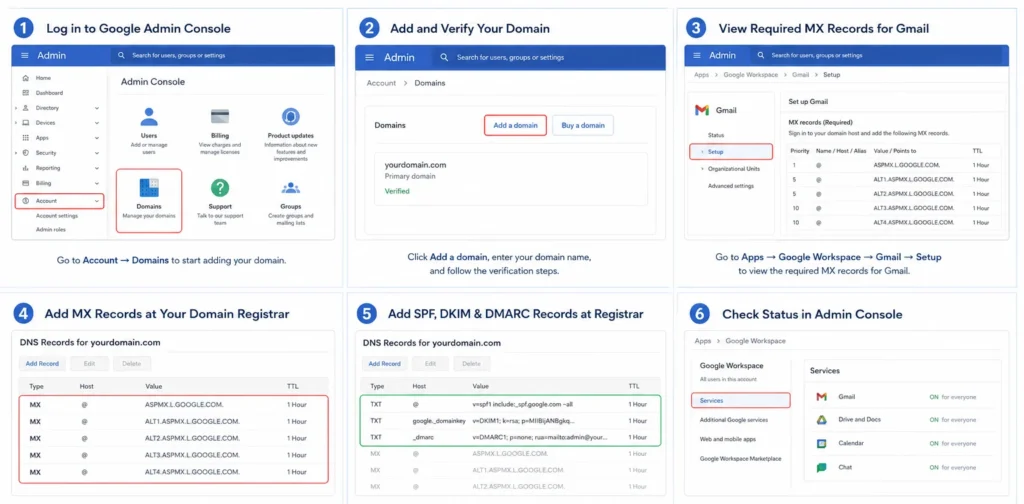
Domain verification and DNS configuration are the first critical steps after creating a Google Workspace account, and they happen partly in the Admin console and partly at your domain registrar. Getting these right determines whether email routes correctly and whether your messages reach inboxes rather than spam folders.
The full Google Workspace setup guide covers every DNS record in sequence. The Admin console side of this process involves verifying domain ownership (Account → Domains → Add a domain), viewing the required MX records for Gmail (Apps → Google Workspace → Gmail → Setup), and checking the status of SPF, DKIM, and DMARC once added at the registrar.
DKIM specifically requires a step inside the console that many new admins miss: generating the DKIM key. Go to Apps → Google Workspace → Gmail → Authenticate email, then click Generate new record. Google generates a TXT record value that you then add at your registrar. Without this step, DKIM authentication never activates regardless of what you add to your DNS.
Enforcing Security Settings
The Security section of the Admin console is where authentication, access control, and threat monitoring settings live, and most of them are not enforced by default. Two-Step Verification enforcement is the single highest-impact security setting for most organizations and it is off by default.
To enforce 2-Step Verification: Security → Authentication → 2-Step Verification → toggle on → set enforcement date → select which second factors to allow. Recommended approach is to allow all second factors initially, then tighten to hardware security keys or device prompts once the team is enrolled.
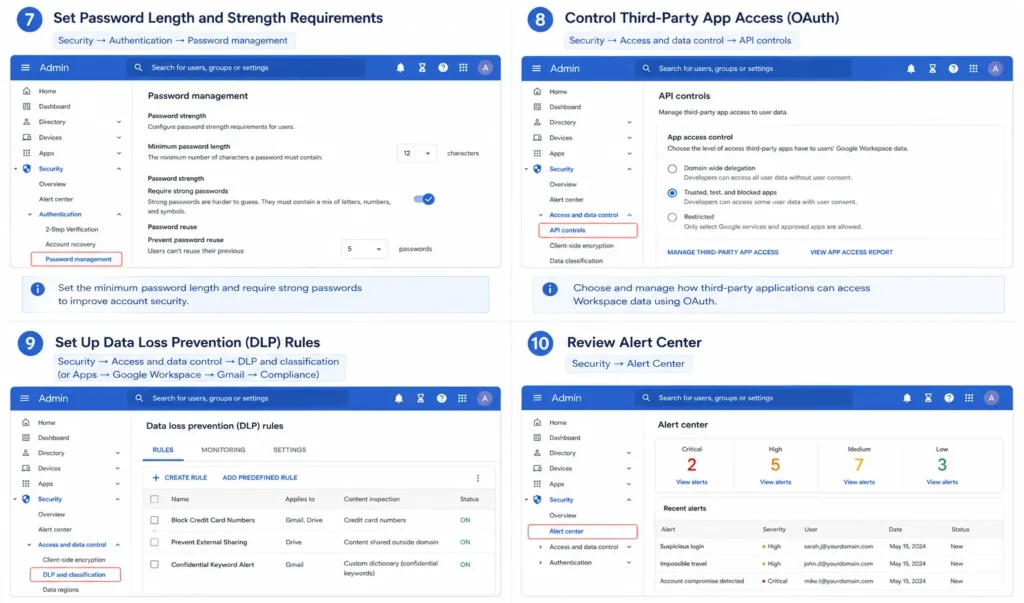
Other security settings worth configuring early in any new Workspace deployment include:
Password length and strength requirements (Security → Authentication → Password management), controlling which third-party apps can access Workspace data via OAuth (Security → Access and data control → API controls), setting up data loss prevention rules for Gmail and Drive (Apps → Google Workspace → Gmail → Compliance, or Security → Access and data control → DLP and classification), and reviewing the Alert Center (Security → Alert Center) to confirm alert rules are active for suspicious logins and account compromise indicators.
Managing Billing Through the Admin Console
Billing lives under Account → Billing in the Admin console, and what you see there depends on whether you purchased directly from Google or through an authorized reseller. For accounts managed by a reseller, the billing section shows the subscription details but billing changes must be made through the reseller rather than directly in the console.
For direct Google accounts, the billing section shows current subscriptions, payment methods, billing history, and the option to upgrade or change plans. Upgrading from Business Starter to Standard or Plus is self-service and takes effect immediately with prorated billing. Cancellation and downgrading work through this same section, though our Google Workspace pricing guide is worth reviewing before making plan changes, since the cost implications of billing cycle choices compound significantly at scale.
Using the Admin Console to Contact Google Support
The Get Help button in the top-right corner of the Admin console is the only entry point to official Google Workspace support. There is no public support phone number and no support email address. All three contact channels — chat, email, and phone — begin here and require admin console access to initiate.
For the full support contact process including how to generate the phone support PIN and what to do when you are locked out of the console, see our Google Workspace support contact guide.
Common Admin Console Mistakes to Avoid
- Having only one Super Admin account. If that account is compromised or the password is lost, recovering access requires Google’s domain verification process, which can take several days.
- Not configuring DKIM before sending email. The console shows green checkmarks for domain setup even when DKIM is not yet activated because the key generation step is separate from domain verification.
- Applying security settings at the top-level OU without testing first. Changes at the top-level OU cascade to all child OUs immediately. Test new security policies on a small test OU before applying organization-wide.
- Ignoring the audit log until something goes wrong. The audit log is most useful as a proactive monitoring tool, not just a post-incident investigation resource.
- Assuming Marketplace app access control is set correctly by default. The default setting allows users to install any Marketplace app. Most organizations should restrict this to admin-approved apps only.
Conclusion
The Google Workspace Admin console controls every meaningful setting across your organization’s Workspace account, from user creation and security enforcement to billing, domain configuration, and app management. The most consequential gap for new administrators is usually not knowing what the console contains — it’s not configuring security settings like 2-Step Verification and DKIM that are off by default. For organizations setting up Workspace for the first time, Leads Monky, an authorized Google Workspace reseller trusted by 1,000+ companies, includes full DNS setup, SPF/DKIM/DMARC configuration, and admin console onboarding alongside every account. No hidden charges. No extra taxes. The price you see is the price you pay.
FAQs
How do I access the Google Workspace Admin console?
Go to admin.google.com and sign in with an account that has an assigned admin role. Regular users who visit this URL are silently redirected to their inbox rather than seeing an error.
What is the difference between a Super Admin and a Delegated Admin?
Super Admins have full, unrestricted access to all console settings including billing, security, and user management. Delegated Admins have a scoped subset of permissions covering specific areas such as user management or group administration.
Why am I being redirected when I go to admin.google.com?
Your account does not have an admin role assigned. Regular Workspace users cannot access the Admin console. Contact your Super Admin to have an admin role assigned to your account.
How do I set up DKIM in the Google Workspace Admin console?
Go to Apps → Google Workspace → Gmail → Authenticate email and click Generate new record. Copy the TXT record value and add it to your domain’s DNS settings at your registrar. DKIM does not activate until both the key is generated in the console and the TXT record is added at the registrar.
How long are Admin console audit logs kept?
Admin audit log entries are retained for six months by default and are searchable under Reporting → Audit and investigation → Admin log events.
Can I use the Admin console on mobile?
The full Admin console is browser-based and best used on desktop. Google provides a separate Google Admin app for Android and iOS that covers core tasks including user management and password resets, but it does not have the full feature set of the desktop console.
Ready to Fix Your Cold Email?
What you get:
- ✓ Complete infrastructure: 30 emails + 10 domains
- ✓ 10,000 personalized emails monthly
- ✓ First consultations in 5–6 weeks