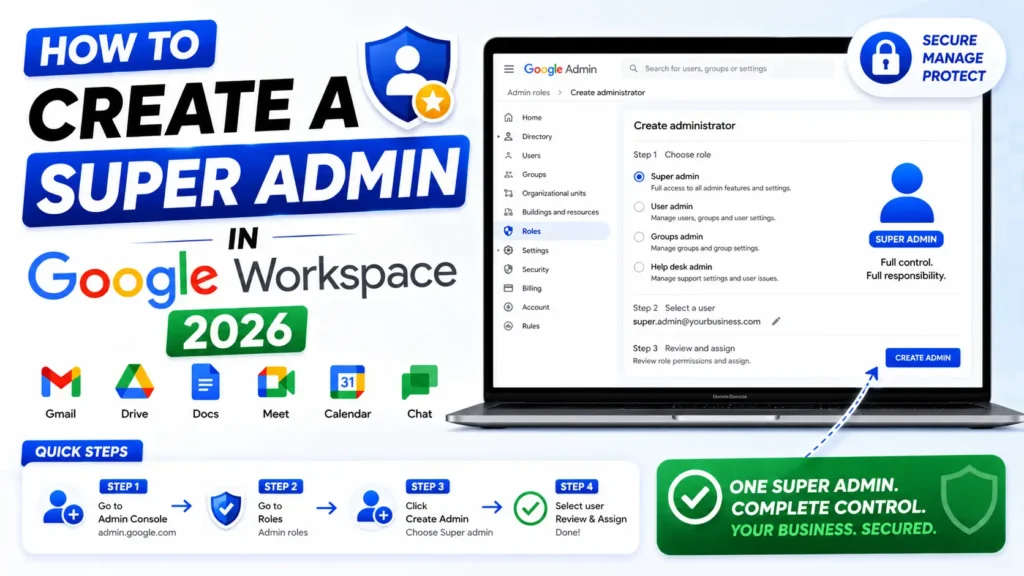
Creating a super admin in Google Workspace takes six steps but getting it wrong can lock you out of your entire account permanently.
The super admin is the highest level administrator role in Google Workspace with full control over every user, billing setting, security policy, and domain in your organization.
This guide covers exactly how to create and assign the super admin role, how many super admins your business needs, and how to secure the account so you never lose access at the worst possible moment.
Quick Answer
To create a super admin in Google Workspace, sign in to admin.google.com, go to Directory, then Users, open the user profile, click Admin roles and privileges, toggle Super Admin to Assigned, and click Save. Done in under two minutes. Never set up fewer than two super admins. If your only super admin loses access your entire Google Workspace account becomes inaccessible permanently.
What Is a Super Admin in Google Workspace?
A Google Workspace super admin is the highest-level administrator account in your organization. Think of it as the master key it unlocks every door in the building.
With super admin privileges, one person can control every aspect of your Google Workspace account. That includes adding and removing users, managing billing, configuring security settings, resetting passwords for any user, and even shutting down entire services.
No other admin role in Google Workspace comes close to this level of access.
Super Admin vs. Regular Admin What’s the Difference?
This is where most guides fall short. They explain how to create a super admin but never explain why it matters. Here’s a simple breakdown:
| Feature | Super Admin | Regular Admin |
| Full access to Admin Console | ✅ Yes | ❌ Limited |
| Manage other admins’ settings | ✅ Yes | ❌ No |
| Reset any user’s password | ✅ Yes | ✅ With permission |
| Enforce 2-Step Verification org-wide | ✅ Yes | ❌ No |
| Access security dashboard | ✅ Yes | ❌ Limited |
| Modify billing and subscriptions | ✅ Yes | ❌ No |
| Generate backup codes for other admins | ✅ Yes | ❌ No |
| Manage Google Cloud organization resource | ✅ Yes | ❌ No |
The difference is massive. A regular admin can handle day-to-day tasks. A super admin controls the entire organization which is exactly why you need to treat this role with extreme care.
Who Gets Super Admin Access by Default?
Here’s something important: the person who signs up for Google Workspace automatically becomes the first super admin. That’s you (or whoever created the account).
From that moment, only an existing super admin can assign the super admin role to another user. You can’t bypass this it’s a deliberate security feature.
So if you’re a new business setting up Google Workspace for the first time, the first account created is your default super admin. After that, you control who else gets this level of Google Workspace administrator access.
How to Create a Super Admin in Google Workspace Step by Step
Ready to assign the super admin role to another user? Here’s exactly how to do it. You’ll need to be logged in as an existing super admin to complete these steps.
Step 1: Go to admin.google.com and sign in with your super admin account.
Step 2: In the left-hand menu, click Directory, then select Users.
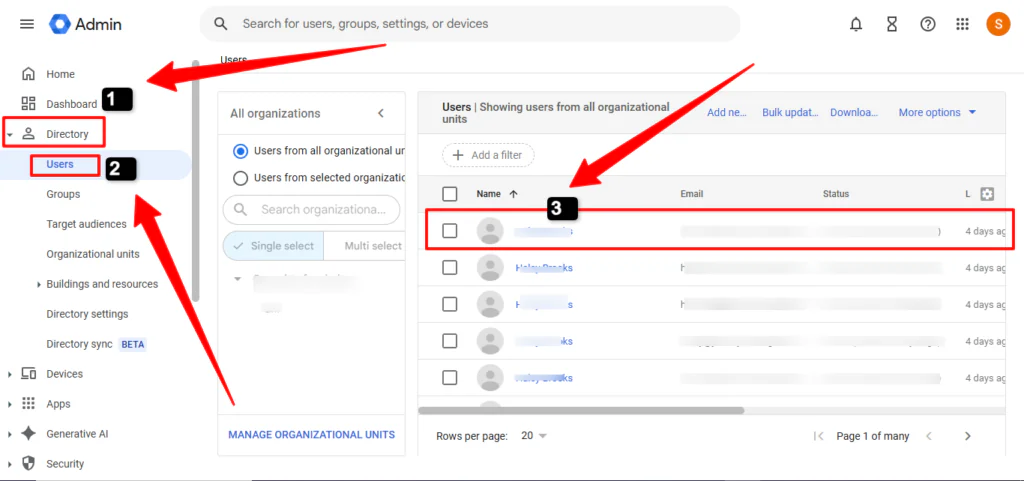
Step 3: Find the user you want to promote. Click their name to open their account page.
Step 4: Scroll down and click Admin roles and privileges.
Step 5: Click the Super Admin role. A slider will appear next to it.
Step 6: Click the slider so it shows Assigned.
Step 7: Click Save.
That’s it. The user will typically receive their super admin privileges within a few minutes, though it can take up to 24 hours in some cases.
Pro tip: Ask your new super admin to immediately add account recovery information a recovery email and phone number. This protects them (and your business) if they’re ever locked out.
How Many Super Admins Does Your Organization Need?
This is the question nobody asks until something goes wrong.
Google itself recommends having at least two super admins at all times. Here’s the real-world logic: if your only super admin forgets their password, loses access to their phone for 2FA, or leaves the company, your entire Google Workspace account could become inaccessible.
Having a backup super admin account is like having a spare key to your office. You hope you never need it but the day you do, you’ll be very glad it exists.
For most small and medium businesses, 2 to 3 super admins is the sweet spot. Large enterprises may need more, but the rule is simple: don’t go below two, and don’t give super admin access to everyone.
Important: Always keep at least one super admin assigned. Google will warn you if you try to remove the last one because an organization with zero super admins is essentially locked out forever.
What Can a Super Admin Actually Do? (Full Powers List)
Let’s get specific. Here’s what Google Workspace super admin permissions actually include:
- User management Create, edit, suspend, delete, and restore any user account
- Admin role management Assign or revoke any admin role, including other super admins
- Billing control Change plans, update payment methods, manage subscriptions
- Security settings Enforce 2-Step Verification, set password policies, manage login challenges
- Data access View audit logs, admin logs, and security reports for all users
- Service control Turn Google Workspace services on or off for the entire organization
- Organizational units Create and manage OUs to apply different policies to different teams
- Google Cloud integration Assign the Organization Administrator IAM role for Google Cloud resources
- Domain management Add, verify, and manage domains within your account
- Support access Contact Google Workspace support directly via phone, chat, and email
One thing worth noting: only super admins can see another admin’s security settings. This is a critical privacy and security feature it means delegated admins can’t spy on each other.
How to Secure Your Super Admin Account (Don’t Skip This)
Creating a super admin is step one. Securing it properly is step two and most businesses skip it entirely.
Here are the non-negotiable security practices every Google Workspace super admin should follow:
Use a dedicated super admin account. Don’t use your everyday email as the super admin account. Create a separate account (like admin@yourcompany.com) used only for admin tasks. This limits exposure significantly.
Enable 2-Step Verification immediately. This is the single most effective security measure you can take. Preferably, use a physical security key rather than SMS codes — SMS can be intercepted. Google strongly recommends this for all privileged admin accounts.
Set a short sign-in session. If you have a Google Workspace Business or Enterprise plan, enforce a short login session for super admin accounts. This means the account automatically signs out after a set period reducing the window for unauthorized access.
Don’t use super admin for daily work. Log in with your super admin account only when you need to perform admin tasks. Use a separate regular account for email, Drive, Meet, and everyday work. This is exactly what Google recommends in their security documentation.
Set up audit log alerts. Use Google Cloud Observability to receive alerts whenever a sensitive policy change is made like when someone calls the SetIamPolicy() API. You’ll know immediately if something unexpected happens.
Super Admin and Google Cloud What’s the Connection?
If your business uses Google Cloud alongside Google Workspace, there’s an important distinction you need to understand.
Your Google Workspace super admin has automatic, irrevocable Organization Administrator access to your Google Cloud resource hierarchy. This means they can assign IAM roles across your entire Google Cloud organization a powerful and sensitive capability.
Google recommends keeping your super admin account separate from your Google Cloud Organization Administrator group. The super admin manages identity and access. The Organization Administrator manages cloud resources. These are different jobs and ideally, different people.
For businesses scaling into Google Cloud, following this separation of duties is considered a best practice for both security and compliance.
How to Remove Super Admin Access
Situations change. Employees leave. Roles shift. Here’s how to safely remove super admin privileges from a user:
- Sign in to admin.google.com as a super admin
- Go to Directory → Users
- Click the user whose access you want to remove
- Click Admin roles and privileges
- Next to Super Admin, click the slider to Unassigned
- Click Save
One critical rule: Never remove the last super admin from an account. Always ensure at least one active super admin remains before making any changes.
Getting Google Workspace Set Up the Right Way
If you’re still in the process of setting up Google Workspace for your business — or you want expert help configuring your admin console, super admin accounts, security settings, and email infrastructure there’s a smarter way to do it than going it alone.
Leads Monky is a certified Google Cloud Partner and authorized Google Workspace reseller that handles the entire setup for you including DNS records (SPF, DKIM, DMARC), admin access configuration, and full delivery optimization. Their clients get 100% admin access from day one, including properly configured super admin accounts, without the technical headache.
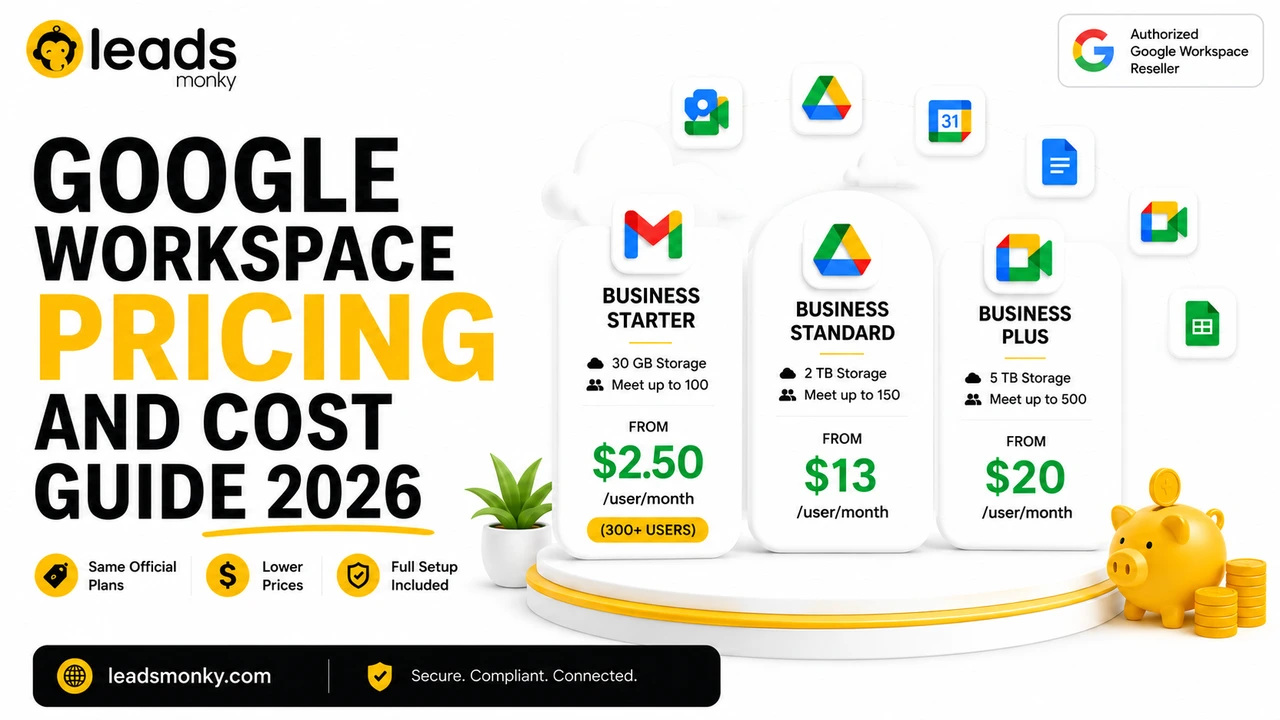
They also offer Google Workspace at up to 64% off Google’s direct pricing starting at just $2.99/user/month with free professional setup included. Over 151 companies trust them, and the setup typically completes within 24 hours.
If you’d rather focus on running your business than reading admin documentation, Leads Monky is the practical choice.
Frequently Asked Questions
What is the difference between Google Admin and Super Admin?
A Google Admin has limited, role-specific permissions, while a Super Admin has unrestricted access to every setting, user, and feature in your Google Workspace account.
How do I create a super administrator account?
Go to admin.google.com → Directory → Users → select the user → Admin roles and privileges → toggle Super Admin to Assigned → Save.
How many super admins can Google Workspace have?
Google Workspace has no strict limit on super admins, but Google recommends keeping at least two and no more than necessary for security.
What is the difference between admin and super admin?
A regular admin can only perform tasks allowed by their assigned role, while a super admin has full, unrestricted control over the entire Google Workspace organization.
How do I add super admin to Google Workspace?
Sign in as an existing super admin, go to Directory → Users, open the user’s profile, click Admin roles and privileges, assign the Super Admin role, and hit Save.
Is super user higher than admin?
Yes a super admin is the highest-level role in Google Workspace, sitting above all other admin roles with complete, organization-wide authority.
How do I know if I am a super admin on Google Workspace?
Sign in to admin.google.com if you can access all Admin Console settings without restrictions, you have super admin privileges.
Can Google Super Admin see my emails?
Yes a Google Workspace super admin can access email audit logs and, with the right privileges enabled, view Gmail message content across the organization.
Can Google Workspace have more than one admin?
Absolutely Google Workspace supports multiple admins with different roles, and Google recommends having at least two super admins as a security best practice.
What are super admin privileges?
Super admin privileges include full control over users, billing, security settings, domain management, admin role assignments, audit logs, and Google Cloud organization resources.
Final Thoughts
Creating a super admin in Google Workspace is straightforward six steps and you’re done. But the decisions around who gets super admin access, how many accounts you maintain, and how you secure those accounts are what separate well-managed organizations from ones that end up locked out at the worst possible moment.
Keep it simple: start with two super admins, secure both with 2-Step Verification, and never use the super admin account for everyday work.
And if you want your entire Google Workspace environment set up correctly from day one admin accounts, security settings, DNS configuration, and everything in between the team at Leads Monky can handle it all, at a price that beats Google direct by up to 64%.