
Your Storage Just Hit 100%. Now What?
You’re trying to upload a file. Or send an email. Or save a presentation.
Then boom. Google Workspace storage is full notification pops up.
Everything stops. Your file won’t upload. That email bounces back. And you’re stuck scrambling for a solution.
Here’s the good news: you can fix this in minutes, not hours.
Let’s get your Google Workspace storage back on track right now.

The 2-Minute Emergency Fix
Need to upload something urgently? Do this first:
Step 1: Go to drive.google.com/drive/quota
Step 2: Click on your biggest file (they’re sorted by size automatically)
Step 3: Right-click → “Move to trash“

Step 4: Click “Trash” in the left sidebar → “Empty trash now”
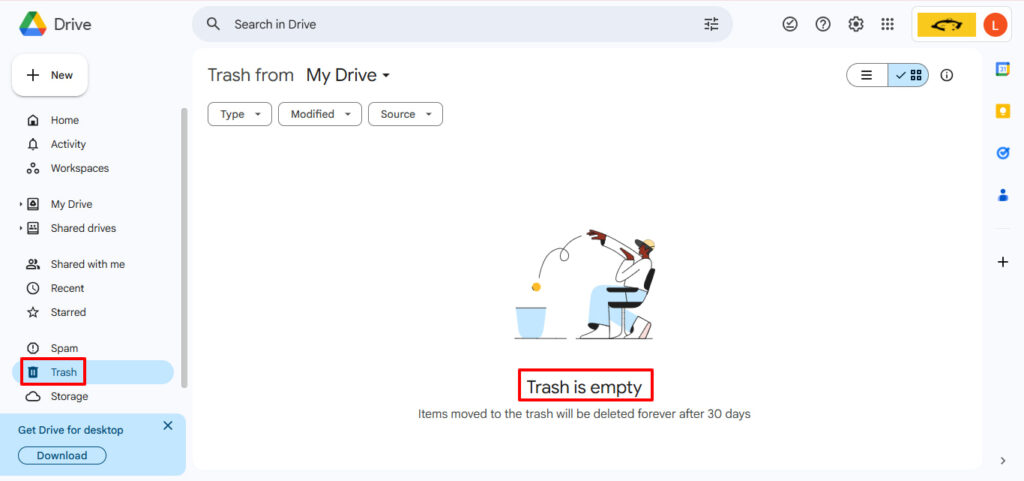
Step 5: Wait 5 minutes. Try uploading again.
Done. You just freed up storage space and can get back to work.
But if you want to understand what’s happening and fix this permanently, keep reading.
What “Storage Is Full” Really Means
Here’s what’s happening: Google Workspace combines storage across all your apps.
It’s not just Drive. It’s everything:
- Gmail (every email and attachment)
- Google Drive (all your uploaded files)
- Google Photos (pictures and videos)
- Google Meet (recorded meetings)
- Google Docs, Sheets, and Slides (created after May 2022)
When you hit your storage limit, Google blocks new uploads everywhere.
How Much Storage Do You Get?
Your storage quota depends on your plan. If you’re wondering which Google Workspace plan is best for small businesses, here’s the breakdown:
- Business Starter: 30 GB per user
- Business Standard: 2 TB per user
- Business Plus: 5 TB per user
- Enterprise: 5 TB+ per user
Most plans use pooled storage. That means everyone shares one big pool. If you have 10 users with 2 TB each, your team gets 20 TB total.
💡 Need help setting up Google Workspace?
We’re certified Google partners offering 64% off + free professional setup ($2,000 value). Used by 151+ companies.
Get your quote →One person can use 5 TB while another uses 500 GB. The pool doesn’t care who uses what.
Understanding the Storage Notifications
Google sends you warnings at different stages. Here’s what each one means:
“Storage Is Almost Full” (75% Used)
This is your friendly heads-up. You’re getting close to your limit.
You can still upload files. You can still work normally. But you should start cleaning up now before it becomes a crisis.
The Google Workspace storage is almost full notification appears in your Drive and Gmail. It’s yellow and easy to ignore.
Don’t ignore it.
“Storage Is Almost Full” (90% Used)
Now it’s getting serious. The notification turns orange.
You’ve still got breathing room. But if you’re uploading large files regularly, you’ll hit 100% fast.
Time to delete files you don’t need.
“Storage Is Full” (100% Used)
Red alert. Everything stops.
The Google Workspace storage is full error blocks you from:
- Uploading new files to Drive
- Sending emails in Gmail
- Creating new Docs, Sheets, or Slides
- Recording Meet sessions
- Uploading photos
You can still view files. You can still download. You can still receive emails (for now).
But you can’t create or upload anything new until you free up storage.
What Actually Happens When You Hit 100%
Let’s be real about the consequences:
Immediately:
- You can’t upload files to Drive storage
- Gmail won’t send new emails (they bounce back to senders)
- You can’t create new Google Docs
After 14 Days at 100%:
- Gmail stops receiving emails too
- You can’t edit shared files anymore
- Forms you created become read-only
After 60+ Days:
- Risk of account suspension
- Potential data loss (rare, but Google warns you repeatedly). That’s why it’s critical to regularly backup your Google Workspace data
The takeaway? Fix this fast. Don’t let it sit for weeks.
Why Storage Says Full After You Delete Files
This drives everyone crazy. You delete files. But your storage still shows 100% full.
Here’s why:
Files Sit in Trash for 30 Days
When you delete something, it moves to Trash. And Trash still counts toward your storage capacity.
Google keeps deleted files for 30 days. After that, they’re gone forever.
Want to free up space immediately? Empty trash manually:
- Click “Trash” in Drive’s left sidebar
- Click “Empty trash now”
- Confirm deletion
Boom. Space freed.
Storage Updates Take Time
Even after you empty trash, the numbers don’t update instantly.
- Drive storage: Updates in 4 hours
- Gmail storage: Updates in 24 hours
- Google Photos: Updates in 24 hours
Be patient. Check back tomorrow.
You Own Files in Shared Folders
Here’s a tricky one: files YOU created count toward YOUR storage. Even if they’re in someone else’s folder.
Check who owns a file:
- Right-click the file
- Select “Details”
- Look for “Owner”
If you’re the owner, it’s eating your storage. Transfer ownership to free up space.
5 Ways to Free Up Storage Fast
1. Delete Your Biggest Files (Saves 10-50 GB)
Go to drive.google.com/drive/quota. Your files are already sorted by size.
Look for:
- Old video recordings
- Uncompressed images
- Duplicate files
- Outdated presentations
Delete what you don’t need. Empty trash immediately after.
2. Clean Up Gmail Attachments (Saves 5-20 GB)
Gmail storage fills up fast with attachments.
Use this search in Gmail:
size:10MB older_than:1y
This finds emails over 10 MB that are older than a year. Select all. Delete. Empty trash.
Try this one too:
has:attachment larger:15M
Finds all emails with big attachments.
3. Compress Google Photos (Saves 10-100 GB)
Google Photos can be a storage hog if you’re uploading in Original Quality.
Switch to Storage Saver:
- Go to photos.google.com
- Settings → “Recover storage”
- Click “Compress”
Your photos still look great. But they’re no longer eating your storage quota.
4. Remove Hidden App Data (Saves 1-10 GB)
Third-party apps store hidden data in Drive. Old backup apps. Discontinued note apps. Random tools you forgot about.
Clean them out:
- Go to drive.google.com/drive/settings
- Click “Manage apps”
- Find apps with “Hidden app data”
- Click “Options” → “Delete hidden app data”
5. Transfer File Ownership (Saves Variable)
If you created files for team projects, transfer ownership to a shared drive.
This moves the storage space burden off your account:
- Right-click the file
- Share → Add the new owner
- Change their permission to “Editor”
- Click their name → “Make owner”
For Admins: Quick Organization Fixes
Running a team? Here’s how to fix Google Workspace storage at scale.
Find Your Storage Hogs
Sign in to admin.google.com. Go to Reports → Storage. Learn more about managing your Admin Console.
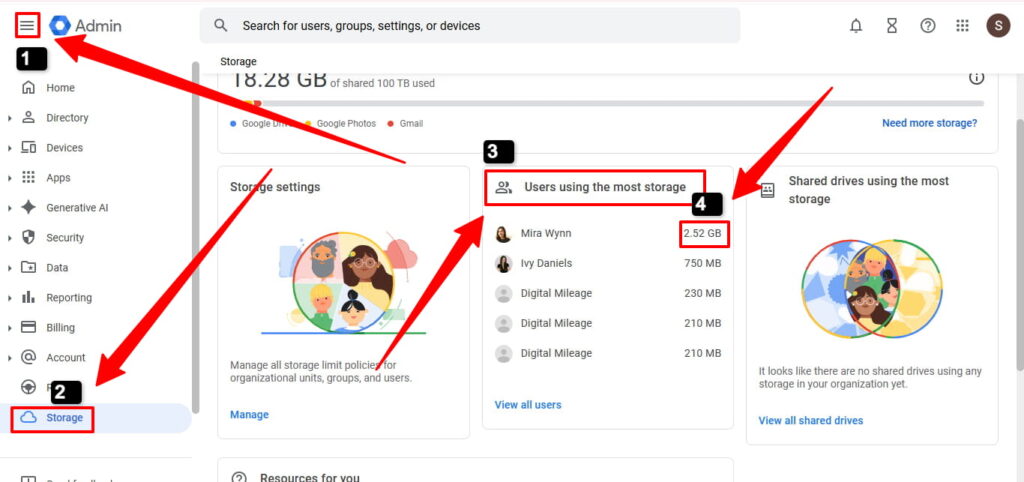
You’ll see who’s using the most space. Email them. Ask them to clean up.
Set Storage Limits Per User
Admin Console → Storage → Manage
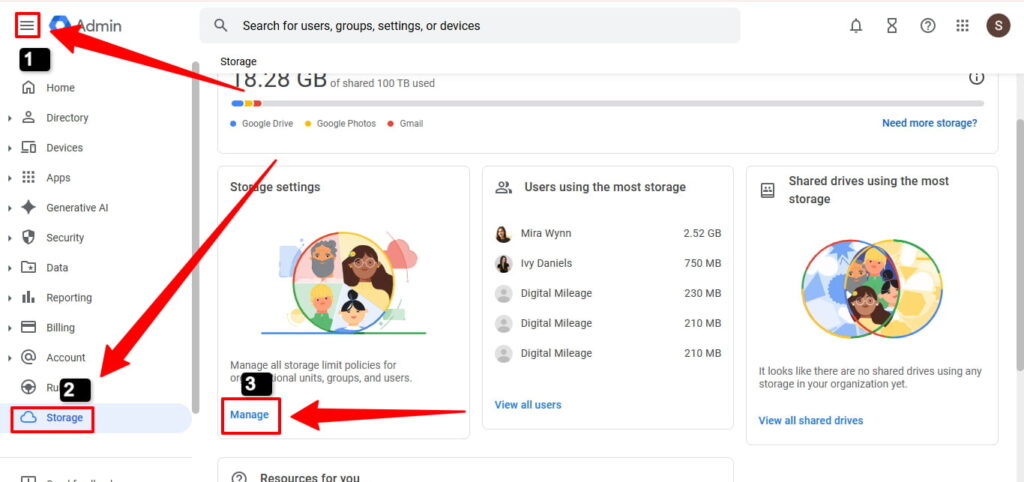
Enable “User storage limit” and set a cap. Maybe 50 GB per person if you’ve got a 2 TB pooled storage plan.
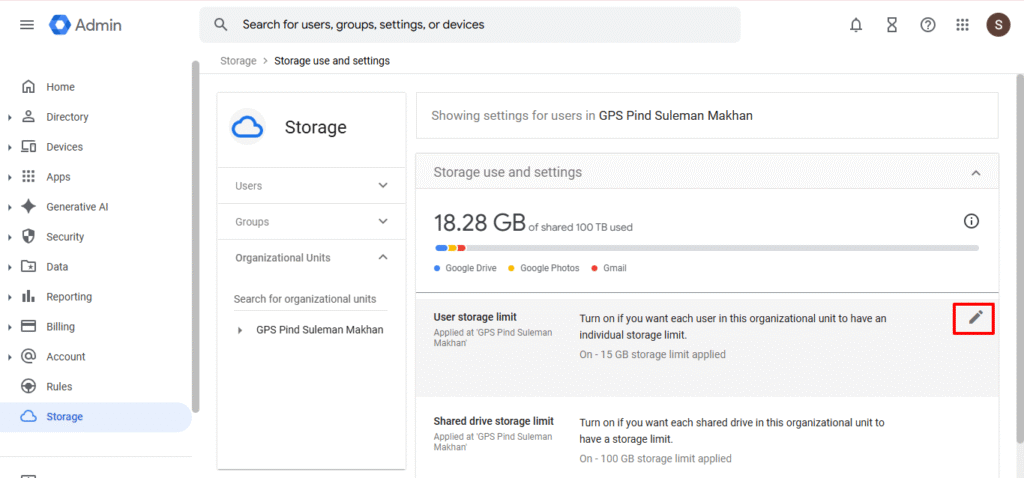
This prevents one person from hogging everything.

Buy More Storage
Need space immediately?
Admin Console → Billing → Get more services
Look for “Google Workspace Additional Storage.” You can buy 10 TB blocks.
Cost: Around $4-10 per user per month. Before you buy, check if there’s a Google Workspace promo code for January 2026 to save money
Upgrade Your Plan
Sometimes upgrading storage is cheaper than buying add-ons.
Business Standard → Business Plus gets you 3 TB more per user for $6/month extra.
Do the math. See what makes sense for your team. If costs are too high, explore these Google Workspace alternatives that might offer better value.
Prevent This From Happening Again
Want to avoid the storage is full panic? Build these habits:
Monthly Storage Audit
Last Friday of every month: clean up day.
- Empty trash in Drive and Gmail
- Delete files over 1 GB you haven’t touched in 6 months
- Archive old emails
Takes 15 minutes. Saves hours of panic later.
Set Up Alerts
Admins: Set alerts at 80% capacity in Admin Console.
Users: Bookmark drive.google.com/drive/quota and check it monthly.
Don’t wait for the Google Workspace storage is full notification to surprise you.
Use Storage-Efficient Workflows
- Compress videos before uploading
- Use Google Docs format (they’re smaller)
- Don’t store source code in Drive (use GitHub)
- Link to files instead of duplicating them
Where to Buy Google Workspace: Top Authorized Resellers
You can purchase Google Workspace through authorized resellers, which often provide local support, setup assistance, and flexible billing options for businesses. Buying from a trusted reseller ensures you get professional guidance and additional services alongside your subscription.
Top 5 Google Workspace Resellers:
- Leads Monky ( Enjoy up to 70% off with promo code GWS12 – Plus free setup and support)
- Agosto (Save up to 10% off on Google Workspace plans with expert migration support)
- Onix (Get up to 5% off on Google Workspace with enterprise-level deployment and support)
- Cumulus Global (Enjoy up to 20% off Google Workspace plans with certified reseller support)
- GsuiteReseller (USA) (Get up to 10% off on Google Workspace plans with dedicated support)
Quick FAQ
How do I free up storage in Google Workspace?
Delete large files from Drive, clean Gmail attachments, empty Trash permanently, and compress Google Photos to instantly free up Google Workspace storage.
How to resolve Google storage full?
Empty your Drive and Gmail trash, remove large files via drive.google.com/drive/quota, or upgrade your plan through an authorized reseller like Leads Monky for more storage.
How do I cancel 100GB of Google storage?
Go to your Google Admin or Google One billing section, downgrade your storage plan, and ensure your usage is below 100GB before cancellation.
Why is my storage suddenly full?
Your storage may spike due to large email attachments, Meet recordings, Google Photos uploads, or shared files you own counting toward your quota.
How do I free Google storage?
Search for large emails using filters like “larger:10M”, delete unused Drive files, empty Trash, and remove hidden app data from Drive settings.
How to get 200GB for free?
Google does not officially offer 200GB free for Workspace users, but promotional discounts and partner offers from providers like Leads Monky can significantly reduce upgrade costs.
Why is Google storage full even after deleting?
Deleted files remain in Trash for 30 days and still count toward storage until you manually empty Trash and wait for quota updates.
How do I delete 50,000 emails at once?
Use Gmail search filters like “older_than:1y” or “has:attachment”, select all conversations, delete them, and empty Trash to remove them permanently.
Does Google Workspace take up storage?
Yes, Google Workspace combines storage across Gmail, Drive, Photos, Meet recordings, and Docs into one shared storage quota.
What happens when Google storage is full?
You cannot send emails, upload files, create new documents, or record Meet sessions until storage space is freed or upgraded.
How to check Google Workspace storage limit?
Visit drive.google.com/drive/quota for individual usage or check Reports → Storage inside the Admin Console for team-wide storage insights.
How long until storage updates after deleting?
4-24 hours depending on the service. Drive updates fastest. Gmail takes longer.
Can I buy storage for just myself?
No. In Google Workspace, only admins can buy storage. It’s pooled for everyone.
Will Google delete my files?
Not immediately. You get multiple warnings over 60+ days. Respond to those emails and you’ll be fine.
What if I’m full but Drive looks empty?
Check Gmail storage and Google Photos. They share the same storage quota. Your emails and photos might be the culprits.
Fix It Now, Thank Yourself Later
The Google Workspace storage is full error is fixable. Usually in minutes.
Start with the emergency fix at the top of this post. Empty trash. Delete big files. Free up space.
Then build better habits. Monthly cleanups. Storage alerts. Smart workflows.
Your storage won’t fix itself. But with these steps, you’ll never get stuck again.
Now go free up some space. Your future self will thank you.
Get Google Workspace at 64% Off
Same service. Better price. Professional setup included.
⭐⭐⭐⭐⭐ 151+ companies trust us
Partner Pricing:
• Business Starter: $3/month (Google: $8)
• Business Standard: $13/month (Google: $17)
• Business Plus: $20/month (Google: $26)
FREE:
Complete DNS setup + 24/7 support + USA IPs
15-user minimum | Setup in 24 hours


