
Struggling to connect Google Workspace to your email client? You’re not alone.
Thousands of users get stuck on IMAP settings every week. The good news? It takes just 5 minutes once you have the right server details.
This guide shows you exactly how to configure IMAP for Google Workspace, whether you’re using Outlook, your iPhone, or any other email app.
Let’s get you connected.
What Are IMAP Settings (And Why You Need Them)?
IMAP stands for Internet Message Access Protocol. Think of it as the bridge between your email client and Google Workspace.

Here’s what makes IMAP powerful: your emails stay on Google’s servers. Read an email on your phone? It’s marked read on your laptop too. Delete something? Gone everywhere.
This beats POP3 hands down. POP3 downloads emails to one device and removes them from the server. Not ideal for modern work.
IMAP keeps everything synced across all your devices automatically.
💡 Need help setting up Google Workspace?
We’re certified Google partners offering 64% off + free professional setup ($2,000 value). Used by 151+ companies.
Get your quote →The Exact Google Workspace IMAP Server Settings
Copy these IMAP and SMTP settings exactly as shown. Small typos will break your connection.
Incoming Mail (IMAP Server):
- Server: imap.gmail.com
- Port: 993
- Encryption: SSL (required)
- Authentication: OAuth
Outgoing Mail (SMTP Server):
- Server: smtp.gmail.com
- Port: 587 (TLS) or 465 (SSL)
- Encryption: TLS or SSL
- Authentication: Required
Write these down. You’ll need them for the next steps.
Critical 2026 Update: OAuth Is Now Mandatory
Here’s what changed: Google ended support for less secure apps on May 1, 2025.
Your old username and password won’t work anymore. Period.
All email clients must now use OAuth authentication. Modern apps like Outlook 2016+, Apple Mail, and Thunderbird handle this automatically.
Using an older email client? You’ll need to upgrade or generate an app password with two-factor authentication enabled.
Step 1: Enable IMAP in Your Gmail Account
Before configuring any email client, you must turn on IMAP in Gmail.
Here’s how:
Log into your Google Workspace Gmail account.
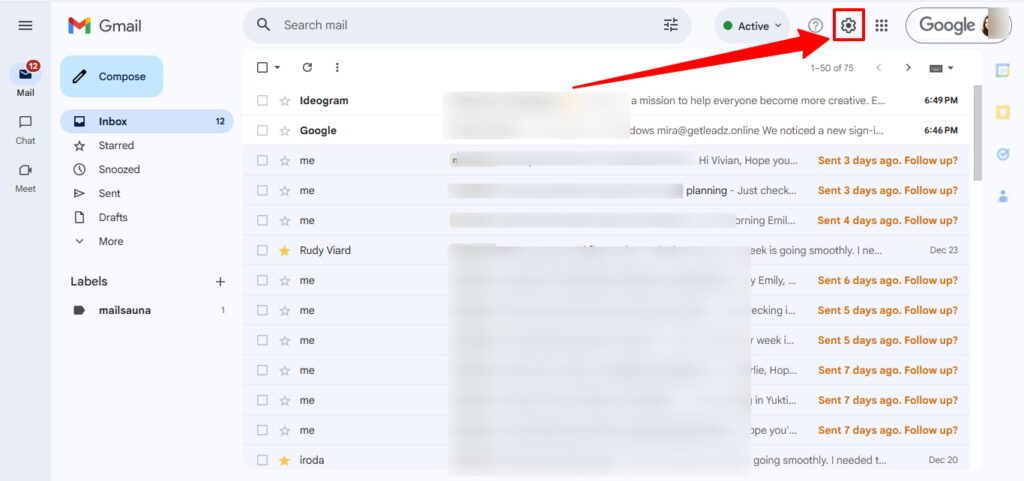
Click the gear icon in the upper right corner.
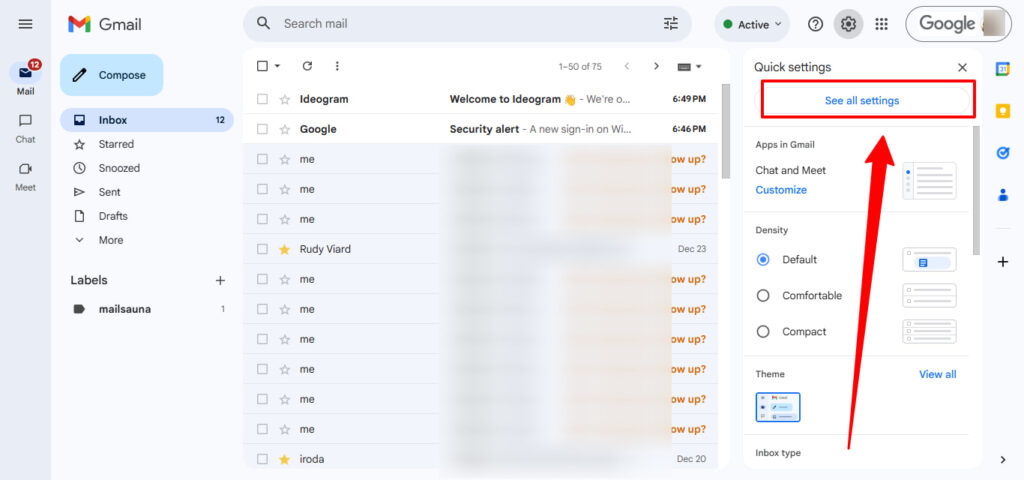
Select “See all settings” from the dropdown menu.
Navigate to the “Forwarding and POP/IMAP” tab at the top.
Find “IMAP Access” and select “Enable IMAP.”
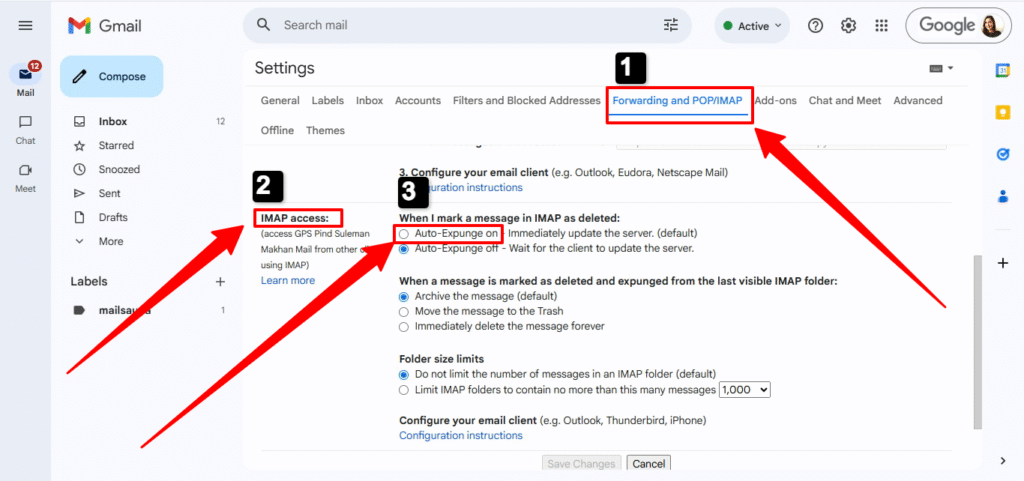
Scroll down and click “Save Changes.”
That’s it. IMAP is now active on your account. Having trouble accessing Gmail settings? Check our troubleshooting guides for Google Workspace login problems and Google Workspace email not working issues.
Step 2: Set Up IMAP on iPhone or Android
Mobile setup is even simpler than desktop.
For iPhone/iPad:
Go to Settings → Mail → Accounts → Add Account.
Tap “Google” (not “Other” or “IMAP“).
Enter your Google Workspace email address and password.
Toggle “Mail” to ON and tap “Save.”
iOS automatically uses the correct Google Workspace IMAP and SMTP settings.
For Android:
Open your device’s email app or Gmail app.
Tap “Add account” and select “Google.”
Sign in with your Google Workspace credentials.
Android configures the IMAP settings automatically.
Troubleshooting Common IMAP Connection Issues
Authentication Failed Error:
You’re using your regular password with two-factor authentication enabled. Generate an app password at myaccount.google.com/apppasswords.
Use the app password in your email client instead.
Connection Timeout Error:
Your firewall is blocking port 993 or port 587. Check your security software settings.
Add imap.gmail.com and smtp.gmail.com to your firewall’s allowed list.
Emails Not Syncing:
Verify SSL is enabled for the IMAP server. Verify TLS is enabled for the SMTP server.
Some email clients default to unsecured connections. Double-check your encryption settings.
Incorrect Server Settings:
Triple-check you typed imap.gmail.com (not gmail.com or mail.google.com).
Verify you’re using port 993 for incoming and port 587 for outgoing.
Why OAuth Makes Your Email More Secure
OAuth authentication protects your Google Workspace account in a smart way.
Your email client gets permission to access Gmail without ever seeing your password. If someone hacks your email app, your Google account stays safe.
You can revoke access anytime from your Google Account settings. No password changes needed.
This is why Google made OAuth mandatory in 2025. It’s simply more secure than the old method.
Final Setup Checklist
Before you’re done, verify these five things:
✅ IMAP enabled in your Gmail settings
✅ Incoming server set to imap.gmail.com with port 993
✅ Outgoing server set to smtp.gmail.com with port 587
✅ SSL/TLS encryption enabled for both servers
✅ OAuth or app password configured correctly
Send a test email. If it goes through, you’re all set.
Get Your Email Working Today
Google Workspace IMAP settings are identical whether you use Outlook, Apple Mail, Thunderbird, or your phone’s native email app.
The IMAP server settings above work for every platform. Just follow the steps for your specific device.
Still having trouble? Verify your IMAP and SMTP settings match exactly what’s listed in this guide. Server name typos and wrong port numbers cause 90% of connection failures.nect your email client to Google Wo
FAQs
What are the IMAP server settings for Google?
Incoming: imap.gmail.com, Port: 993, SSL, Authentication: OAuth; Outgoing: smtp.gmail.com, Port: 587 (TLS) or 465 (SSL).
Is Gmail SMTP 465 or 587?
Both: 587 for TLS, 465 for SSL.
Is Google Workspace POP or IMAP?
Google Workspace supports both, but IMAP is recommended for syncing across devices.
What is IMAP for Google?
IMAP allows your email client to access Gmail while keeping messages synced across all devices.
How to enable IMAP in Google Workspace?
Gmail Settings → Forwarding and POP/IMAP → Enable IMAP → Save Changes.
Should I use POP or IMAP for Gmail?
Use IMAP for modern devices and synced email; POP downloads emails to one device only.
Is POP the same as IMAP?
No, POP downloads emails locally, IMAP syncs across all devices.
What is my SMTP server for Google Workspace?smtp.gmail.com, Port 587 (TLS) or 465 (SSL), Authentication required.
Is Gmail SMTP or IMAP?
Gmail uses IMAP for incoming mail and SMTP for outgoing mail.
What is the difference between SMTPS 465 and 587?
465 uses SSL encryption directly; 587 uses TLS encryption after connecting.
What is my IMAP server?imap.gmail.com, Port 993, SSL, OAuth authentication required.
Get Google Workspace at 64% Off
Same service. Better price. Professional setup included.
⭐⭐⭐⭐⭐ 151+ companies trust us
Partner Pricing:
• Business Starter: $3/month (Google: $8)
• Business Standard: $13/month (Google: $17)
• Business Plus: $20/month (Google: $26)
FREE:
Complete DNS setup + 24/7 support + USA IPs
15-user minimum | Setup in 24 hours


