
Quick Answer
To verify a domain for Google Workspace on Cloudflare, copy the TXT verification code from the Google Admin console, add it as a TXT record in Cloudflare’s DNS settings, then return to Google and click Verify. Most domains verify within 10 to 30 minutes, though a few Cloudflare-specific setup issues, covered below, cause the majority of stuck verifications.
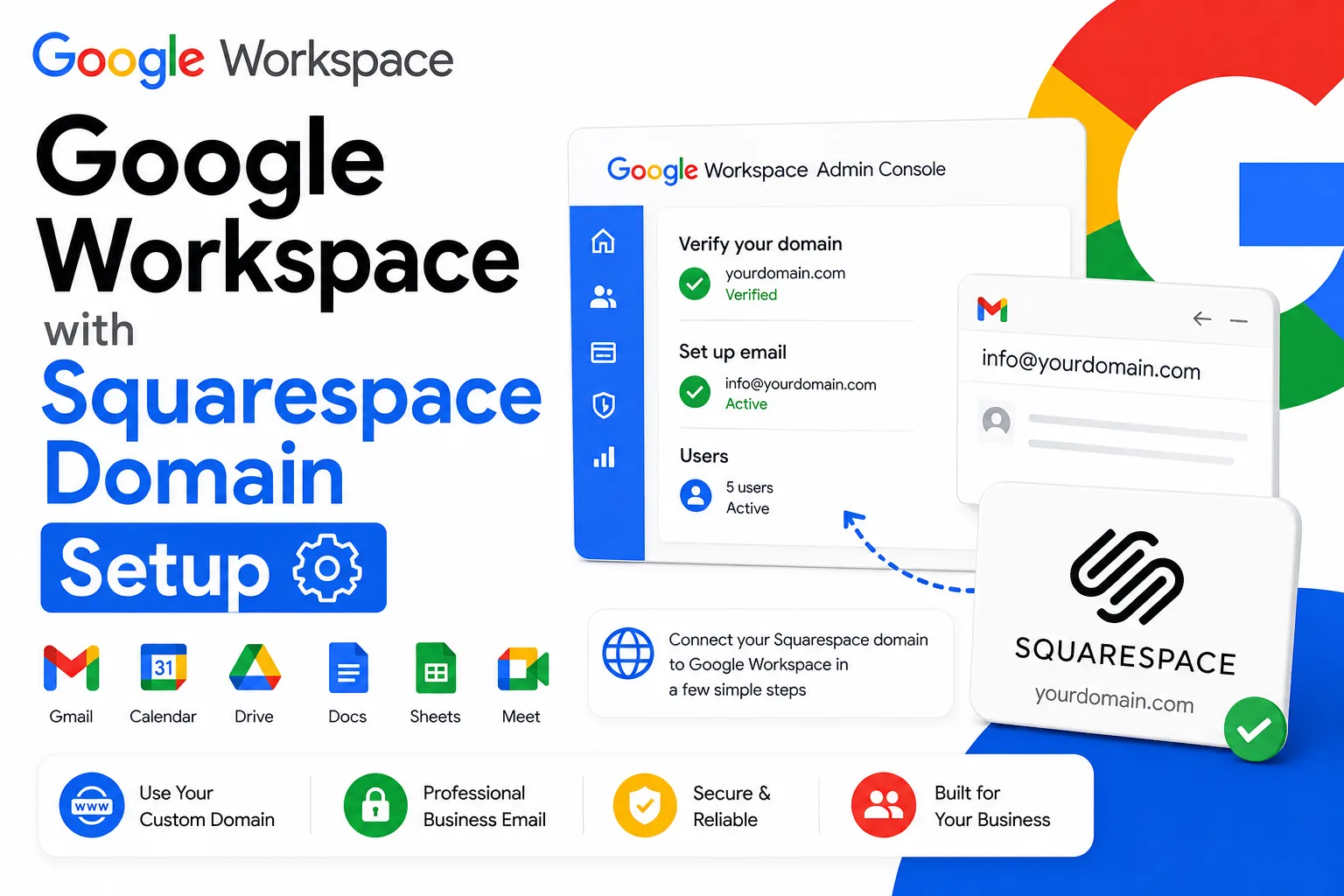
Verifying a domain for Google Workspace on Cloudflare confirms to Google that you actually own the domain before it activates business email and the rest of Workspace on it. The process itself is simple, a TXT or CNAME record added to Cloudflare’s DNS settings, but Cloudflare’s setup introduces a few specific issues that don’t come up with most other registrars, particularly around nameservers and the proxy toggle. This guide covers the standard verification steps, the Cloudflare specific problems that cause most stuck verifications, and what to check if the record looks correct but verification still fails.
What Domain Verification Confirms

Domain verification proves to Google that you control the domain you’re setting up Google Workspace on, not someone else. Without it, Google won’t activate Gmail or the rest of Workspace on that domain, since doing so could let someone impersonate a business they don’t actually own.
You prove ownership by adding a code Google generates to your domain’s DNS records in Cloudflare, somewhere only someone with access to that Cloudflare account can make changes. Google then checks for that code, and once it finds it, unlocks the rest of the Workspace setup process for that domain.
Before You Start: What You Need
You’ll need a Cloudflare account with access to the domain’s DNS settings, a Google Workspace admin account, and confirmation that your domain’s nameservers actually point to Cloudflare, not just that you’ve added records there. If you don’t have a Google Workspace account yet, you can sign up through an authorized reseller like Leads Monky before starting this process, which also gives you a direct support contact if verification runs into trouble.
💡 Need help setting up Google Workspace?
We’re certified Google partners offering 64% off + free professional setup ($2,000 value). Used by 1000+ companies.
Get your quote →Why Your Cloudflare Domain Won’t Verify
Google Workspace needs proof you own your domain. That’s where DNS verification comes in.
You add a special code to your Cloudflare DNS settings. Google checks for this code. If found, you’re verified.
But here’s what trips people up: Cloudflare has a feature called “proxy status” (that orange cloud icon). When enabled, it can block Google Workspace verification.
Step 1: Check Your Nameservers First
Before anything else, confirm your nameservers actually point to Cloudflare.
Here’s how:
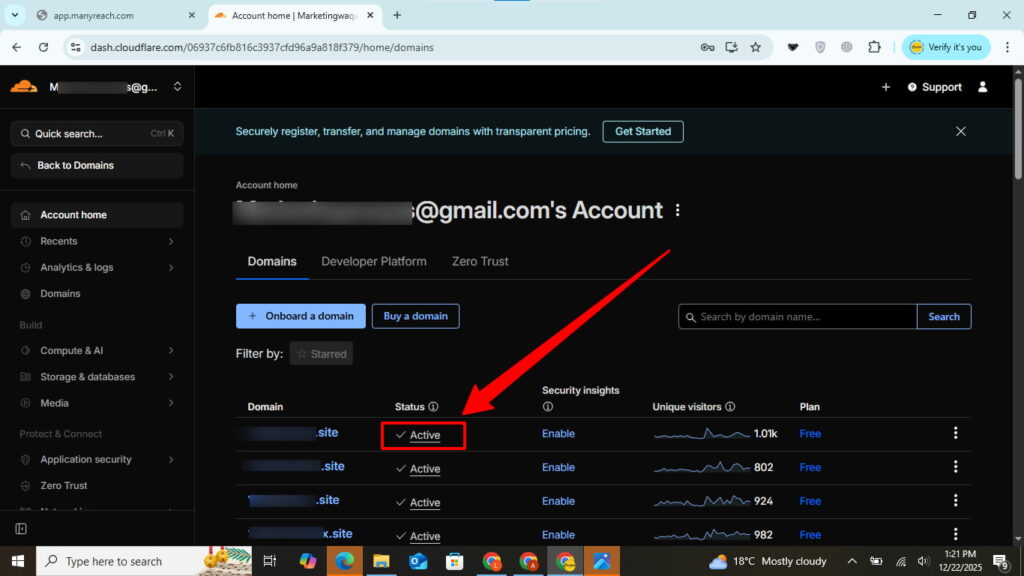
Log into your Cloudflare dashboard. Look for “Status: Active” with a green checkmark next to your domain. If you see “Pending” or no status, your nameservers aren’t switched yet.
Quick test: Visit whatsmydns.net. Enter your domain. Select “NS” from the dropdown. You should see Cloudflare nameservers (like roxy.ns.cloudflare.com) everywhere.
If you see your registrar’s nameservers instead? That’s your problem. Head to your domain registrar (GoDaddy, Namecheap, etc.) and update those nameservers to Cloudflare’s first.
Step 2: Add Your TXT Verification Record
Now let’s add the verification code properly.
Go to your Google Admin Console. Navigate to Domains → Manage domains → Verify domain.
💡 Need help setting up Google Workspace?
We’re certified Google partners offering 64% off + free professional setup ($2,000 value). Used by 151+ companies.
Get your quote →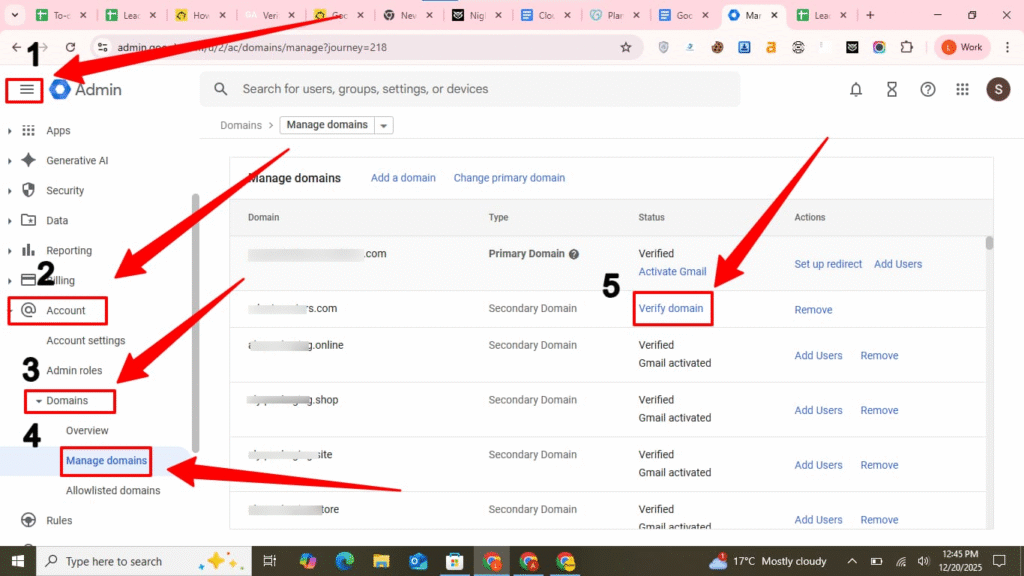
Select Cloudflare and continue
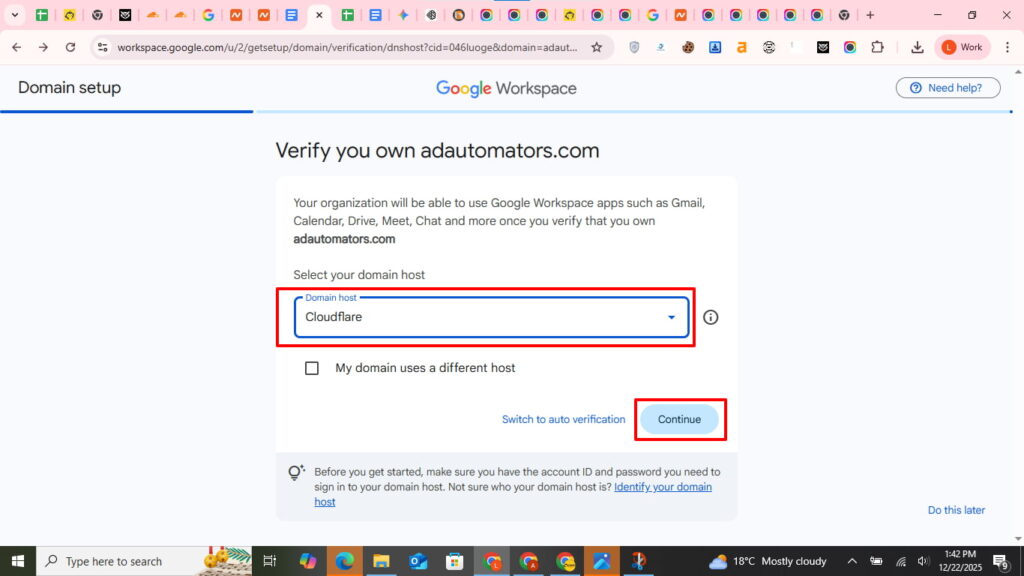
Copy the entire verification code (starts with google-site-verification=).
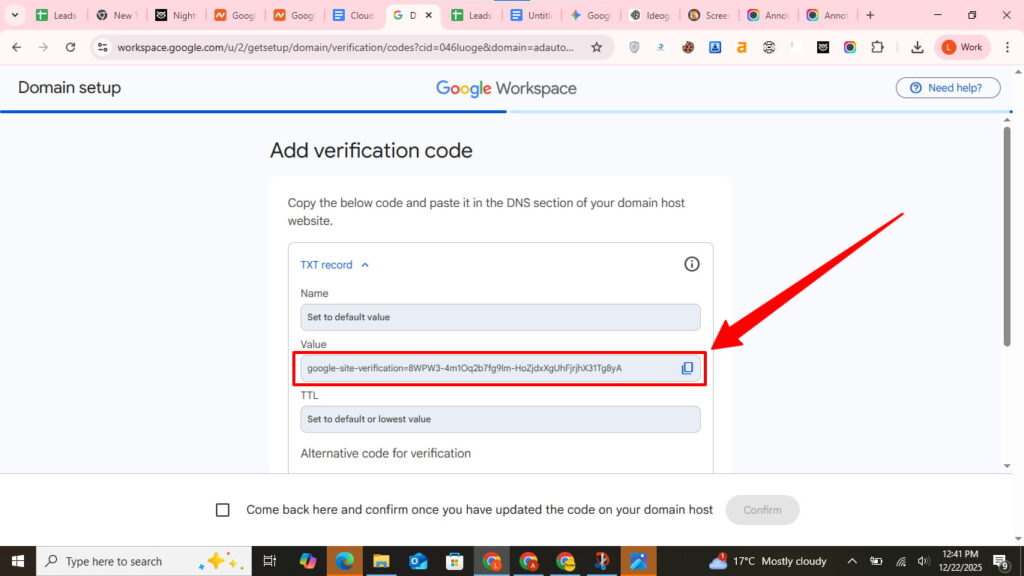
Switch to Cloudflare.
- Open a new tab and go to Cloudflare
- Sign in to your Cloudflare account
- Click on your Domain
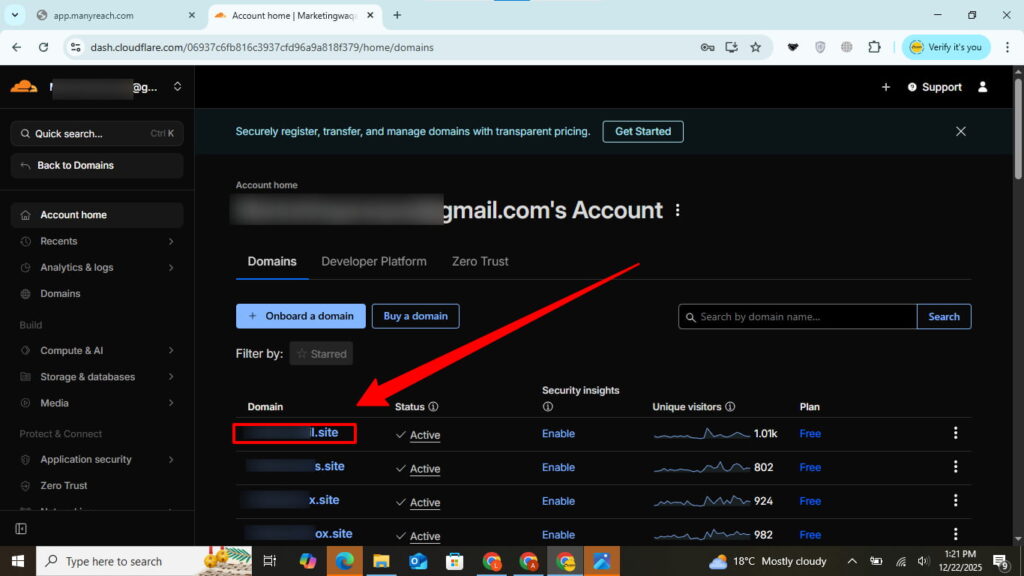
Click DNS in the sidebar.
Add a new record with these exact settings:
Type: TXT
Name: @ (or leave blank)
Content: Paste your full verification code
TTL: Auto
Proxy status: Gray cloud (NOT orange)
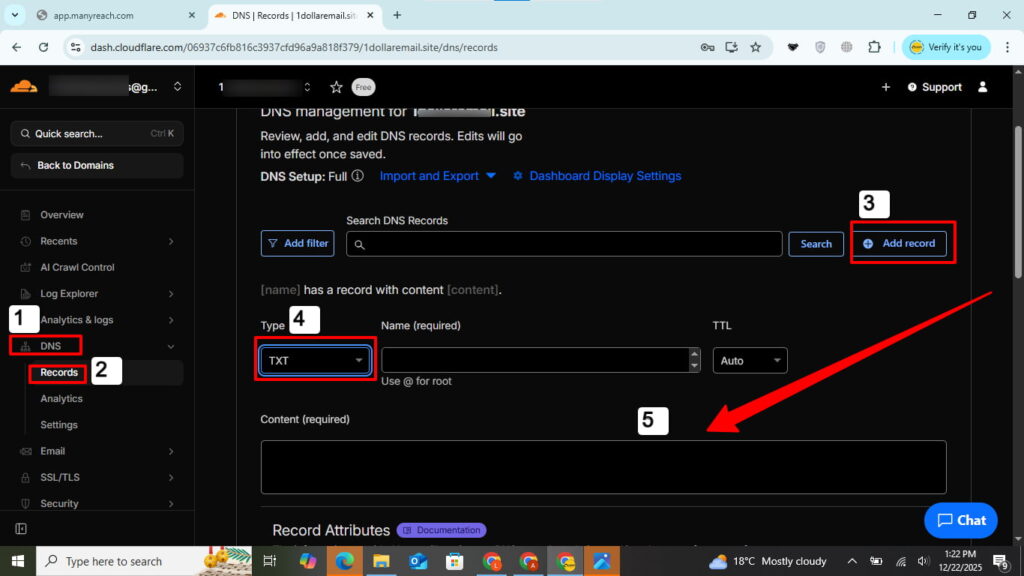
Hit Save.
Step 3: Wait for DNS Propagation
Here’s where patience pays off.
DNS changes don’t happen instantly. Most Cloudflare DNS updates take 10-30 minutes. Sometimes up to 2 hours for global propagation.
Want to check if your DNS record is live? Use dnschecker.org. Enter your domain. Select “TXT” as the record type. Look for your google-site-verification code.
Green checkmarks mean propagation is complete. Now you can verify.
Step 4: Verify Your Domain
Return to Google Workspace Admin Console. Click “Verify” or “Come back here and confirm.”
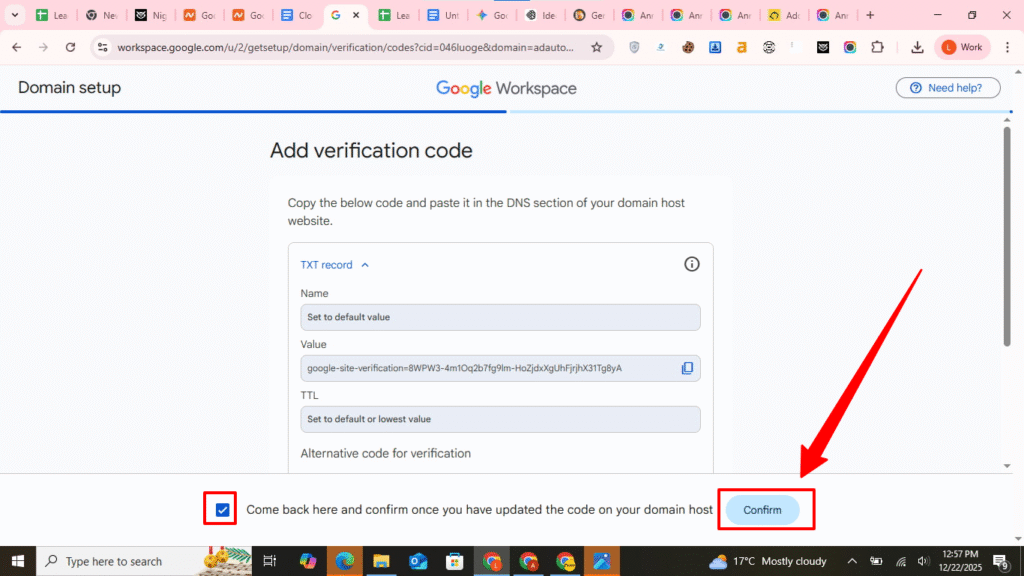
Google will search your DNS records for the verification TXT record. If found, you’ll see “Verification successful.”
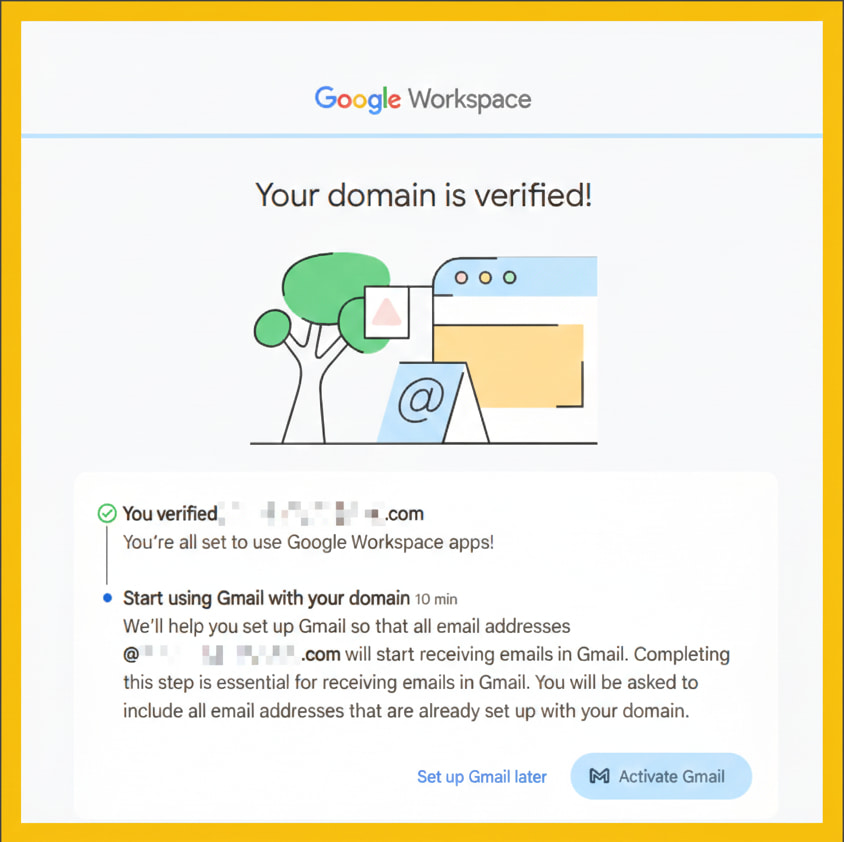
You can now activate Gmail and start using Google Workspace.
Cloudflare-Specific Issues to Check
A few problems come up specifically because of how Cloudflare works, and they’re worth checking before assuming your TXT record itself is wrong.
Your nameservers might not actually point to Cloudflare yet. This is the single most common cause of verification failing even though the record looks correct in Cloudflare’s dashboard. If you signed up for Cloudflare but never updated your domain’s nameservers at your original registrar, the records you’re adding in Cloudflare are invisible to the rest of the internet, including Google’s verification check. Confirm your domain’s nameservers at your registrar match the ones Cloudflare assigned when you added the site, visible in Cloudflare’s DNS overview page.
The proxy toggle is a myth for TXT verification, but real for CNAME verification. A common claim in other guides is that the orange cloud icon, Cloudflare’s proxy status, blocks TXT record verification. This isn’t accurate, since TXT records don’t have a proxy toggle in Cloudflare’s interface at all, only A, AAAA, and CNAME records show it. If you’re using Google’s TXT verification method, this simply isn’t something to check. If you’re instead using Google’s CNAME verification method, the proxy toggle does matter, and it needs to be set to DNS only, the gray cloud, rather than proxied, the orange cloud, or Google won’t be able to see the correct value.
Your domain might be using Cloudflare for DNS while registered elsewhere. It’s common to register a domain with one company and use Cloudflare purely for DNS management. This works fine for verification as long as the nameserver delegation is set up correctly, but it means the place to add the TXT record is inside Cloudflare, not your original registrar’s dashboard, which can cause confusion if you’re used to managing DNS at the registrar directly.
How Long Verification Takes
Cloudflare’s own DNS infrastructure typically propagates changes faster than many traditional registrars, often within 10 to 30 minutes rather than the longer windows some registrars require. Full global propagation can occasionally take longer in rare cases, but if verification hasn’t succeeded after an hour with correctly configured nameservers, the issue is more likely a configuration problem than a propagation delay at that point.
Common Verification Errors and How to Fix Them
“We couldn’t find your verification record.” First confirm your nameservers actually point to Cloudflare, since this is the most common root cause. If they do, check that the Name field is set to @ and the Content field has the complete code with no extra spaces or quotation marks.
Verification worked before but a new domain on the same Cloudflare account won’t verify. Confirm you’re adding the record to the correct domain if you manage multiple sites in the same Cloudflare account, since it’s easy to add a record to the wrong zone when switching between domains.
“Domain already verified by another account.” Someone, possibly a previous setup attempt, already verified this domain under a different Google account. Try recovering that account through Google’s password reset flow, or contact Google Workspace support to request an ownership transfer if recovery isn’t possible.
After Verification: Next Steps
Once Google confirms your domain, a few steps typically follow.
Activate Gmail. Click Activate Gmail in the Admin console to begin routing mail for your domain.
Set up MX records. Business email won’t reach your inbox until Google’s MX records are added in Cloudflare’s DNS settings. Like TXT records, MX records don’t have a proxy toggle either, so this step is similarly straightforward once nameservers are confirmed correct.
Create user accounts. In the Admin console, go to Users and add accounts for your team so each person gets a professional email address on the verified domain.
Keep the TXT record in place. Removing it after verification can force you to redo the process later, so leave it exactly as it is.
Conclusion
Verifying a domain for Google Workspace on Cloudflare comes down to one TXT record, correctly configured nameservers, and a confirmation click. Most domains finish within 30 minutes, and the Cloudflare specific issues covered above, particularly nameservers not yet pointing to Cloudflare, resolve the majority of stuck verifications. If you’re still setting up Google Workspace and want help with verification, migration, and ongoing support in one place, Leads Monky is an authorized Google Workspace reseller serving 1,000+ companies across the USA, UK, UAE, Pakistan, and India. Visit Leads Monky Google Workspace Page to get started.
FAQs
How do I verify my Cloudflare domain for Google Workspace?
Copy the TXT verification code from the Google Admin console, add it as a TXT record in Cloudflare’s DNS settings with Name set to @, then return to Google and click Verify. Most domains confirm within 30 minutes.
Does Cloudflare’s proxy status affect Google Workspace verification?
Not for TXT record verification, since TXT records don’t have a proxy toggle in Cloudflare at all. If you’re using the CNAME verification method instead, the proxy status does matter and should be set to DNS only.
Why does my Cloudflare TXT record look correct but verification still fails?
The most common cause is that your domain’s nameservers don’t actually point to Cloudflare yet, even though the record appears correctly inside your Cloudflare dashboard. Confirm your nameservers match what Cloudflare assigned before troubleshooting the record itself.
How long does Cloudflare DNS verification take for Google Workspace?
Typically 10 to 30 minutes, faster than many traditional registrars. If verification hasn’t succeeded after an hour with correctly configured nameservers, the issue is more likely a configuration problem than a propagation delay.
Can I use Cloudflare for DNS if my domain is registered somewhere else?
Yes, this is common. Add the TXT record inside Cloudflare rather than your original registrar’s dashboard, as long as your domain’s nameservers have been updated to point to Cloudflare.
Should I delete the TXT record after my domain is verified?
No. Leave the TXT record in your Cloudflare DNS settings permanently. Removing it can cause Google to ask you to reverify the domain later.
Ready to Fix Your Cold Email?
What you get:
- ✓ Complete infrastructure: 30 emails + 10 domains
- ✓ 10,000 personalized emails monthly
- ✓ First consultations in 5–6 weeks