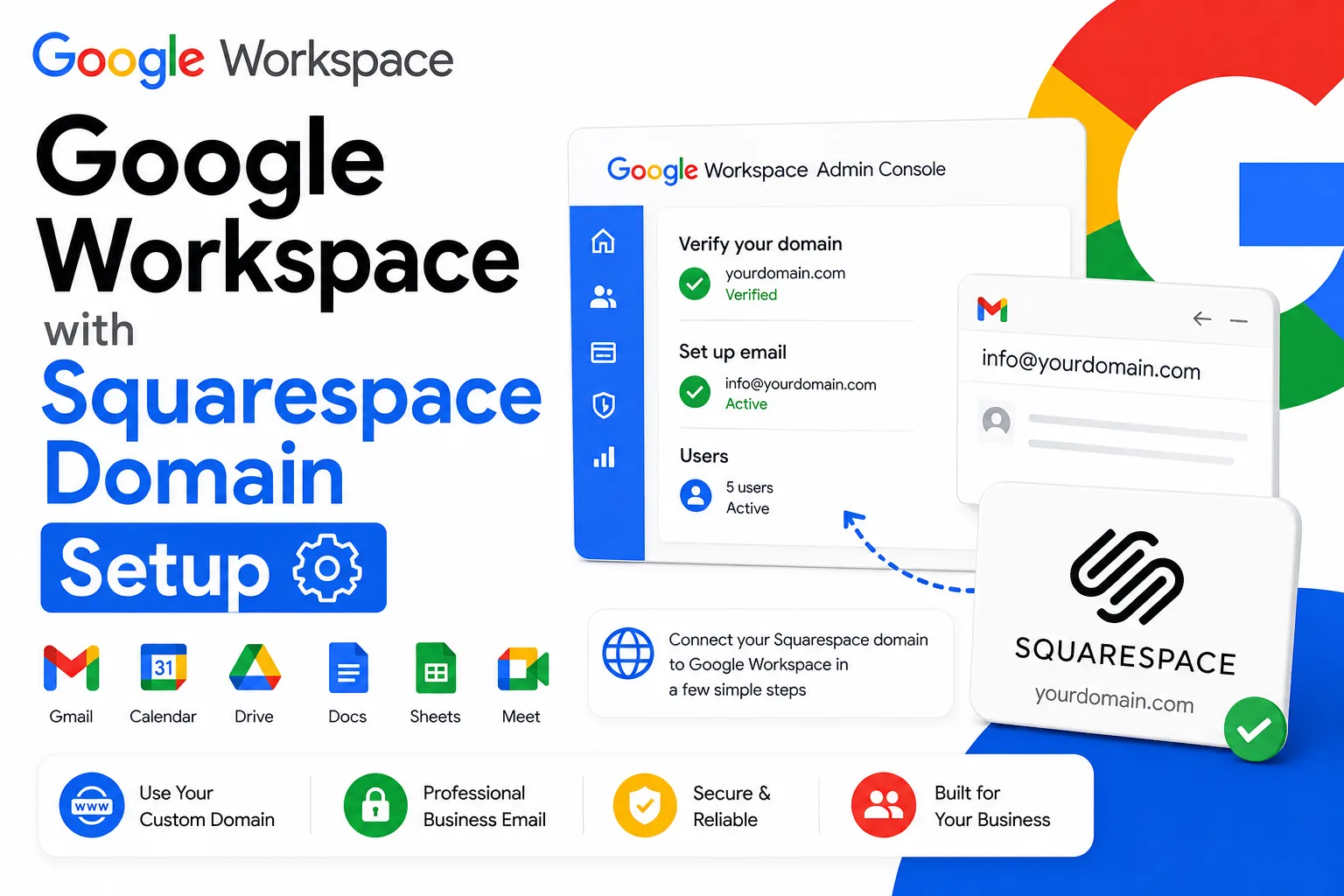


Verifying your Namecheap domain for Google Workspace is a 5 minute process that most people overcomplicate.
Without it Google deletes your entire Workspace account after 9 days and all your setup work disappears with it. The fix is simple. You copy one verification code from Google Admin Console, add it as a TXT record in Namecheap Advanced DNS, save the changes, and confirm verification back in Google.
This guide walks through every step so you get it right the first time without staring at cryptic codes wondering what goes where.
Quick Answer
To verify your Namecheap domain for Google Workspace sign in to Google Admin Console, click Verify Domain, copy the TXT verification code, open Namecheap Advanced DNS, add a new TXT record with host set to @ and paste the code as the value, save changes, wait 15 minutes, then return to Google Admin Console and click Verify. The whole process takes 5 minutes. The only reason it fails is wrong host field, missing save, or not waiting long enough for DNS propagation.
Why Domain Verification Matters
Think of domain verification as proving you own your house before renovating it. Google Workspace needs confirmation you actually own your domain name before letting you use it.
Here’s what happens without verification: Your account gets deleted after 9 days. Learn more about Google Workspace domain verification best practices.All your setup work vanishes. Plus, someone else could potentially use your domain to send emails pretending to be you.
The good news? The verification process is straightforward once you understand it.
What You’ll Need

Before starting, grab these items:
- Your Namecheap account login credentials
- Access to Google Workspace Admin Console
- 15 minutes of uninterrupted time
- A second browser tab (you’ll switch between Google and Namecheap)
If you’re using a different domain registrar, check out our guides for verifying GoDaddy domains, Porkbun domains, or Cloudflare domains.
Got everything? Perfect. Let’s dive in.
Step-by-Step: How to Verify Namecheap Domain for Google Workspace
Get Your Verification Code from Google
First, sign in to the Google Admin Console at admin.google.com using your admin account.
Look for the “Verify Domain” button at the top of your screen. It’s usually bright blue. Click it.
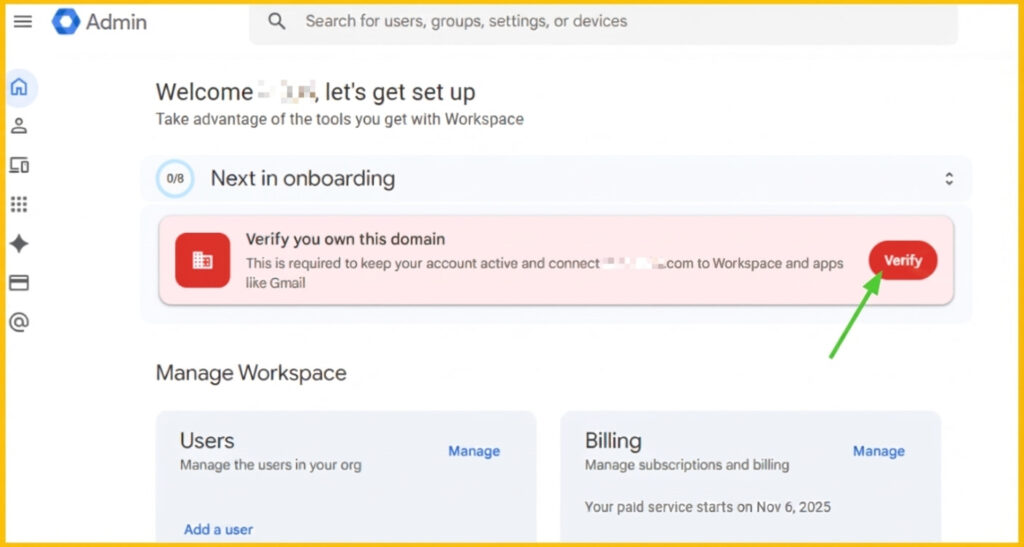
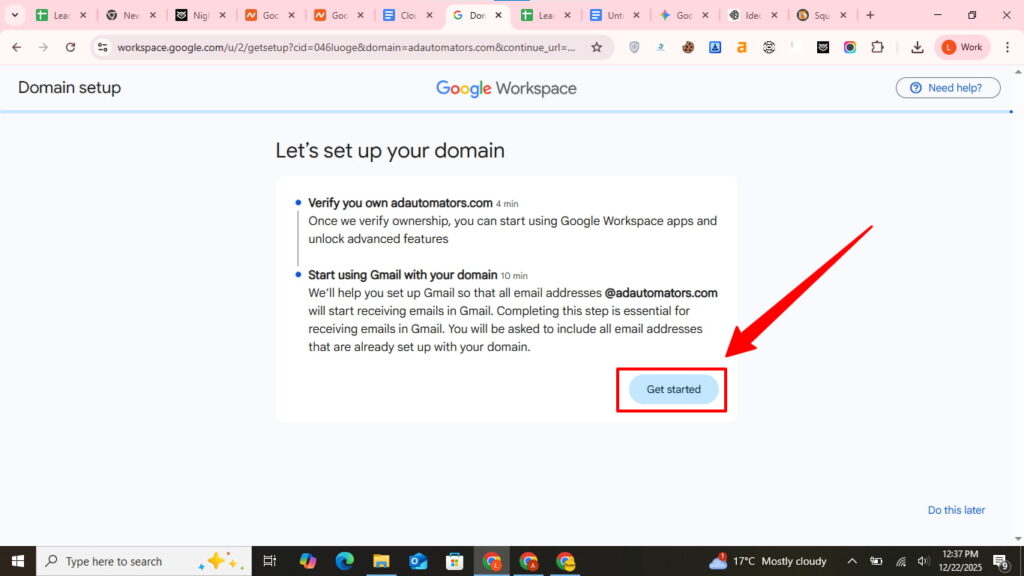
A popup appears asking how you want to verify your domain.
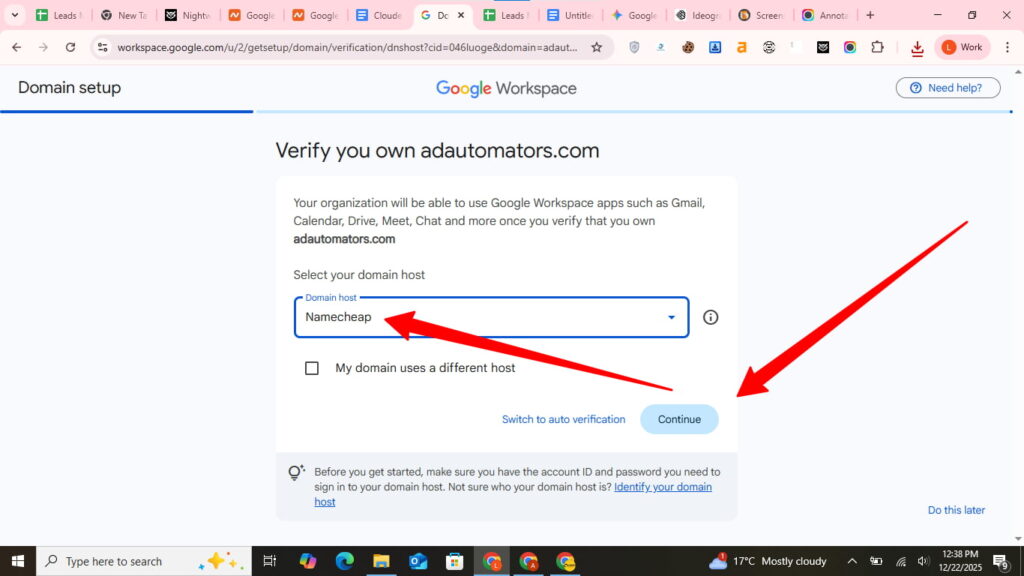
Select Namecheap from the “Domain host” dropdown menu, then click Continue.
You’ll see a verification code starting with google-site-verification= followed by random letters and numbers. Click Copy to grab this code.
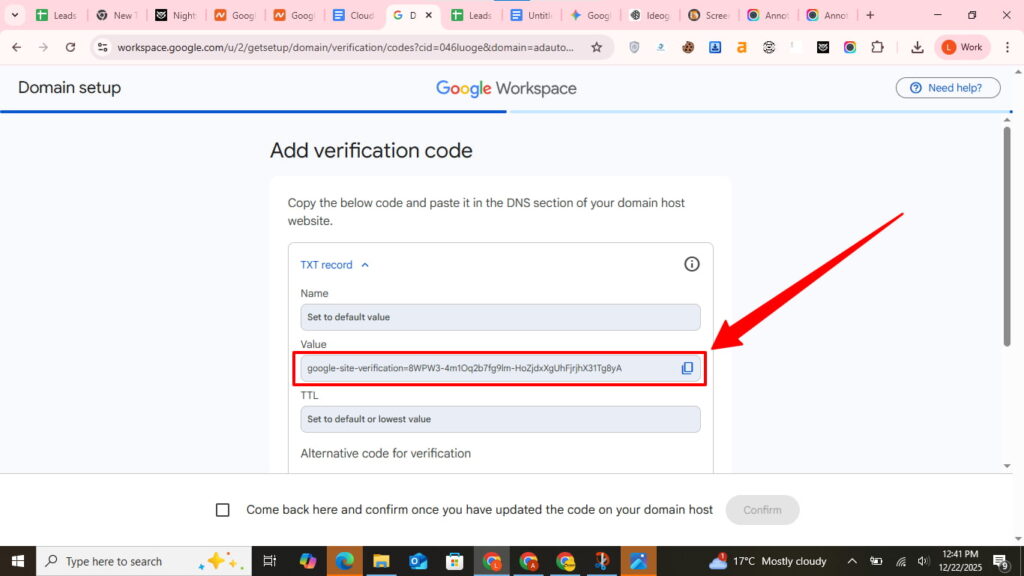
Keep this Google tab open.
Add the TXT Record in Namecheap
Open a new tab and go to Namecheap.com. Sign in to your account.
Click Domain List in the left sidebar. Find your domain and click Manage next to it.
Navigate to the Advanced DNS tab. Scroll down to Host Records and click Add New Record.
Select TXT Record from the dropdown menu.
Now fill in these fields carefully:

Let’s also set up your email on this page. Scroll a bit to the Mail Settings section > select Custom MX. Create the following record, that you can also see on the screenshot below:
Type: MX Record | Host: @ | Value: SMTP.GOOGLE.COM | Priority: 1 | TTL: Automatic
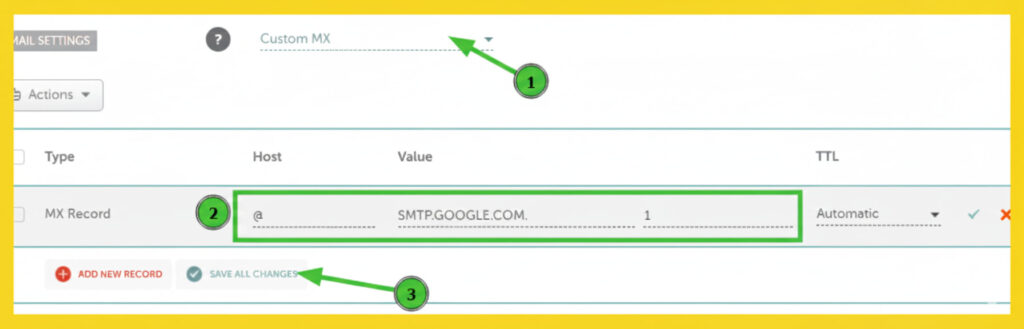
Click the Save All Changes button (green checkmark icon).
Wait for DNS Propagation
Your DNS settings need time to update across the internet. This is called “DNS propagation” and typically takes 5-15 minutes, though it can take up to 48 hours in rare cases.
Give it at least 30 minutes before the next step. Grab coffee while you wait.
Confirm Verification
Return to your Google Workspace tab. Scroll down and click the Verify or Protect Domain button.
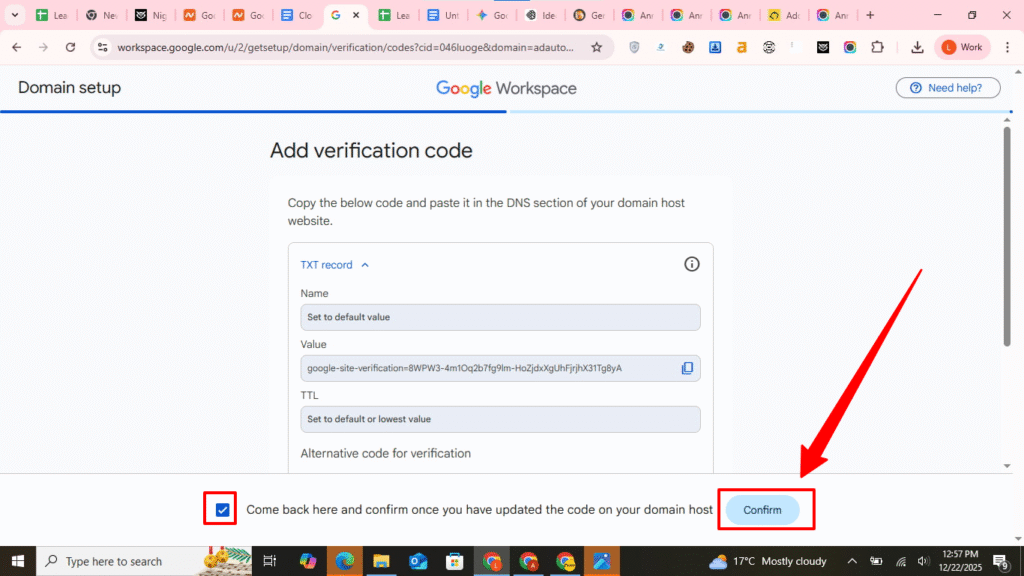
Google searches for your TXT record in Namecheap’s DNS configuration. This takes 10-30 seconds.
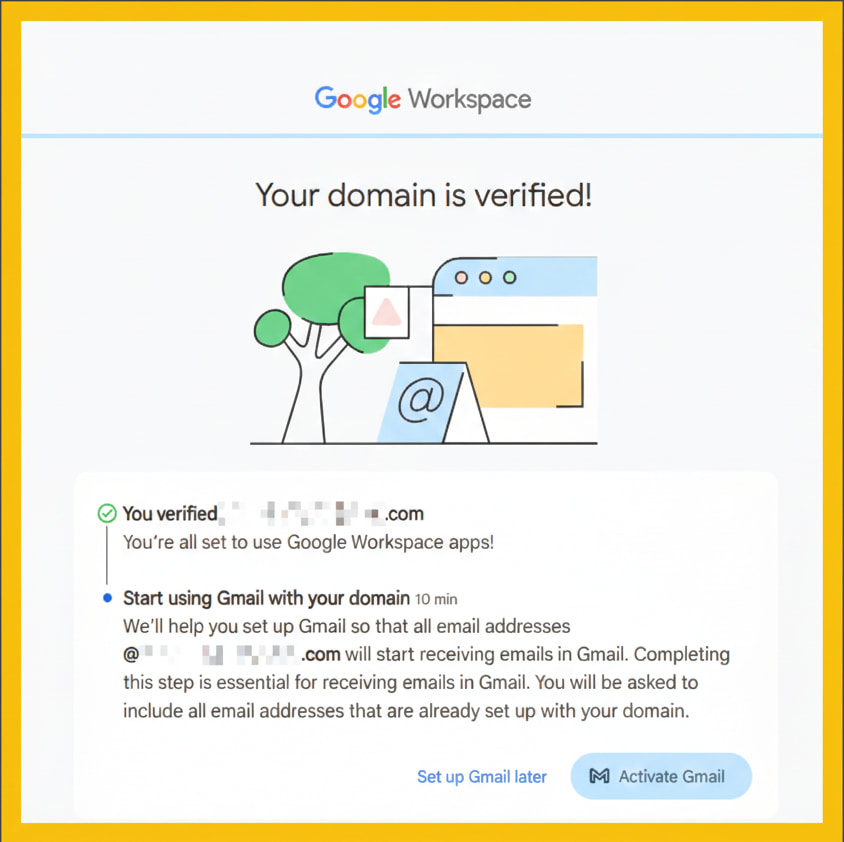
If everything worked, you’ll see: “Your domain has been verified!”
Congratulations! Your Namecheap domain is now verified for Google Workspace.
Quick Troubleshooting Tips
Verification failed? Try these fixes:
Wait longer. DNS changes aren’t instant. Give it another hour and retry.
Check your TXT record. Return to Namecheap Advanced DNS. Make sure the Host field says @ and your verification code is complete with no extra spaces.
Delete and recreate. Sometimes records get corrupted. Remove your TXT record, wait 5 minutes, then add it fresh.
Verify you saved changes. Did you click that green checkmark in Namecheap? The record won’t activate without it.
What Happens Next?
After domain ownership verification, you’ll need to:
- Set up MX records to receive email
- Create user accounts for your team
- Configure email authentication (SPF, DKIM, DMARC)
- Connect email clients and mobile devices
Domain verification is just the first step. But it’s the most important one. Without it, you can’t access any Google Workspace features.
You’ve Got This!
Verifying your domain for Google Workspace on Namecheap looks technical, but it’s really just copying a code from one place to another. Follow these steps and you’ll have professional email with your custom domain in no time.
The entire verification process takes 15 minutes. You’re now running on Google’s infrastructure with your brand on every message.
Ready to verify? Open those tabs and let’s get your domain authenticated!
Where to Buy Google Workspace: Top Authorized Resellers
You can purchase Google Workspace through authorized resellers, which often provide local support, setup assistance, and flexible billing options for businesses. Buying from a trusted reseller ensures you get professional guidance and additional services alongside your subscription.
Top 5 Google Workspace Resellers:
- Leads Monky ( Enjoy up to 70% off with promo code GWS12 – Plus free setup and support)
- Agosto (Save up to 10% off on Google Workspace plans with expert migration support)
- Onix (Get up to 5% off on Google Workspace with enterprise-level deployment and support)
- Cumulus Global (Enjoy up to 20% off Google Workspace plans with certified reseller support)
- GsuiteReseller (USA) (Get up to 10% off on Google Workspace plans with dedicated support)
FAQs
How to verify a Namecheap domain for Google Workspace?
Sign in to Google Admin Console, copy your TXT verification code, add it to Namecheap DNS under Advanced DNS → Host Records, save changes, then verify in Admin Console.
How do I verify my domain for Google Workspace?
Add the TXT record from Google Admin Console to your domain’s DNS settings and confirm verification in Admin Console after propagation.
How to verify Namecheap domain?
Use the TXT record method: add Google’s verification code in Namecheap Advanced DNS → Host Records → TXT, save, wait, and verify.
Does Namecheap have Google Workspace?
Yes, Namecheap domains can be used with Google Workspace by verifying ownership through TXT records.
How do I get my domain verified?
Add the unique TXT record provided by Google to your DNS provider and confirm verification in Admin Console.
What is 8.8.8.8 and 8.8.4.4 as your DNS servers?
These are Google’s public DNS servers used for domain name resolution.
Why is my domain not verifying?
Common causes: DNS propagation delay, wrong TXT code, incorrect host (@), or record added to a subdomain instead of root.
How do I connect a domain to Google Workspace?
Verify domain ownership via TXT or CNAME records in your DNS, then set up MX and authentication records for Workspace services.
How do I verify that I own a domain?
Add a Google-provided TXT record to your domain’s DNS and confirm verification in Admin Console.
What are the disadvantages of Namecheap?
Occasional DNS propagation delays, limited live support, and some advanced features may require manual setup.
Why is my domain not eligible for Google Workspace?
Domains must be fully registered, active, and not already in use with another Google Workspace account.
How long does it take for Google Workspace to verify my domain?
Usually 5–15 minutes for propagation, but can take up to 48 hours in rare cases.
Why can’t Google Workspace find my domain name?
Possible causes: incorrect nameservers, DNS record not saved, or TXT record added to the wrong account/subdomain.