
Quick Answer
Google Workspace backup and recovery is your responsibility — not Google’s. Google protects its infrastructure under a Shared Responsibility Model, but accidental deletions, ransomware attacks, malicious insiders, and deprovisioned accounts are entirely your problem to solve. Native recovery is limited to a 55-day window: deleted items stay in Trash for 30 days, after which admins have 25 additional days to recover data before it is permanently gone. For reliable business data protection, automated third-party backup tools with daily scheduling and point-in-time recovery are the only sufficient solution.
Google Workspace backup and recovery is one of the most misunderstood areas of cloud administration — and the misunderstanding is expensive. Most businesses assume that because their data lives on Google’s servers, Google is protecting it. That assumption is wrong in a specific and consequential way. Google protects its infrastructure from hardware failure, outages, and platform-level threats. Accidental deletions, ransomware attacks that compromise user accounts, malicious insiders, and data loss from deprovisioned accounts are outside Google’s protection scope entirely — and the native 55-day recovery window is shorter than most organizations realize. This guide covers what data is actually at risk, what Google’s native tools can and cannot do, how to evaluate third-party backup solutions for Google Workspace, and how to set up a backup policy that meets both operational and compliance requirements.
Does Google Workspace Actually Back Up Your Data?

No. Google’s Shared Responsibility Model means Google protects the platform and you protect your data.
This is not a loophole or fine print — it is the documented and explicit framework that governs cloud service responsibility across all major cloud providers. Google maintains the physical servers, the network infrastructure, the uptime guarantees, and the security of Google’s own systems. What it does not do is maintain recoverable copies of your organization’s data in a way that protects against user-initiated deletions, account-level incidents, or data corruption.
The analogy is straightforward: renting office space means the building owner maintains the structure, power, and physical security. If someone walks off with files from your desk, that is your problem — not the landlord’s.
Google’s infrastructure is genuinely robust. Accidental deletions, insider threats, ransomware compromising user accounts, and data loss from deleted user accounts are not infrastructure failures — they are data management events that fall entirely within your organization’s responsibility under the Shared Responsibility Model.
The 55-Day Recovery Cliff: Google’s Native Recovery Window
The most important number in Google Workspace data protection is 55 — and most businesses only learn its significance after they need it.
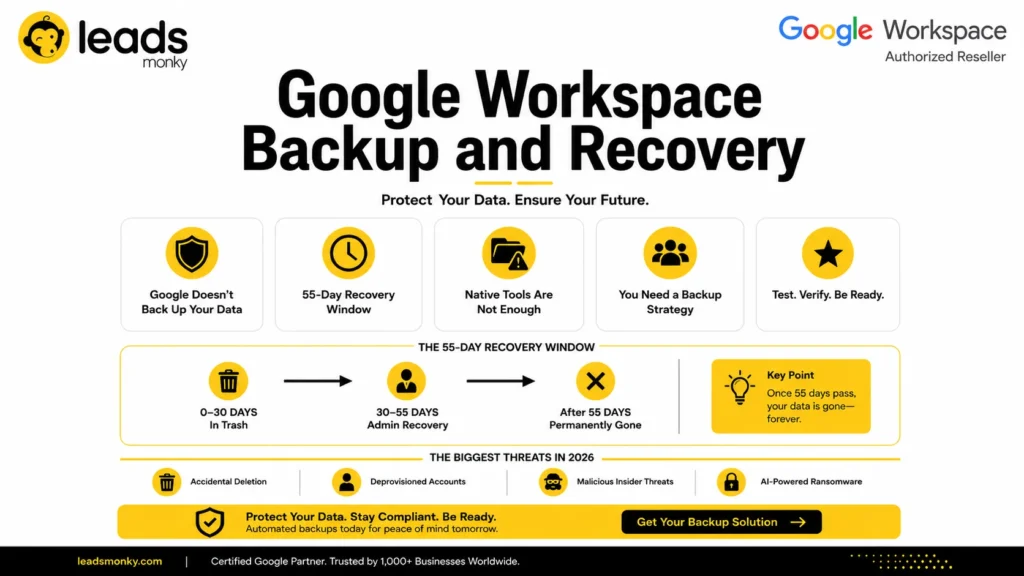
When a user or admin deletes data in Google Workspace, the following sequence applies. Deleted items move to Trash and remain recoverable by the user for 30 days. After 30 days in Trash, the data moves to a second recovery window available to Super Admins for 25 additional days. After the total 55-day window closes, the data is permanently deleted with no recovery path through Google — not through support, not through escalation, not through any process.
The practical implication: if an employee deleted a critical project folder in January and the deletion was not noticed until March during a client review, that data is unrecoverable through native Google tools. This scenario is not unusual. Client deliverables, contract records, and project documentation frequently go unnoticed as missing for weeks or months after deletion.
According to the Cloud Security Alliance, 60% of businesses have experienced a data loss event in the past two years. For organizations without third-party backup, the 55-day window is the only buffer between a deletion event and permanent loss.
What Data Is at Risk Without Google Workspace Backup?
Every major data type in Google Workspace is vulnerable to the same 55-day recovery limitation.
Gmail contains years of client conversations, contract negotiations, vendor communications, and business decisions made over email. A single user accidentally purging their inbox — or a compromised account used to delete messages — can eliminate an irreplaceable business record.
Google Drive stores documents, spreadsheets, presentations, and project files. Shared Drives can be deleted by any member with sufficient permissions. A team member removing a folder from a Shared Drive does so for every member simultaneously, and the 55-day clock starts immediately.
Google Calendar holds meeting records, appointment history, and scheduled commitments. Google Contacts stores your entire client and vendor relationship database. Google Meet recordings are stored in Drive and are deletable like any other Drive file.
When an employee leaves your organization and their Google Workspace account is deleted, all Drive files they owned that were not explicitly transferred or backed up are deleted along with the account. This is one of the most common and avoidable causes of permanent data loss in Google Workspace environments.
Google Vault Is Not a Google Workspace Backup Solution
This is one of the most persistent and dangerous myths in Google Workspace administration. Google Vault is an eDiscovery and archiving tool built for legal compliance — it is not a backup solution and cannot be used as one.
Vault is designed to help organizations find, hold, and export data for legal investigations and regulatory compliance. It does what it was designed to do very well. What it cannot do is restore accidentally deleted files, provide point-in-time recovery to a specific date, offer granular file-level restore for individual documents or email threads, recover from a ransomware attack, or provide full coverage for Calendar and Contacts data.
| Feature | Google Vault | Third-Party Backup |
|---|---|---|
| Restores accidentally deleted files | No | Yes |
| Point-in-time recovery | No | Yes |
| Granular file-level restore | Limited | Yes |
| Ransomware recovery | No | Yes |
| Full Calendar and Contacts coverage | No | Yes |
| Legal hold and eDiscovery | Yes | Varies |
Organizations on Business Plus or Enterprise plans that have Google Vault are protected for legal compliance purposes. They are not protected from data loss. Both tools are necessary for different reasons, and one does not substitute for the other.
Is There a Free Google Workspace Backup Solution?
Google Takeout is free and lets you export your Workspace data manually — but it is not a backup strategy for any business.
Google Takeout allows any user or admin to download a complete export of Gmail, Drive, Calendar, and Contacts as archive files. It costs nothing, requires no third-party tool, and is available to all Google Workspace accounts.
The limitations make it unsuitable as a primary backup approach for teams. Takeout is entirely manual — there is no automation, no scheduling, and no ongoing protection. Each export is a static snapshot that captures data at one moment in time. Restoring individual files from a Takeout archive requires manually locating and re-importing specific data from a compressed archive, which is operationally impractical for any meaningful data recovery scenario.
For the best Google Workspace backup approach for small businesses: Google Takeout as a supplementary export for occasional archiving, combined with an automated third-party solution that runs on a schedule and supports granular restore. The Takeout component costs nothing. The third-party component is the actual backup.
Free tiers of third-party tools exist but typically cap storage at minimal levels, exclude key Workspace apps from coverage, and do not offer automated backup scheduling — the single most important feature for practical data protection.
The Four Biggest Threats to Your Google Workspace Data in 2026
The risk landscape has shifted. These are the threats making backup non-negotiable for Google Workspace in 2026.
Accidental deletion remains the most common cause of Google Workspace data loss. It requires no malicious intent — a user permanently deletes a folder, a shared drive gets cleared, an inbox gets emptied. It happens in seconds and without automated backup it may not be discovered until after the 55-day window has closed.
Deprovisioned user accounts cause silent data loss that organizations frequently discover months after the fact. When a Google Workspace account is deleted, Drive files owned by that user are deleted unless explicitly transferred. Building a documented offboarding process that includes data transfer or backup before account deletion is the only protection against this.
Malicious insider activity presents a specific Google Workspace risk because admin-level access allows systematic deletion of data across accounts and Shared Drives. A disgruntled employee with sufficient permissions can delete substantial amounts of business data before resignation or termination. Without backup, that data may be gone before the incident is even discovered.
AI-powered ransomware is an emerging and specific 2026 threat. Modern ransomware increasingly targets cloud data directly through compromised user accounts rather than encrypting local files. A compromised Google account with sufficient Drive access creates a ransomware vector that bypasses traditional endpoint protection entirely.
Google Workspace Backup Policy: RTO and RPO Explained
Before selecting any backup solution, your organization needs to define two numbers that determine how much data you can afford to lose and how fast you need to recover it.
Recovery Point Objective (RPO) is how far back you can tolerate losing data. An RPO of 24 hours means your backup must run at least once per day — if a deletion happens at 11 PM and your backup runs at midnight, you lose up to 23 hours of data. An RPO of 4 hours means backup frequency must match that interval.
Recovery Time Objective (RTO) is how quickly your organization needs to be operational after a data loss event. A 2-hour RTO means your backup solution must be capable of restoring the necessary data within 2 hours of discovering the loss — which requires granular file-level restore capability rather than full-account restore only.
For most small and medium businesses as a Google Workspace backup policy baseline: RPO of 24 hours or less requiring daily automated backup at minimum, and RTO of under 4 hours requiring granular restore capability. Regulated industries typically need tighter parameters — HIPAA-covered healthcare organizations commonly require RPO of 4 hours and RTO of 2 hours for systems handling electronic Protected Health Information.
Compliance Requirements That Make Google Workspace Backup Mandatory
For regulated industries, Google Workspace data backup is not optional — it is a documented legal requirement.
HIPAA Section §164.308(a)(7) explicitly requires covered entities and business associates to have a data backup plan that creates and maintains retrievable exact copies of electronic Protected Health Information. Google’s Business Associate Agreement covers Google’s infrastructure obligations. Your backup implementation is yours. An organization that relies on Google’s 55-day native recovery window as its HIPAA backup plan is not in compliance.
GDPR requires organizations to maintain data integrity and availability, and to support the right to erasure — meaning your backup retention policy must include mechanisms for expiring old backup versions according to your documented retention schedule. Non-compliance penalties reach up to €20 million or 4% of annual global turnover.
FINRA requires financial services firms to retain business communications for a minimum of 3 years, with the first 2 years in an easily accessible format. Google Workspace retention policies can be configured to meet this, but the backup infrastructure supporting retrieval of specific communications within that window requires appropriate tooling.
Google’s infrastructure compliance certifications cover Google’s side of the Shared Responsibility Model. Your data backup plan, retention configuration, and restore capability are your compliance obligation regardless of which certifications Google holds.
Best Google Workspace Backup Solutions Comparison 2026
Here is a neutral comparison of the leading Google Workspace backup and recovery solutions based on current features and pricing.
| Tool | Backup Frequency | Key Strength | Starting Price |
|---|---|---|---|
| IDrive | 3x daily | 10 TB storage per seat, immutable backups | $20/seat/year |
| Acronis | 3x daily | Built-in malware scanning on backup data | Contact for pricing |
| Backupify (Datto) | 3x daily | SOC 2 Type II certified, enterprise compliance | Contact for pricing |
| Afi.ai | Multiple daily | AI-driven ransomware detection | ~$3/user/month |
| Spanning Backup | Daily and on-demand | Easy setup, AI deletion monitoring | Contact for pricing |
| CubeBackup | Daily | On-premises storage option, affordable | $5/user/year |
Key features to prioritize when evaluating any Google Workspace backup tool: automated backup scheduling with minimum daily frequency, point-in-time recovery to specific dates, granular file-level restore capability rather than full-account-only restore, AES-256 encryption for data in transit and at rest, immutable backup storage that ransomware cannot encrypt or delete, and geographic storage region options for GDPR data residency compliance.
On the open-source front: several open-source Google Workspace backup tools exist for technically capable teams, including GAM-based export scripting and community-maintained backup frameworks. These require technical setup and maintenance resources and are generally appropriate for teams with dedicated IT staff rather than small businesses without in-house technical expertise.
💡 Need help setting up Google Workspace?
We’re certified Google partners offering 64% off + free professional setup ($2,000 value). Used by 1000+ companies.
Get your quote →How to Set Up Google Workspace Backup: Step-by-Step
Once you have selected your backup tool, the standard setup process follows these steps.
Connect your Google Workspace Admin account to the backup platform using OAuth authorization — this is secure and does not involve password sharing. Select which users and data types to include in the backup scope: Gmail, Google Drive, Shared Drives, Google Calendar, and Google Contacts at minimum. Set your backup schedule based on your RPO — minimum once daily for most businesses, three times daily for critical data or regulated environments.
Configure your retention policy — how many days or versions of backup to retain. Thirty days minimum, one year or more for compliance-regulated industries. Set your geographic storage region if GDPR data residency requirements apply to your organization. Run your first manual backup and verify it completes successfully without errors in the backup tool’s dashboard.
Then do the step most organizations skip: test a restore.
How to Test Your Google Workspace Backup Recovery
A backup that has never been tested is not a backup. It is documentation that a process was configured. These are meaningfully different things.
Select a random Gmail thread from a test account and restore it. Select a random Drive file and restore it to a test location. Attempt a full account restore for a sample user. Confirm the restored data opens correctly and matches the original. Measure the time from initiating the restore to completion and verify it meets your documented RTO.
Run a full restore test at minimum once per quarter. Document the results — the date, the test scope, the outcome, and the recovery time. For organizations subject to HIPAA, GDPR, or SOC 2 audit requirements, documented evidence of successful restore tests is part of what auditors will request. Configuring backup without testing and documentation satisfies neither the operational nor compliance purpose of having backup.
Conclusion
Google Workspace backup and recovery requires intentional action because Google’s Shared Responsibility Model means your data protection is your responsibility from the moment your Workspace account is active. The 55-day native recovery window is the only protection Google provides against deletions, and it closes permanently once it passes.
The right sequence for any business: start with a properly configured Google Workspace environment — correct DNS authentication, appropriate admin permissions, and documented offboarding procedures. Layer on an automated third-party backup solution with daily scheduling and granular restore capability. Test the restore process quarterly and document the results. That sequence, followed consistently, is the difference between a recoverable incident and a permanent loss.
For teams that need help getting the Google Workspace foundation right before backup is added, Leads Monky is a certified Google authorized reseller trusted by 1,000+ companies globally — handling complete setup including DKIM, DMARC, SPF, and admin configuration at no extra charge, with Business Starter available from $3/user/month. Visit leadsmonky.com/google-workspace for details.
Frequently Asked Questions
Does Google Workspace automatically back up data?
No. Google backs up its own infrastructure under the Shared Responsibility Model. Accidental deletions, ransomware attacks through compromised accounts, malicious insider activity, and deprovisioned account data loss are your organization’s responsibility to protect against through dedicated backup tooling.
What is the native recovery window for deleted Google Workspace data?
Deleted items remain in Trash for 30 days. After Trash, Super Admins have 25 additional days to recover data through the Admin Console. The total maximum native recovery window is 55 days. After that, data is permanently deleted with no recovery path.
Is Google Vault a backup solution?
No. Google Vault is an eDiscovery and archiving tool built for legal compliance. It cannot restore accidentally deleted files, does not provide point-in-time recovery, and does not cover all Workspace data types. Vault and backup serve different purposes and neither substitutes for the other.
What is the best way to back up Google Workspace for a small business?
Automated third-party backup with at least daily scheduling and granular file-level restore capability is the recommended approach. Tools like Backupify, Afi.ai, Spanning Backup, and CubeBackup all support Google Workspace. Google Takeout can supplement as a free manual export but is not sufficient as a standalone backup strategy.
Is there a free Google Workspace backup solution?
Google Takeout provides free manual data export but has no automation, no scheduling, and no practical path to restoring individual files. Free tiers of third-party tools exist but typically exclude key Workspace apps and lack automated scheduling. For any business, a paid automated tool is the appropriate backup foundation.
What is RPO and RTO in Google Workspace backup?
Recovery Point Objective (RPO) is how much data your organization can afford to lose — it determines minimum backup frequency. Recovery Time Objective (RTO) is how quickly you need to be restored after a loss event — it determines what restore capability your backup tool must provide. Most small businesses target RPO of 24 hours and RTO under 4 hours.
Is Google Workspace backup required for HIPAA compliance?
Yes. HIPAA Section §164.308(a)(7) explicitly requires covered entities and business associates to maintain a data backup plan with retrievable copies of electronic Protected Health Information. Google’s BAA covers Google’s infrastructure. Your backup implementation is a separate compliance obligation.
Ready to Fix Your Cold Email?
What you get:
- ✓ Complete infrastructure: 30 emails + 10 domains
- ✓ 10,000 personalized emails monthly
- ✓ First consultations in 5–6 weeks