
Quick Answer
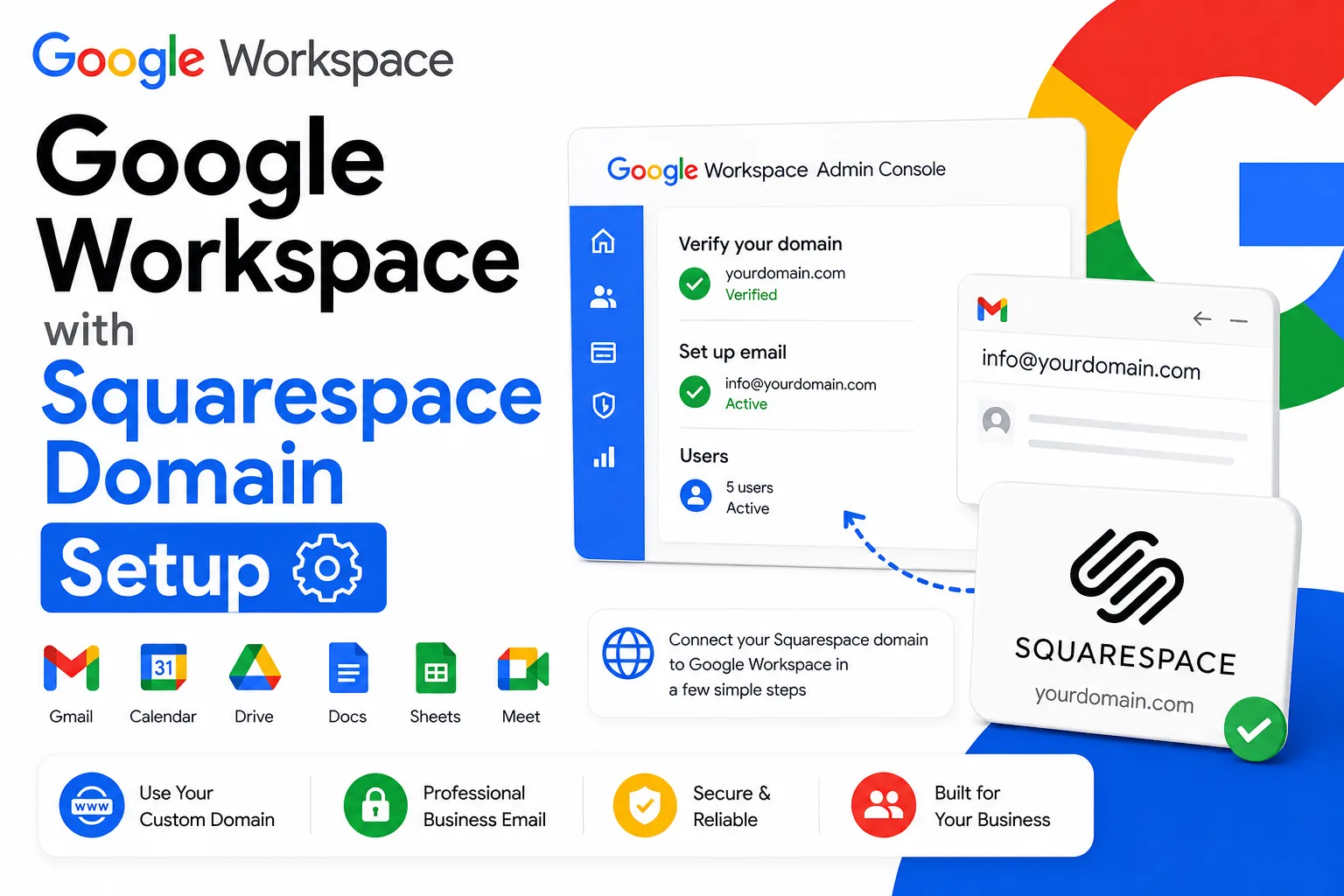
To verify a GoDaddy domain with Google Workspace, sign in to the Google Admin console, copy the TXT verification record Google generates for your domain, add that record inside GoDaddy’s DNS settings, then return to Google and confirm. Most GoDaddy domains verify within 10 to 60 minutes once the record is added correctly.
Verifying a GoDaddy domain with Google Workspace confirms you actually own the domain before Google activates business email on it. The process centers on a TXT record that Google generates inside the Admin console, which you paste into GoDaddy’s DNS settings, then confirm back in Google. Most domains verify within 10 to 60 minutes, though DNS changes can occasionally take up to 72 hours to register everywhere. This guide covers the manual TXT record method, GoDaddy’s automatic verification option, what typically causes verification to fail, and the steps to take once your domain is confirmed.
Word count: 95 words. Primary keyword in line 1. Semantic entities: TXT record, DNS, Admin console, domain verification, GoDaddy. Evergreen language: yes.
What Domain Verification Confirms

Domain verification proves to Google that you control the domain you are setting up Google Workspace on, not that anyone else does. Without it, Google will not activate Gmail or the rest of Workspace on that domain, since doing so would let someone impersonate a business they do not own.
You prove ownership by adding a record Google generates to your domain’s DNS settings, somewhere only the actual domain owner or registrar account holder can make changes. Google then checks for that record and, once it finds it, unlocks the rest of the setup process.
Before You Start: What You Need
You will need three things: a GoDaddy account with access to DNS settings for the domain, a Google Workspace admin account, and the domain name itself. If you do not have a Google Workspace account yet, you can sign up through an authorized reseller like Leads Monky before starting this process, which also gives you a support contact if verification runs into trouble.
If your domain is registered somewhere other than GoDaddy, the same TXT record concept applies but the interface differs. Namecheap users can follow the Namecheap domain verification guide instead, since the DNS panel layout is different from GoDaddy’s.
💡 Need help setting up Google Workspace?
We’re certified Google partners offering 64% off + free professional setup ($2,000 value). Used by 1000+ companies.
Get your quote →Method 1: Automatic Verification Through GoDaddy
Google can sometimes verify your domain automatically if it detects your domain is hosted with GoDaddy and you are willing to sign in to GoDaddy directly from Google’s setup tool.
- In the Google Admin console, open the domain setup tool and choose your domain.
- If Google offers a Verify with domain host option, click it. This option only appears when Google determines your domain is eligible.
- Sign in to your GoDaddy account when prompted.
- Click Authorize or Connect to let Google check your DNS records directly.
- Google verifies the domain automatically once authorization completes.
This is the fastest method when it is available, since it skips manual DNS editing entirely. If you do not see this option, move on to the manual TXT record method below.
Method 2: Manual TXT Record Verification
This is the method Google recommends when automatic verification is not available or you prefer to control the DNS change yourself.
Step 1: Get your verification code from Google
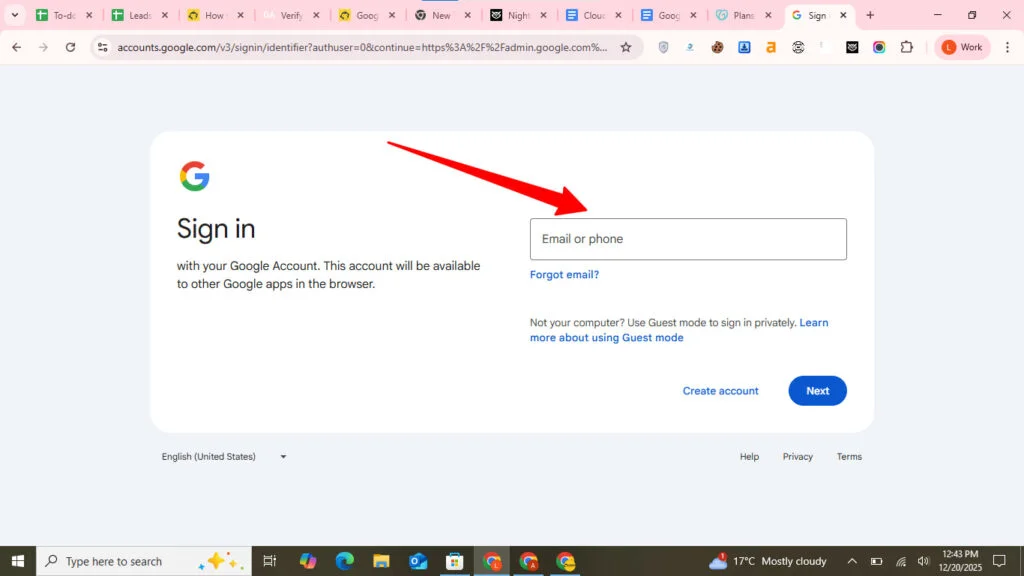
- Go to admin.google.com and sign in with your Google Workspace admin account.
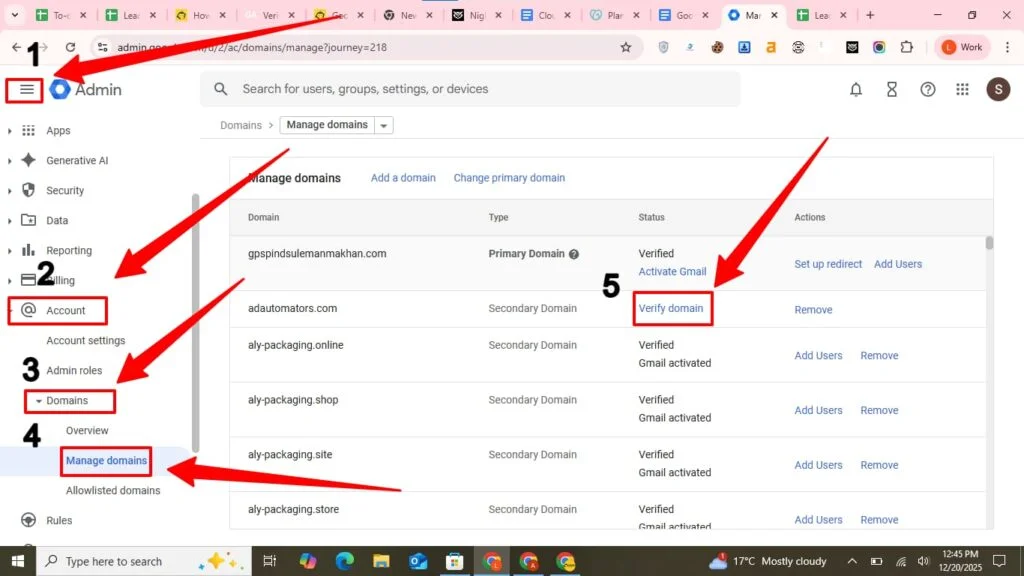
- Open the menu, then go to Account, then Domains, then Manage domains.
- Click Verify domain next to the domain you want to confirm.
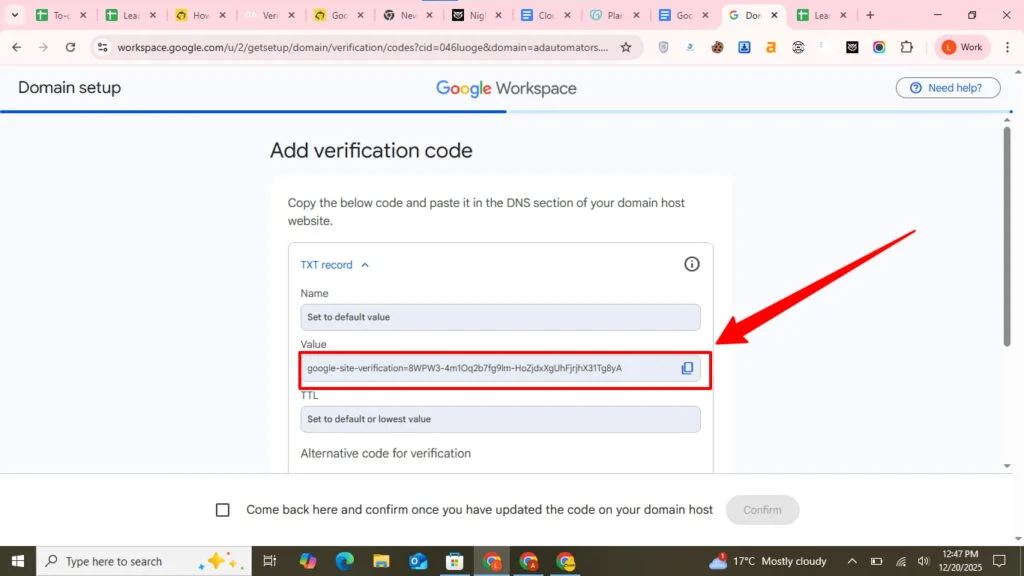
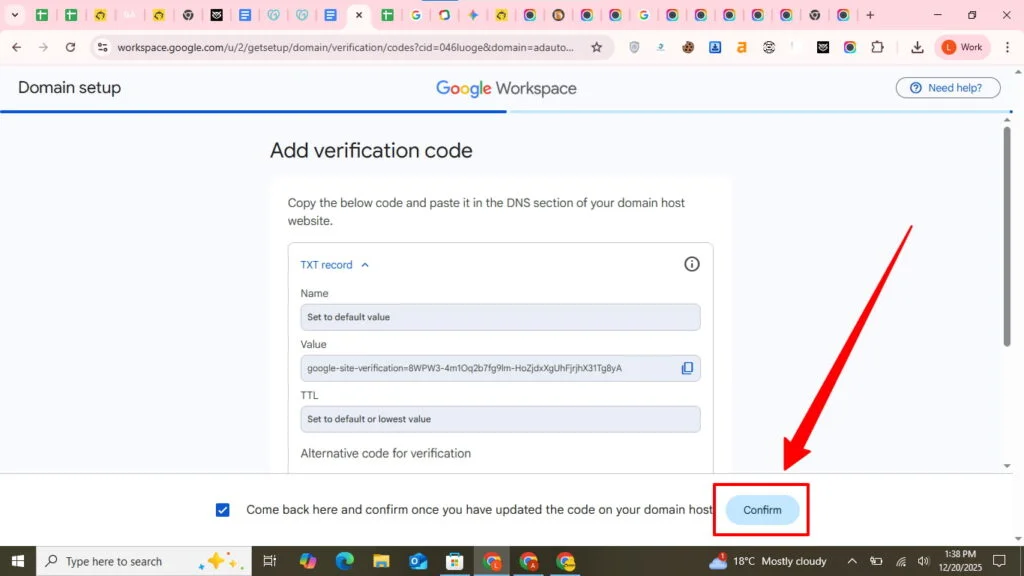
- Choose the TXT record verification method and click through to the value screen.
- Copy the full value, including the “google-site-verification=” prefix. Keep this browser tab open.
Step 2: Add the TXT record in GoDaddy
- Open a new tab and sign in to your GoDaddy account.
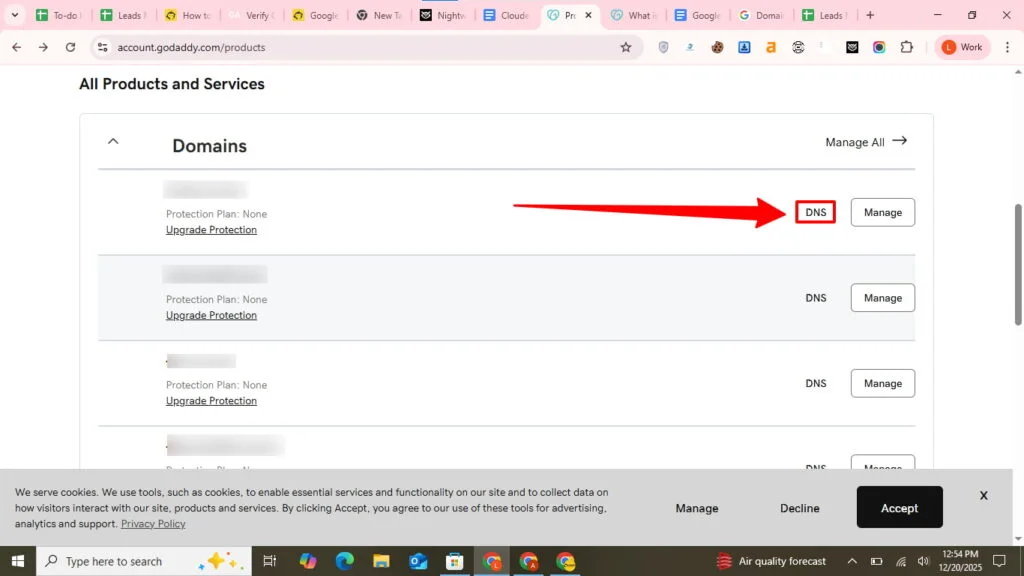
- Click your profile icon, then My Products.
- Find your domain and click DNS.
- Scroll to the DNS Records section and click Add.
- Set Type to TXT, Name to @, and Value to the code you copied from Google. Leave TTL at its default of 1 hour.
- Click Save.
Step 3: Confirm in Google Workspace
- Return to the Google Admin console tab.
- Click Verify or Confirm.
- If successful, you will see a confirmation message and can continue to activate Gmail. If Google cannot find the record yet, wait 30 to 60 minutes and try again before assuming something is wrong.
Method 3: CNAME Record Verification
If TXT verification is not working for your setup, Google also supports a CNAME record as an alternative.
- In the Google Admin console, click Switch verification methods and choose CNAME record.
- Google provides a unique label and a destination value.
- In GoDaddy DNS, add a new record with Type set to CNAME, Name set to the label Google gave you, and Value set to the destination Google provided. Leave TTL at its default.
- Save the record, return to Google, and click Verify.
Google also supports MX based verification for domains that do not already use MX records for email, though it only offers this option when it determines your domain is eligible.
How Long Verification Takes
Most GoDaddy domains verify within 10 to 30 minutes after the record is saved correctly, with 30 to 60 minutes being a normal upper range. Google’s own guidance allows up to 72 hours for DNS changes to be recognized everywhere, so a pending status for a few hours is not unusual and does not mean the setup failed. You can click Verify again as many times as needed; Google rechecks your DNS each time rather than penalizing repeated attempts.
Common Verification Errors and How to Fix Them
“We couldn’t find your verification record.” This is almost always a formatting issue rather than a broken domain. Confirm the Name field is set to @, the Value field contains the complete code including “google-site-verification=” with no extra spaces or quotation marks, and that you saved the record in the correct domain if you manage more than one.
“Domain already verified by another account.” Someone, possibly a past employee or a previous Workspace signup, already verified this domain under a different account. Try recovering that account through Google’s password reset flow, or contact Google Workspace support to request an ownership transfer if recovery is not possible.
“Invalid TXT record format.” Delete the existing TXT record in GoDaddy and add it again, double checking that Name is exactly @ and Value is the unedited code Google provided. A common mistake is trimming part of the code or adding manual quotation marks that GoDaddy does not require.
If your records look correct but verification still fails after 72 hours, use a DNS lookup tool to confirm the record is visible publicly, then contact GoDaddy support if it is not showing up, since that points to a DNS propagation issue on their end rather than a Google problem.
After Verification: Next Steps
Once Google confirms your domain, a few steps typically follow.
Activate Gmail. Click Activate Gmail in the Admin console to begin routing mail for your domain.
Set up MX records. Business email will not reach your inbox until Google’s MX records are added in GoDaddy DNS, pointing your domain’s mail delivery to Google’s servers.
Create user accounts. In the Admin console, go to Users and add accounts for your team so each person gets a professional email address on the verified domain.
Keep the TXT record in place. Removing it after verification can force you to redo the process later, so leave it exactly as it is.
Conclusion
Verifying a GoDaddy domain with Google Workspace comes down to one DNS record and a confirmation click, whether you use the automatic method or the manual TXT record process. Most domains finish within an hour, and the fixes for the handful of common errors above resolve the majority of stuck verifications. If you are still setting up Google Workspace and want help with verification, migration, and ongoing support in one place, Leads Monky is an authorized Google Workspace reseller serving 1,000+ companies across the USA, UK, UAE, Pakistan, and India. Visit leadsmonky.com/google-workspace to get started.
FAQs
How do I verify my GoDaddy domain with Google Workspace?
Copy the TXT verification code from the Google Admin console, add it as a TXT record in GoDaddy’s DNS settings with Name set to @, then return to Google and click Verify. Most domains confirm within an hour.
How long does GoDaddy domain verification take?
Most domains verify within 10 to 60 minutes. Google’s own guidance allows up to 72 hours for DNS changes to fully propagate, so a pending status shortly after saving the record is normal.
What if Google says it cannot find my verification record?
Double check that the TXT record’s Name field is @ and the Value field contains the complete code with no extra spaces or quotation marks, then wait 30 to 60 minutes and try verifying again.
Can I use automatic verification instead of a TXT record?
Yes, if Google detects your domain is eligible. Choose the Verify with domain host option in the setup tool, sign in to GoDaddy when prompted, and authorize the connection.
What happens if I do not verify my domain in time?
Google requires verification within 9 days of starting a trial or paid contract. An unverified primary domain can lead to automatic account cancellation within 21 days of signup.
Should I delete the TXT record after my domain is verified?
No. Leave the TXT record in your DNS settings permanently. Removing it can cause Google to ask you to reverify the domain later.
Ready to Fix Your Cold Email?
What you get:
- ✓ Complete infrastructure: 30 emails + 10 domains
- ✓ 10,000 personalized emails monthly
- ✓ First consultations in 5–6 weeks